
Due to the change in the VAT rate, users in some environments need to update the VAT statement settings themselves. This guide explains how to check the settings immediately after the year has changed. Please note that the settings need to be checked even if you do not use the 13.5 % VAT rate.
- If your company is not registered or has not applied for VAT registration, and there are no VAT-taxable entries in accounting, the settings do not need to be checked.
- If you have any questions about updating the settings, you can contact our customer support. We’ll be happy to help!
- Check the VAT statement settings
- Go to Accounting > VAT statement > Actions > View VAT statement settings.
- Check the settings starting from 1.1.2026. The settings before 31.12.2025 do not need to be changed.
- If there are empty fields in the columns “Account rules” or “VAT types” on the statement settings, the settings need to be updated.
- Actions
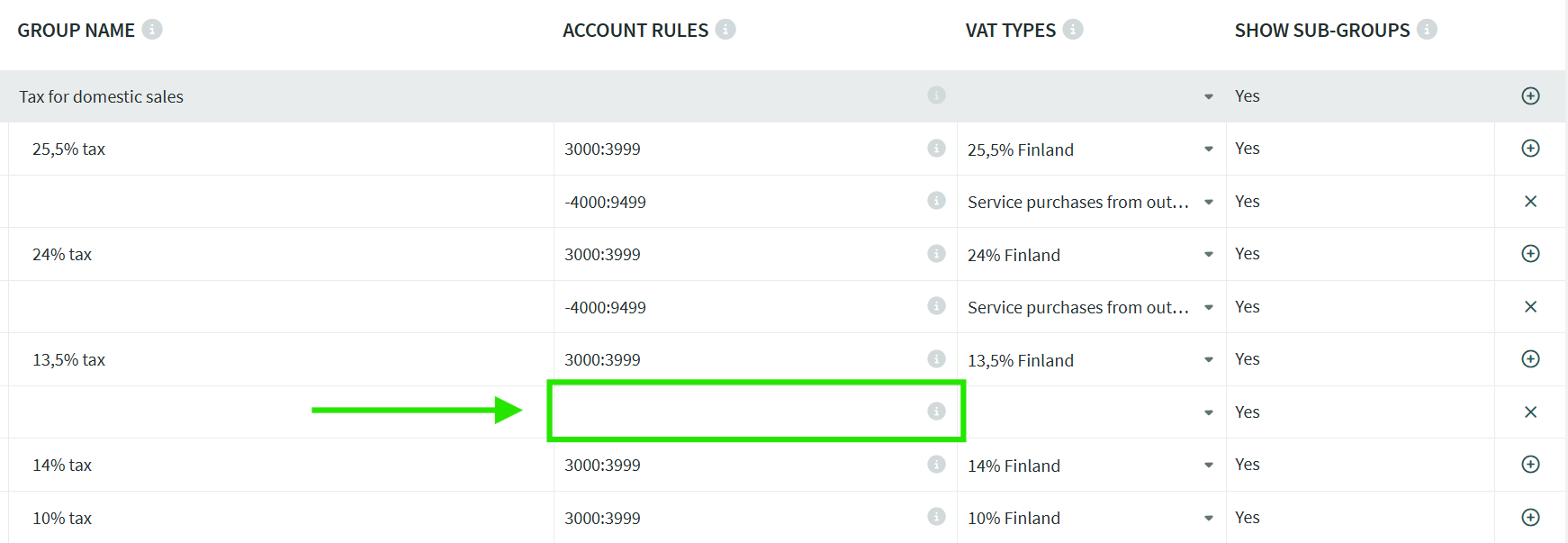
- If “Account rules” is empty on the new 13,5% row of the VAT statement, load the default report settings or add the accounting accounts and other required information to the statement manually.
- If “VAT types” is empty and the account definition is “-4000:9499”, delete the row.
- If the account definition is “.4000:9499” and the VAT types column contains incorrect information (e.g. “0% Triangular transactions” or “0% Metal and construction services purchases”), delete the row or correct the VAT type to the appropriate one.
- Restoring the default settings
- Click on the right-hand side Actions > Restore statement default settings.
- After restoring, check that there are no empty fields in the columns “Account rules” or “VAT types” on the statement.
- Custom settings
- Add the sales accounts to the new row in the empty field in the “Account rules” column.
- Add the VAT type to the “VAT types” column if necessary.
DETAILED INSTRUCTIONS
1. Check the settings under Accounting > VAT statement > Actions > View VAT statement settings.


- Check the settings starting from 1.1.2026.
- The settings before 31.12.2025 do not need to be changed.
2. Find empty fields
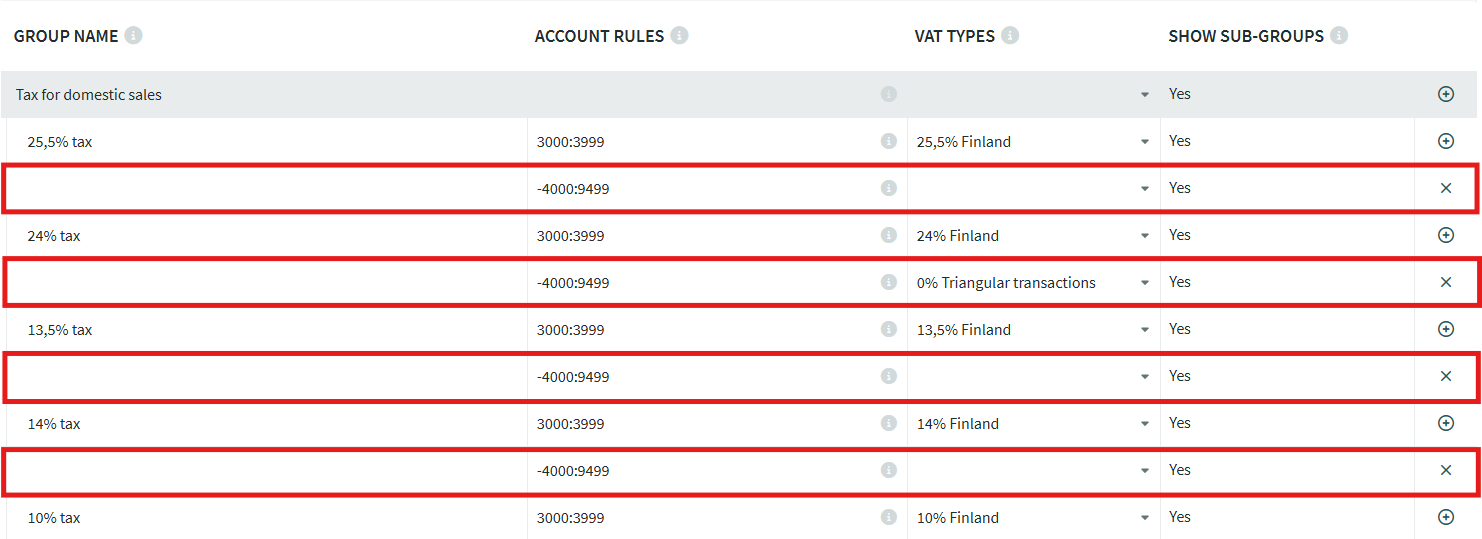
- Check that there are no empty rows, empty fields or incorrect information in the columns:
- Account rules
- VAT types
- If there are empty fields or incorrect information, any unnecessary rows should be deleted.
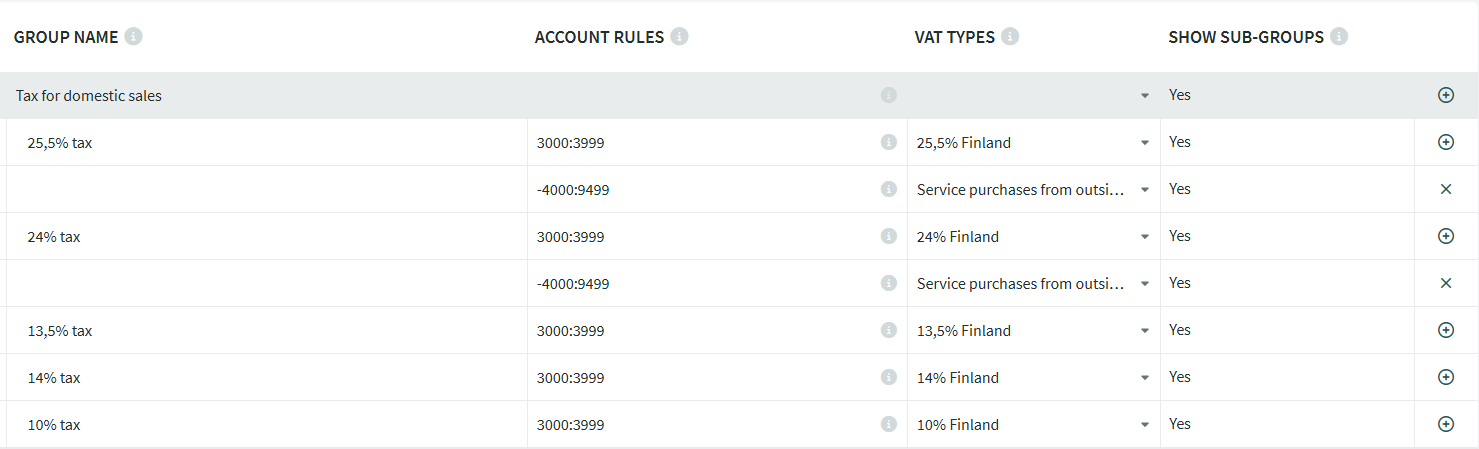
If the company uses the VAT rate “Service purchases from outside EU”, the VAT statement settings may look like this after the corrections. If this VAT is not in use, the rows can be deleted.
4. If the “Account rules” column is empty on the new 13,5 % row, the settings need to be updated.
There are two options for updating the settings, depending on whether you have previously made changes to the VAT statement settings yourself.
- Restoring new default settings
- The default settings are restored quickly, and can be supplemented later if necessary.
- Manual settings update
- Suitable if you have made many changes to the chart of accounts, VAT types, or VAT statement settings in the program.
1. OPTION – Restoring new default settings
If you have not previously modified the VAT statement settings and are using the program default settings, you can easily restore the new default settings. This is the recommended way to ensure that the VAT statement functions correctly.
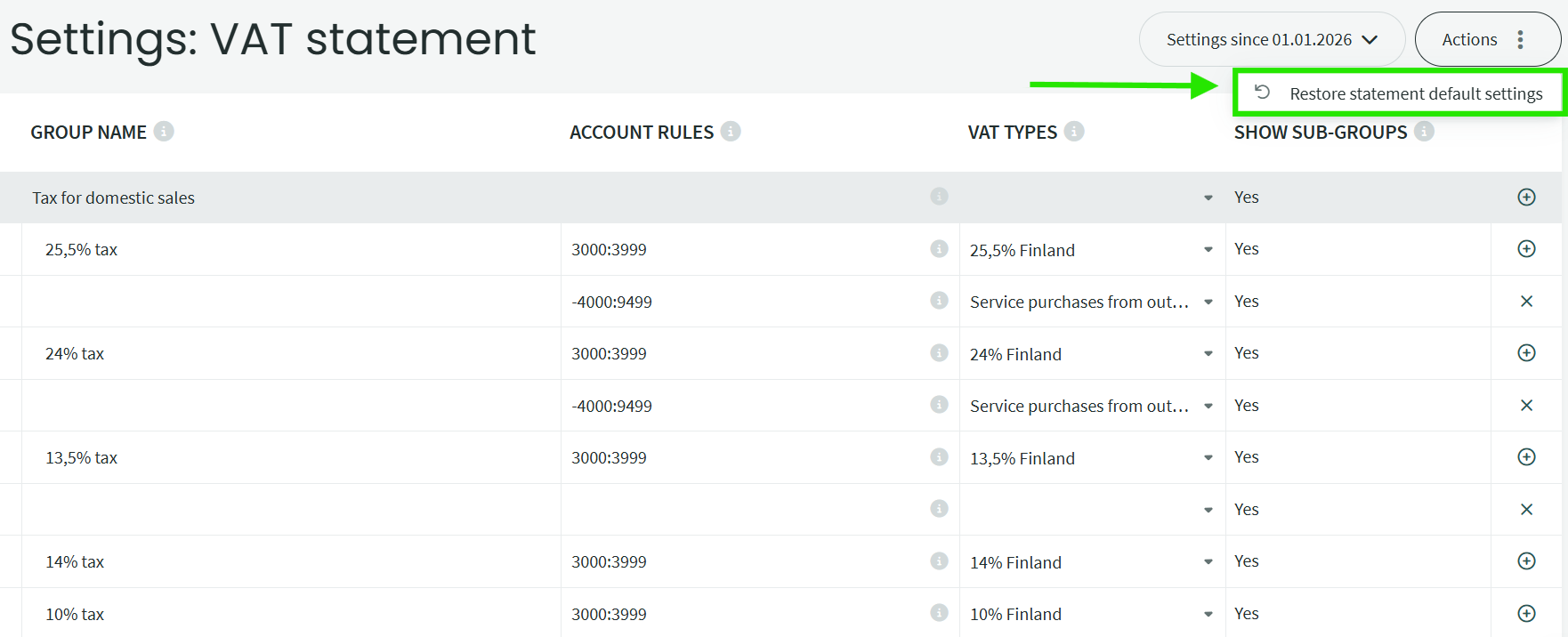
- Click on the right-hand side Actions > Restore statement default settings.
- This loads the program’s new default settings into the VAT statement.
2. OPTION – Manual settings update
If you have previously made changes to the VAT statement settings yourself (i.g., due to a customized chart of accounts or other special settings), you can choose to manually fill in the empty fields on the VAT statement instead of loading the new default settings.
1. Add the sales accounts to the new row in the empty field in the “Account rules” column.
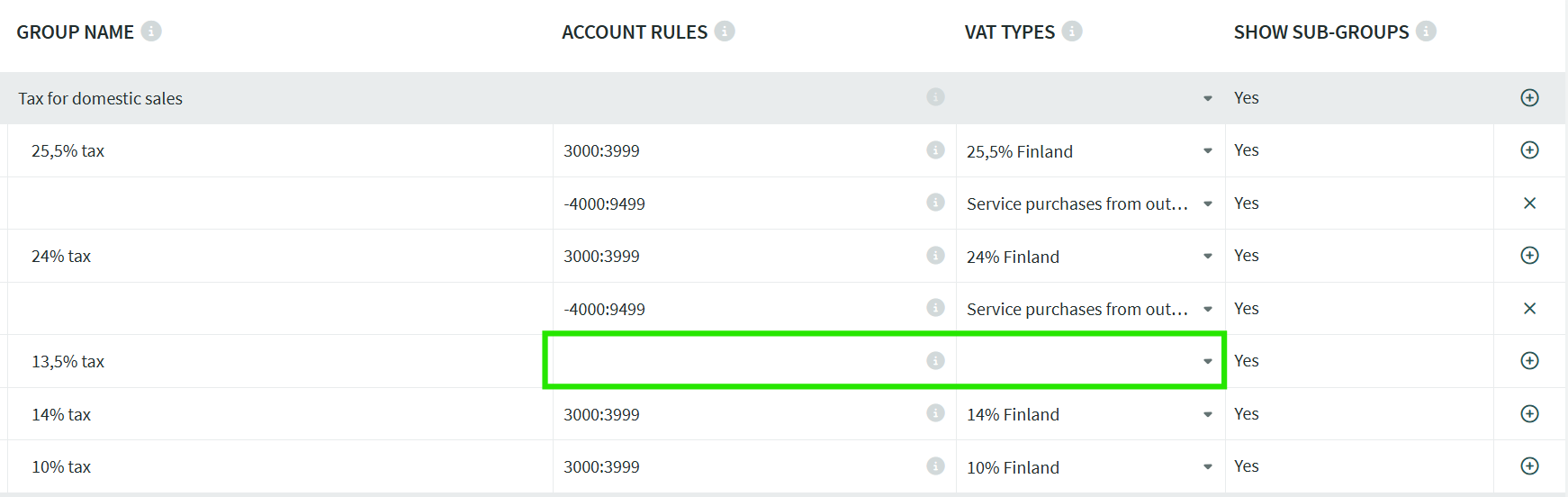
- The rows are located under:
- Tax for domestic sales
2. If you are using the same accounts as with the old VAT rate
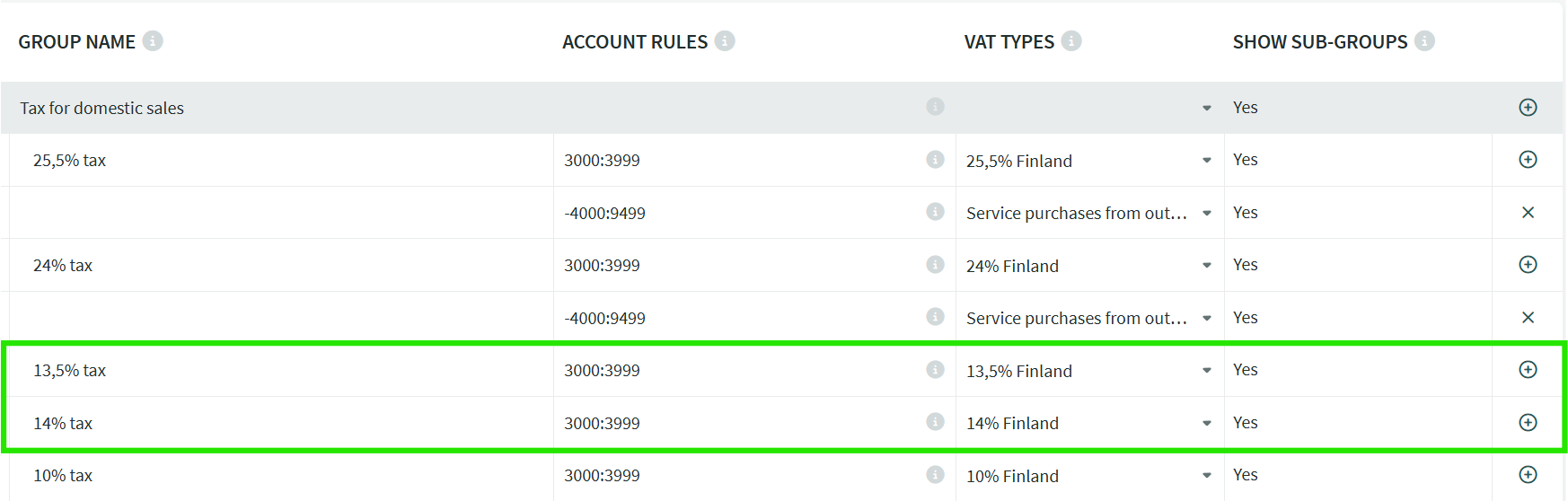
- Enter the same account as the 14% VAT row.
- Also fill in the “VAT types” column and use the correct VAT rate on entries and invoices.
3. If you create a new account for 13,5% VAT sales
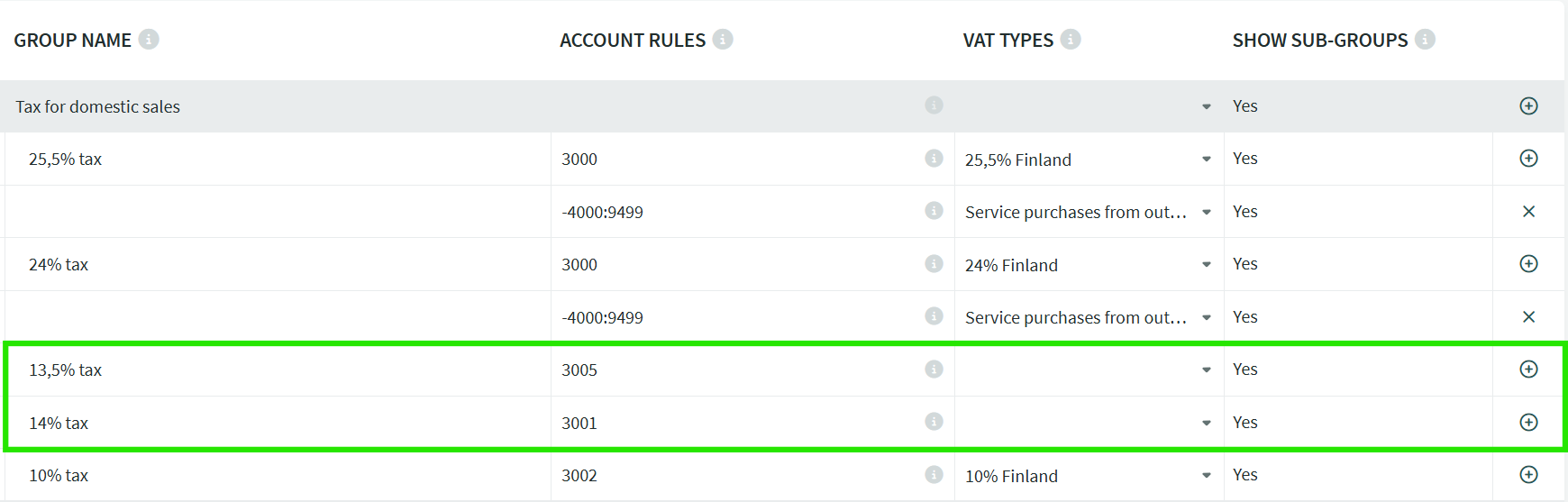
- Leave the “VAT type” column empty.
Once you have completed the account information, save the settings at the bottom of the page.
Leave A Comment?