
This guide explains how the accounts receivable ledger works in SimplBooks and what information it provides.
Accounts receivable shows all open sales invoices and unallocated payments recorded in the software within a defined date range. By default, the accounts receivable view displays invoices that are currently open.
Want to learn more?
Read more on our blog: Accounts payable and receivable in 5 minutes
1. You can find the accounts receivable ledger under Reports > Accounts Receivable
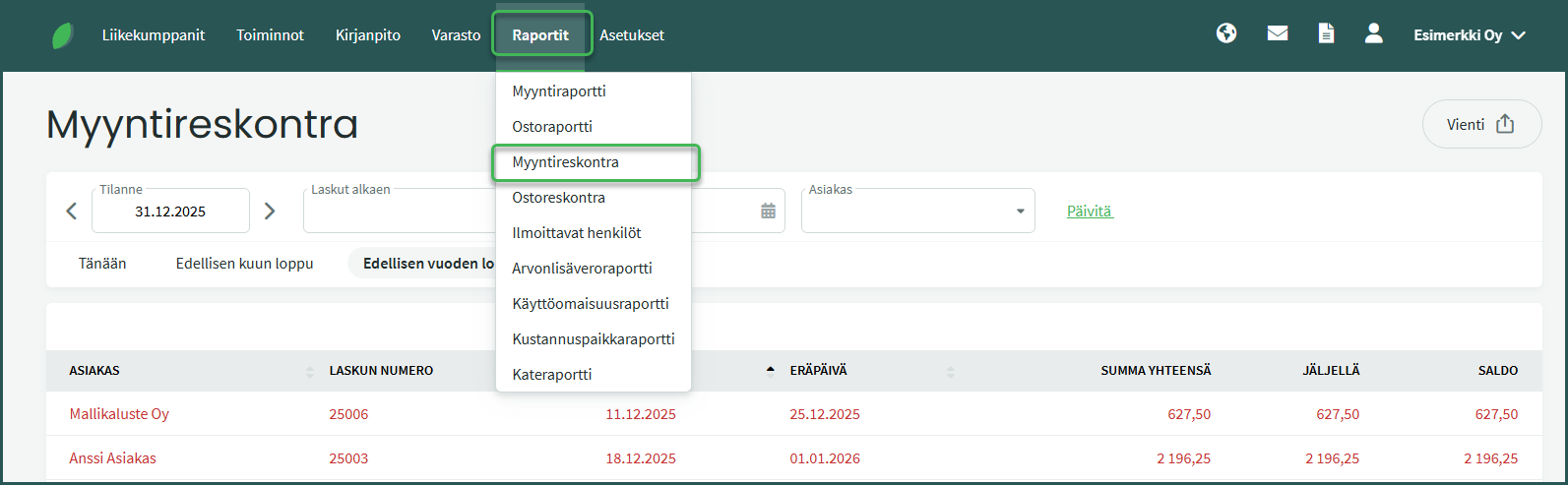
The accounts receivable ledger displays all unpaid and partially paid invoices.
- Invoices are grouped by customer, and you can also filter the view by customer if needed.
- Invoices are shown in chronological order, oldest invoice first.
- Unallocated payments are shown as a total sum per customer.
- If the “Total amount” and “Remaining” values differ, the invoice has only been partially paid.
- You can click to open invoices for a more detailed view.
2. You can view open invoices at different points in time by entering your desired date in the As of field.
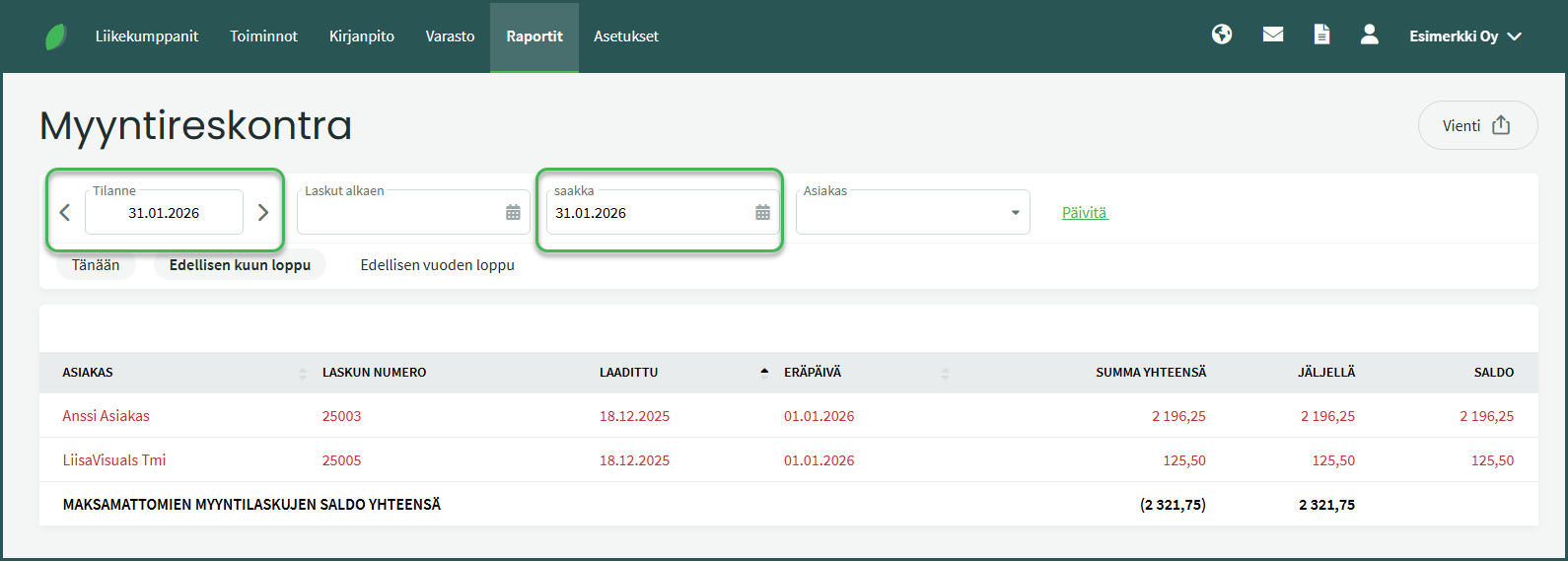
For example, for year-end financial statements you can generate the accounts receivable report by entering the last day of the financial year in the field.
3. You can export the report from the top-right corner via “Export”
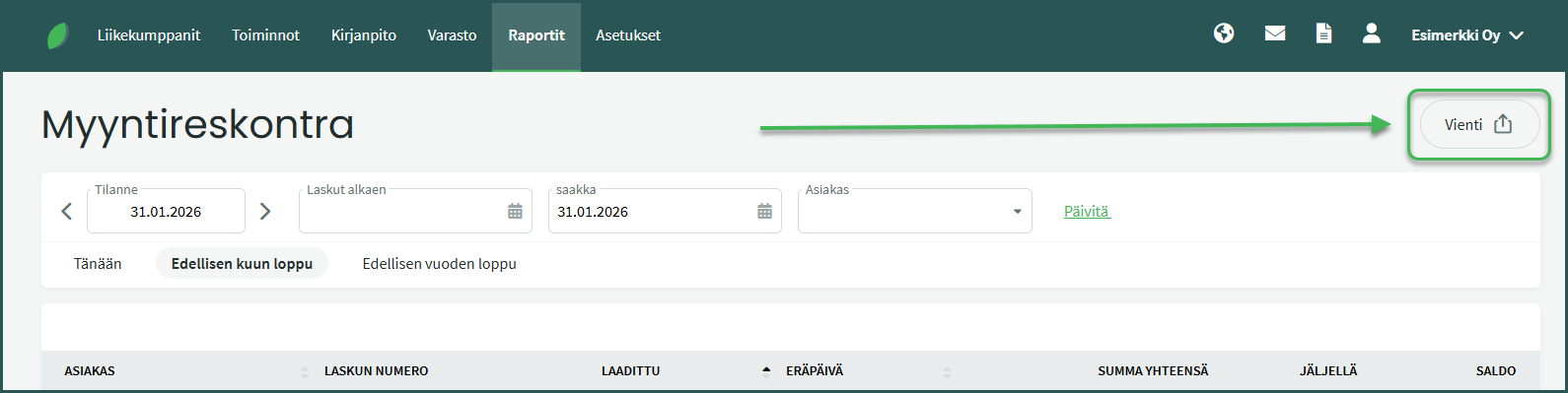
You can save the report in PDF, CSV, or Excel format, or print it via the print preview.
Leave A Comment?