
This guide explains how to add your company’s details to invoices and other documents
The details saved in the company profile appear automatically on sales invoices, quotes, and other documents. This means that information you save in the profile — such as the company name, contact details, and VAT number — is transferred automatically to documents without any additional steps. 1. Edit the company profile under Settings > Company Profile 2. Enter the desired details Read more about setting up a bank account here.
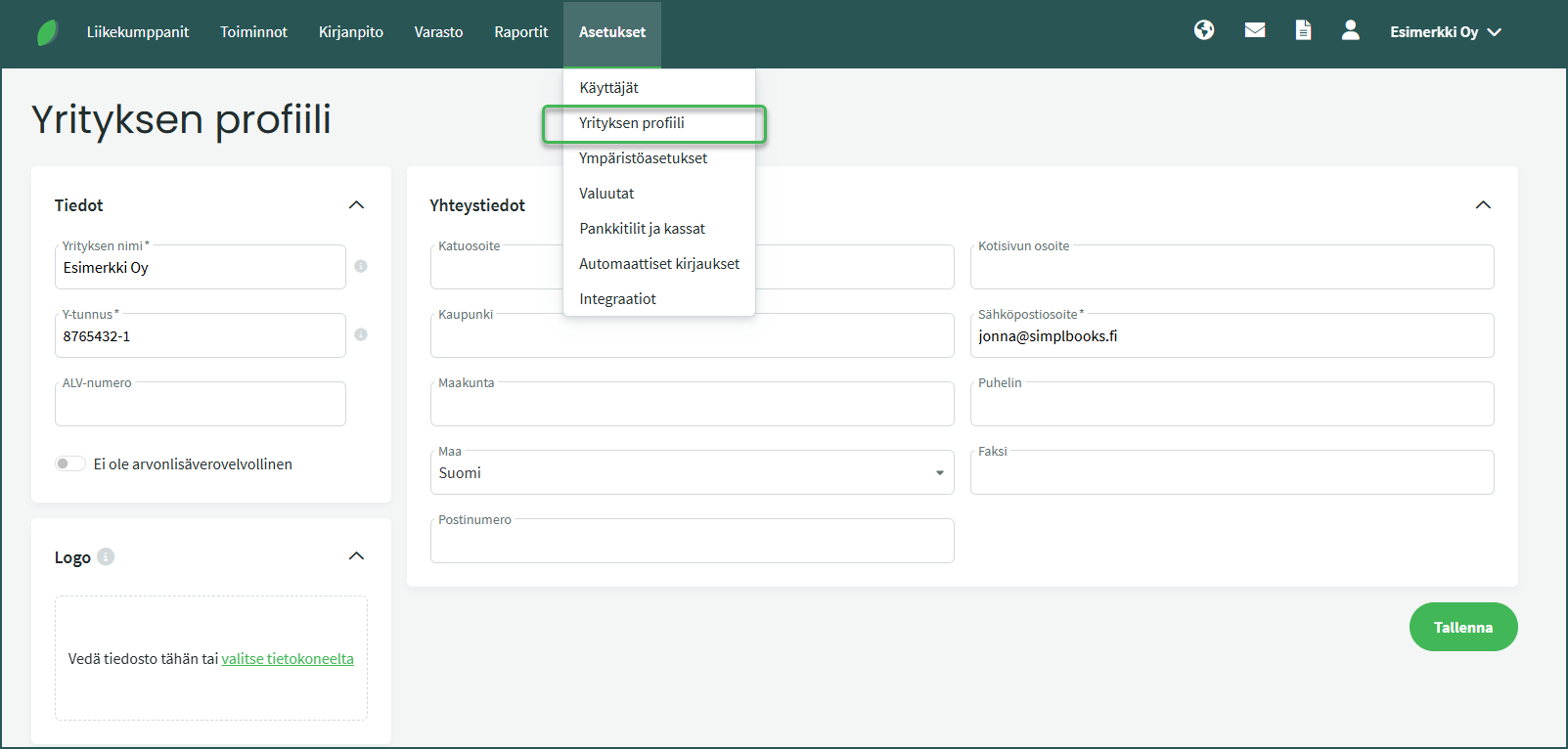
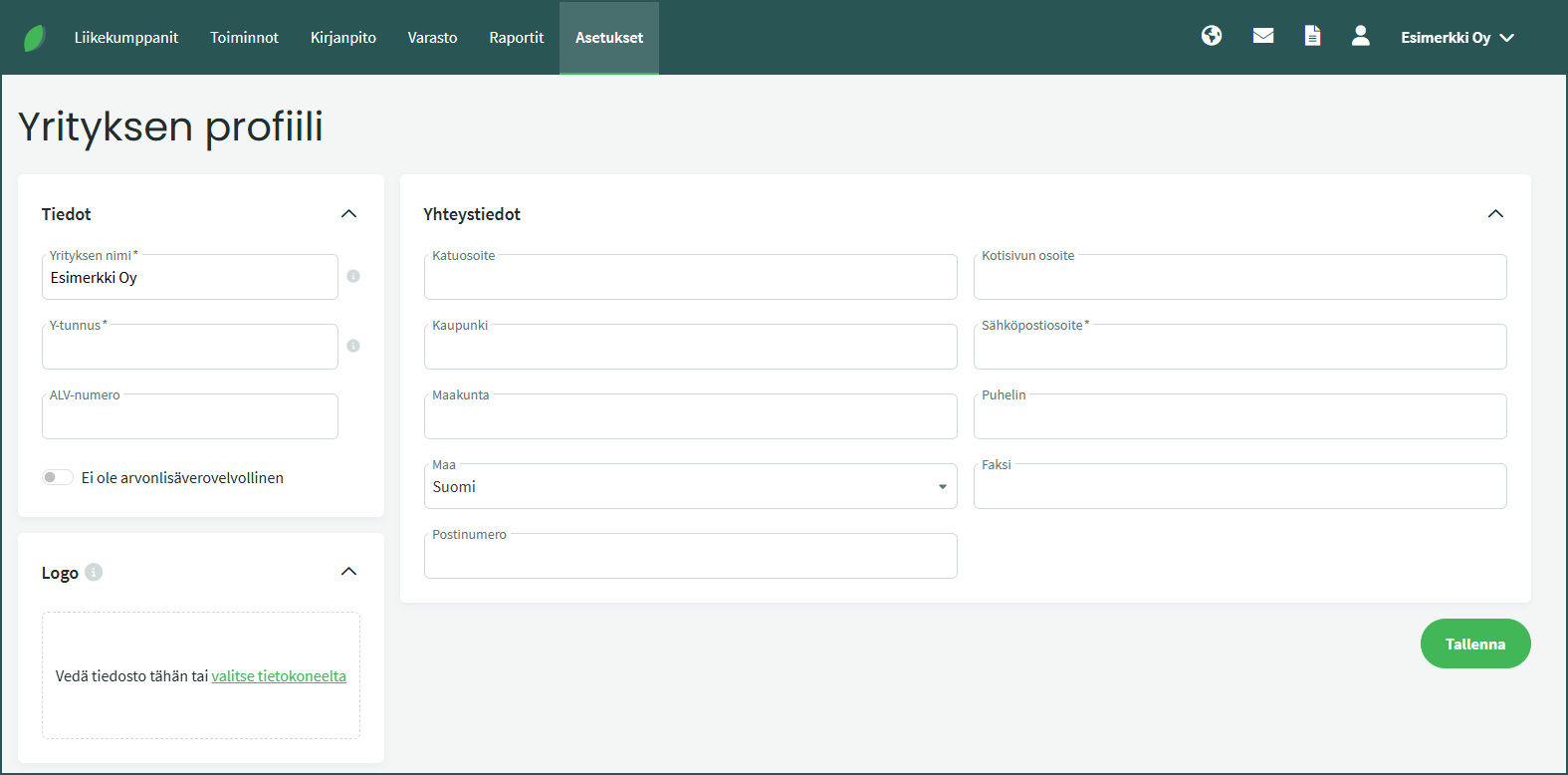
A VAT number must be added if your company engages in international trade. The Finnish VAT number is formed by adding the country code FI in front of the business ID and removing the hyphen.
→ For example, business ID 1234567-8 becomes VAT number FI12345678.
The maximum size for the company logo is 50 KB. Allowed file formats are jpg, jpeg, png, and gif. When you save the profile, the logo appears in a small size in the company profile. You can then add the logo to documents such as the sales invoice template.
In the company contact details section, you can add the information you want to appear on your company’s invoices, quotes, and other documents.
A maximum of three bank accounts can be displayed on an invoice.
Leave A Comment?