
This guide explains how to use cost centres in SimplBooks and how to generate cost centre-specific reports.
Cost centre accounting, also known as project accounting, allows you to track the income and expenses of a specific cost centre. It enables you to compare different projects with each other, for example.
When should cost centres be used?
Cost centres are useful when you want to track the finances of different parts of your business separately. They are particularly helpful for businesses with multiple lines of business or trade names whose activities you want to analyse independently. Cost centres are also well-suited to project-based operations, such as the construction industry, when you want to track the income and expenses of different projects separately.
How are cost centres organised in SimplBooks?
In SimplBooks, cost centres can be created at two levels: as main cost centres and sub-cost centres. See the guide for adding cost centres here.
Want to know more?
Read more on our blog: Cost centres explained in plain language
USING COST CENTRES
Before you can add cost centres to an invoice, you must first set up cost centres in the software. See the guide for adding cost centres here.
Cost centres can be added to:
- Purchase invoices and payments
- Sales invoices and receipts
- Accounting journal entries
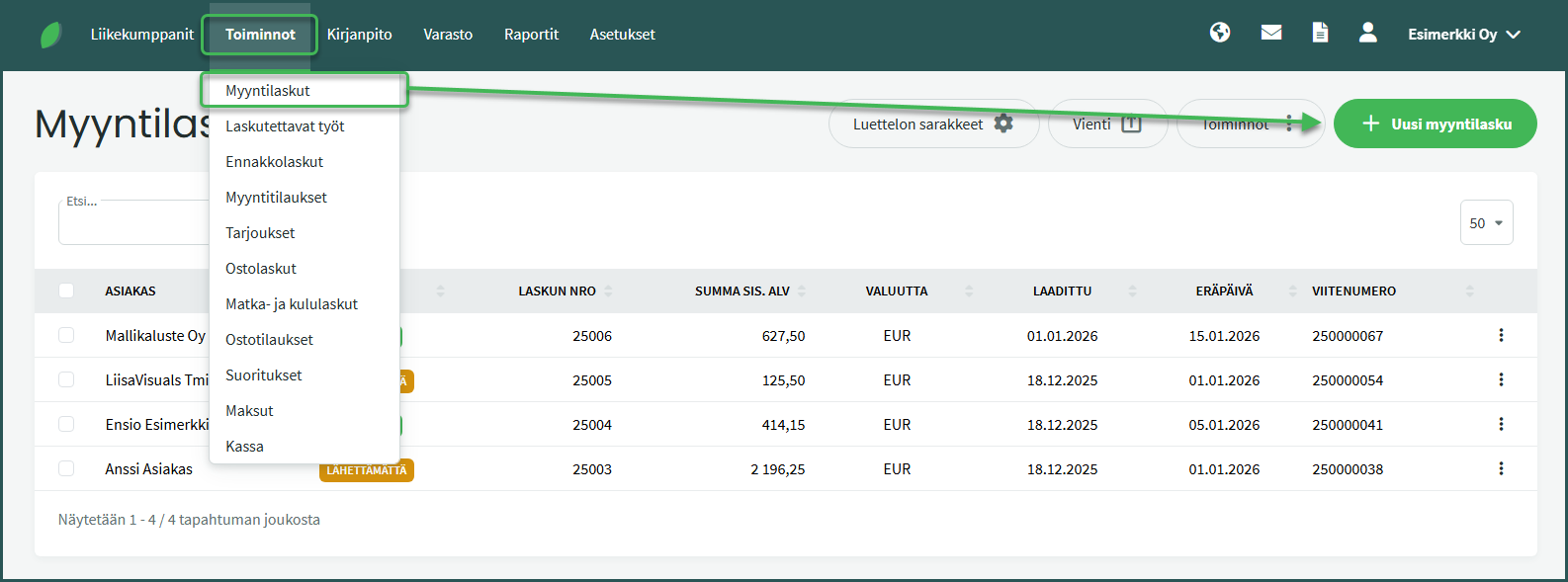
1. Add a cost centre to a new sales invoice from Operations > Sales Invoices > New Sales Invoice
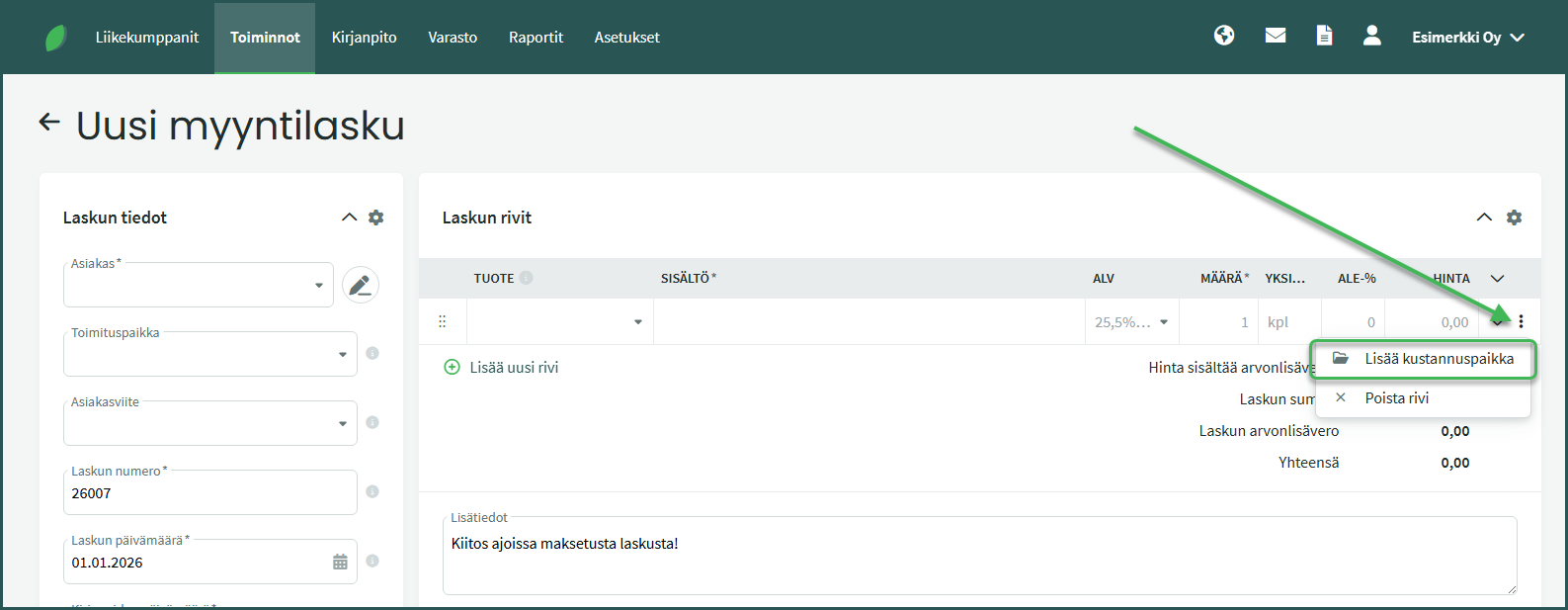
2. Add a cost centre by clicking the three dots at the end of the invoice line and selecting “Add cost centre“
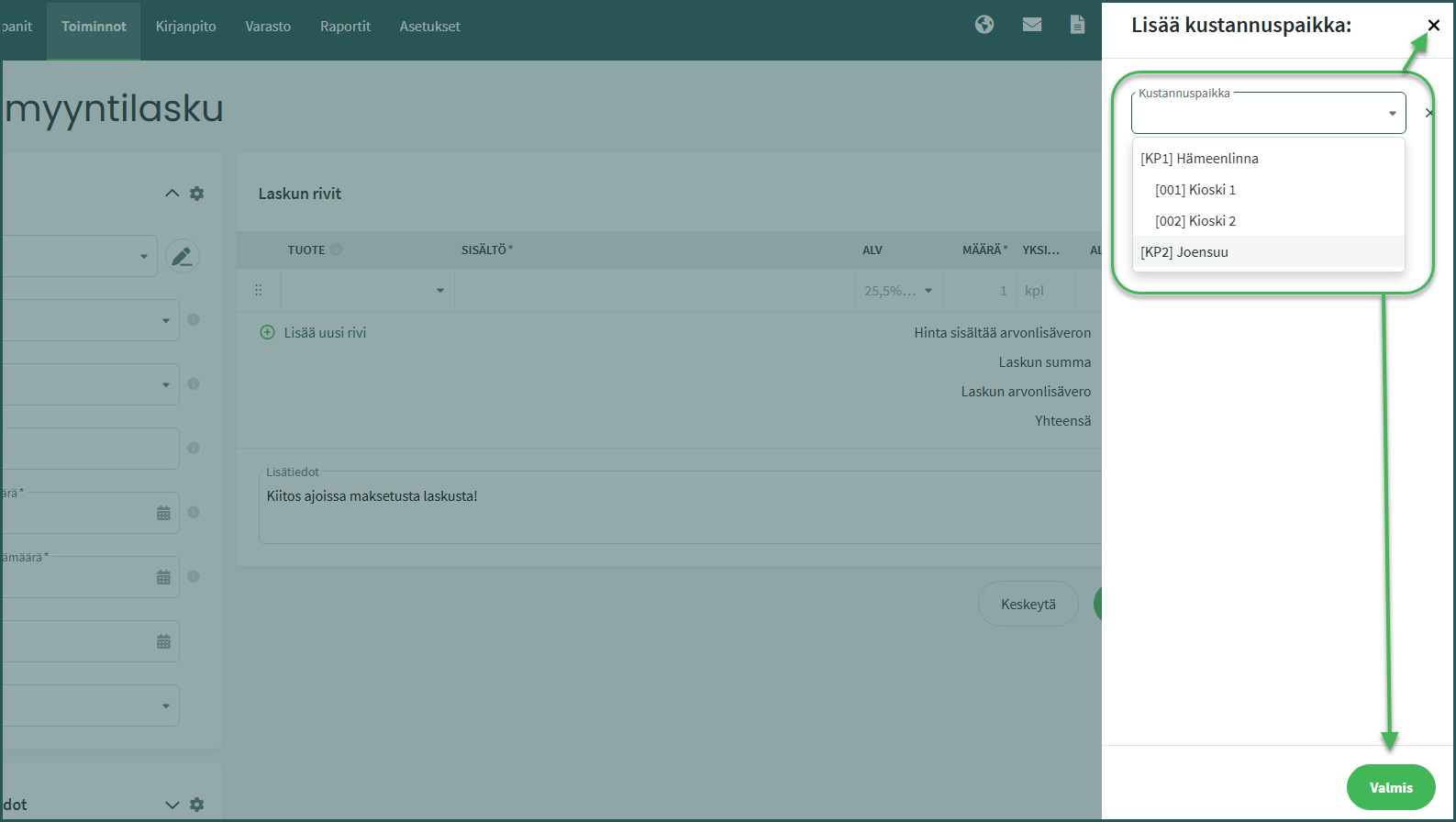
3. Select the desired cost centre and close the selection view by clicking “Done” or the X button.
4. Once a cost centre has been added to the invoice and the invoice has been saved, a folder icon will appear next to the line item content.
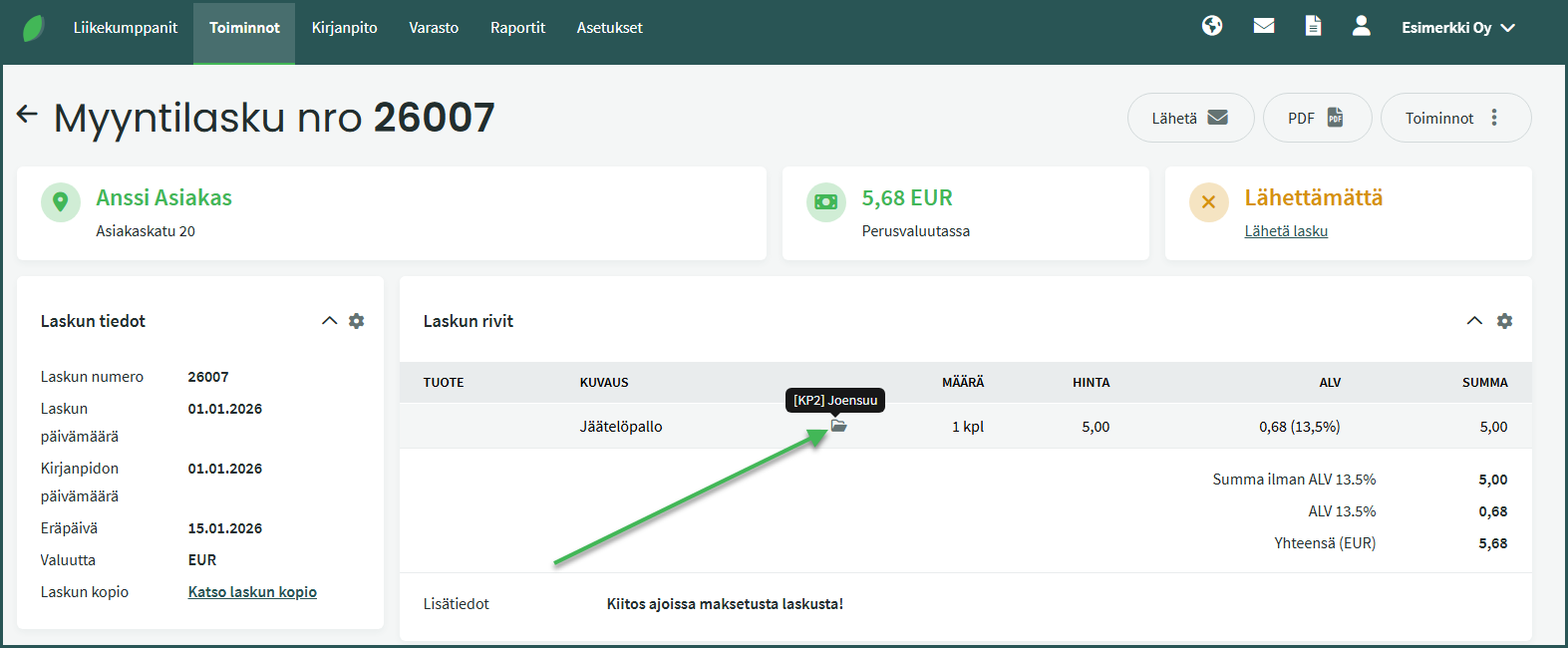
- Hovering your mouse over the icon shows the cost centres added to the line.
1. Open an existing sales invoice by clicking from Operations > Sales Invoices
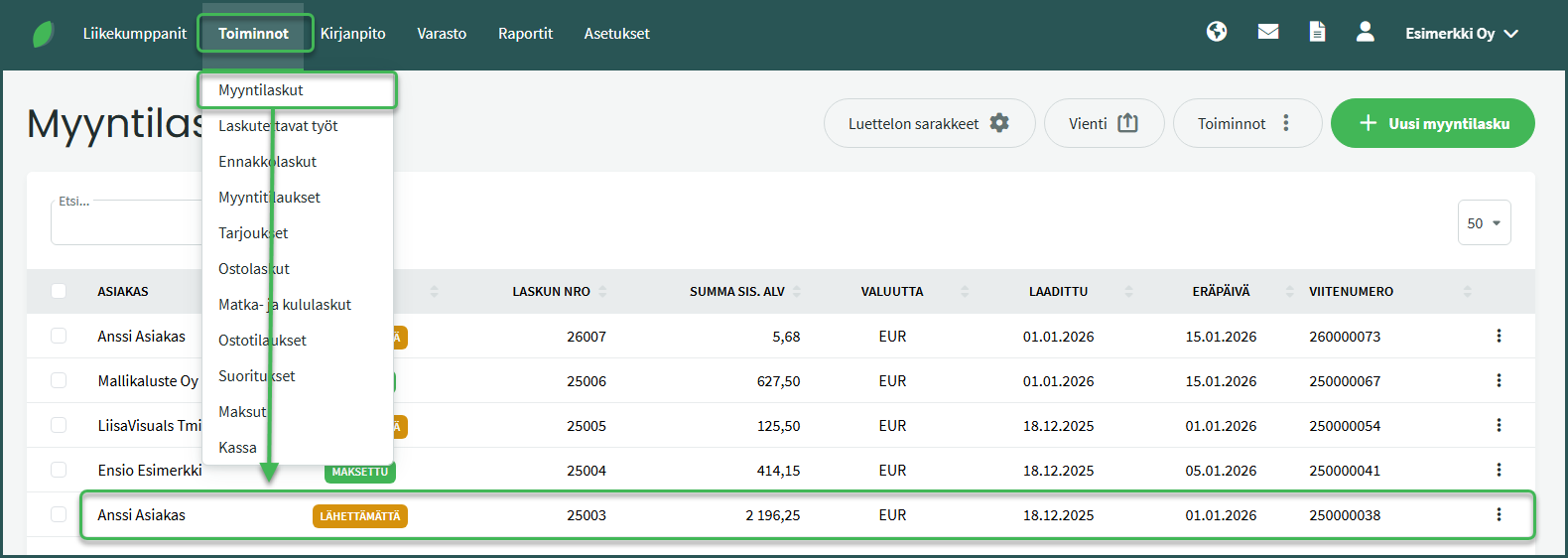
2. Select from the right side Operations > Edit Sales Invoice
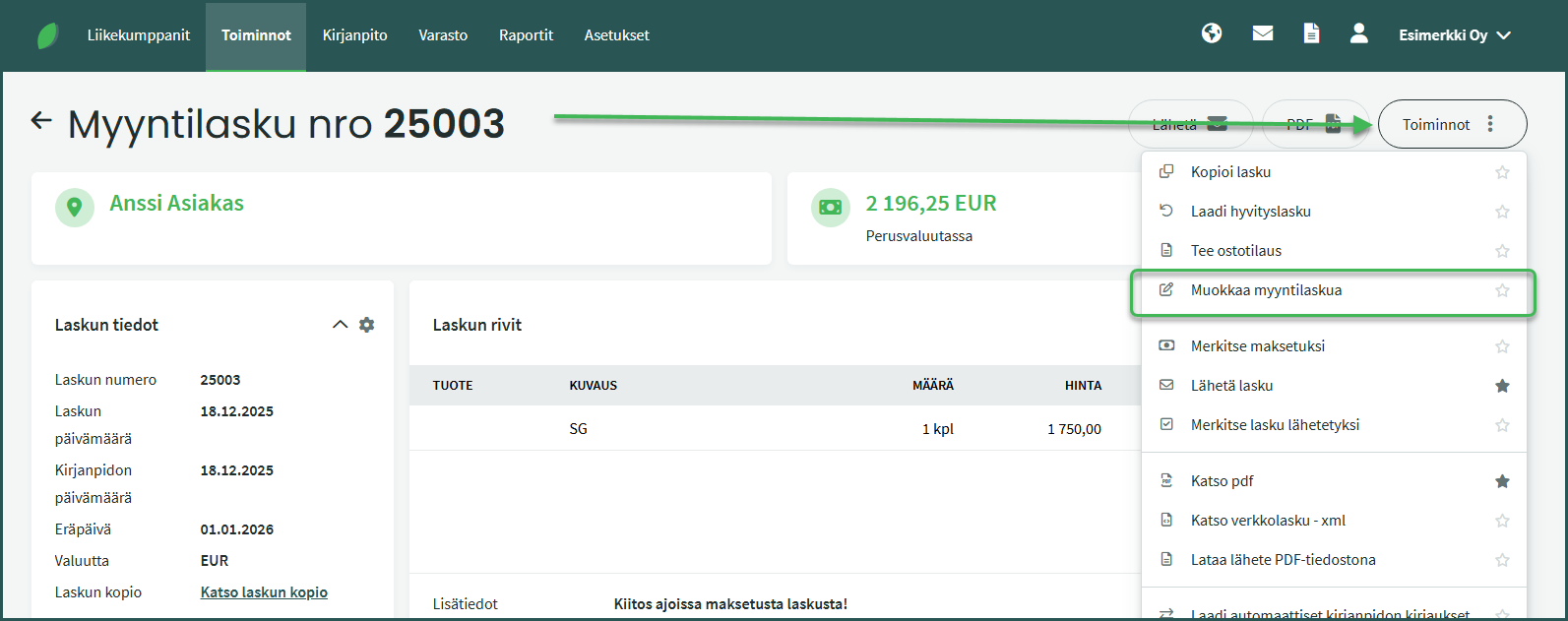
3. Add a cost centre by clicking the three dots at the end of the invoice line and selecting “Add cost centre“
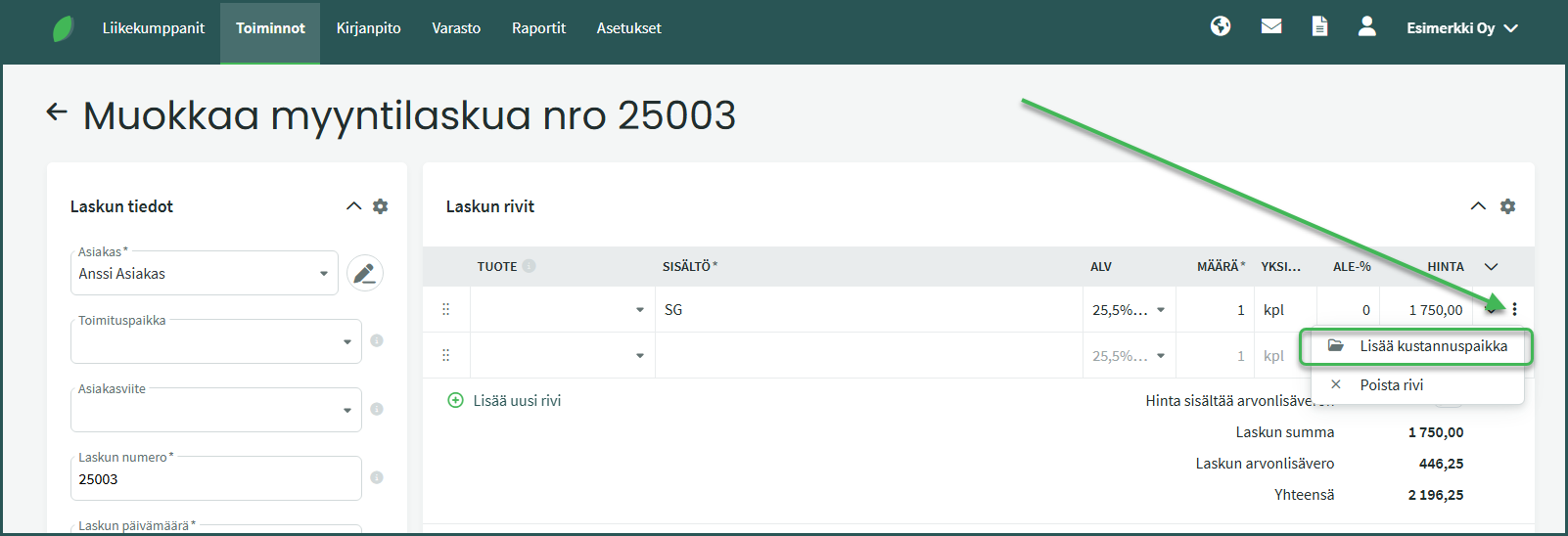
4. Select the desired cost centre and close the selection view by clicking “Done” or the X button.
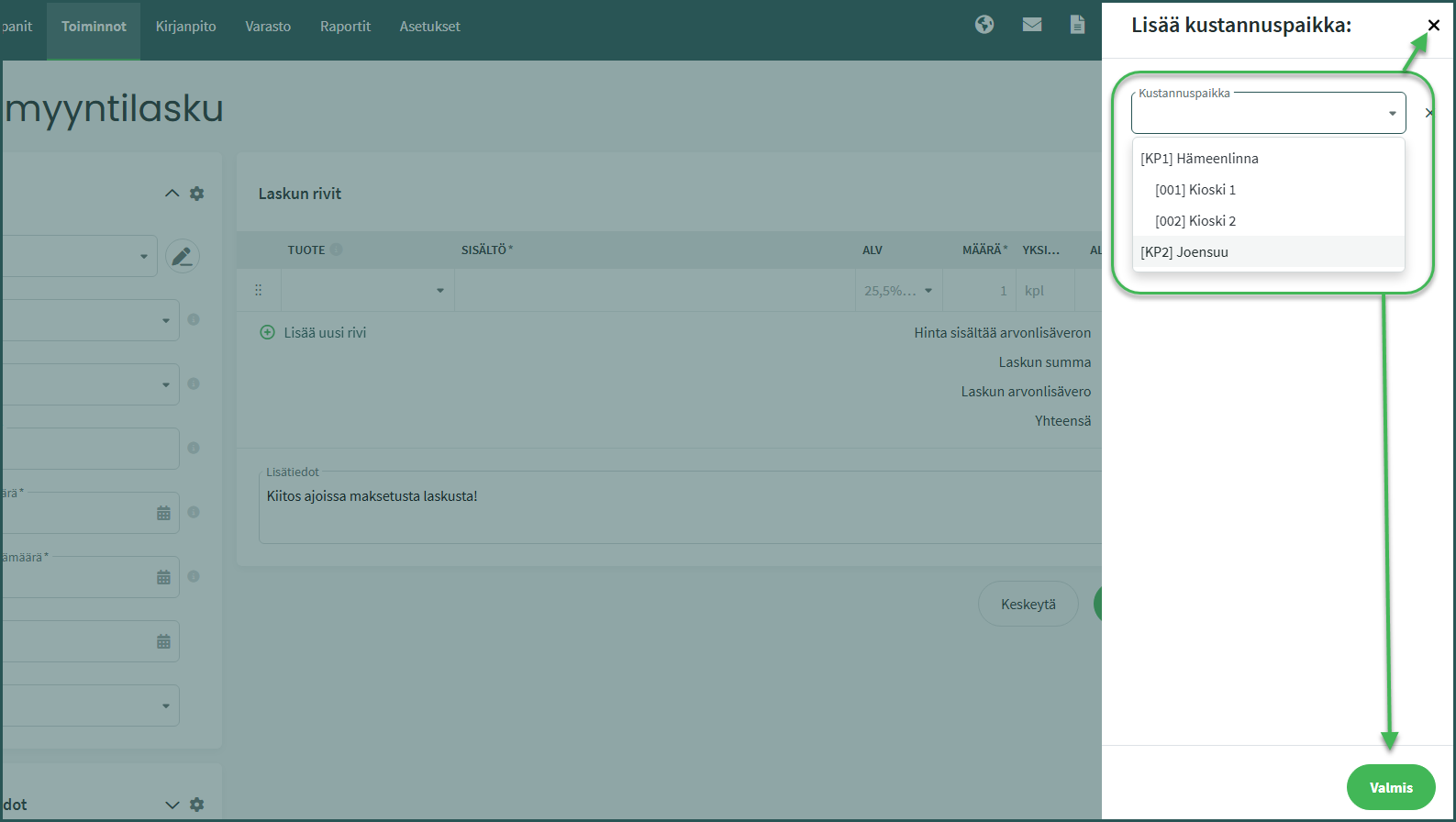
5. Once a cost centre has been added to the invoice and the invoice has been saved, a folder icon will appear next to the line item content.
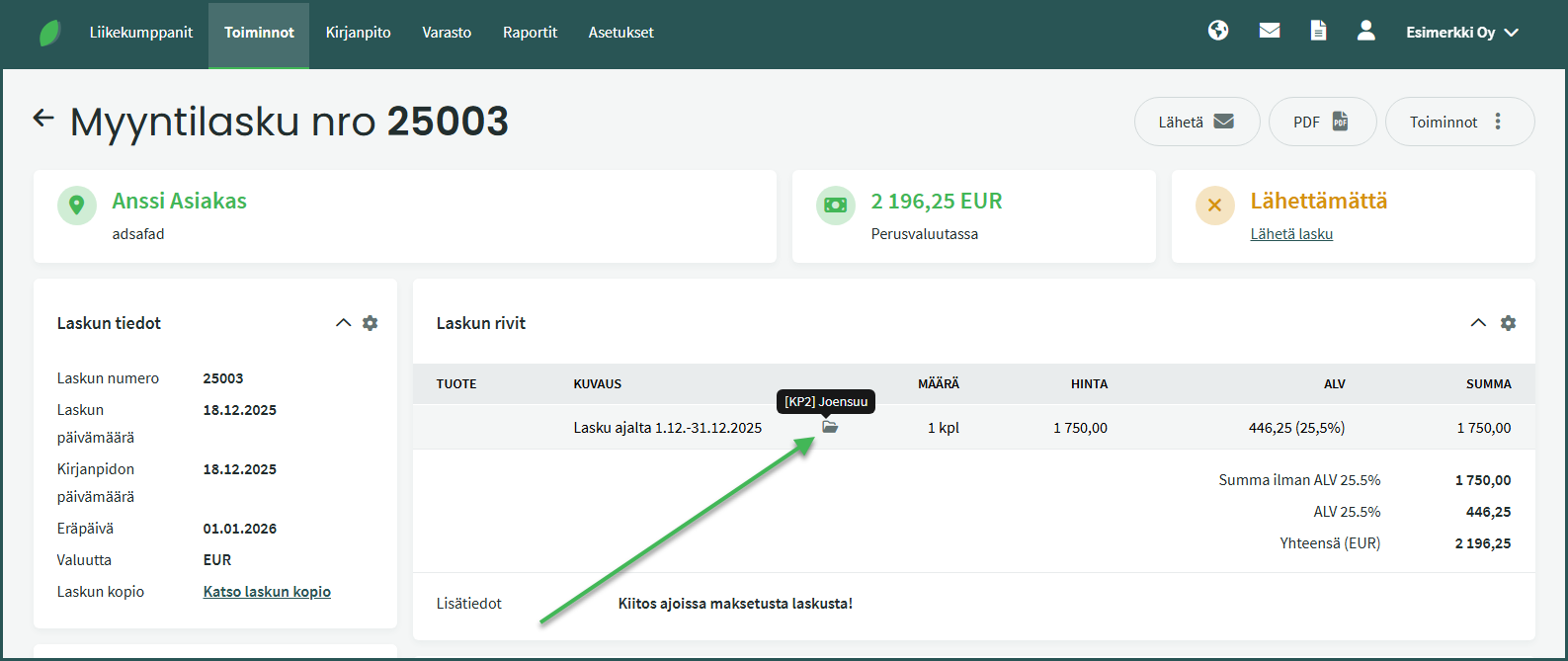
- Hovering your mouse over the icon shows the cost centres added to the line.
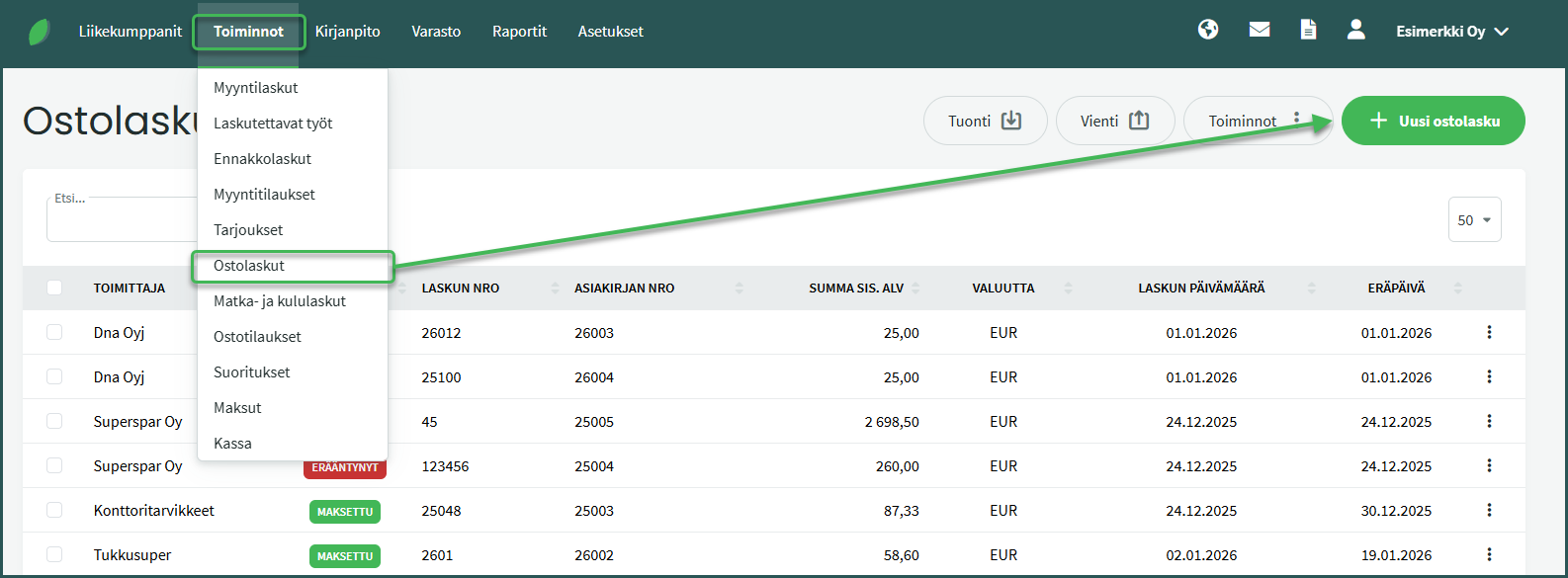
1. Add a cost centre to a new purchase invoice from Operations > Purchase Invoices > New Purchase Invoice
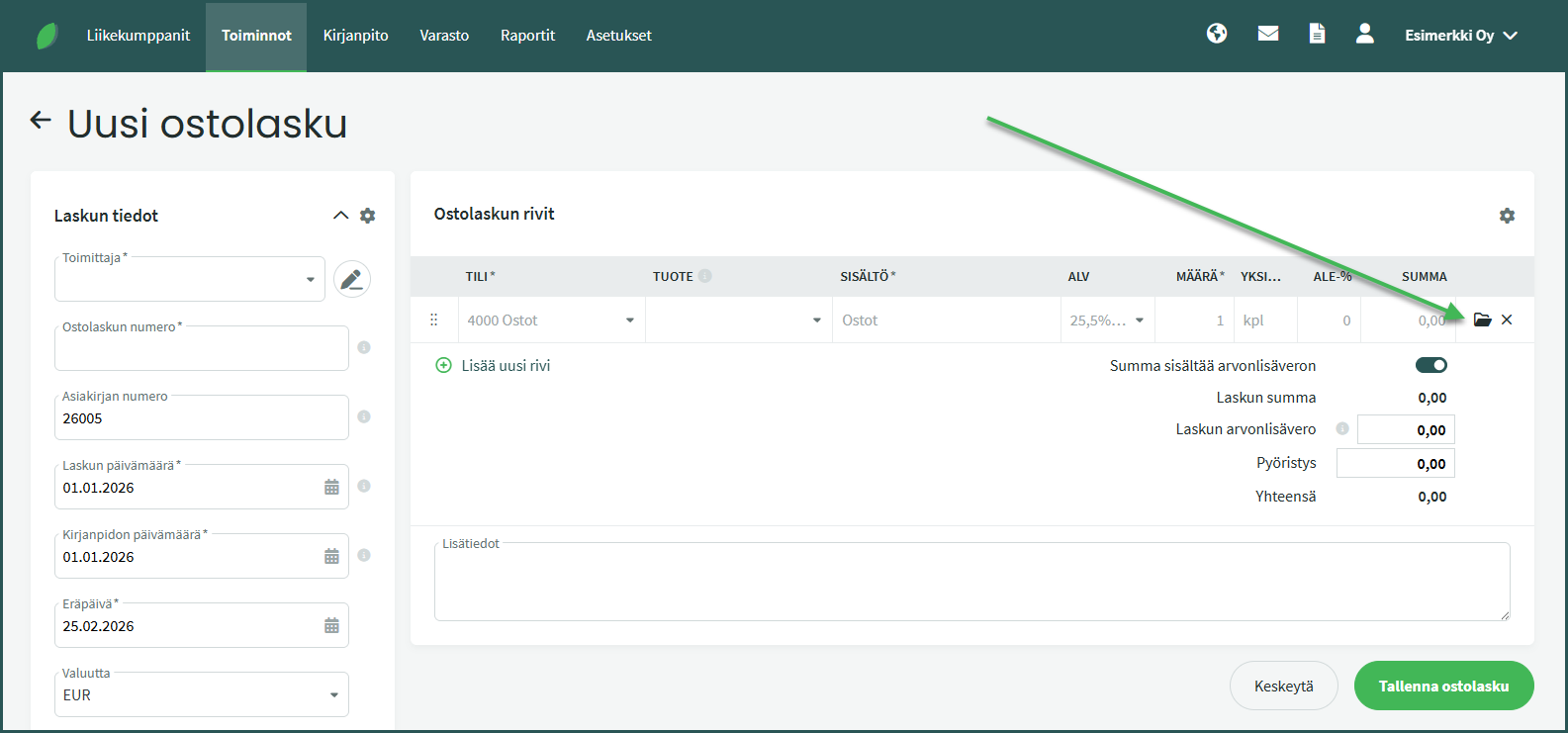
2. Add a cost centre by clicking the folder icon at the end of the invoice line
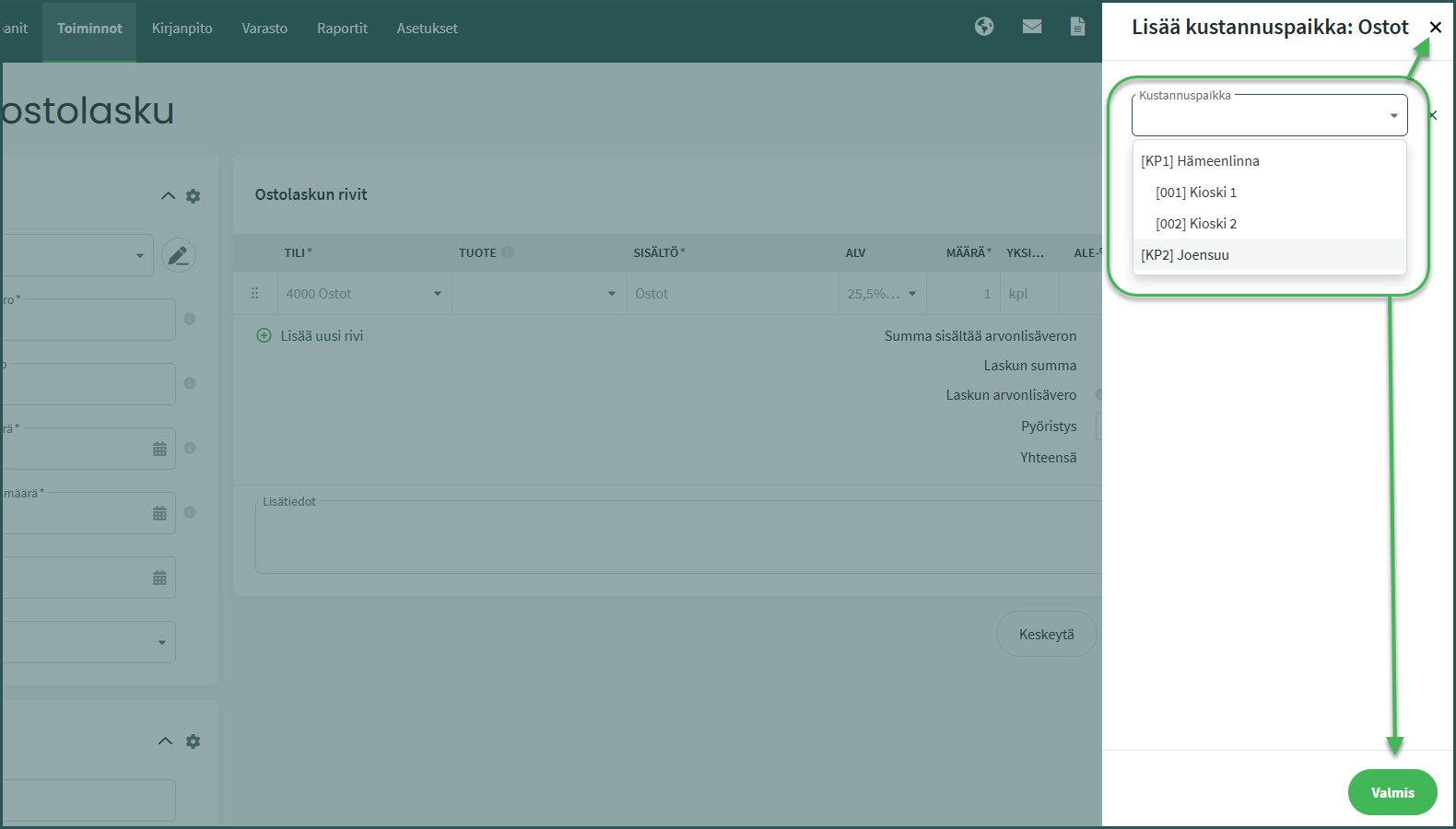
3. Select the desired cost centre and close the selection view by clicking “Done” or the X button.
4. Once a cost centre has been added to the invoice and the invoice has been saved, a folder icon will appear next to the line item content.
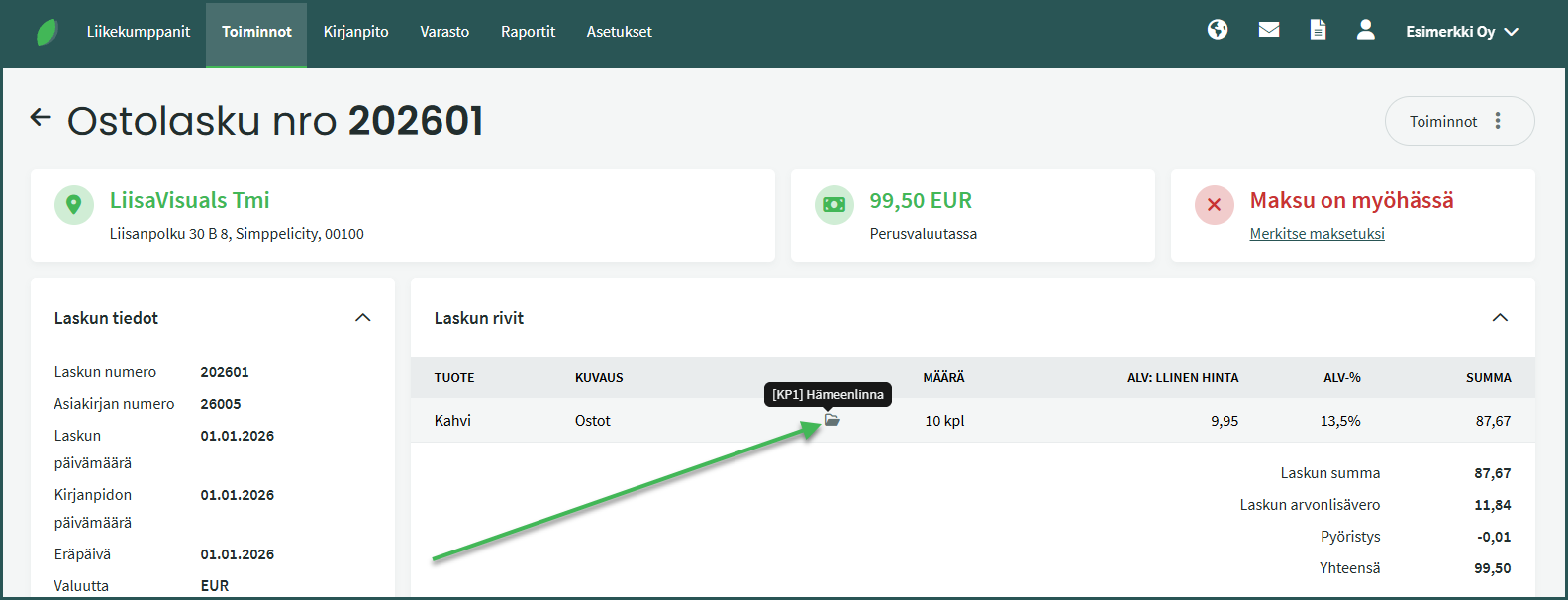
- Hovering your mouse over the icon shows the cost centres added to the line.
1. Open an existing purchase invoice by clicking from Operations > Purchase Invoices
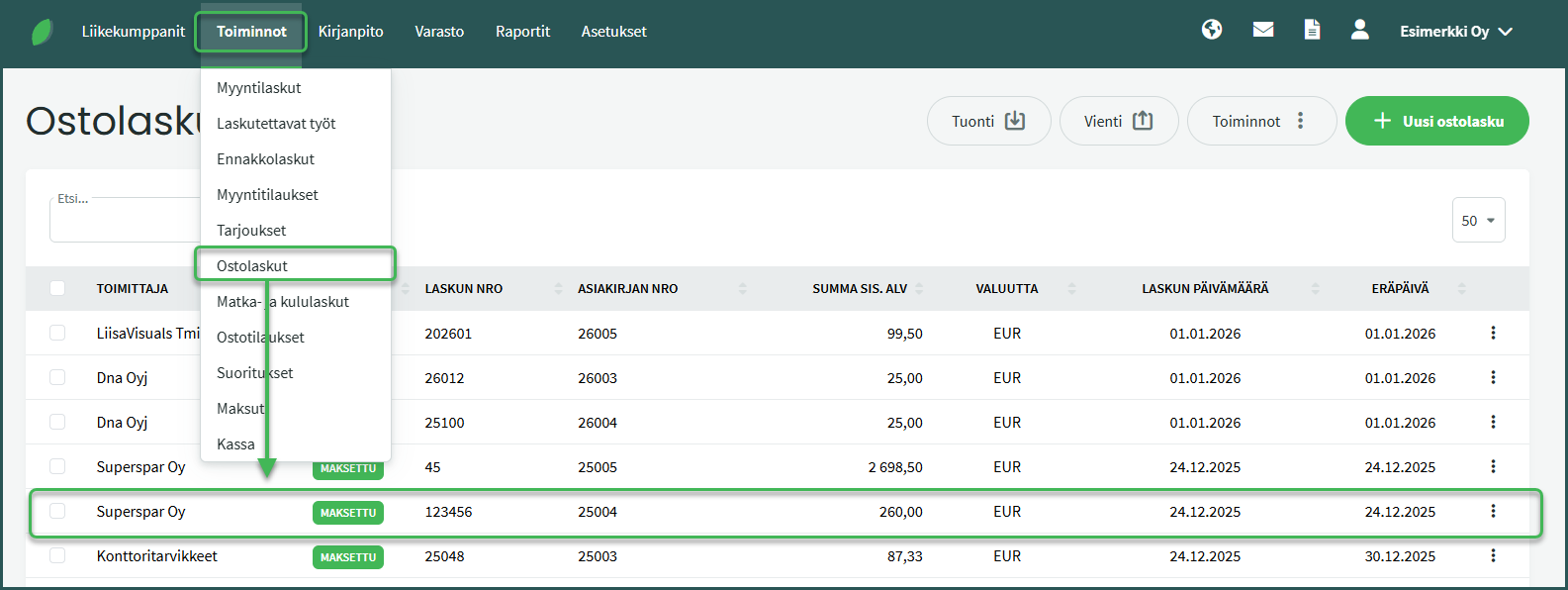
2. Select from the right side Operations > Edit Purchase Invoice
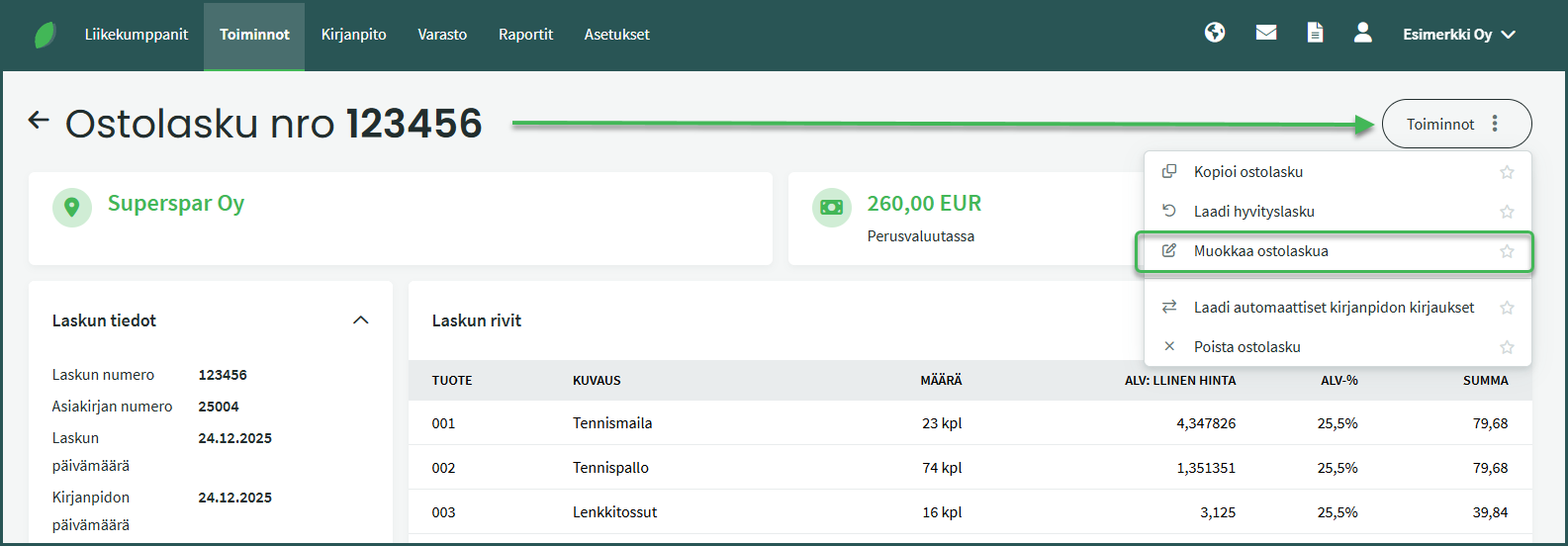
3. Add a cost centre by clicking the folder icon at the end of the invoice line
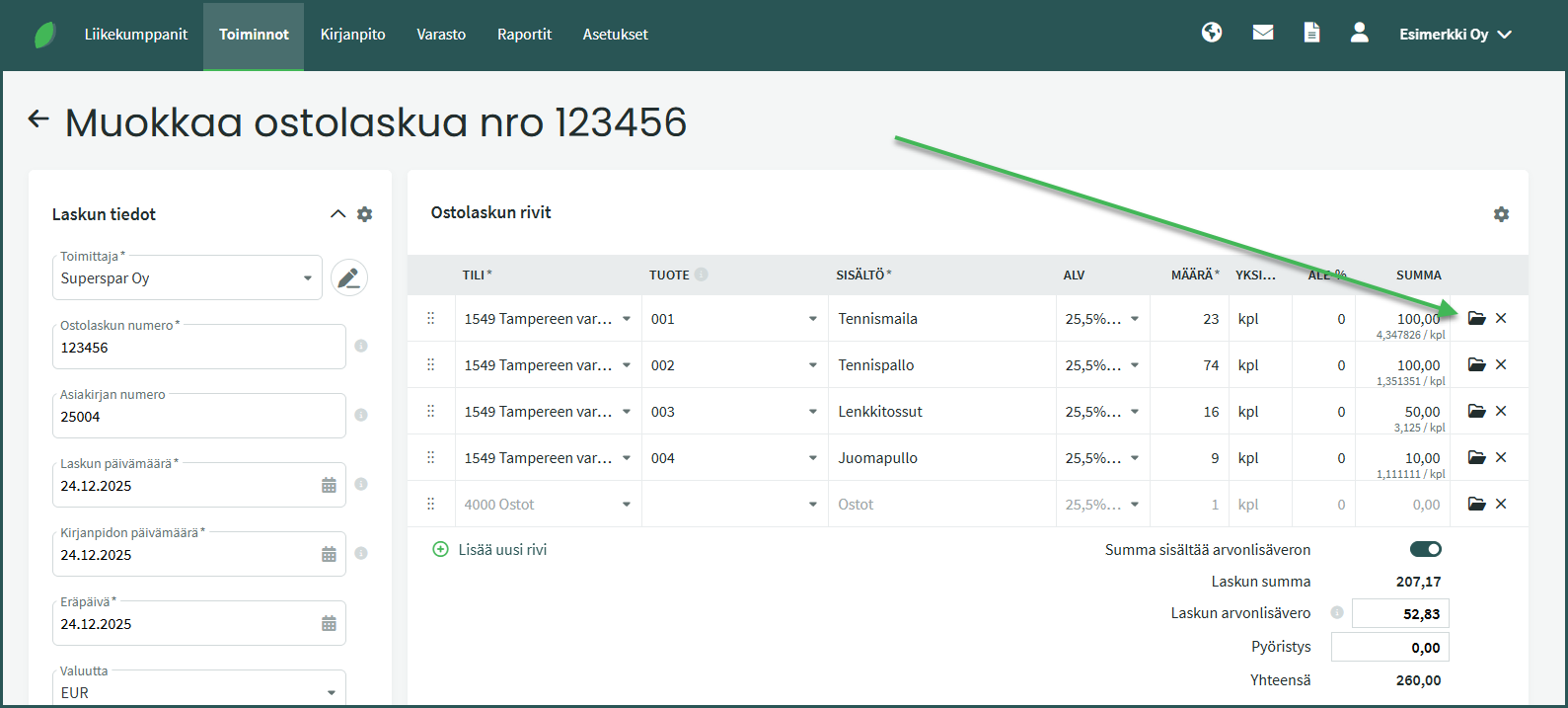
4. Select the desired cost centre and close the selection view by clicking “Done” or the X button.
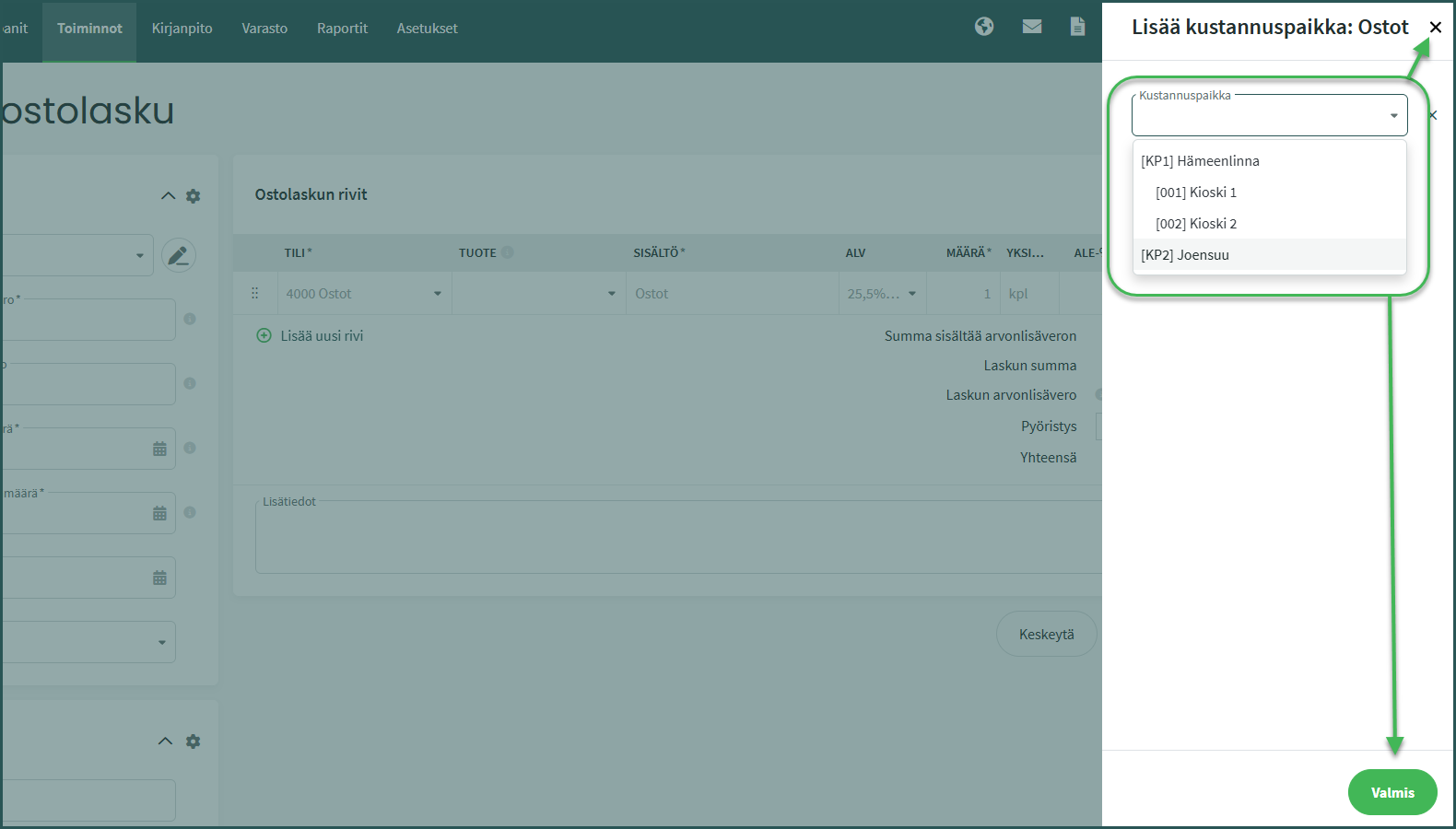
5. Once a cost centre has been added to the invoice and the invoice has been saved, a folder icon will appear next to the line item content.
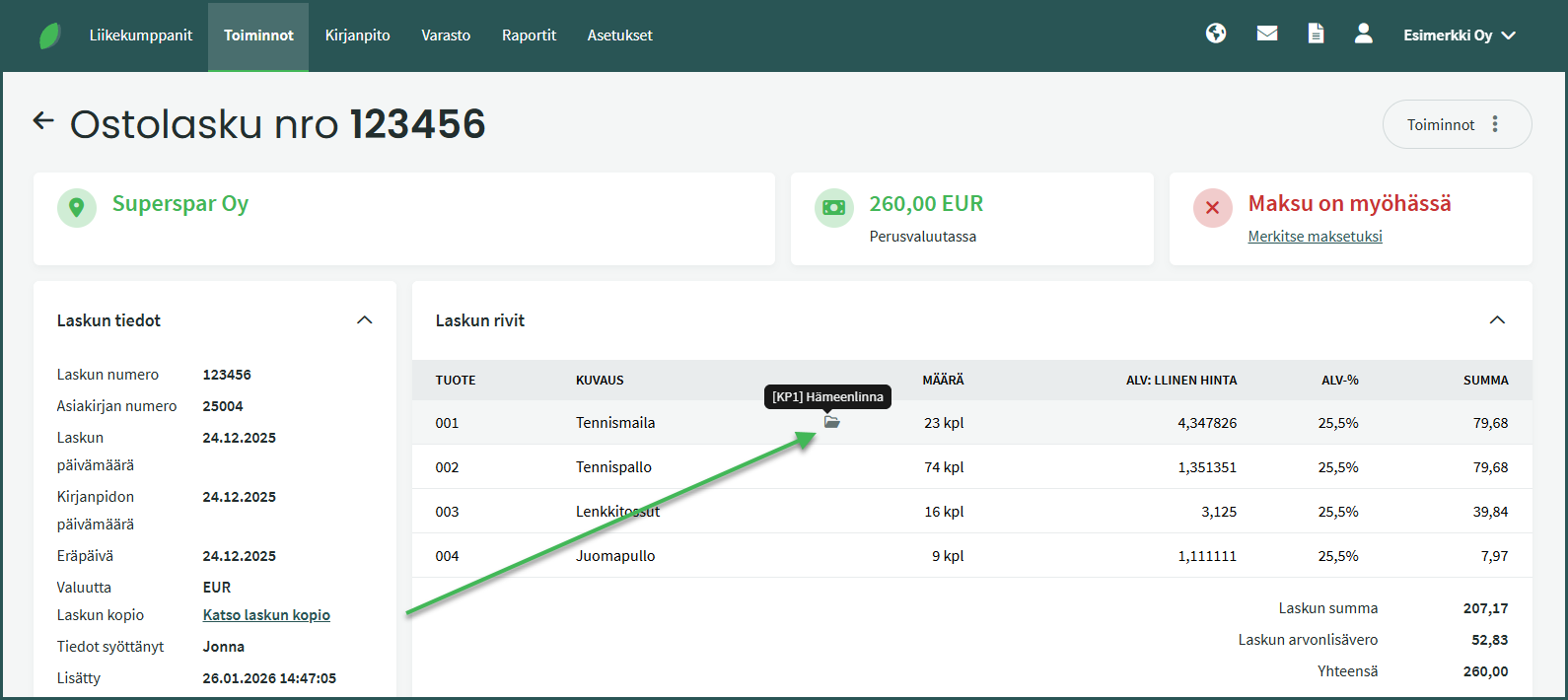
- Hovering your mouse over the icon shows the cost centres added to the line.
- If you want the cost centre report to also show the payment status of invoices, the cost centre must be added to both the invoice and its associated payment or receipt.
- When you mark an invoice as paid directly through the invoice (open the invoice and select “Mark as paid” on the right), the software automatically assigns the same cost centre as the invoice to the payment or receipt.
- If you add the payment or receipt first via the bank connection or manually, you must add the cost centre to the payment or receipt yourself.
- For a new payment or receipt, the cost centre is added as described in this guide.
- For payments and receipts received via the bank connection, the cost centre is added as described in the guide “Adding a cost centre to an existing receipt/payment”.
1. Add a cost centre to a new receipt from Operations > Receipts > New Receipt
1. Add a cost centre to a new payment from Operations > Payments > New Payment
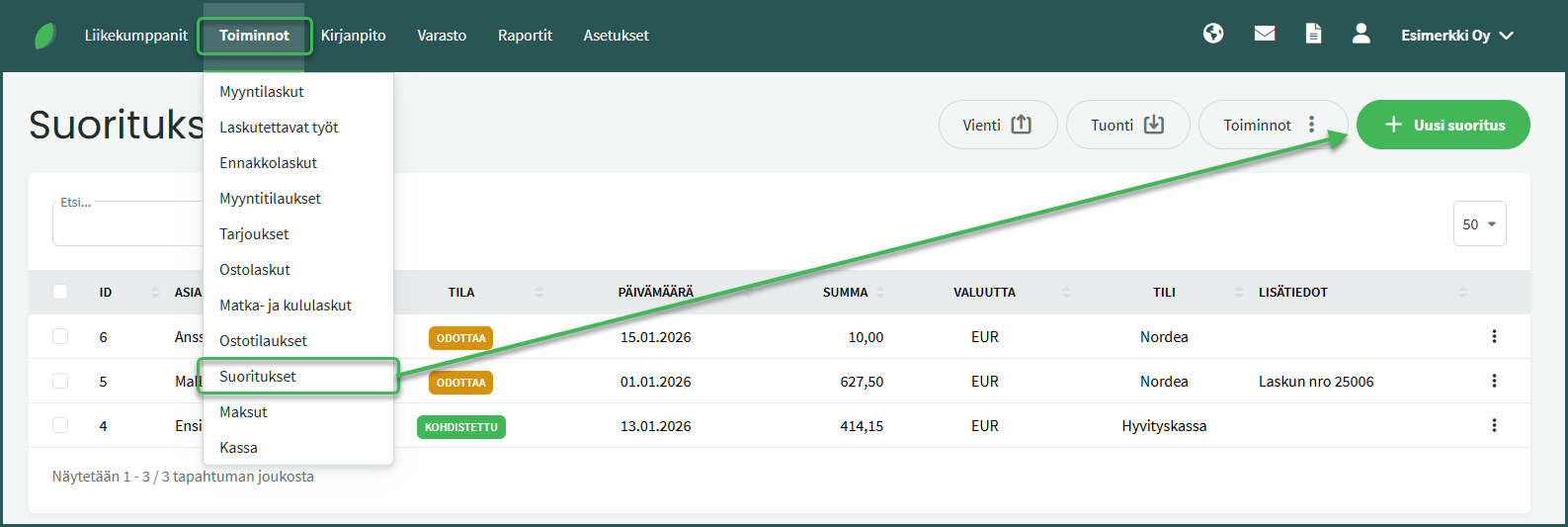
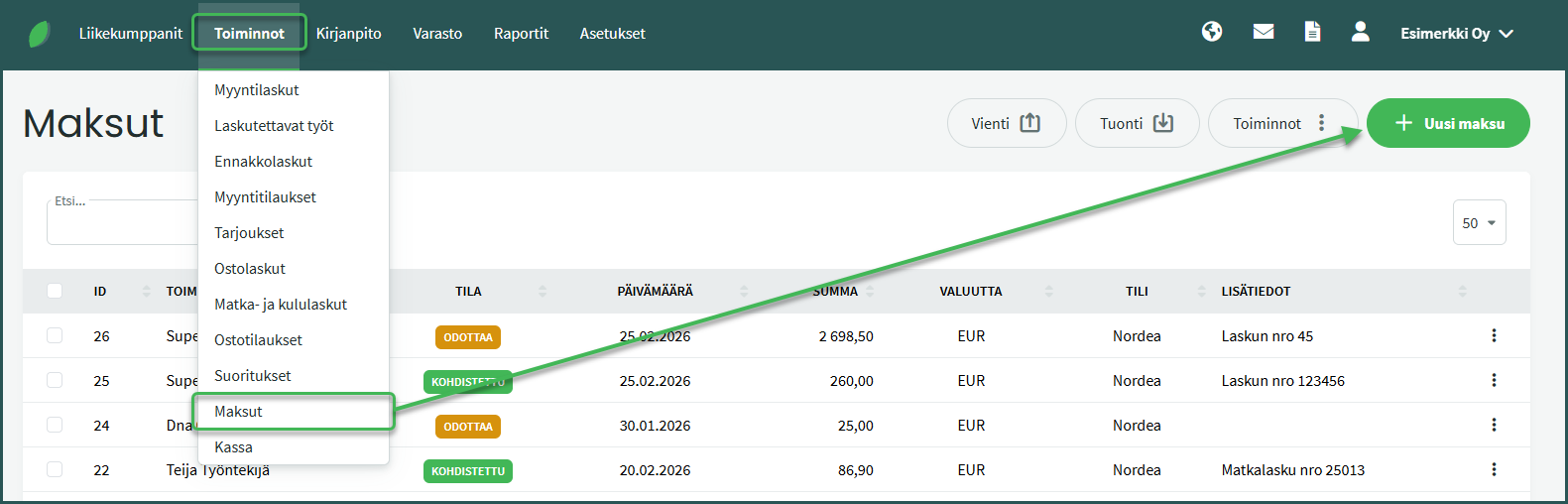
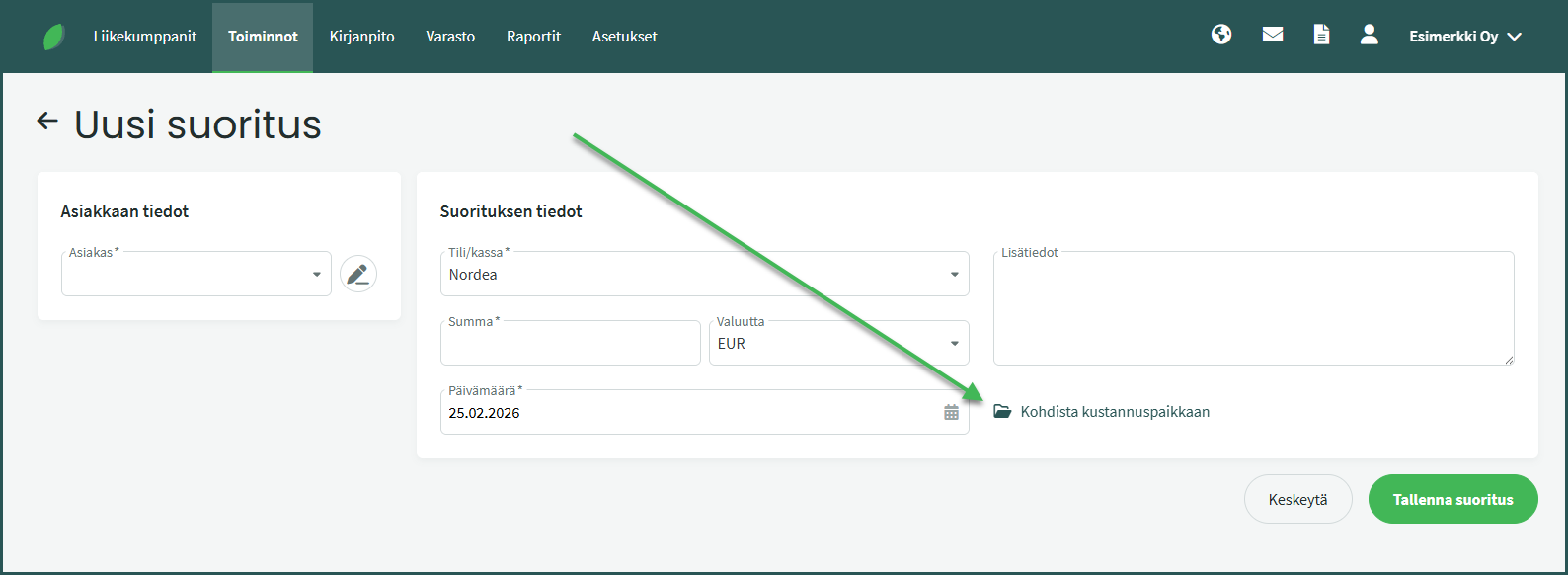
2. Add a cost centre by clicking “Allocate to cost centre“
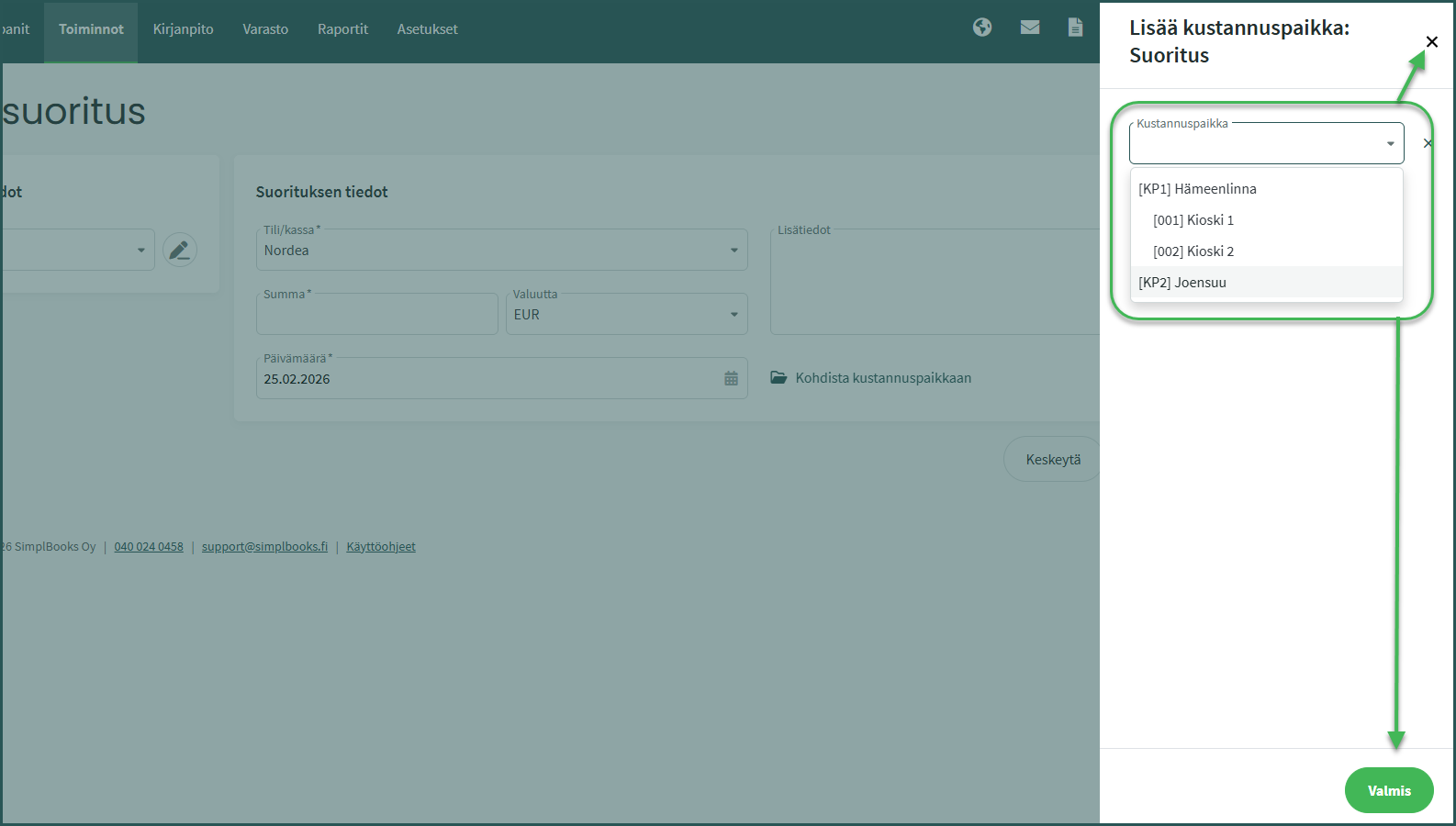
3. Select the desired cost centre and close the selection view by clicking “Done” or the X button.
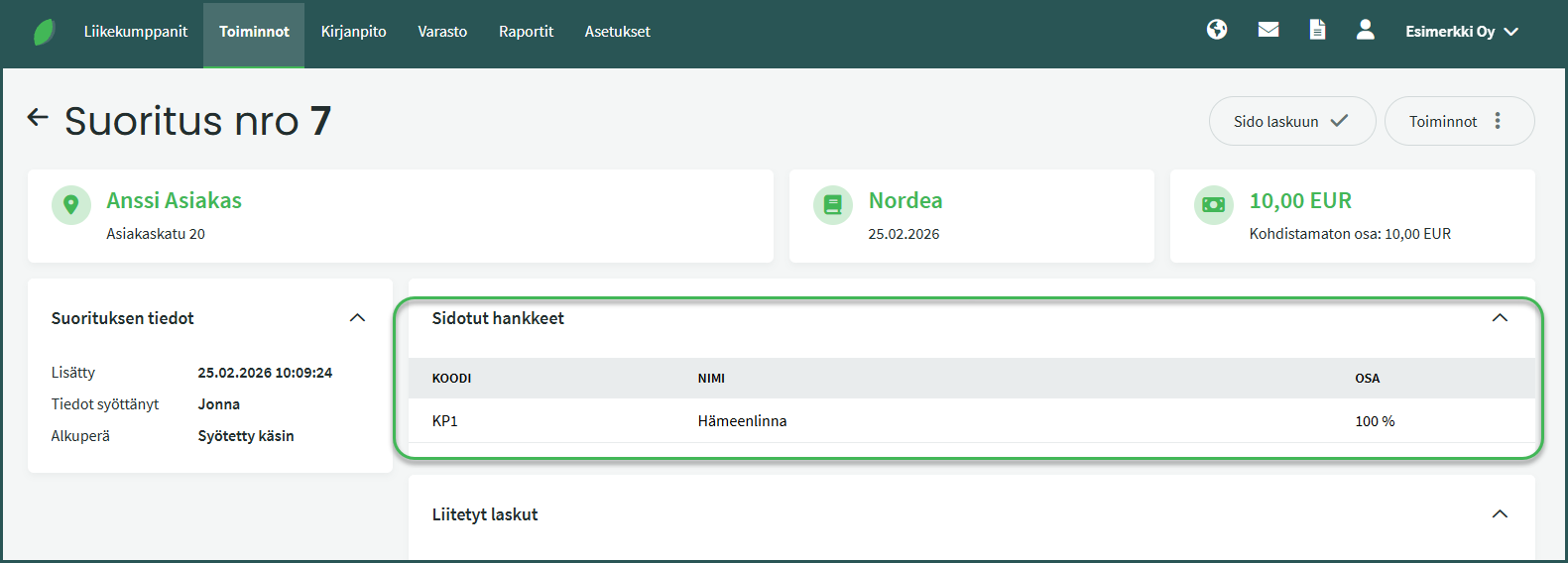
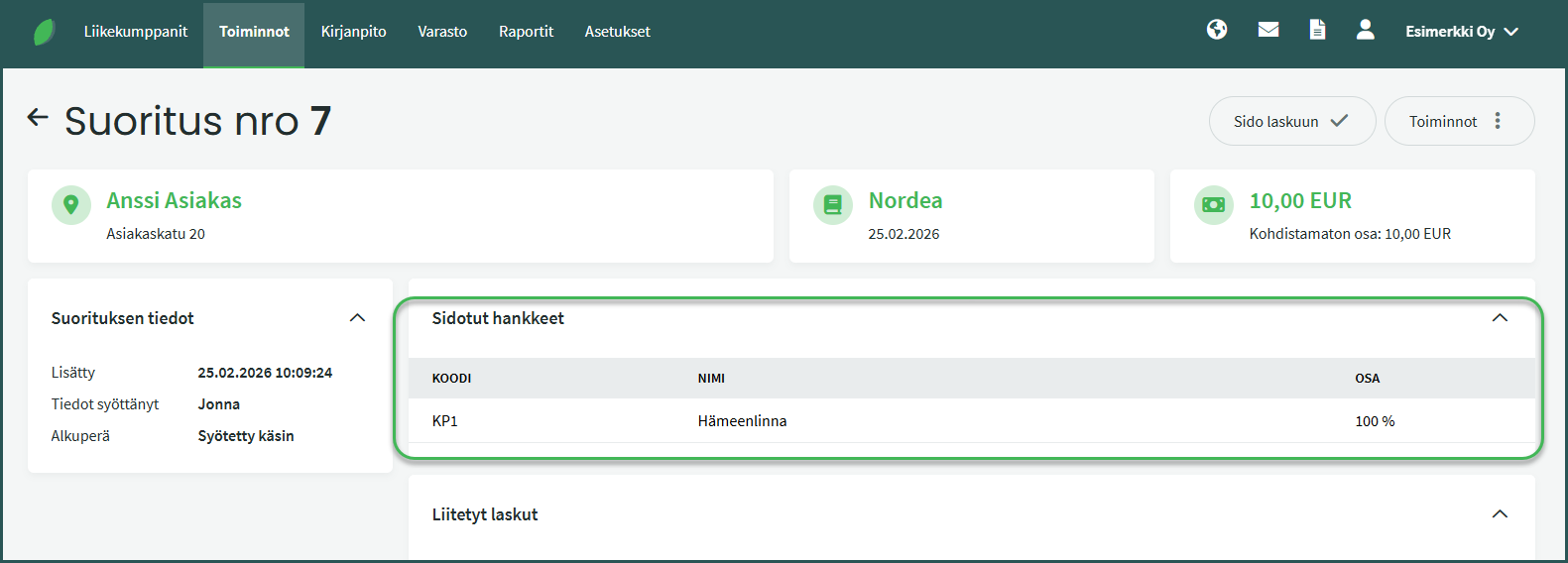
4. The cost centre is shown under “Linked projects“
- If you want the cost centre report to also show the payment status of invoices, the cost centre must be added to both the invoice and its associated payment or receipt.
- When you mark an invoice as paid directly through the invoice (open the invoice and select “Mark as paid” on the right), the software automatically assigns the same cost centre as the invoice to the payment or receipt.
- If you add the payment or receipt first via the bank connection or manually, you must add the cost centre to the payment or receipt yourself.
- For a new payment or receipt, the cost centre is added as described in the guide “Adding a cost centre to a new receipt/payment“.
- For payments and receipts received via the bank connection, the cost centre is added as described in this guide.
1. Open an existing receipt by clicking from Operations > Receipts
1. Open an existing payment by clicking from Operations > Payments
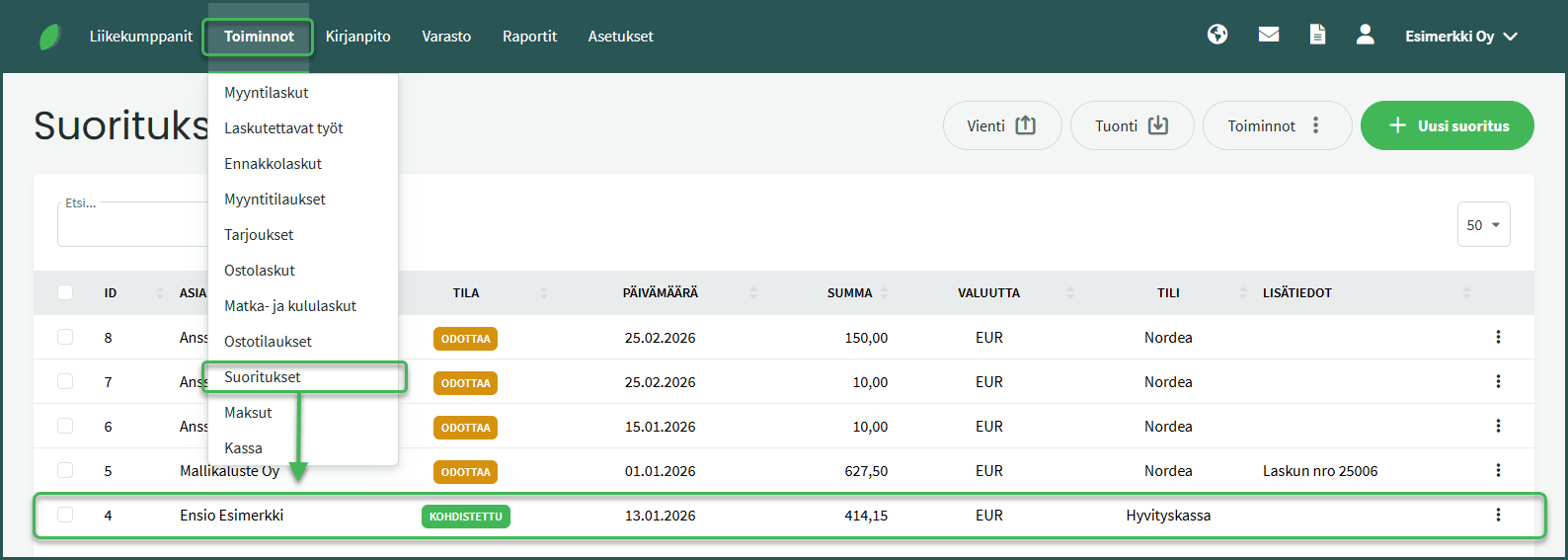
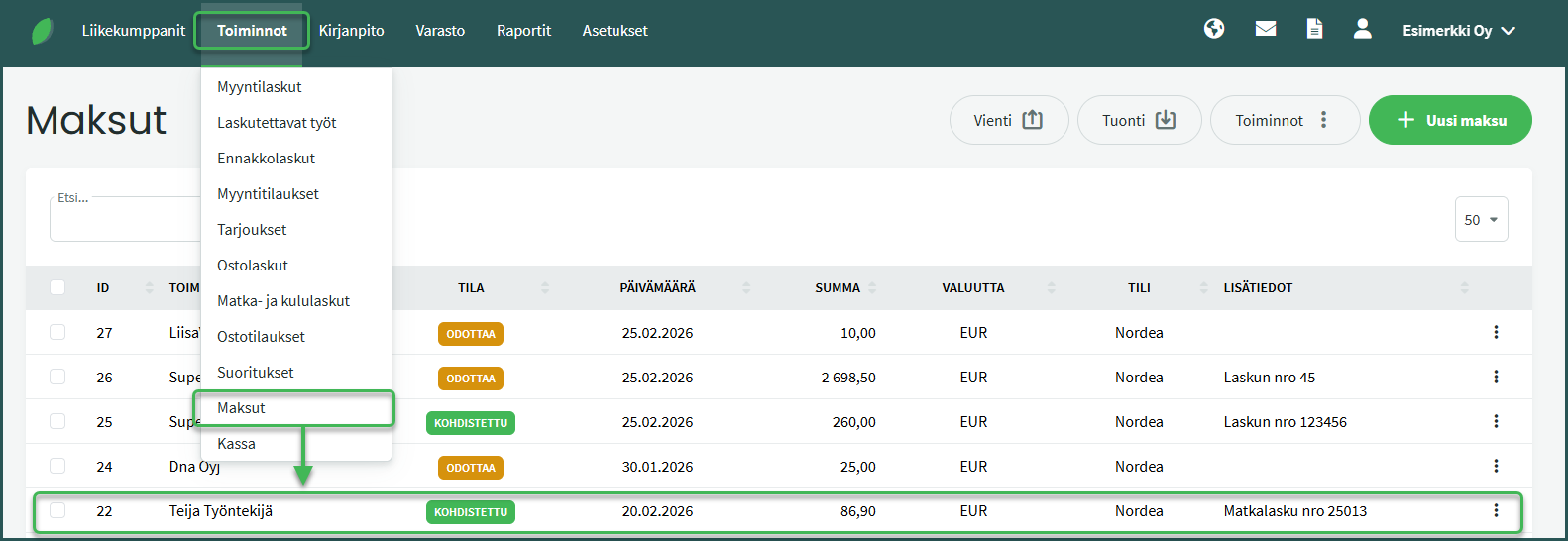
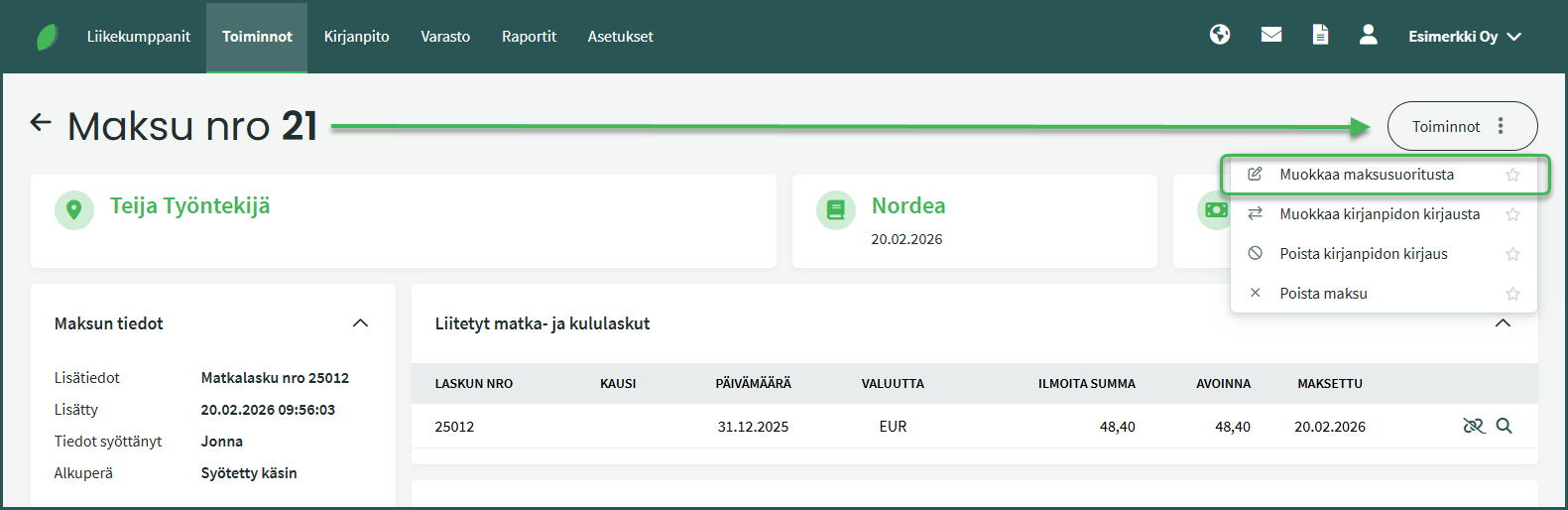
2. Select from the right side Operations > Edit Receipt / Edit Payment
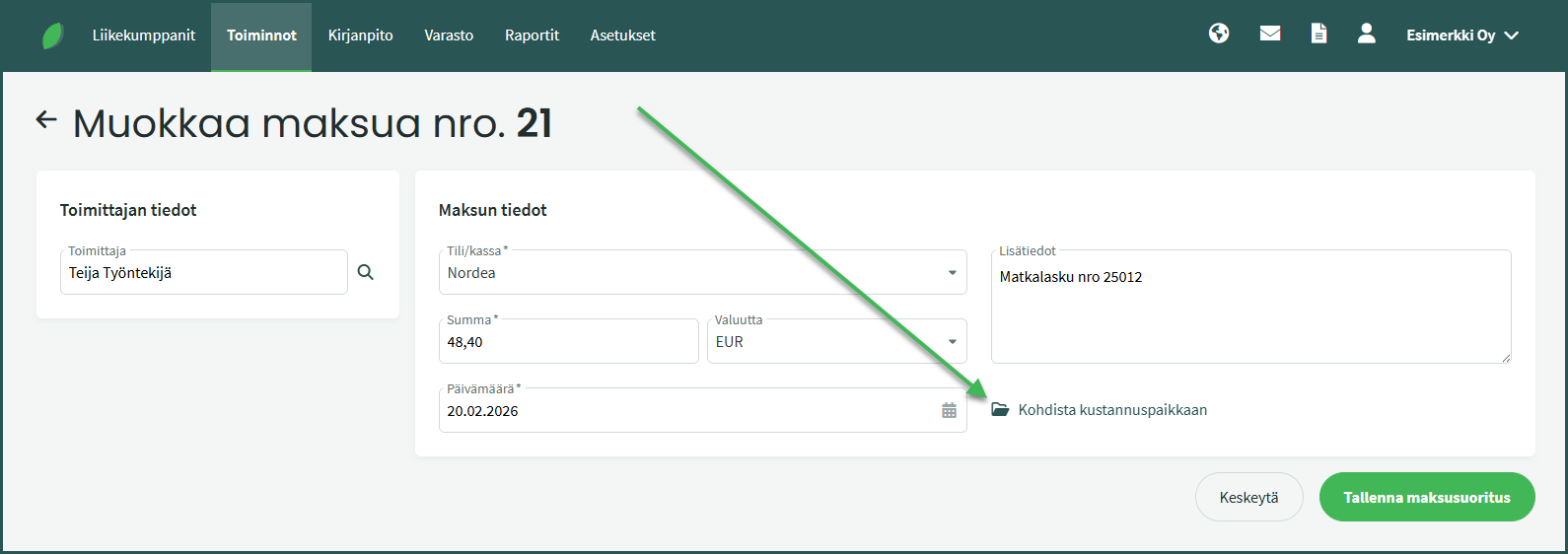
3. Add a cost centre by clicking “Allocate to cost centre“
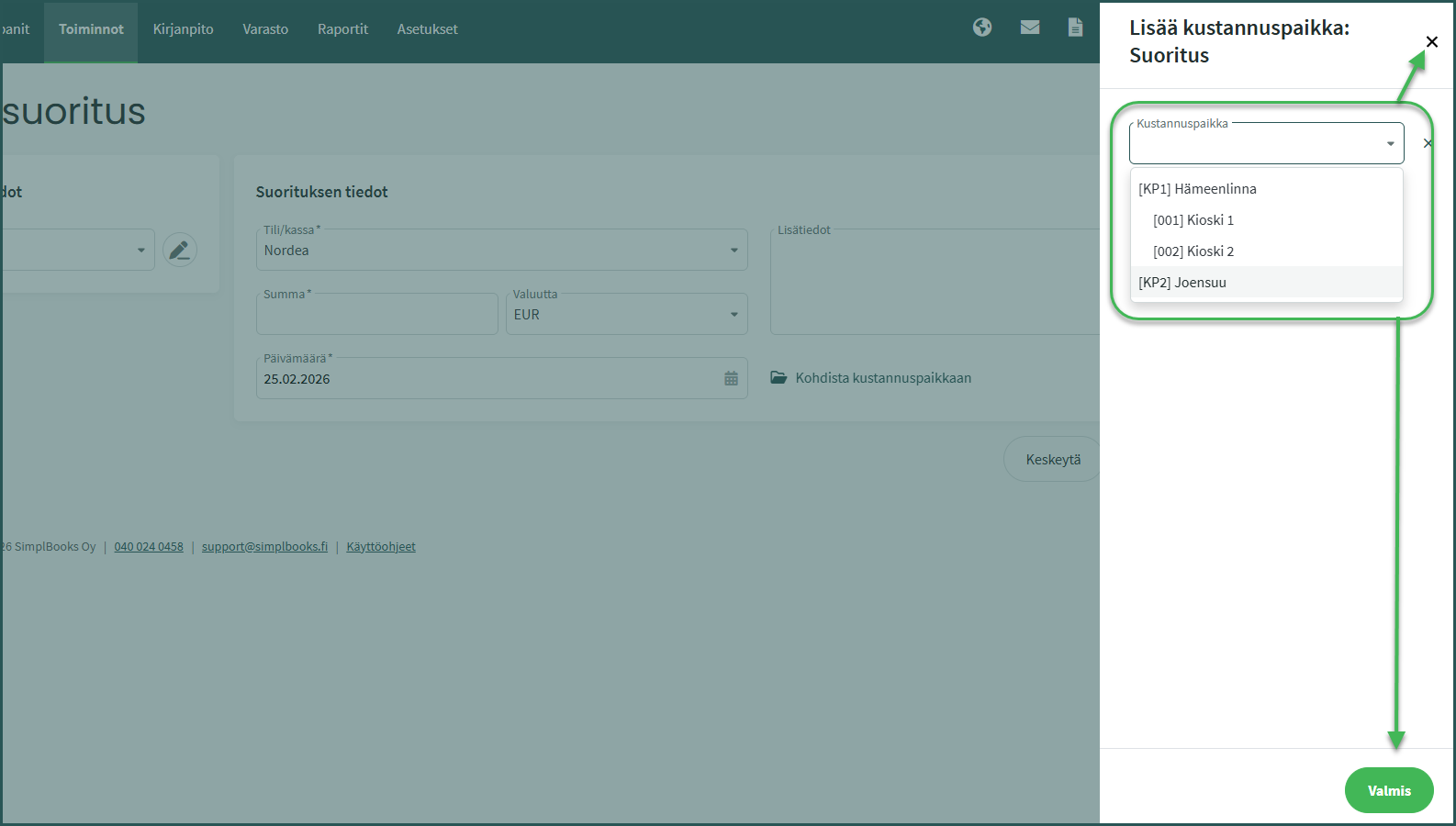
4. Select the desired cost centre and close the selection view by clicking “Done” or the X button.
5. The cost centre is shown under “Linked projects“
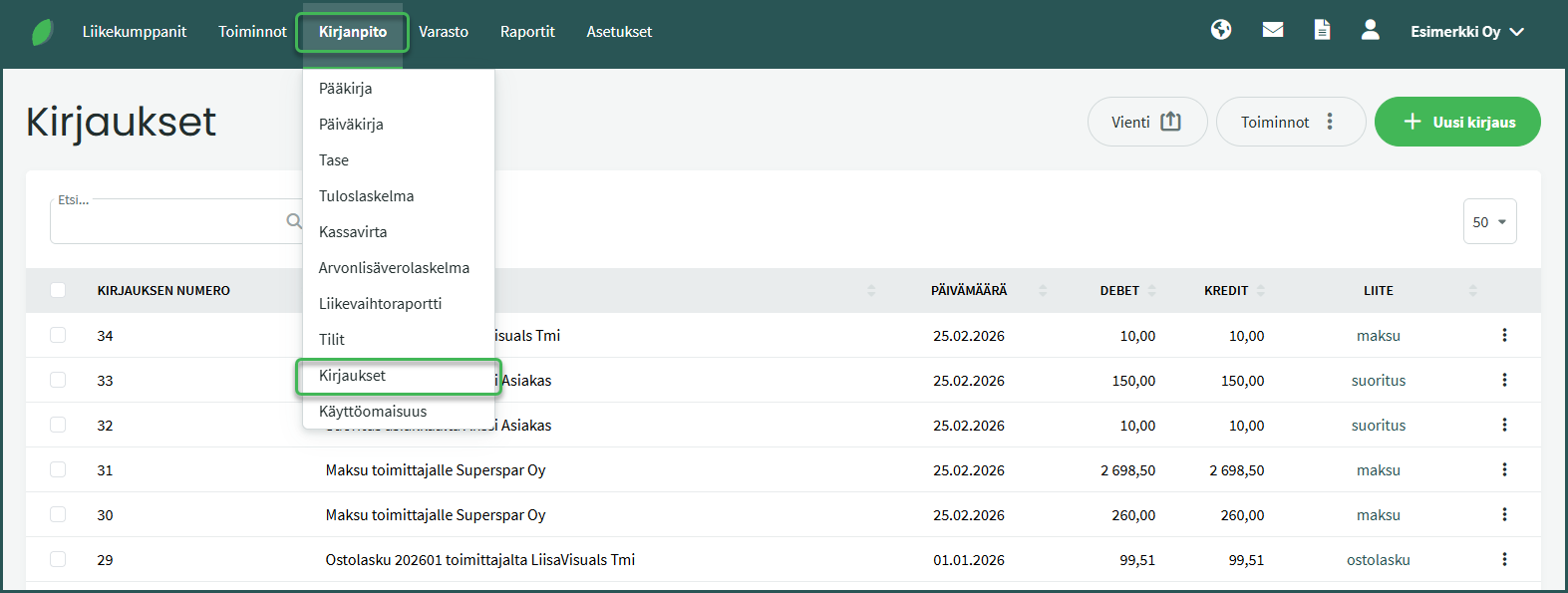
1. Add a cost centre to an accounting journal entry from Accounting > Journal Entries
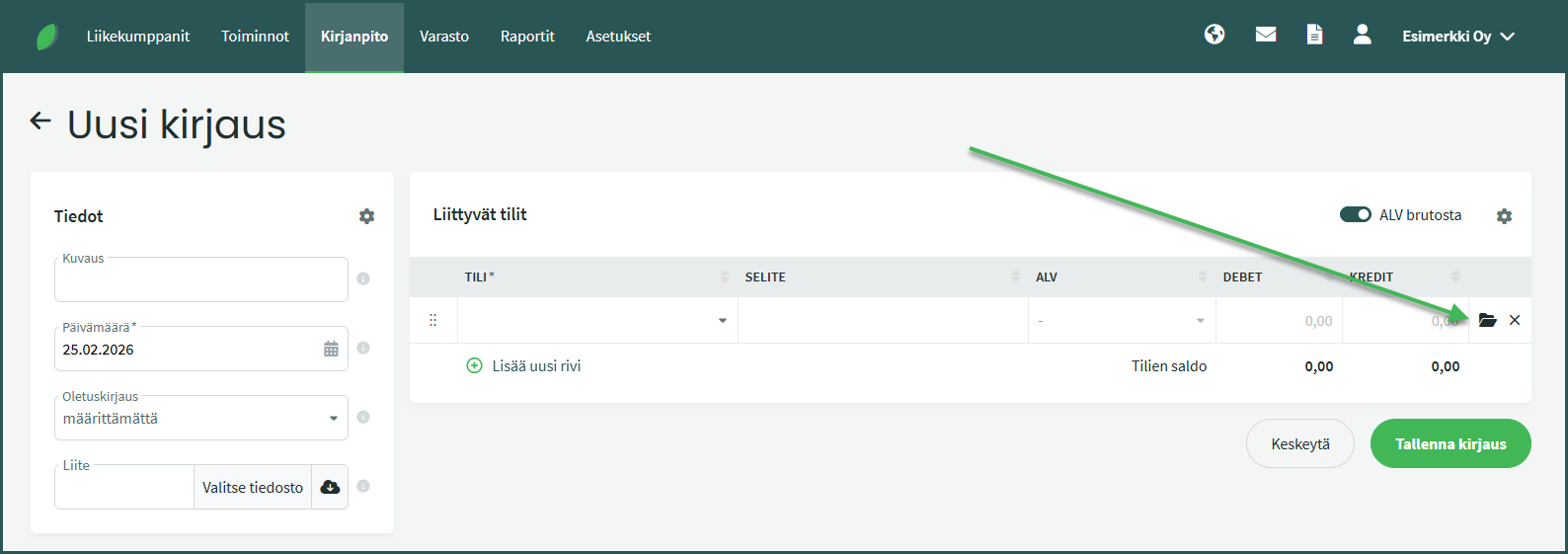
2. The cost centre is added via the folder icon at the end of the journal entry line, in the same way as for invoices.
The software has a dedicated cost centre report, and you can also filter by cost centre in reports such as the income statement and balance sheet.
1. You can access the cost centre report from Reports > Cost Centre Report.
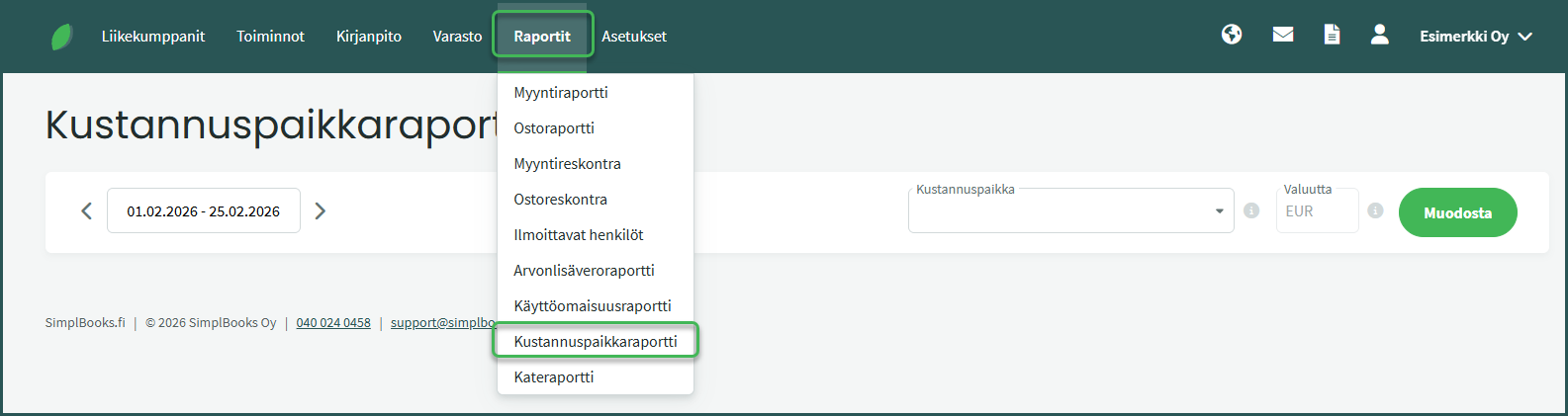
2. Select the desired time period and cost centre.
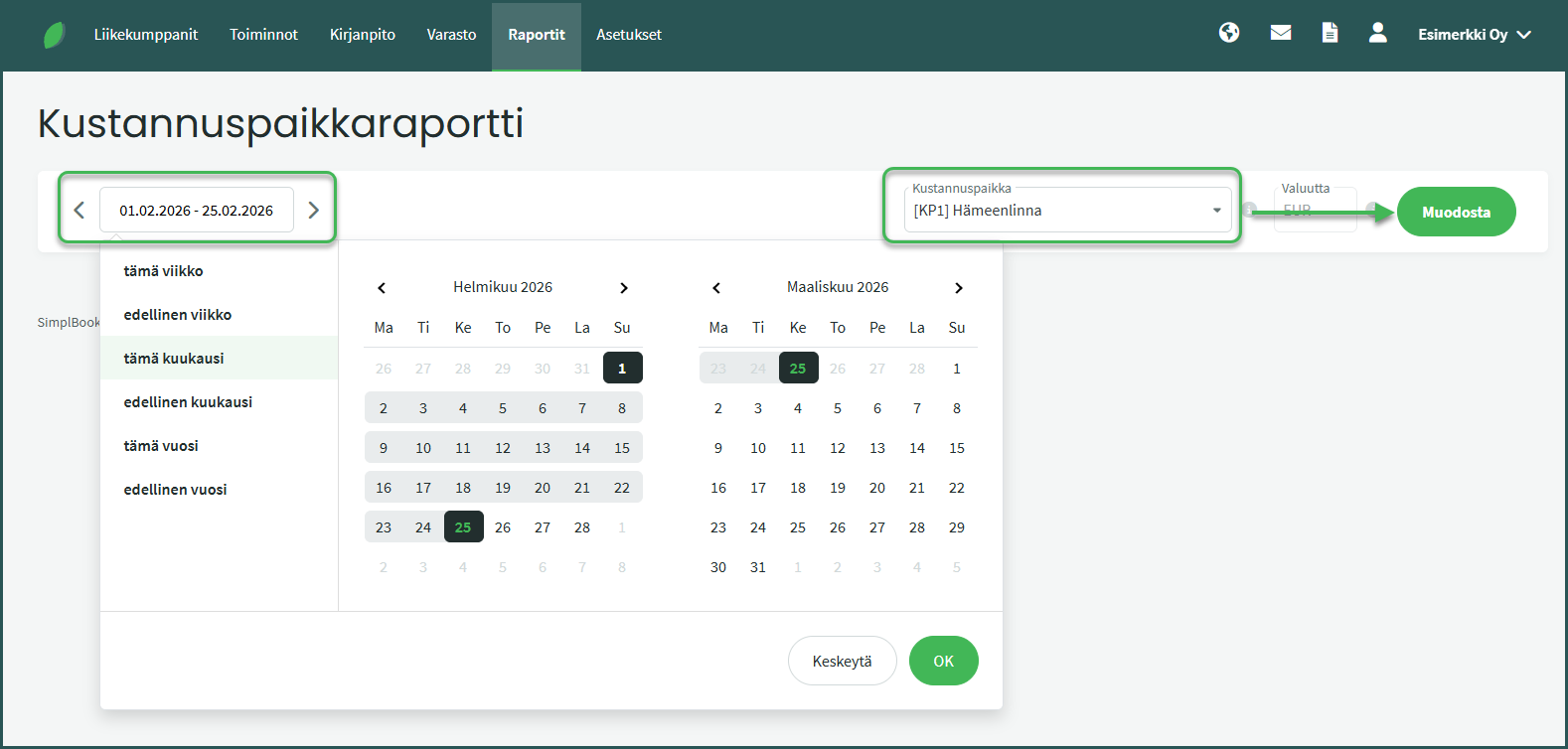
- You can search for a cost centre by part of its code or name.
- Once you have selected the time period and cost centre, click “Generate“.
3. The report shows the income and expenses allocated to the selected cost centre.
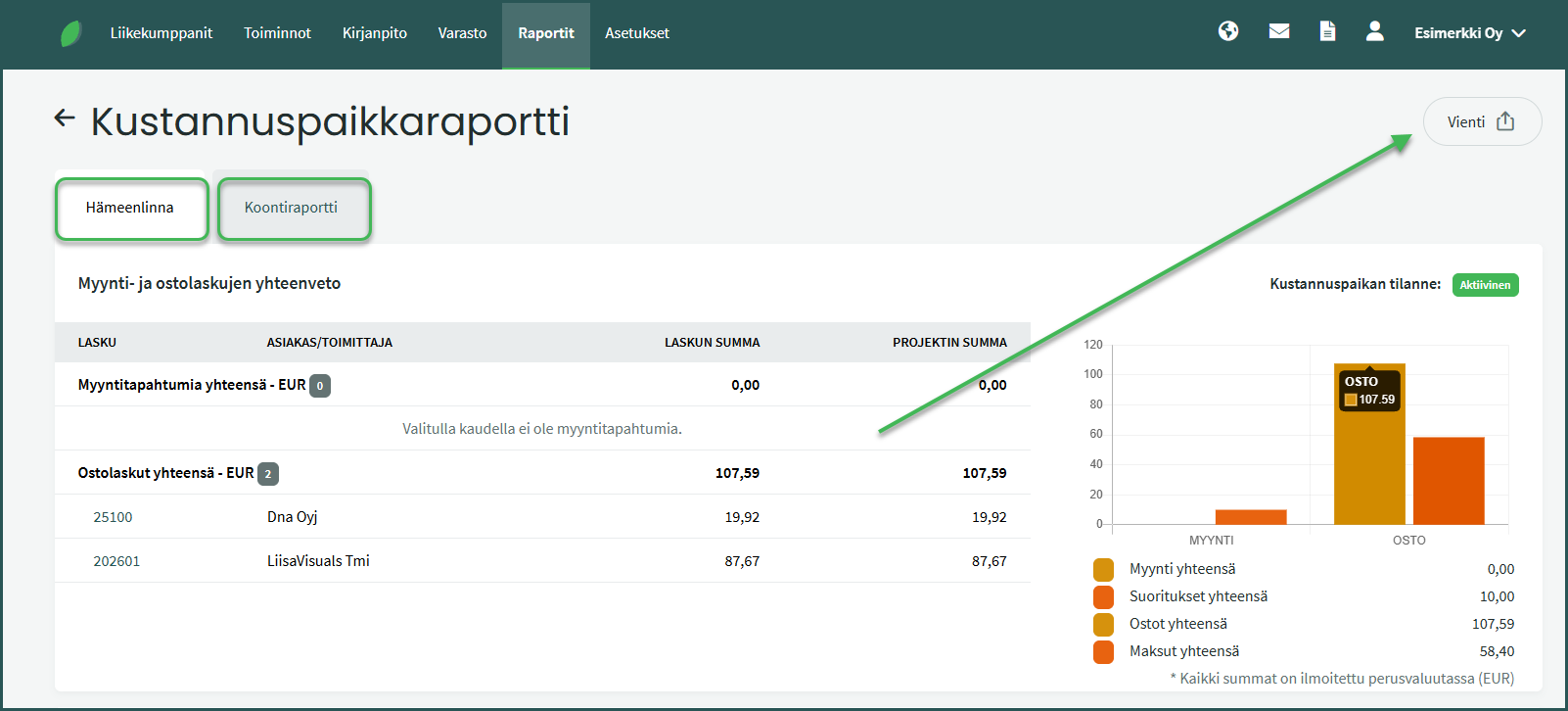
- The Summary tab shows an overview of all cost centres. If no cost centre has been added to an income or expense item, it will appear with the label “Unassigned”.
4. In other reports, the cost centre filter can be found in the Filters section of the report page.
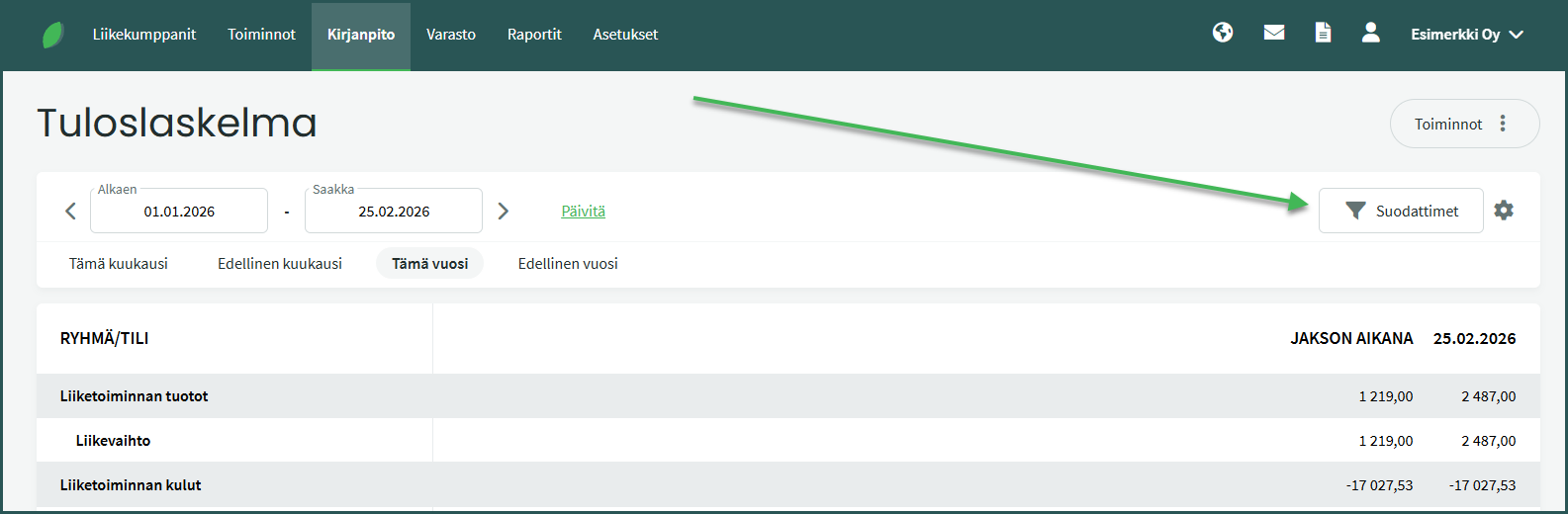
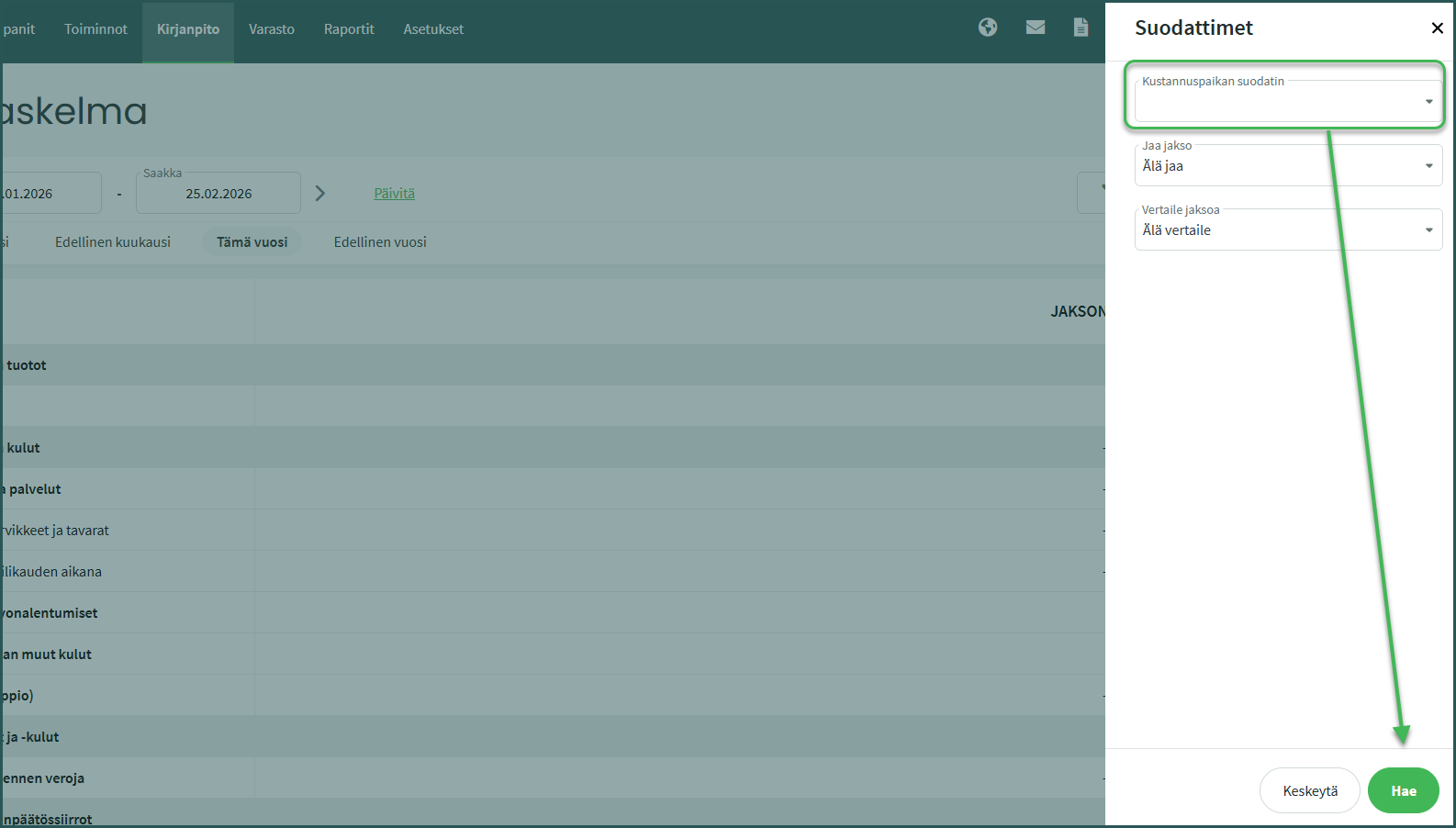
- The cost centre filter is available in most reports.
Leave A Comment?