
This guide explains how to enable the VAT integration and submit VAT returns to the Tax Administration directly from SimplBooks.
All VAT-registered businesses should enable this feature, as it significantly speeds up the preparation of VAT returns.
Before you can submit VAT returns from the software, you need to establish a connection between SimplBooks and the Tax Administration. The initial integration setup takes a few minutes. After that, the Tax Administration will activate the connection by the next business day at the latest — usually sooner.
Please note that you must have the right to act on behalf of the company in order to order the certificate. Business owners generally have this right directly for their own company; others (such as accountants) must be granted a separate suomi.fi authorisation. Read more about authorisations on the Tax Administration’s website.
QUICK GUIDE
- Log in to the Tax Administration’s certificate service at: https://varmennepalvelu.vero.fi/
- Select the company on whose behalf you wish to act. The page first shows active interfaces and below them the active certificates.
- If the company does not yet have any interfaces in use, select “Submit an interface application“. If the company already has the required interfaces, proceed to step 6.
- Under Tax Administration interfaces, select: ApitamoPKI (Web service) and Vero API (Web service).
- Under Incomes Register interfaces, select: Payroll data (Web service).
- Set the intended use of the interface to both “Payroll data, reporting wages paid” and “Payroll data, reporting wages on behalf of another party”.
- The same certificate can be used to report both VAT and payroll data, so select these intended uses even if you only want to submit VAT information.
- Fill in the organisation’s contact person details.
- Read the terms of use for the interface service and submit the application.
- You can order the certificate as soon as you have submitted the interface application. Click “Order new certificate” on the certificate service home page.
- Certificate type: Data producer (Web Service).
- Give the certificate a description, e.g. “VAT integration SimplBooks”.
- Fill in the technical contact person’s details. NOTE: Make sure the phone number and email address are correct.
- Submit the order.
- You will receive a secure email from the Tax Administration, and after clicking the link you will receive a PIN code by text message.
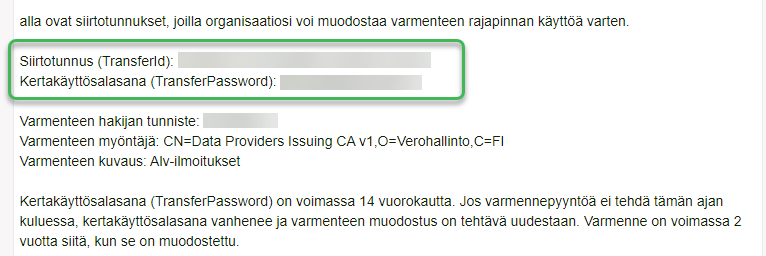
- The secure email contains a transfer ID and a one-time password.
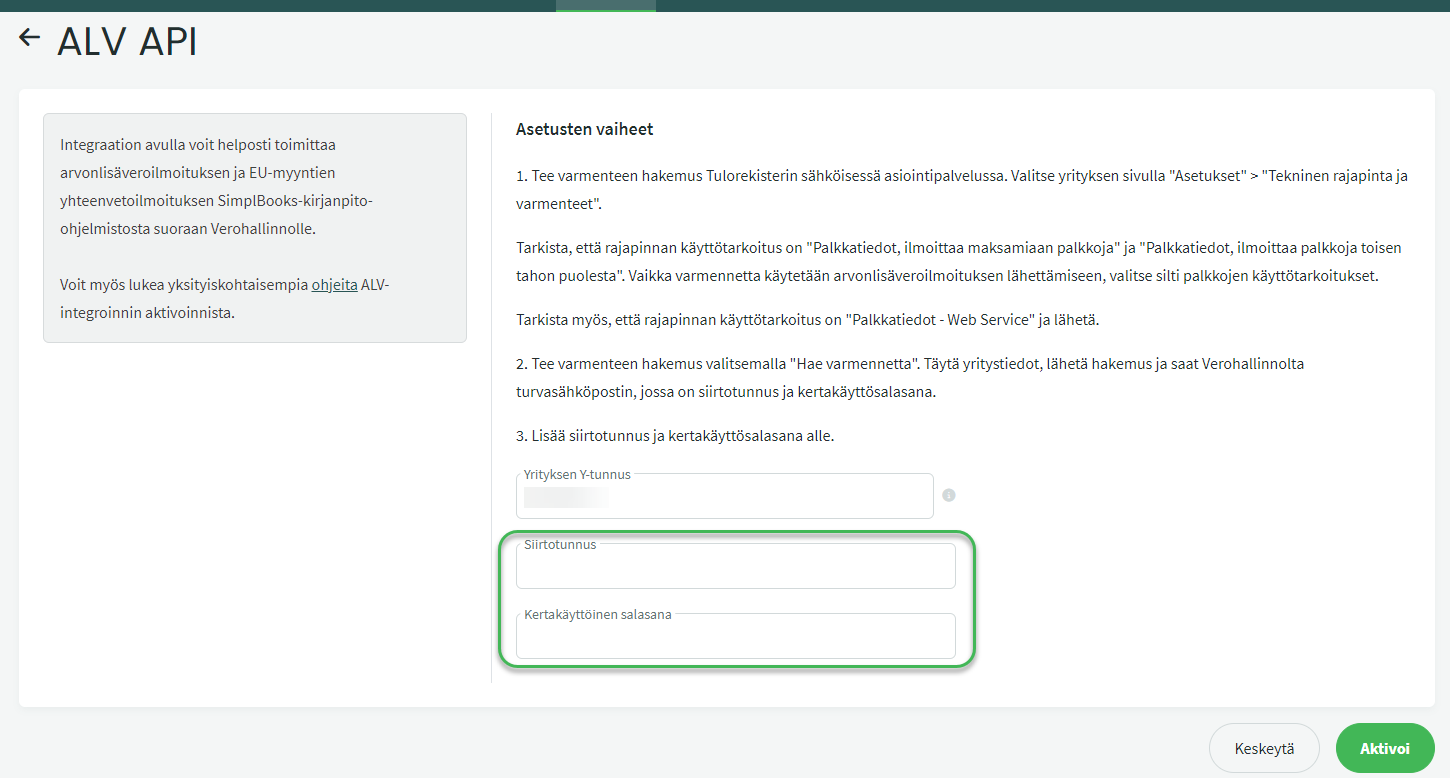
- Enter the transfer ID and one-time password in SimplBooks under SETTINGS > Integrations > VAT integration > Activate.
- The Tax Administration will activate the integration by the next business day at the latest; you will receive a notification in SimplBooks’ inbox when the integration is ready.
NOTE: For instructions on checking settings related to the change in the standard VAT rate on 1 September 2024, click here.
CREATING THE VAT INTEGRATION
Before you can activate the VAT integration and submit VAT returns directly from the software, you need to apply for a certificate from the Tax Administration’s certificate service.
The certificate’s transfer ID and one-time password are entered in SimplBooks, after which the Tax Administration will activate the integration by the next business day at the latest (usually sooner).
Log in to the Tax Administration’s certificate service and select the company for which you want to activate the VAT integration.

Once you have selected the company, you will see the currently active interfaces and certificates on the certificate service home page.
- If you applied for a certificate in the old service (via the Incomes Register), the certificates have been migrated by the Tax Administration to the new certificate service.
Active interfaces are shown at the top of the page:
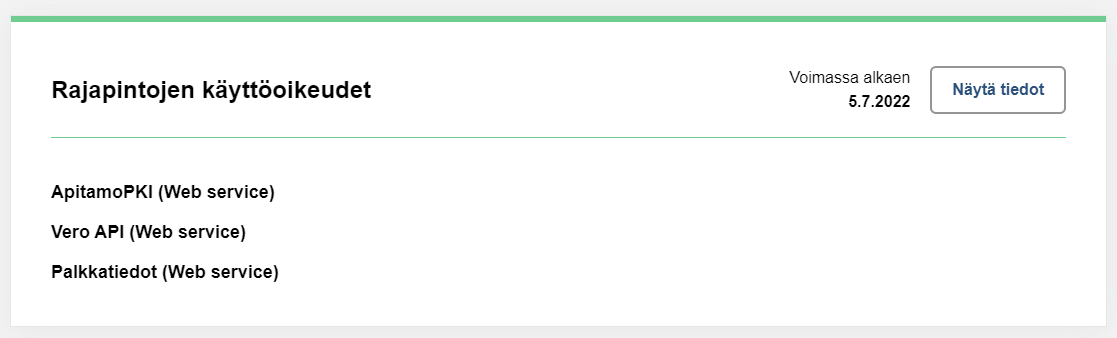
If these interfaces are not shown here, select “Submit an interface application”.
Select the interfaces shown in the image as active.
- Under Tax Administration interfaces:
- ApitamoPKI (Web service) and
- Vero API (Web service)
- Under Incomes Register interfaces:
- Payroll data (Web service)

- The same certificates and interfaces can be used to report both payroll data and VAT information. Therefore, select the interfaces and intended uses shown in the image, even if you only want to report VAT information.
Under Payroll data: intended use of the Incomes Register interface, activate both options.
- Payroll data, reporting wages paid and
- Payroll data, reporting wages on behalf of another party
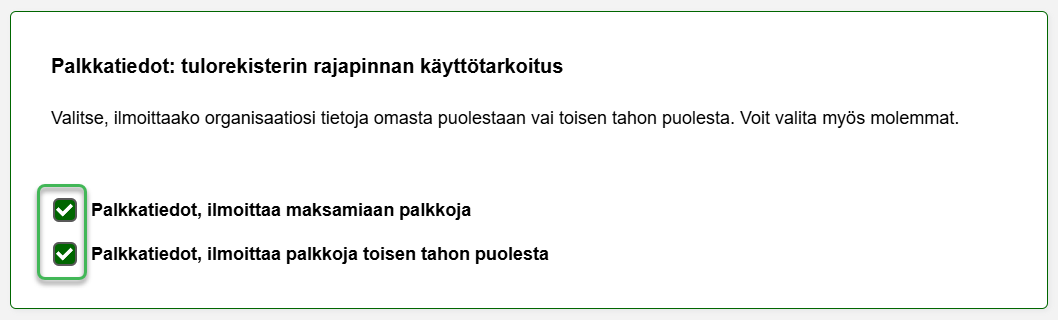
Fill in the organisation’s contact person details.

Read the terms of use for the interface services and submit the application.
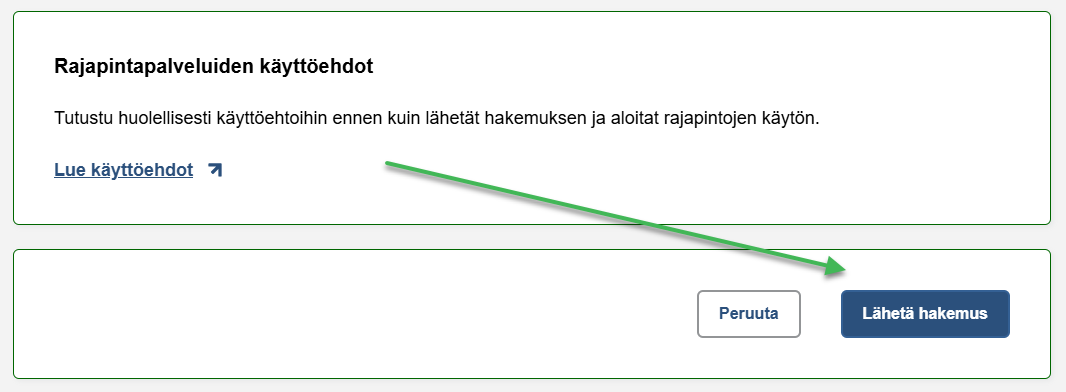
Next, order the certificate. You can do this as soon as you have submitted the interface application.
On the certificate service home page, under Production certificates, select “Order new certificate”.

At the beginning of the certificate order, the details of the organisation for which you are ordering the certificate are displayed.
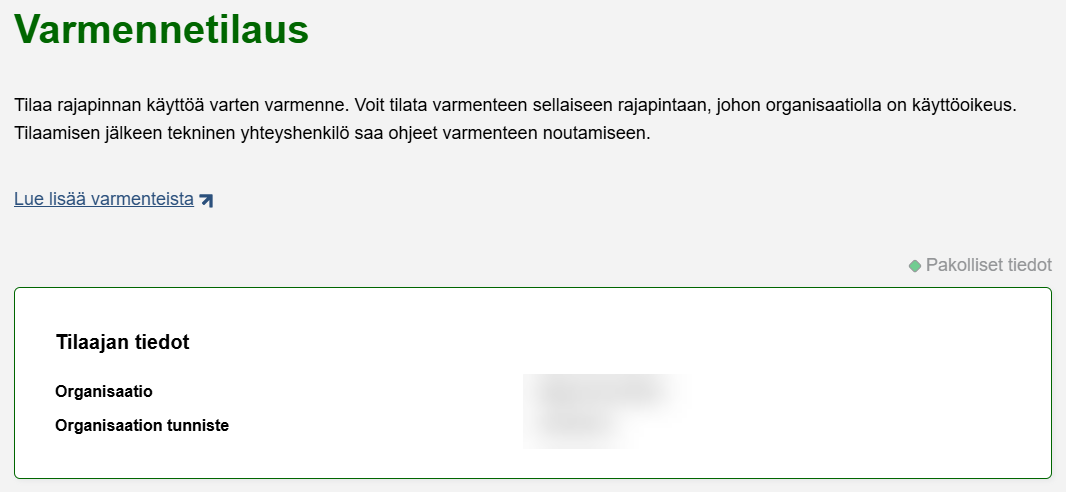
The certificate type is “Data producer (Web Service)”:
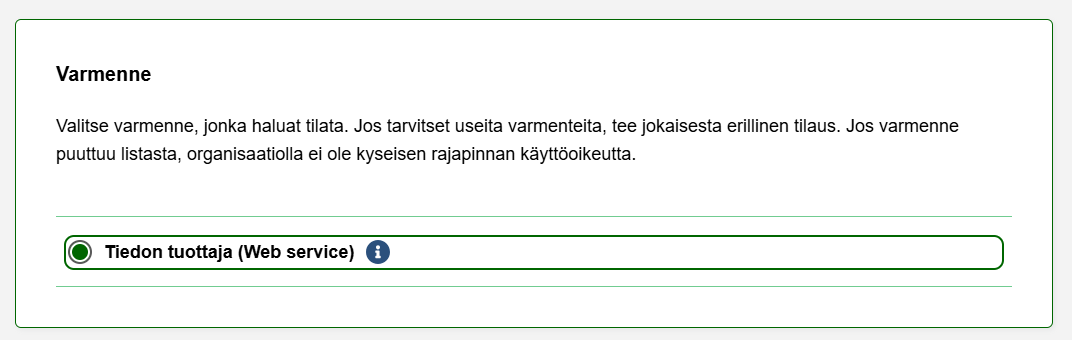
Give the certificate a name, e.g. “VAT integration SimplBooks”.
- We recommend ordering separate certificates for different software applications, which makes managing them clearer. Distinguishing between certificates is easy by naming them after the respective software.

Fill in the technical contact person’s details. The necessary information for retrieving the certificate will be sent to these contact details, so make sure they are correct. Also verify that the phone number can receive text messages.
Once the details have been filled in, submit the certificate order.
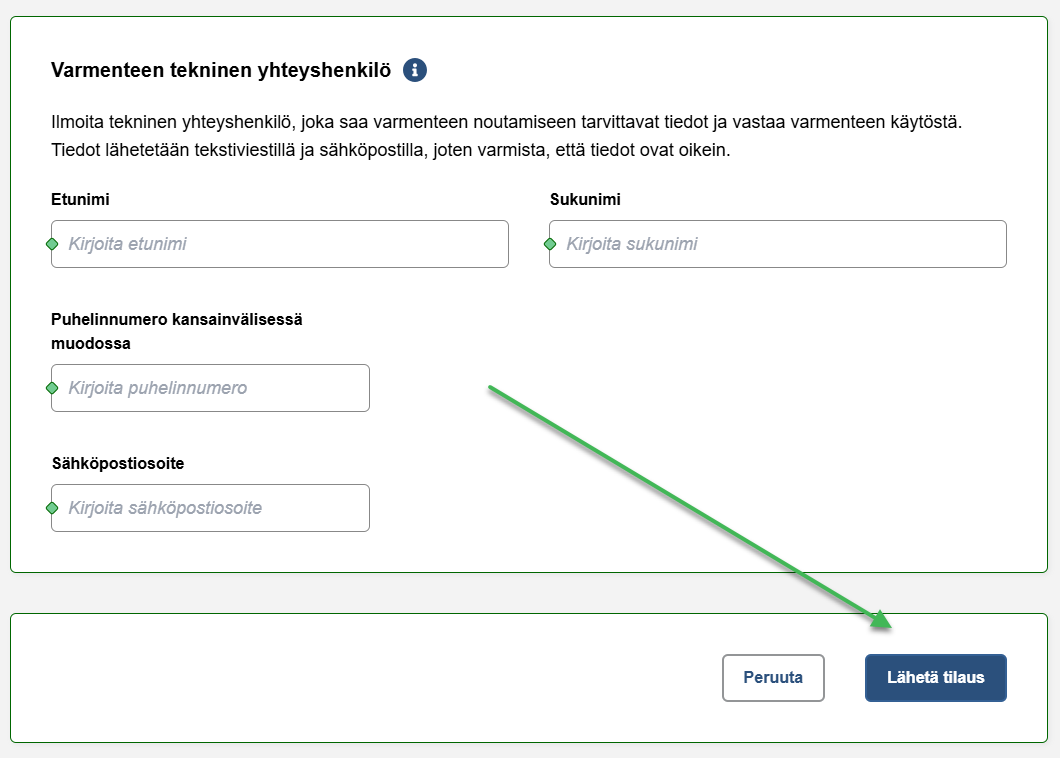
Next, the Tax Administration will send a secure email to the email address you provided:

Open the link. When you click the link, you will receive the PIN code needed to read the secure message by text message, sent to the technical contact person’s phone number you provided earlier.
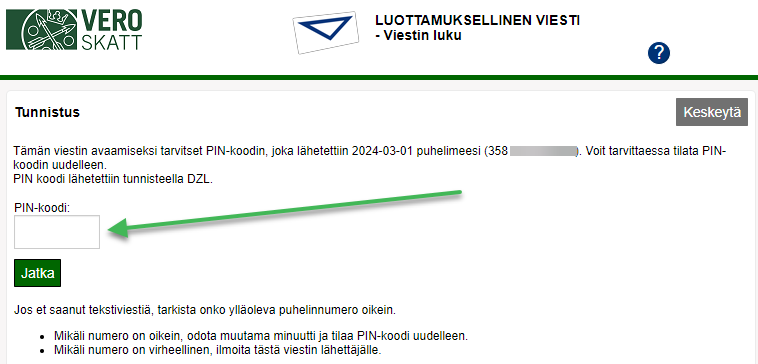
Enter the PIN code to access the message containing the transfer ID and one-time password. Save these details.
Log in to SimplBooks. Activate the integration under Settings > Integrations > VAT API > Activate:

Enter the transfer ID and one-time password in SimplBooks and save.
NOTE: The company’s business ID is filled in automatically from the company profile. Check that it is in the correct format. If necessary, you can edit it under SETTINGS > Company profile.
Also check that there are no extra spaces at the end of the field values.
SUBMITTING VAT RETURNS FROM SIMPLBOOKS
The Tax Administration typically activates the VAT integration within one business day. When the integration is ready to use, you will receive a notification in SimplBooks’ internal inbox as well as by email.
The VAT return is submitted from Accounting > VAT calculation:

Select the period corresponding to your tax period. The VAT return is submitted via Actions > Submit VAT return to Tax Administration. You can add this action to your favourites, which allows you to submit returns in future using the VAT button.
The first time you submit a return, the name and phone number of the person providing additional information about the return are saved.
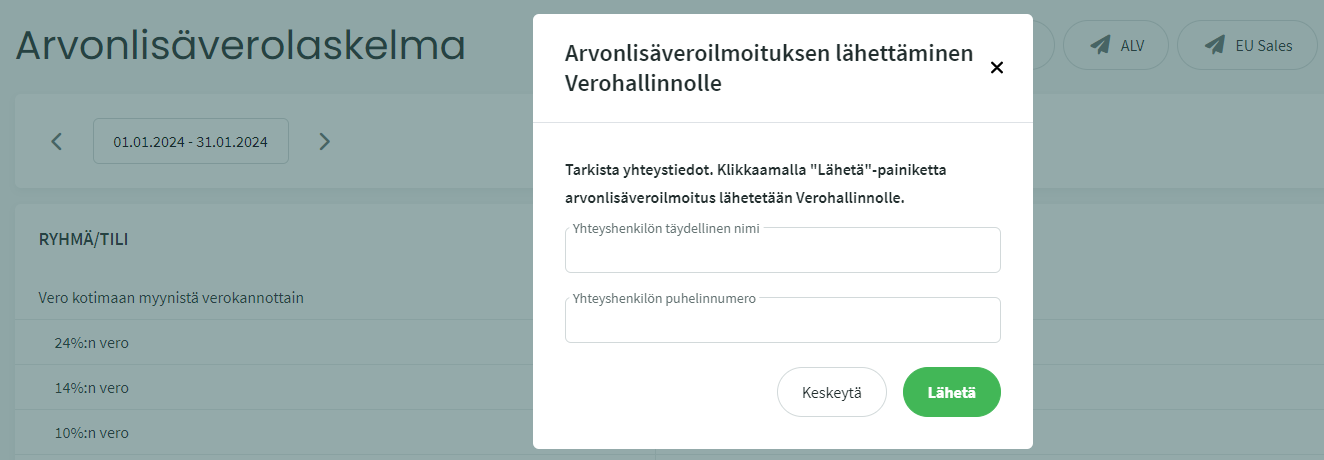
Check the contact details and click Send. The software will ask for confirmation — check the period and click Yes.
A confirmation of a successful submission will appear on a green background at the top of the page. In addition, a record of the successful submission is stored in the user log (Settings > Users > User activity history).
The return details will appear in MyTax on the next business day.
- The Tax Administration records the time of receipt as the moment you submit the return from SimplBooks. This means you do not need to submit the return any earlier than you would via MyTax.
If you need to correct the return later, you can submit a new return for the same period once the previous one shows as received in MyTax. When submitting a corrective return, the software will also ask for the reason for submitting the new return:
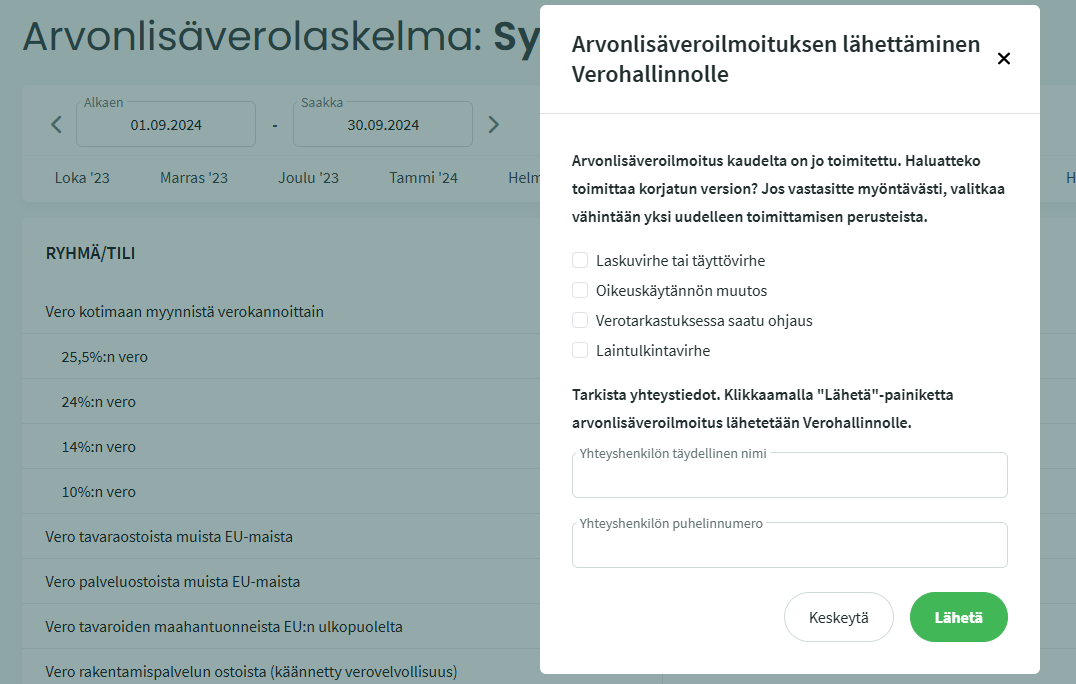
If, for example, receipts were missing from your accounting, you have added them and wish to submit an updated return for that period, select “Calculation error or filing error” as the reason.
VAT recapitulative statement
The VAT recapitulative statement can be submitted using the EU sales button. The data required for the recapitulative statement is drawn onto the calculation from sales invoices only, because the buyer’s VAT number must also be recorded on the statement.
Therefore, if you record EU sales using only accounting journal entries, the recapitulative statement must be submitted in MyTax.
Leave A Comment?