
This guide explains how to add new fixed assets to accounting and how to record depreciation on them. If you are adding fixed assets to accounting that were already in use by the company before starting to use SimplBooks, please read the guide Recording Existing Fixed Assets in SimplBooks.
The method for adding fixed assets depends on the depreciation method. Currently, the software can only generate straight-line depreciation automatically. Declining balance depreciation must be entered manually as accounting entries.
NOTE: The fixed asset report only shows fixed asset changes posted through purchase and sales invoices and automatically generated depreciation entries. The Fixed Assets feature is not mandatory. You can also add fixed assets to accounting via a manual accounting entry and post depreciation entries manually — especially if you have few fixed assets and use declining balance depreciation. The Fixed Assets view is most useful for straight-line depreciation when you are posting fixed assets through sales or purchase invoices.
1. ADDING FIXED ASSETS WITH STRAIGHT-LINE DEPRECIATION
New fixed assets can be added to accounting directly through a purchase invoice. You can read more about creating a purchase invoice here.
On the purchase invoice line, select the same account that is set as the fixed asset account under Settings > Automatic postings > Fixed Assets.
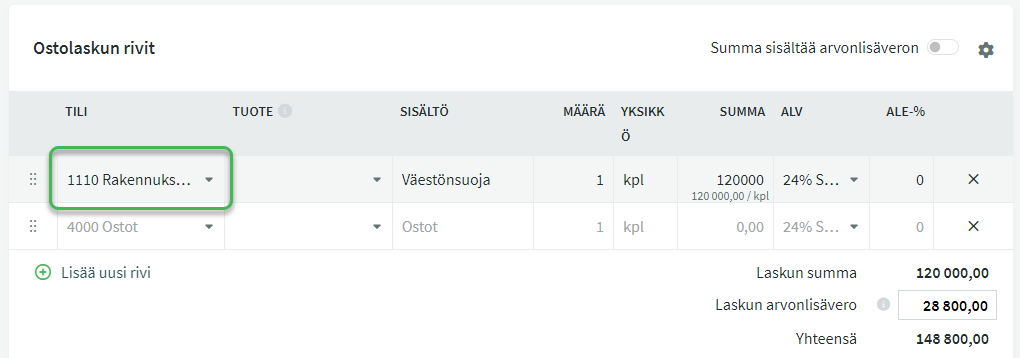
When a fixed asset account has been selected on the purchase invoice line, the software will ask when saving the invoice whether you want to create a fixed asset from it. Select yes.
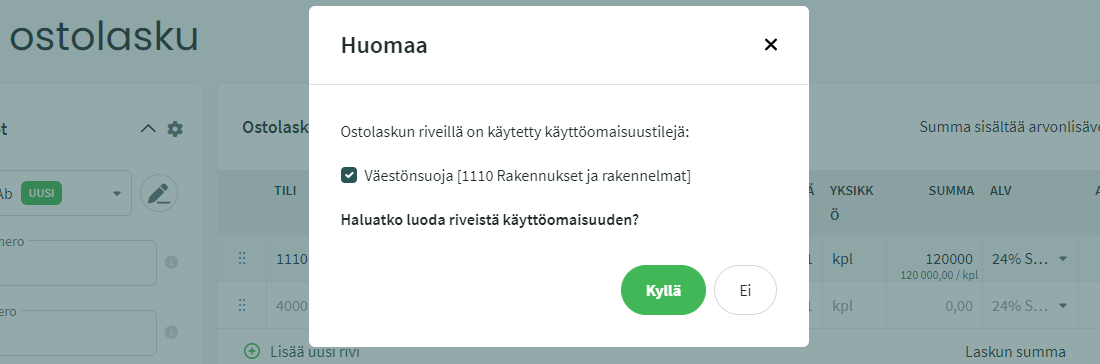
The fixed asset will then appear under Accounting > Fixed Assets.
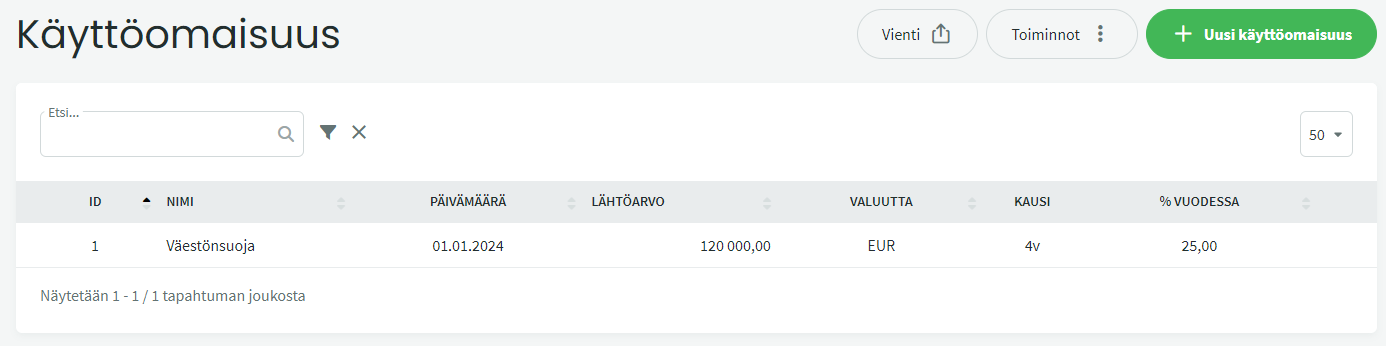
Open the added fixed asset by clicking on it and select “Edit fixed asset” from the Actions section on the right.
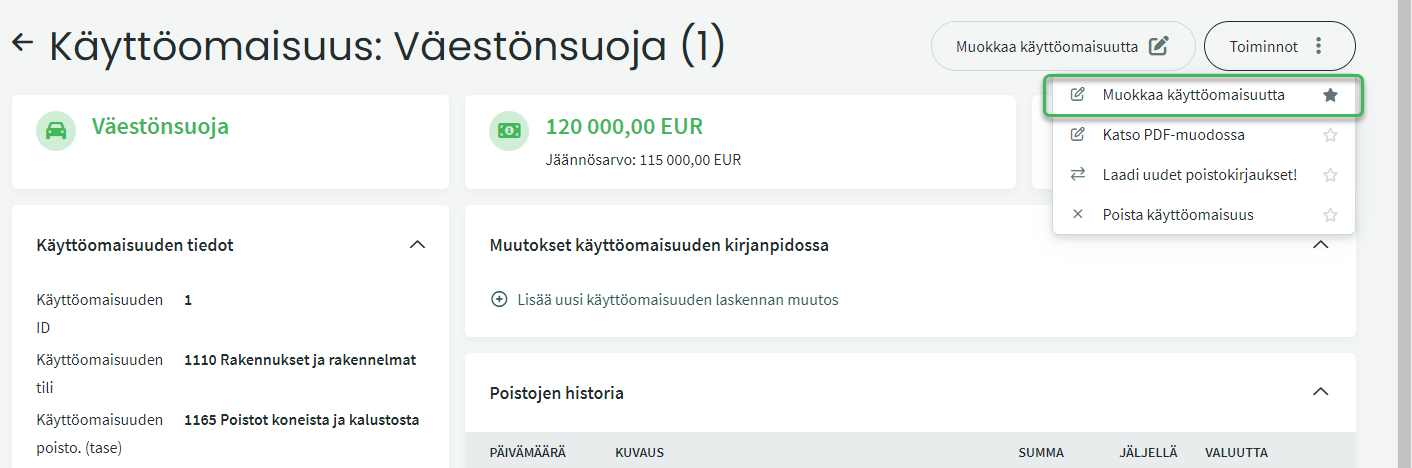
Straight-line depreciation is entered in the software as a percentage, even though the depreciation is calculated based on the depreciation period (in years). Adjust the depreciation percentage as needed:
- E.g. 10 years = 10%, 5 years = 20%, 4 years = 25%, etc.
Also change the fixed asset name if needed. You can also change the accounting accounts used for depreciation. Enter when and how frequently you want to record depreciation.
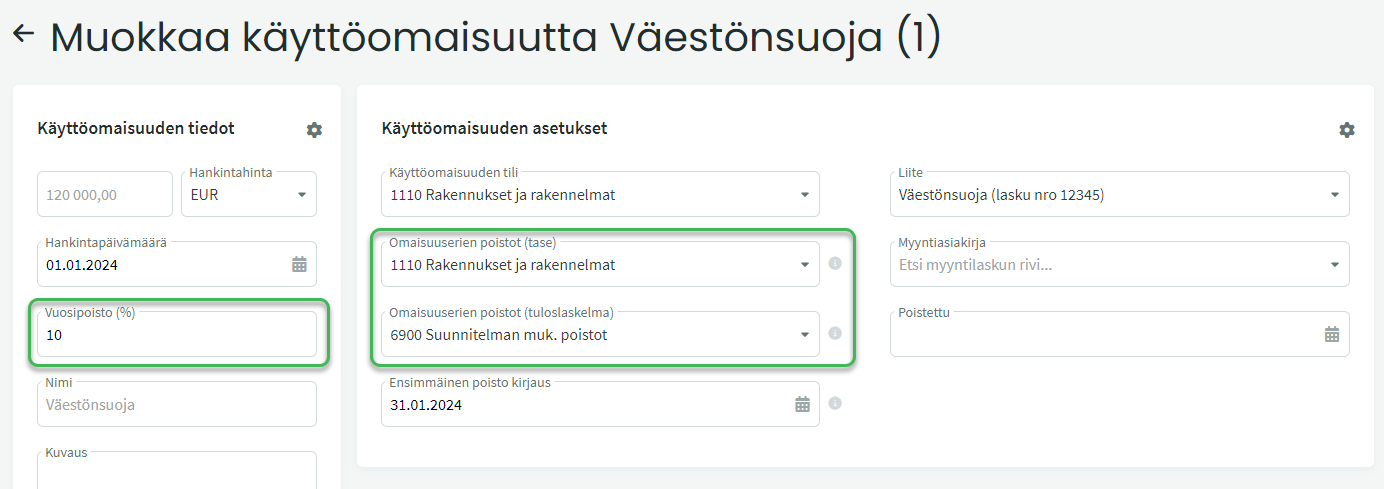
Save the fixed asset settings.
The software will automatically generate straight-line depreciation entries from the date you have specified.
NOTE: If you do not want to use the default accounts for fixed assets (e.g. if you want to track different fixed assets in their own accounts) and you use a different account on the purchase invoice than what is set in the settings: Create a new fixed asset and link it to the purchase invoice.
You can create a new fixed asset under Accounting > Fixed Assets > New Fixed Asset. In the new fixed asset creation view, you can link it to a purchase invoice by entering the invoice number in the Attachment field and selecting the correct invoice.
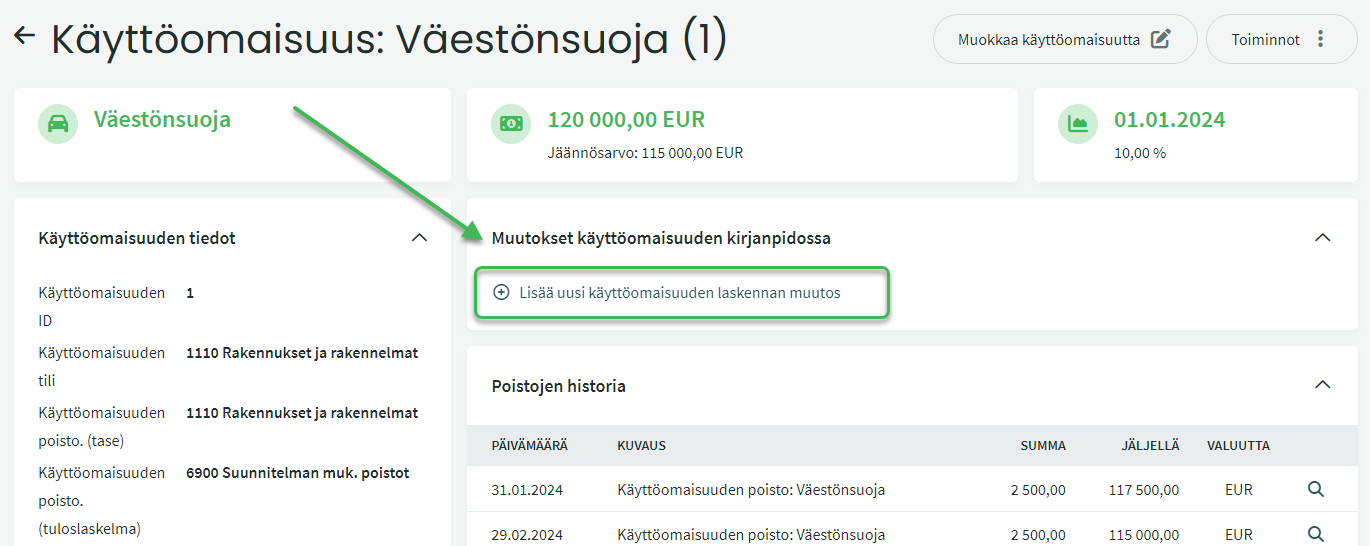
If in the future you want to keep the previous depreciation entries unchanged and modify the depreciation period, open the fixed asset and make the change under “Changes to fixed asset accounting”. Select “Add new fixed asset calculation change”.
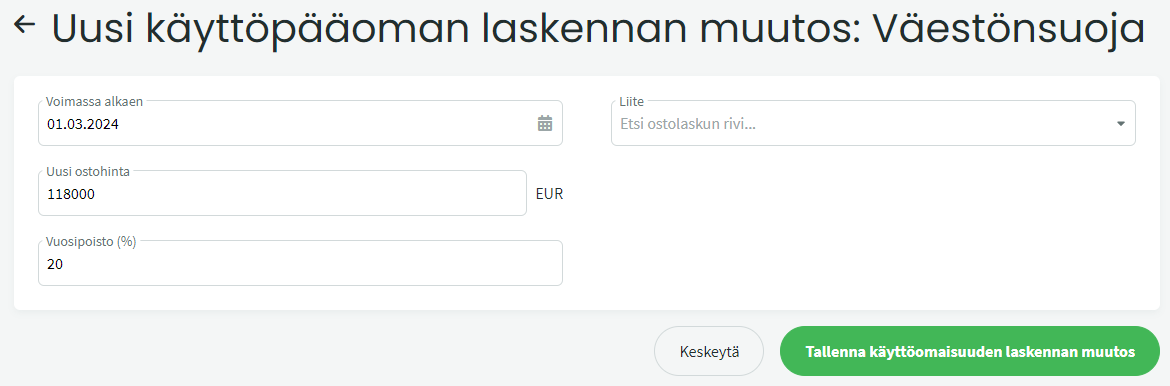
Enter the effective date of the change, set the remaining value in the “New purchase price” field, and add the new depreciation rate as a percentage per year.
- Example: Original acquisition cost €4,000 with an original depreciation period of four years. One year of depreciation has been recorded, and you now want to change the depreciation period to five years. Enter the value as €3,000 and set the annual depreciation rate to 20% (= 5 years).
When you save the calculation change, the software will ask from which date the new depreciation entries should be generated.

2. ADDING FIXED ASSETS WITH DECLINING BALANCE DEPRECIATION
NOTE: Currently, the software can only generate straight-line depreciation automatically. Declining balance depreciation must be entered manually as accounting entries under ACCOUNTING > Entries.
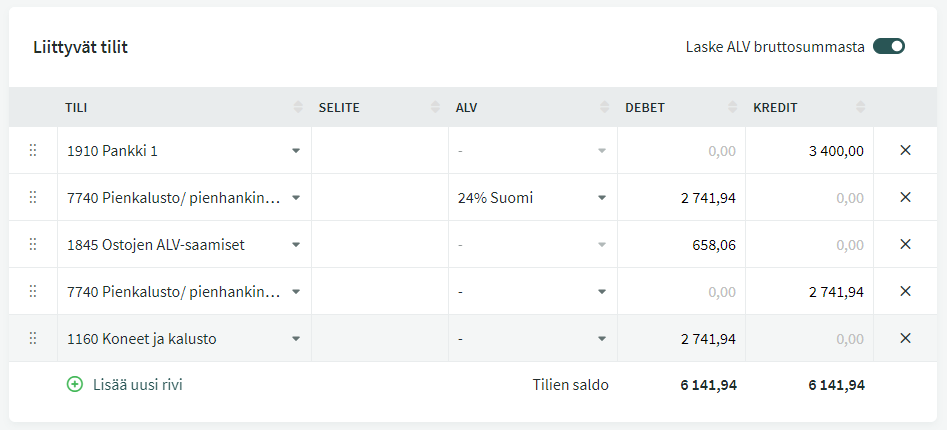
You can add fixed assets subject to declining balance depreciation to the software via an accounting entry. If the acquisition cost of the fixed asset includes deductible VAT, the acquisition can be posted through an income statement account (VAT cannot by default be posted to balance sheet accounts).
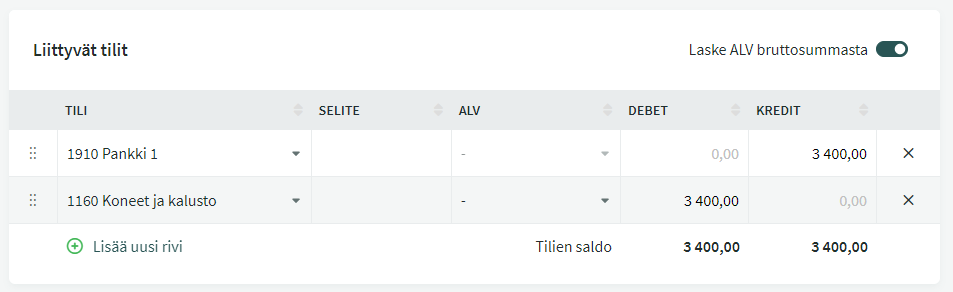
Example 2. Acquisition cost €3,400, including 24% VAT and the acquisition is made for a VAT-deductible purpose:
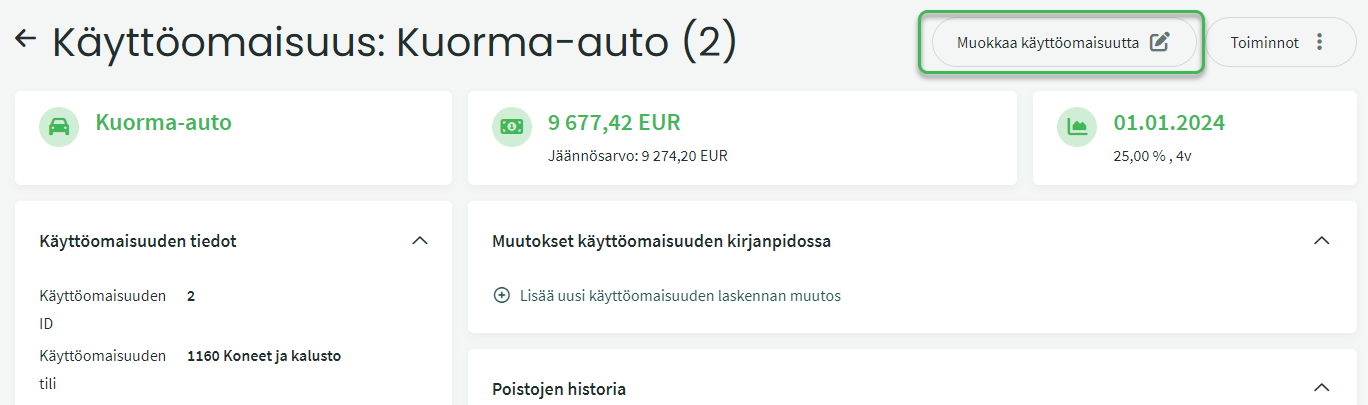
You can also add fixed assets subject to declining balance depreciation using the method described in section 1 above, in the Fixed Assets view. After adding, you must change the annual depreciation rate to 0%, because depreciation entries are made manually.
Open the added fixed asset and select “Edit fixed asset”.
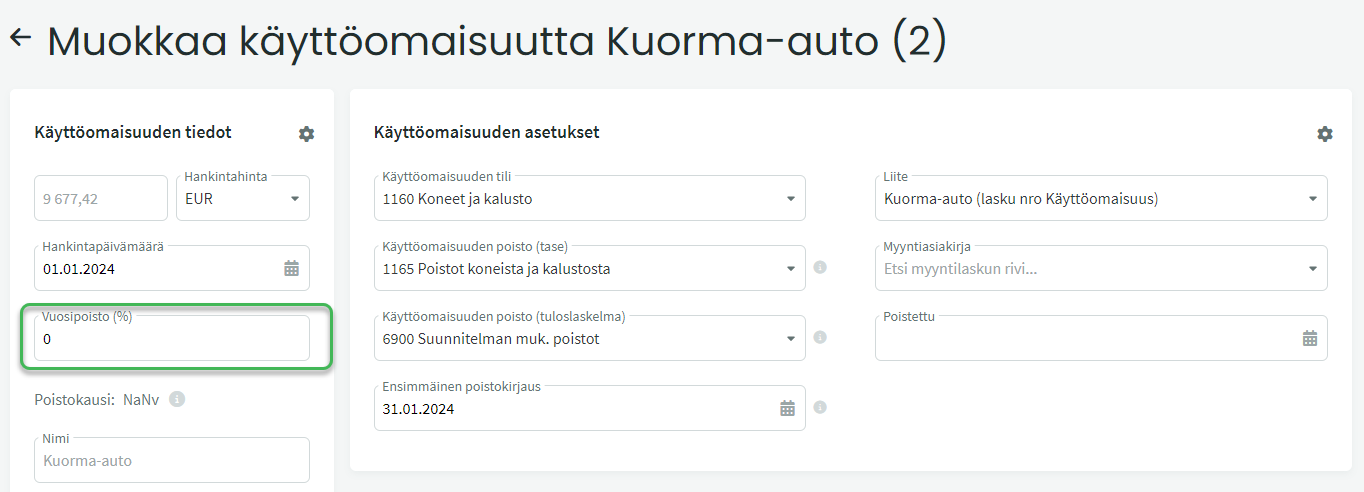
Change the annual depreciation rate to 0% and make sure the fixed asset name is appropriate.
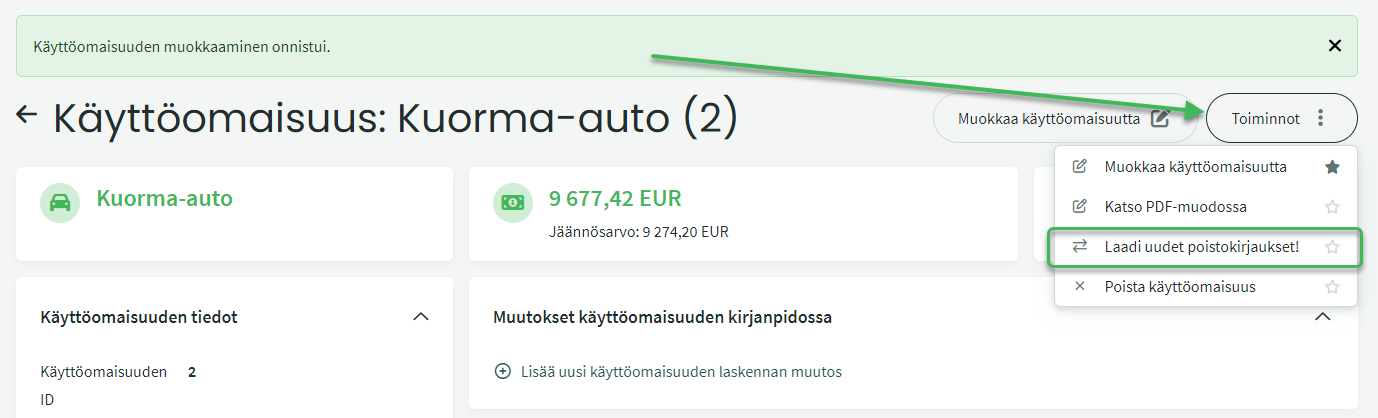
Since declining balance depreciation entries are created in the Entries view, you do not need to fill in any other fixed asset settings. Save the fixed asset and select “Generate new depreciation entries” from the Actions section on the right.
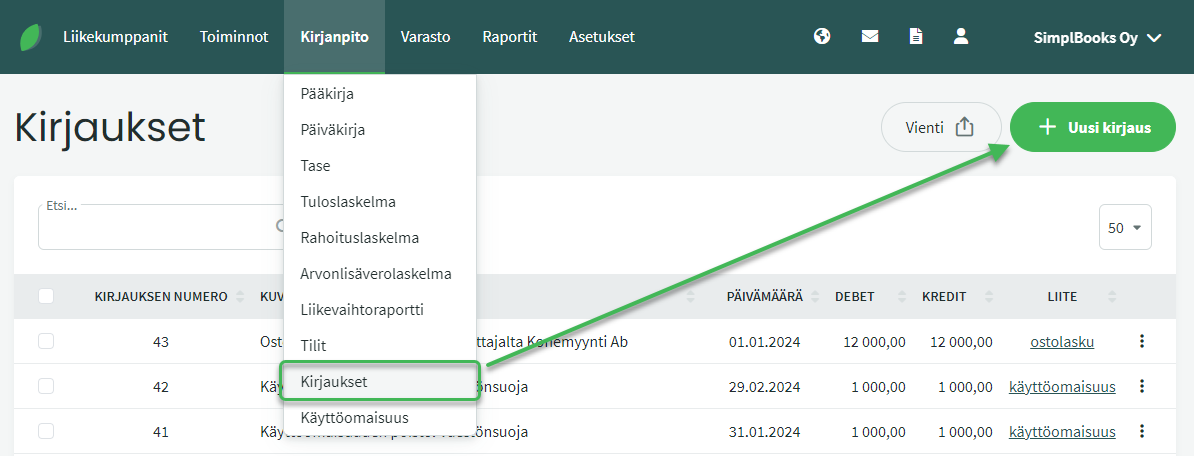
Set the depreciation date on the new entry. Depreciation can be posted monthly or annually, for example.
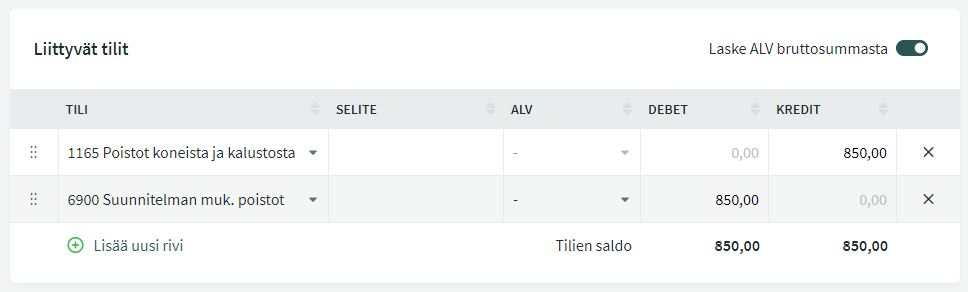
- Balance sheet depreciation account. If you want to track depreciation in a separate account, you can use e.g. account “1165 Accumulated depreciation on machinery and equipment”. You can also post depreciation to the same account as the asset.
- Income statement depreciation account. E.g. “6900 Planned depreciation”. You can also add your own depreciation accounts for different fixed assets if you want separate lines on the income statement for e.g. buildings and machinery depreciation. Instructions for adding accounts can be found here.
Leave A Comment?