
This guide explains how you import multiple products in the program at once using a product list.
- If you have an existing product list before starting to use SimplBooks, the easiest way to import the entire list into the program at once is to upload it as a CSV file.
- If you want to add products one by one, you can find instructions for that here.
Can products be added without inventory accounting?
Yes. You can add products to the program without activating inventory accounting. Instructions can be found here.
Does this guide also cover importing opening inventory?
This guide only covers importing the product list. If you have opening inventory, you can read about adding it here.
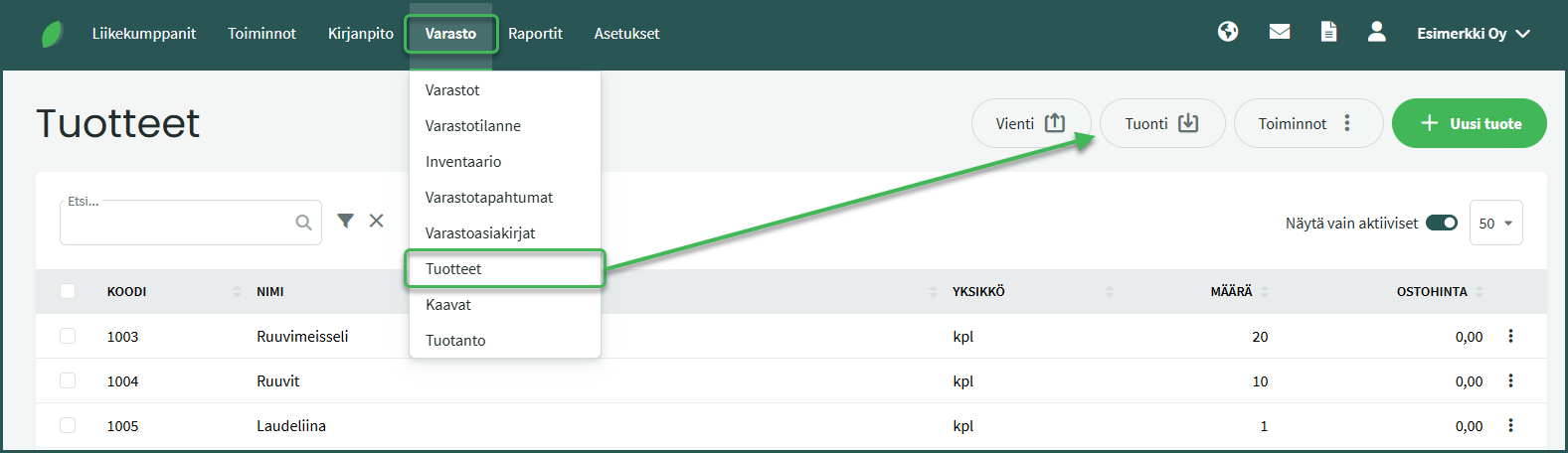
1. You can import the product list under Warehouse > Items > Import.
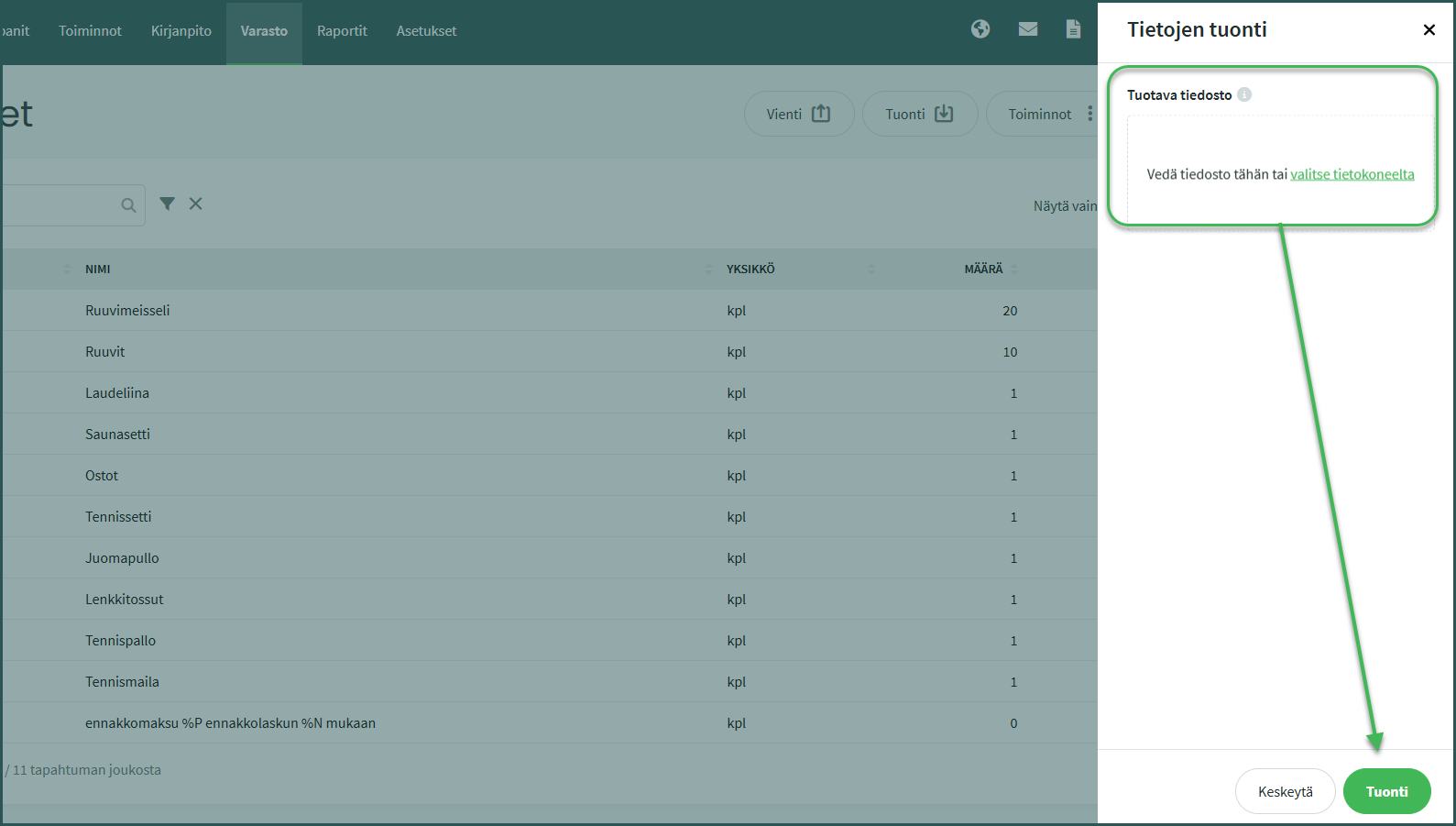
2. Select your existing product list in CSV format and click “Import” at the bottom.
3. Select whether the file includes a heading line
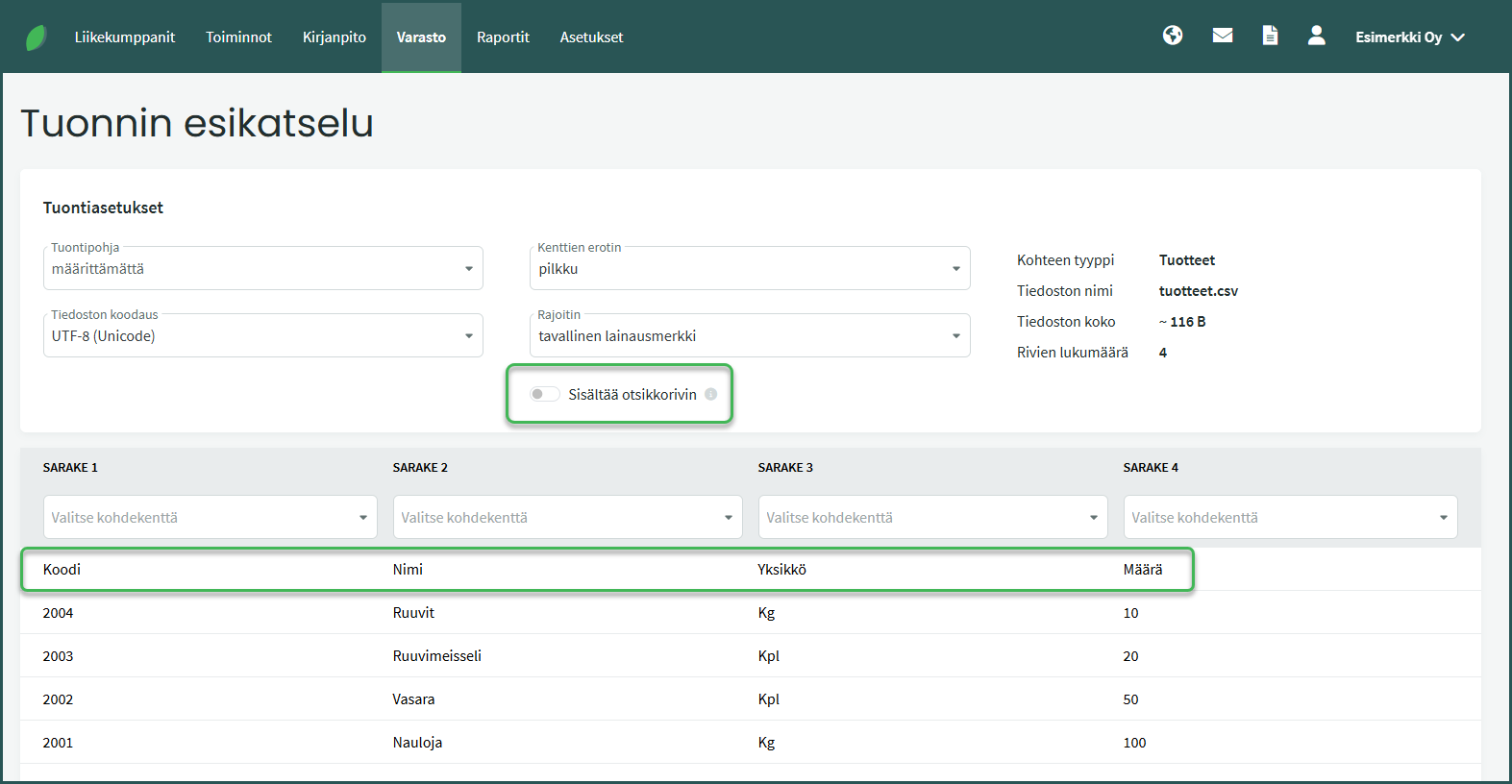
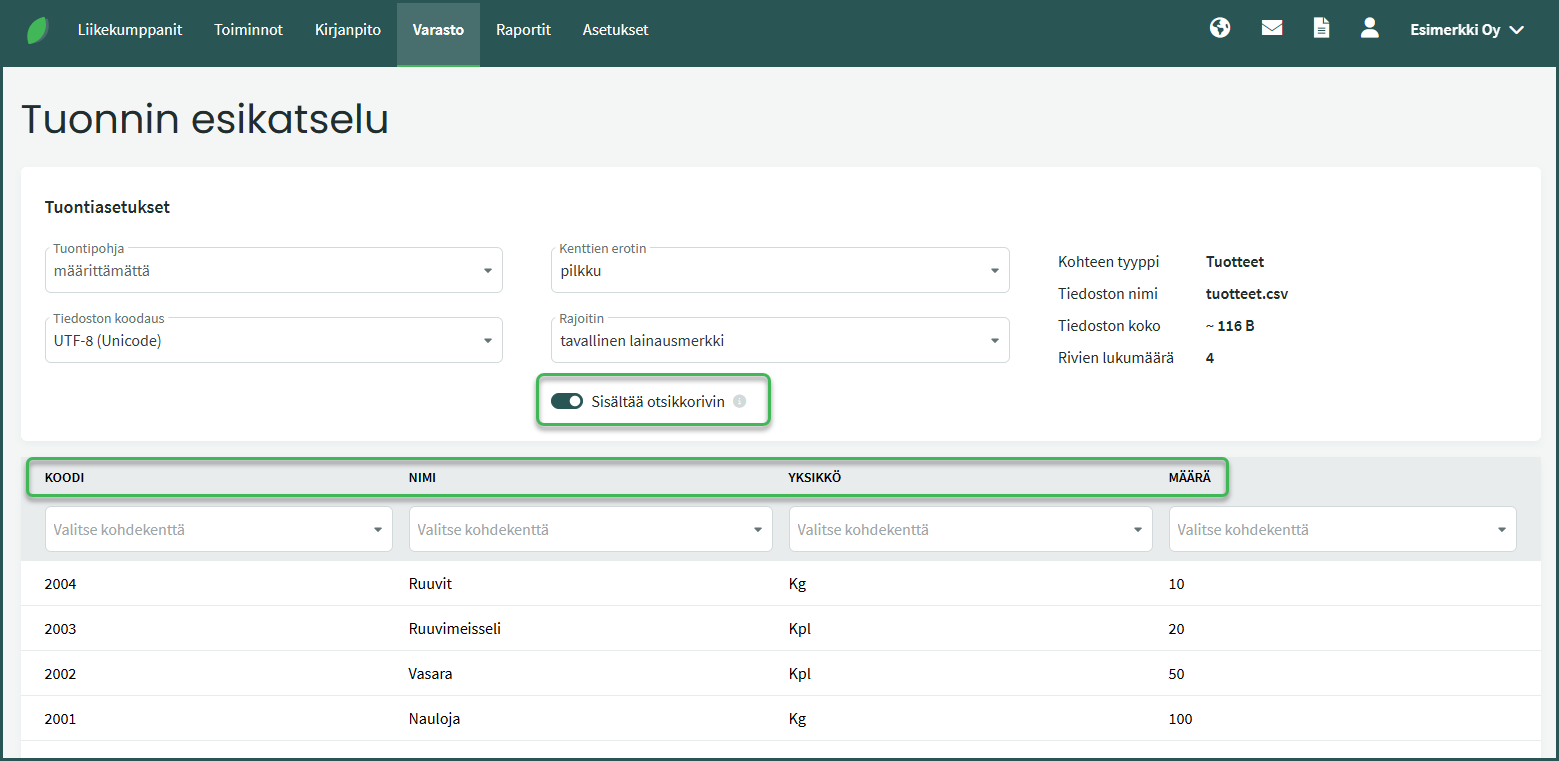
This selection determines whether the first row of the CSV file is a header row, i.e., whether it contains the column names.
- If the “Includes the heading line” option is not enabled, the program will interpret the first row as a product.
- If the “Includes the heading line” option is enabled, the first row is displayed above the “Choose target field” columns and the program will not add it as a product.
4. Select headings for the required columns from the dropdown menus.
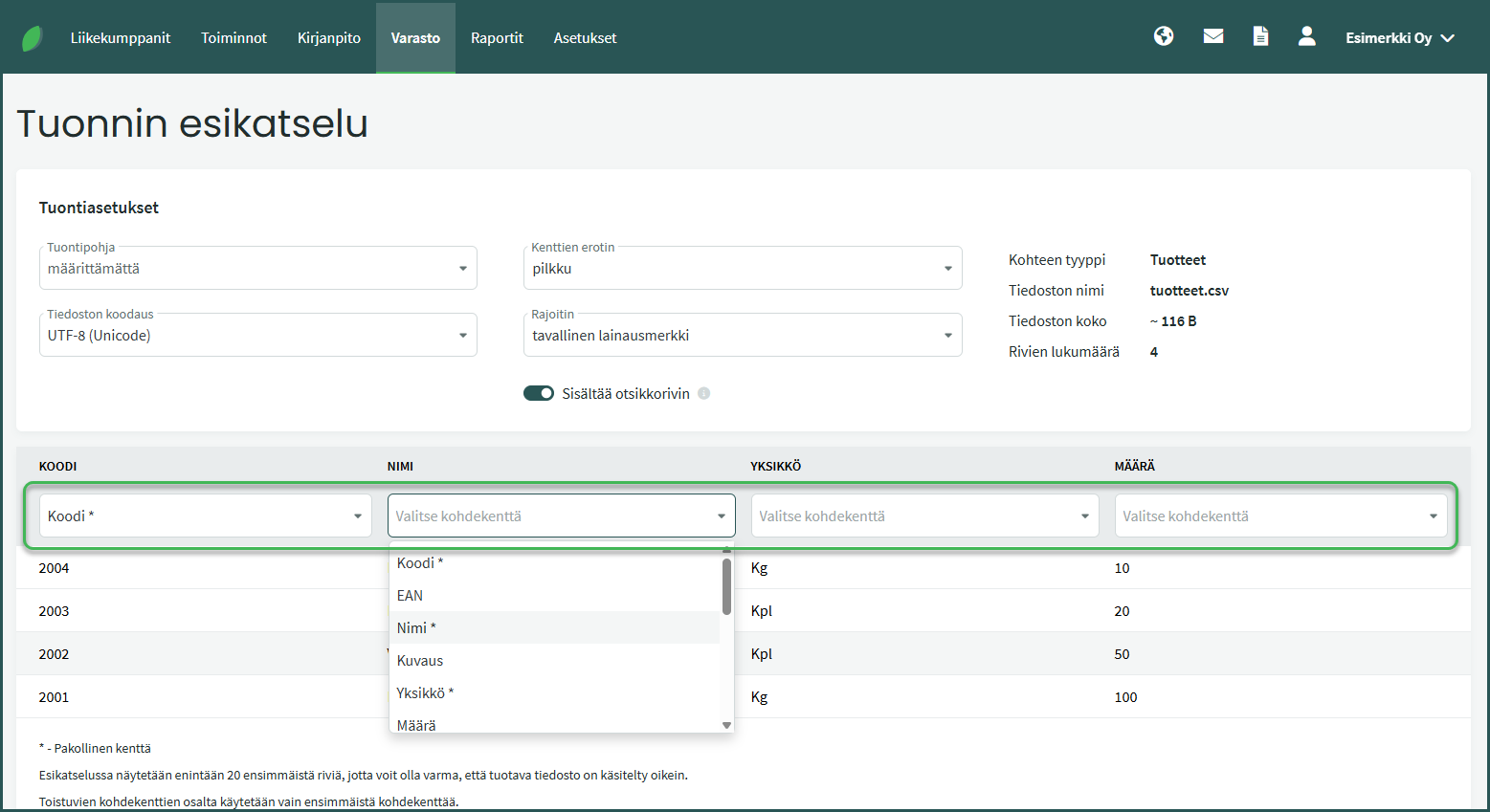
The required fields are the product code, name, and unit.
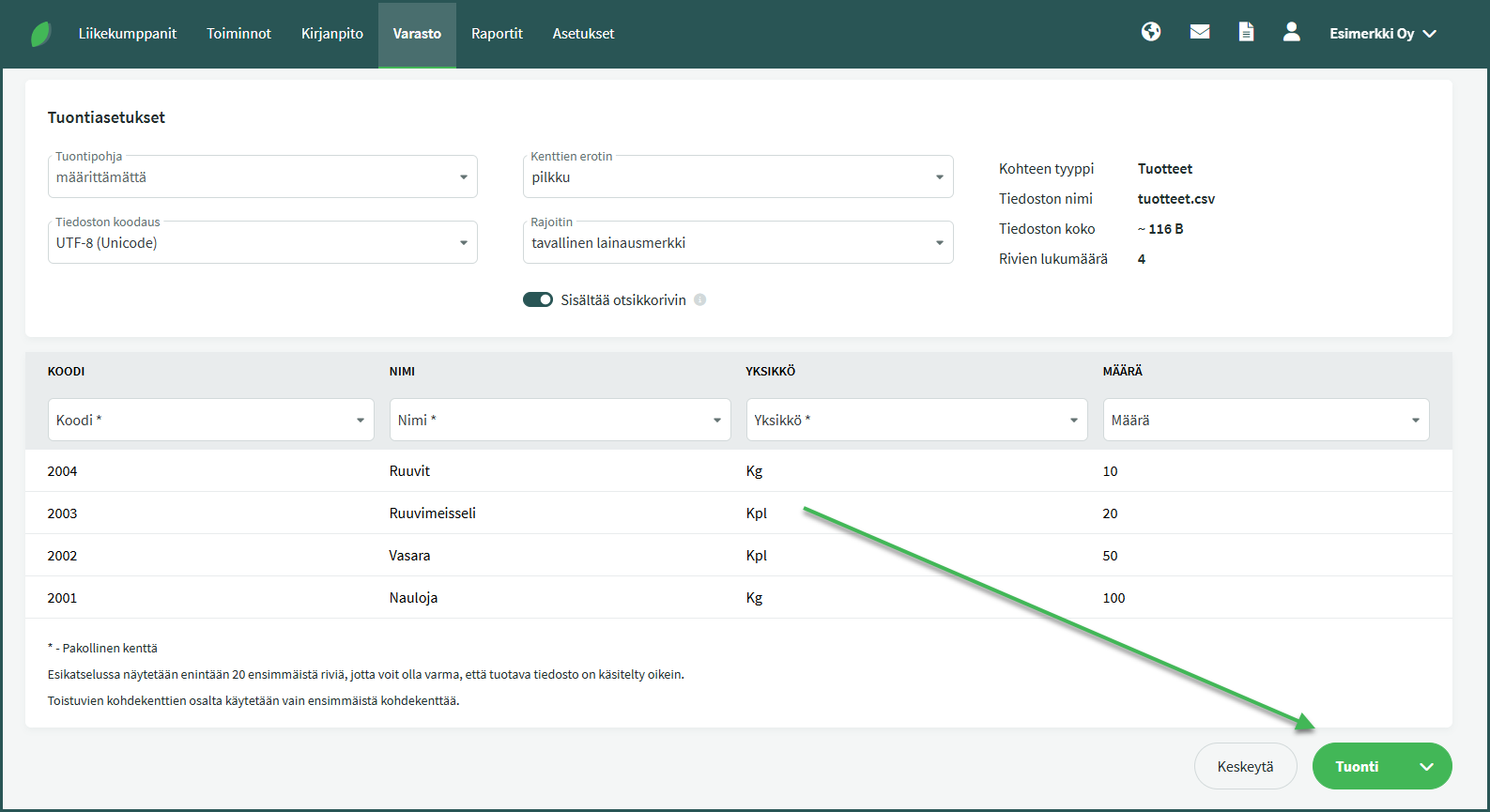
5. Once columns have been mapped for at least the required fields, click “Import” at the bottom.
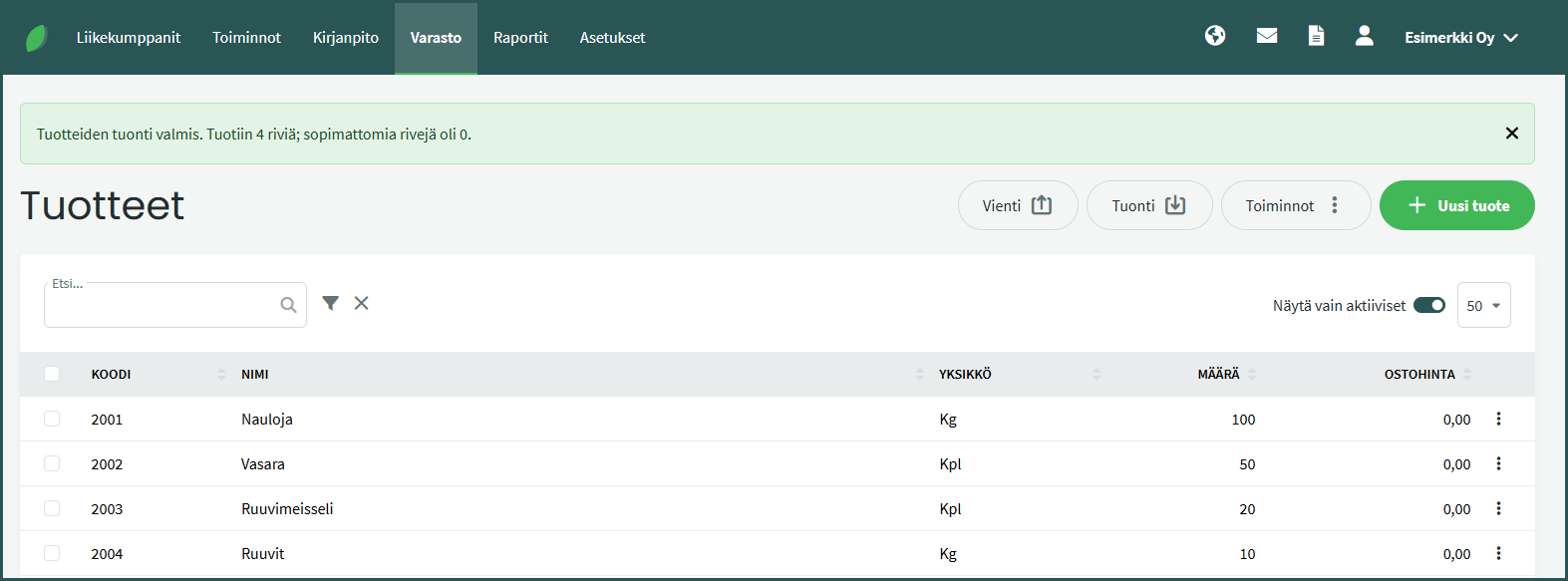
6. When the import is complete, the program will report how many products were imported successfully and whether any products were not imported due to errors in the data.
Leave A Comment?