
If a bank transaction has been saved in the programme as a bookkeeping entry, it can be deleted by removing that bookkeeping entry.
If you use sales invoices or purchase invoices, and the bank transaction has been linked to an invoice, you must delete the payment receipt or payment. Simply deleting the bookkeeping entry is not sufficient — if you try to delete only the bookkeeping entry for a payment receipt or payment, the programme will always recreate it automatically.
Please note that whenever you create sales invoices in the programme, you must also use the associated payment receipts. Likewise, whenever you receive or create purchase invoices in the programme, you must also use the associated payments.
The examples primarily use sales invoices and payment receipts, but purchase invoices and payments work on exactly the same principle.
1. Editing or deleting an unpaid invoice
Invoices are managed in the programme under Actions > Sales Invoices or Purchase Invoices.
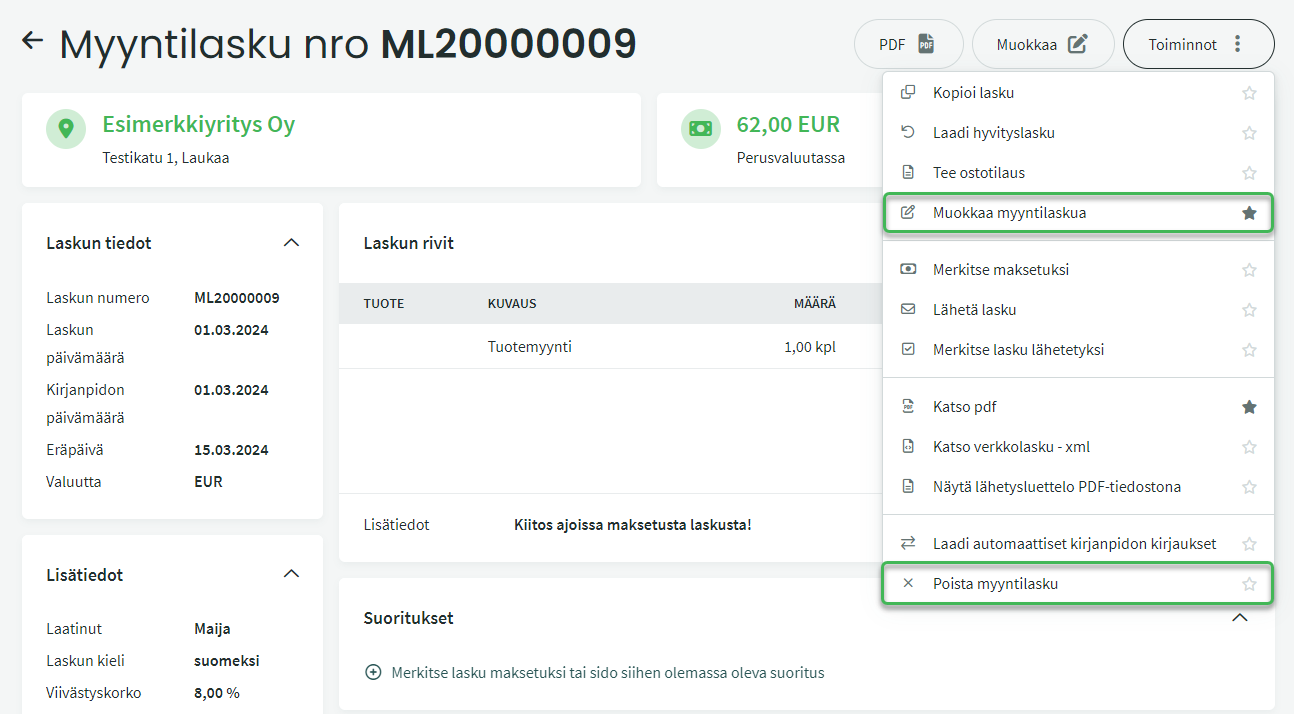
Unpaid sales or purchase invoices can be edited or deleted from the Actions menu on the right.
- From the menu, you can star two favourites that will appear directly in the invoice view.
2. Editing and deleting a payment receipt or payment in “Pending” status
Payments and payment receipts are managed under Actions > Payment Receipts or Payments.
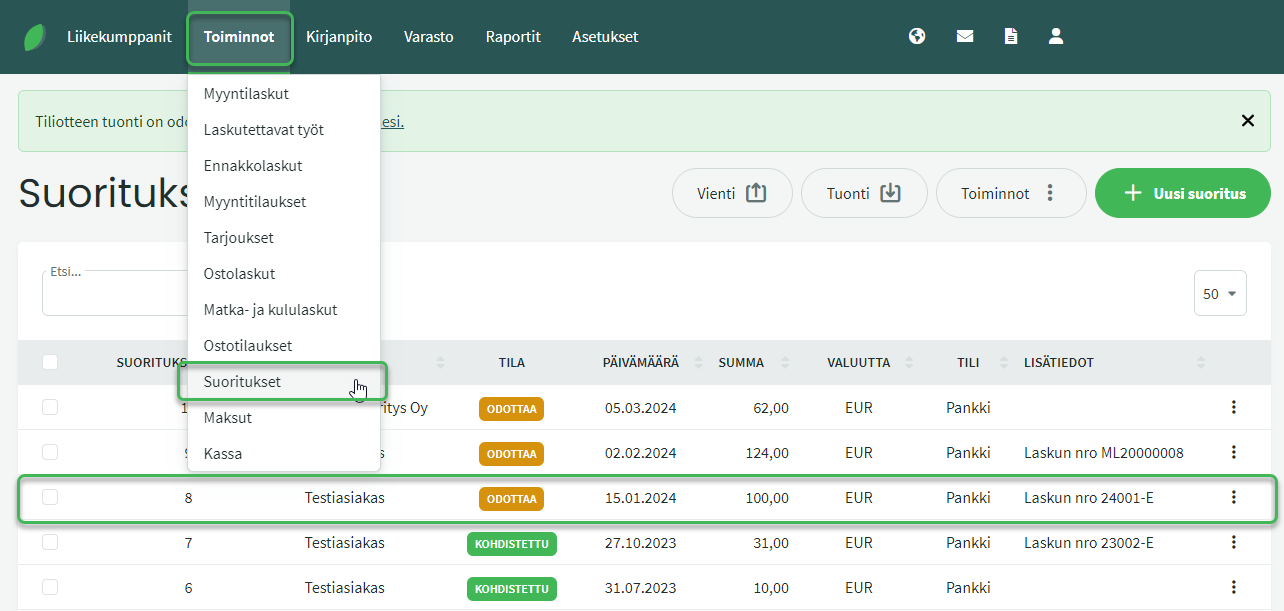
You can filter payments and payment receipts by their status (Pending or Matched).
- Payments in Pending status have not yet been linked to any purchase invoice. Likewise, payment receipts in Pending status have not yet been linked to any sales invoice.
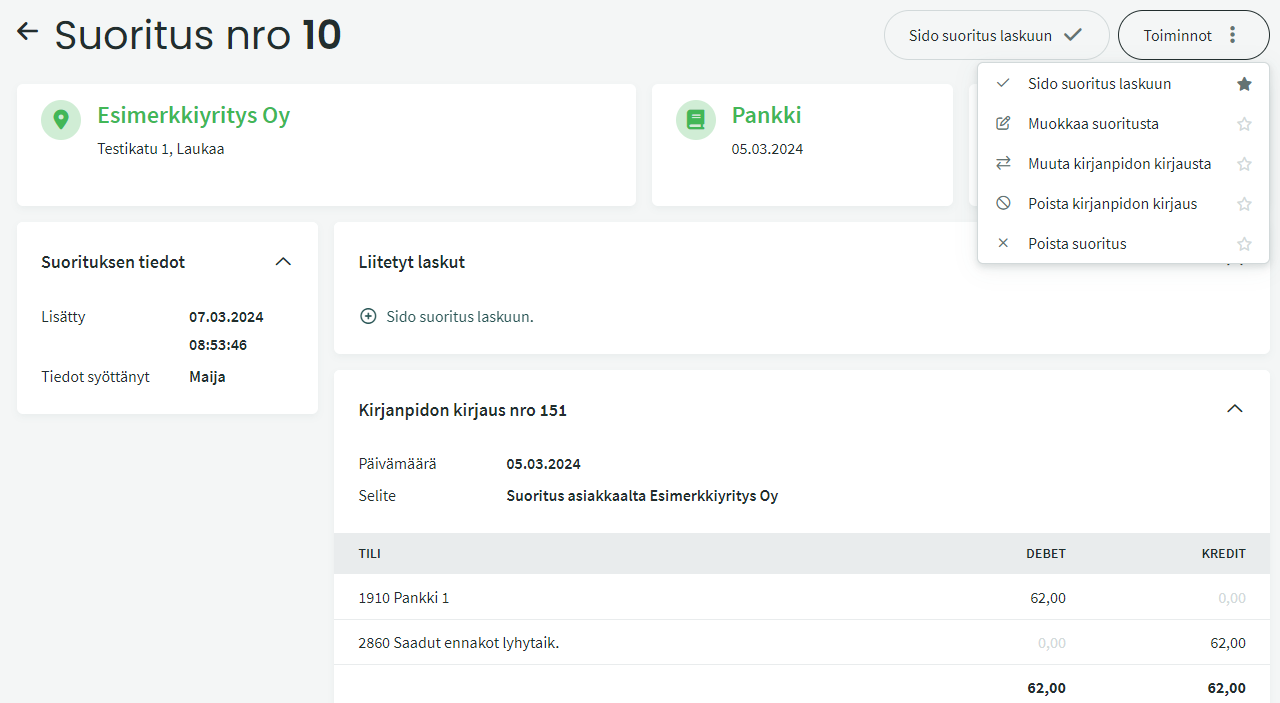
You can edit or delete a payment or payment receipt from the Actions menu on the right after opening the transaction by clicking on it.
3. Handling paid invoices
Invoices are managed in the programme under Actions > Sales Invoices or Purchase Invoices.
- Open the invoice you want to edit or delete. Editing and deletion are available from the Actions menu on the right.
- When you select “Edit sales invoice”, you will receive the notification: Editing the document will unlink all payment receipts. Do you want to continue?
- Select Yes.
- You can also unlink the payment receipt yourself before editing the invoice by clicking the paperclip icon (“Remove link”) on the right side of the Payment Receipts section.
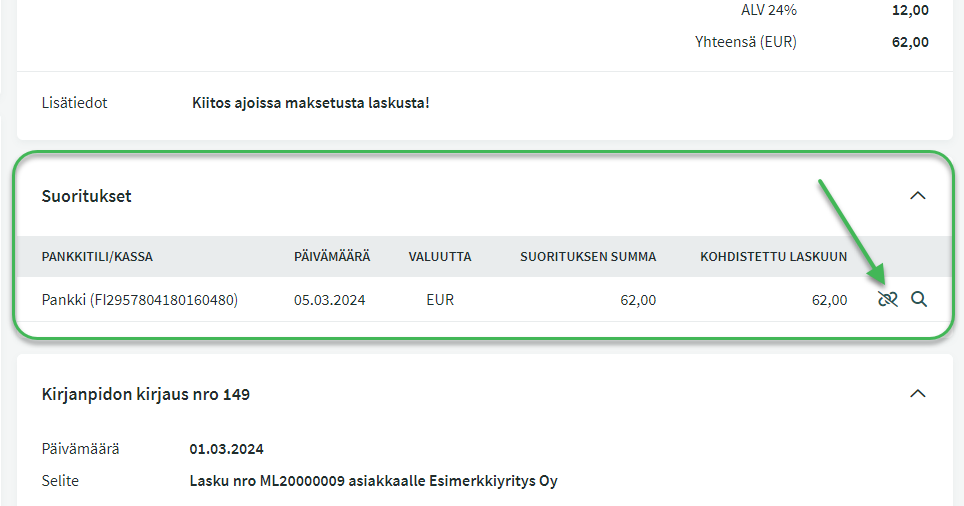
Note! The payment receipt unlinked from the invoice is now in Pending status and can be edited under ACTIONS > Payment Receipts. After editing, the unlinked payment receipt must be re-linked to the sales invoice — see step 5 of this guide.
4. Handling matched payment receipts and payments
Payment receipts and payments can be edited and deleted under Actions > Payment Receipts or Payments.
- Open the payment receipt or payment you want to edit or delete. Editing and deletion are available from the Actions menu on the right.
- If the payment receipt is linked to an invoice, you will receive the notification: Modifying the payment receipt will unlink it from all invoices. Do you want to continue?
- Select Yes.
- Do the same for all payment receipts you want to delete or edit.
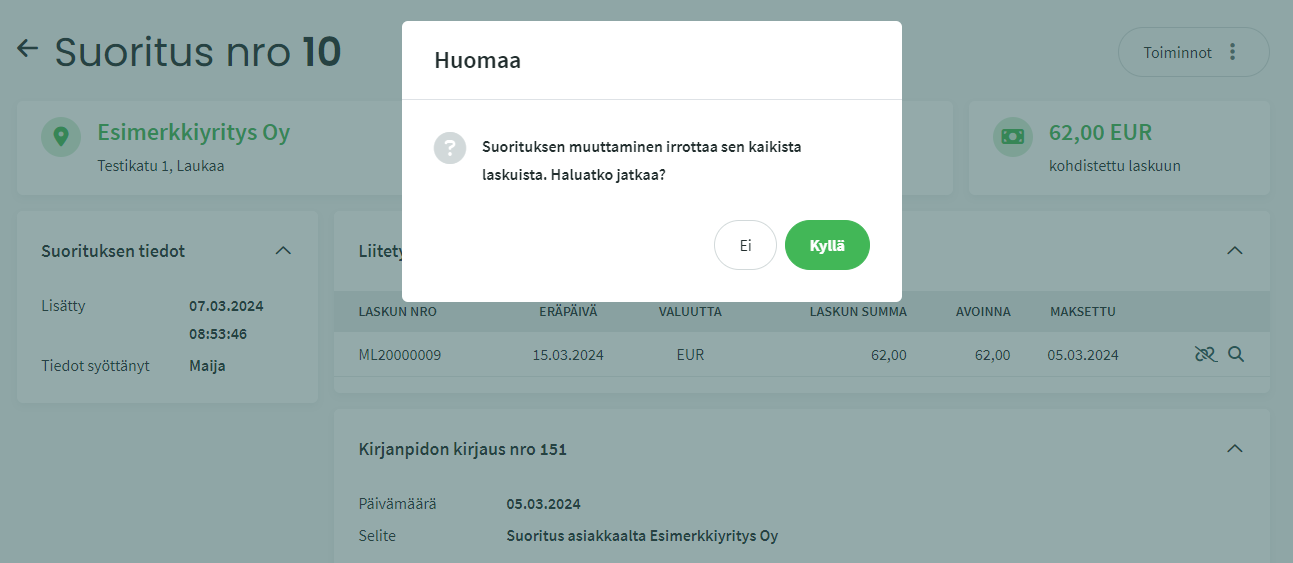
NOTE: After editing, the unlinked payment receipt must be re-linked to the sales invoice — see step 5 of this guide.
5. Re-linking a payment receipt or payment to an invoice
Note! If you only want to edit the sales invoice rather than delete it, you must still re-link the payment receipt to the invoice after unlinking it and making your edits.
If you want to delete both the invoice and the linked payment, the payment or payment receipt must be deleted separately after deleting the invoice.
Open the desired invoice under Actions > Sales Invoices or Purchase Invoices, and select “Mark as paid” from the Actions menu on the right.
- The programme will automatically suggest Pending payment receipts and payments associated with the customer or supplier.
OR
Open the desired payment receipt or payment under Actions > Payment Receipts or Payments, and select “Link payment receipt to invoice” or “Link payment to invoice” from the Actions menu on the right.
- The programme will suggest all open invoices for the customer or supplier.
Leave A Comment?