
This guide explains how to create and send recurring sales invoices (periodic invoicing). For general instructions on creating a sales invoice, see Creating a new sales invoice.
You can turn any sales invoice created in SimplBooks into a recurring invoice. The periodic invoicing feature is included in the PLUS and OFFICE packages.
CREATING A RECURRING INVOICE
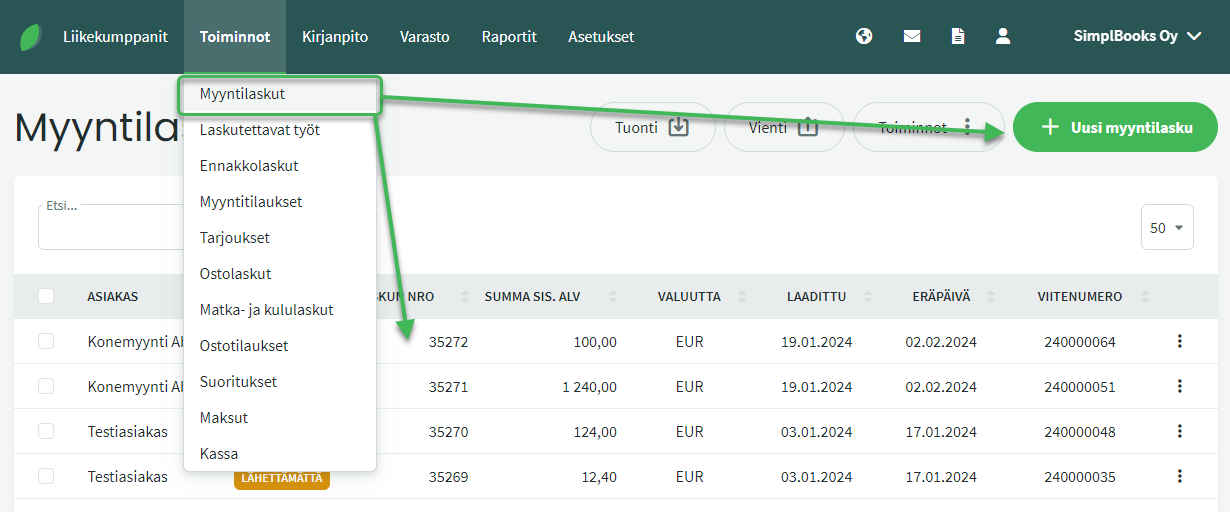
First, create a sales invoice by clicking “New sales invoice”, or open an existing sales invoice that you want to make recurring.
From the Actions menu on the right, select “Make invoice recurring”.
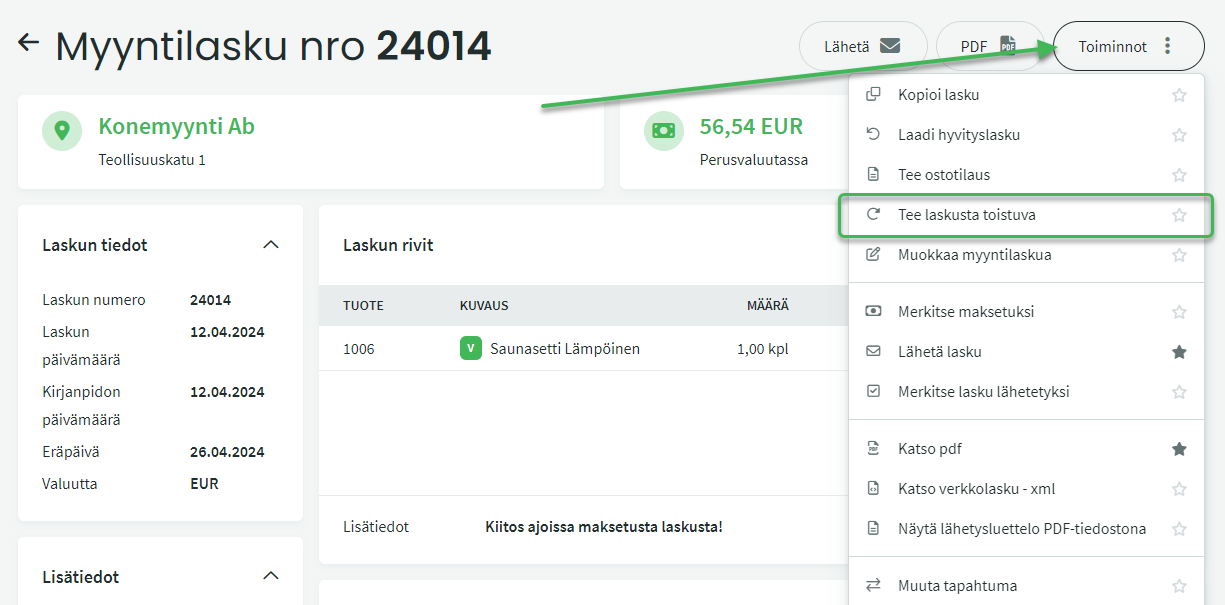
NOTE: If you do not see the “Make invoice recurring” option in the menu, you are likely using a package other than PLUS or OFFICE.
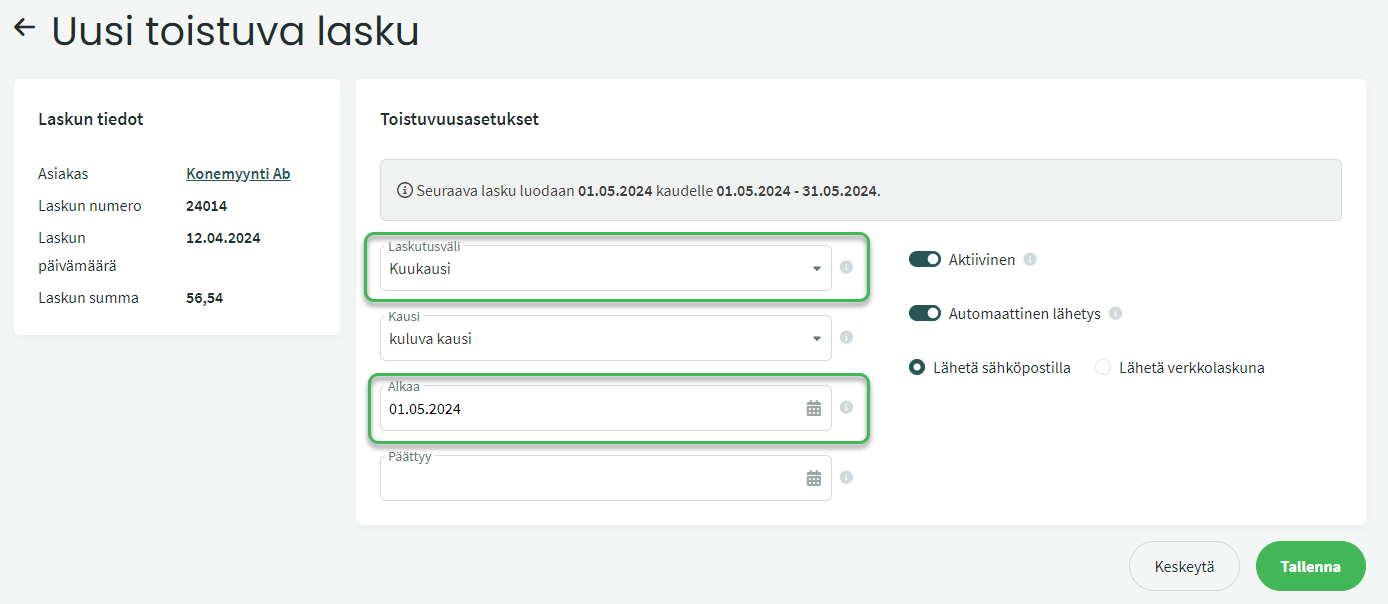
In the view that opens, configure the recurring invoice settings.
- Billing interval can be weekly, monthly, every 3 months, every 6 months, or annually.
- Period is determined by the billing interval.
- Previous period – A monthly invoice is generated on e.g. 1 Oct. for September.
- Current period – A monthly invoice is generated on e.g. 1 Oct. for October.
- Next period – A monthly invoice is generated on e.g. 1 Oct. for November.
- Starts:
- The start date of the recurring invoicing (invoices are generated periodically based on this date).
- NOTE: The system does not generate recurring invoices retroactively.
- You can also configure the system to send the invoice automatically, either by email or as an e-invoice.
EDITING RECURRING INVOICE SETTINGS
When you want to modify the recurring invoice settings, always make changes to the most recently generated recurring invoice.
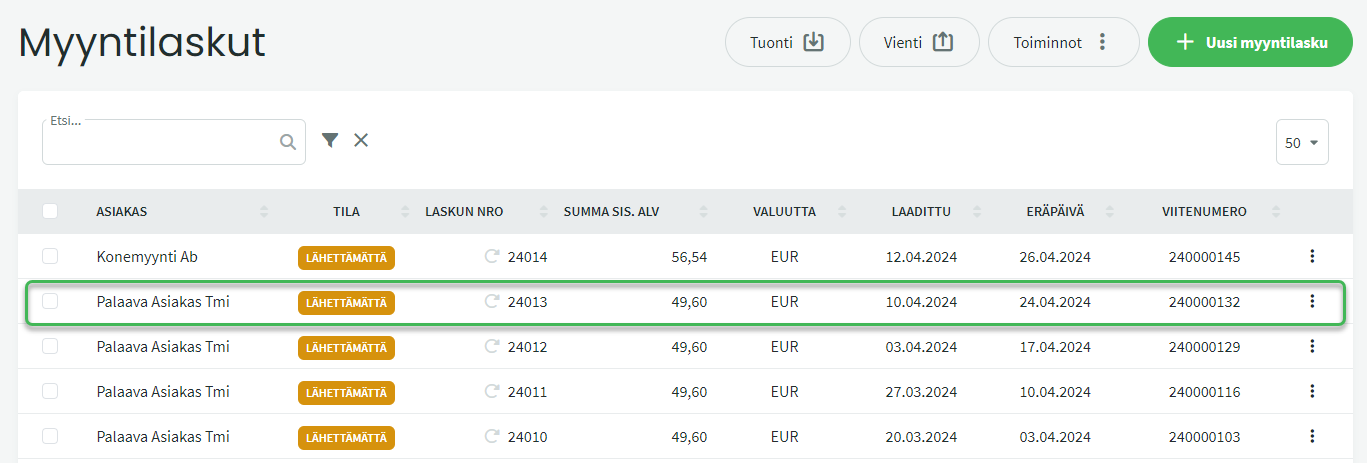
Open the most recently generated recurring invoice. You will find the recurring invoice settings below the invoice lines — click “Change settings”.
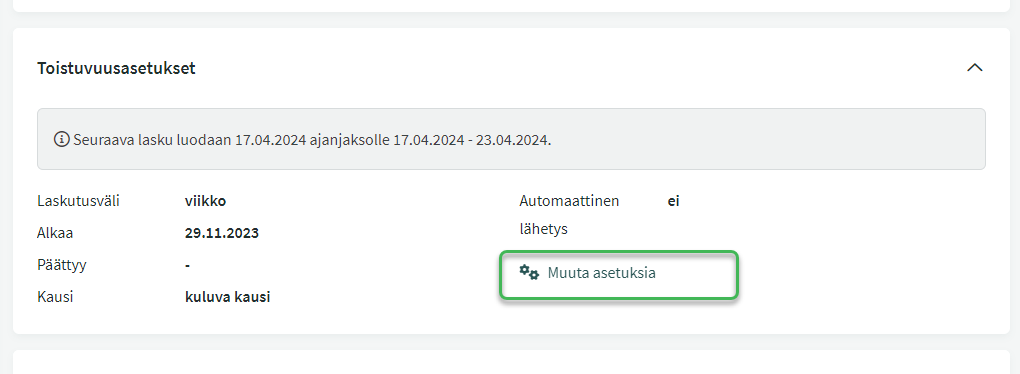
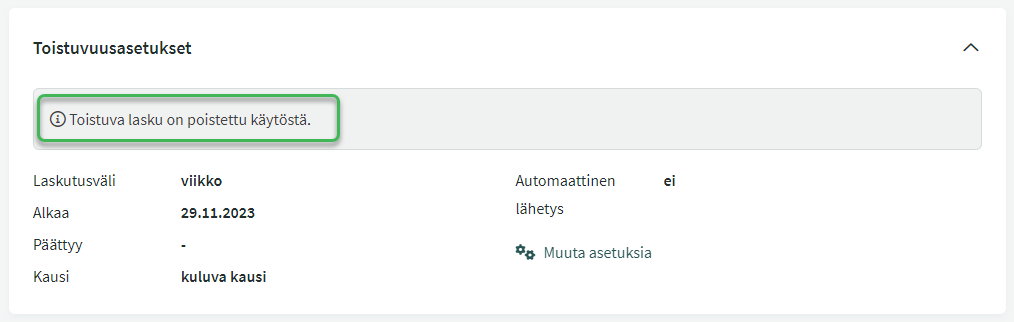
For example, if you want to pause invoicing, click “Active” to toggle it off and save. The recurring invoice status will then be shown in the invoice details.
If you want to re-enable recurring invoicing for a customer, you can edit the recurrence settings and click to set the recurrence back to active. The system will not generate invoices retroactively, and will show you when the next recurring invoice will be created.
Leave A Comment?