
This guide explains how to process bank transactions that arrive in the software.
You can find instructions for setting up a bank connection here and instructions for paying purchase invoices here.
Bank transactions imported from a bank statement file are processed in the same way. Instructions for importing a bank statement as a file can be found here.
Bank connections significantly speed up bookkeeping. With a bank connection, you can see your bank account balance on the SimplBooks home page, and bank account transactions are imported automatically into the software once a day. Payments and receipts are matched to invoices automatically when the details match, so no manual accounting entries need to be added.
Activating bank connections takes just a few minutes using online banking credentials. Bank transaction import and the bank balance on the home page are available immediately.
If you wish, you can also enable the payment feature, which allows you to pay invoices directly from SimplBooks. Activating the payment connection typically takes a few days.
After activating the bank connection, bank transactions from business days are imported into the software once a day. SimplBooks processes invoice-related transactions automatically, primarily using reference numbers. If the software cannot automatically match a bank transaction to an invoice, it is placed in a queue awaiting processing. You can see bank transactions pending review on the software home page.
If you do not have bank connections, you can import a bank statement into the software as a CSV or XML file. Bank transactions are processed in the same way regardless of whether they arrived automatically via a bank connection or were imported as a file.
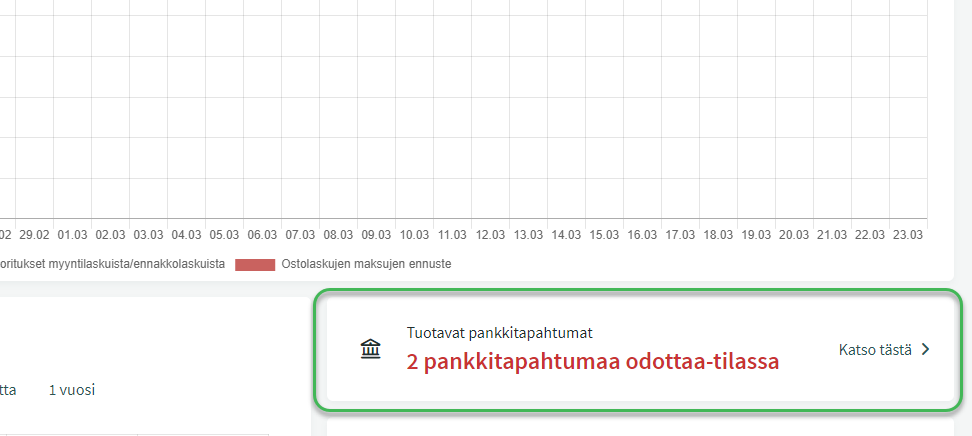
If there are pending bank transactions in the queue, click “View here” to process them. Transactions are saved as payments, receipts, or accounting entries.
- Payments are always matched to a purchase invoice, expense report, or cost invoice in the software.
- Receipts are always matched to a sales invoice.
The software matches transactions to invoices using the supplier/customer (payee/payer) name and reference number.
- If an invoice is found in the software and the details match, the software matches the bank transaction to the invoice automatically.
- If there is no invoice in the software for that supplier, customer, or reference number, or if the details do not match (e.g. the name differs from what is stored in the software), the software leaves the bank transaction in the status “Needs attention”.
- These transactions can either be matched to an invoice manually or recorded as accounting entries.
MATCHING A TRANSACTION TO AN INVOICE
If a customer or supplier is found in the software but the correct invoice is not matched automatically, you can see all open invoices for that supplier/customer by clicking the Invoices field.
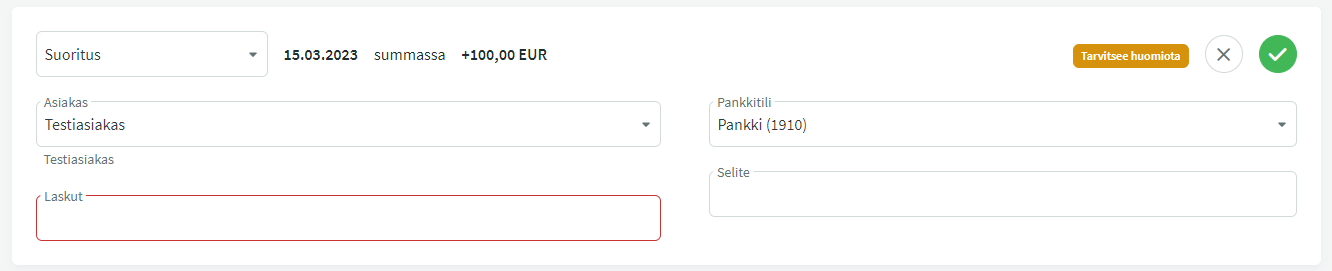
Select the invoice to which the transaction relates (create a new invoice if it does not yet exist in the software).
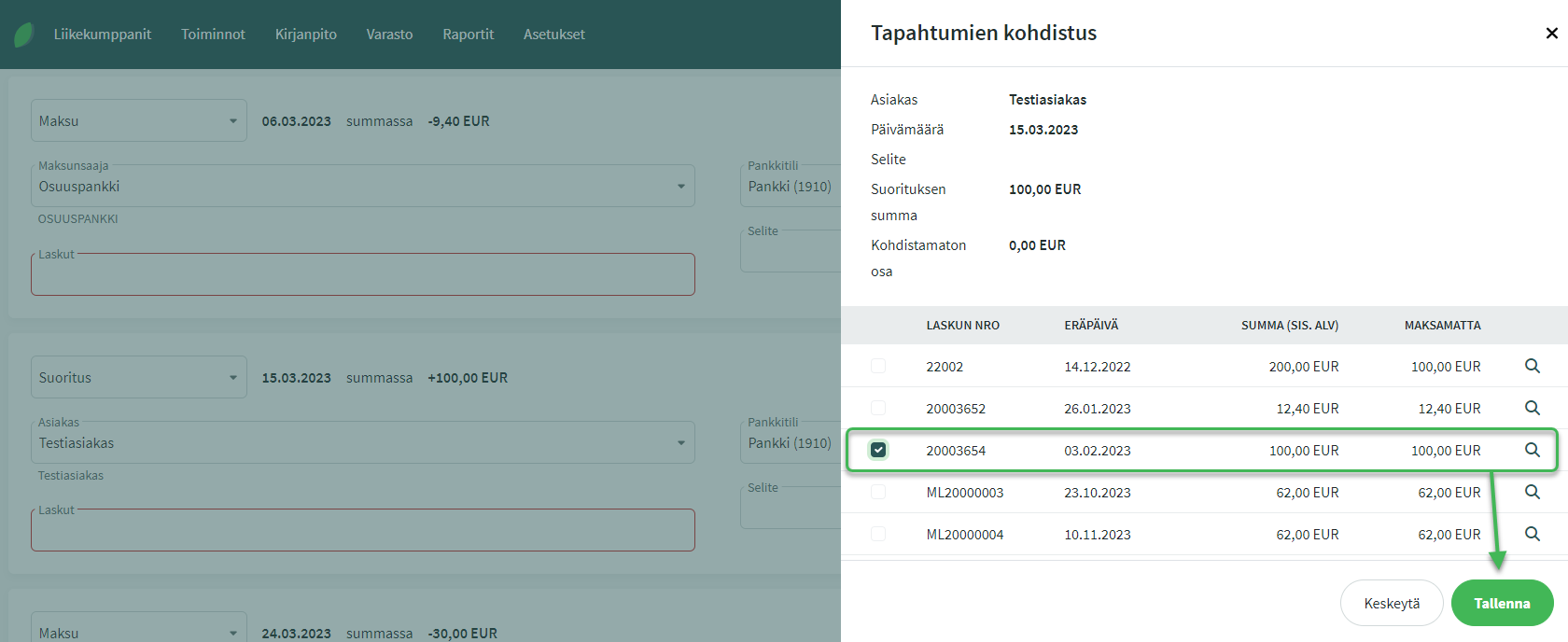
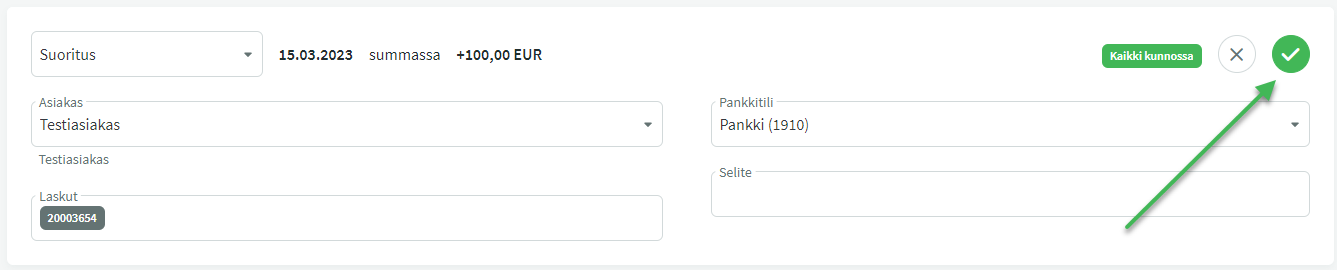
Once the invoice is selected, the transaction changes to “All good” status and can be saved using the green button.
NOTE: You can also save a receipt or payment that is in “Needs attention” status. It will then be placed in a pending queue on the Actions > Receipts or Payments page. Pending receipts and payments are visible in the customer or supplier details and in the sales or purchase ledger. Pending receipts must still be matched to invoices.
Read more about processing receipts and payments here.
The transaction status is Invalid if no customer, supplier, or invoice can be found for the transaction. In that case, you have two options:
- If the software contains an invoice for that transaction: First select the customer/supplier and then the invoice. After making the selections, the transaction changes to “All good” status and you can save it.
- If there is no invoice in the software for this transaction and you do not want to create one: Record the transaction as an accounting entry.
SAVING A TRANSACTION AS AN ACCOUNTING ENTRY
If there is no supplier/customer or invoice in the software for the transaction, it is recorded as an accounting entry.
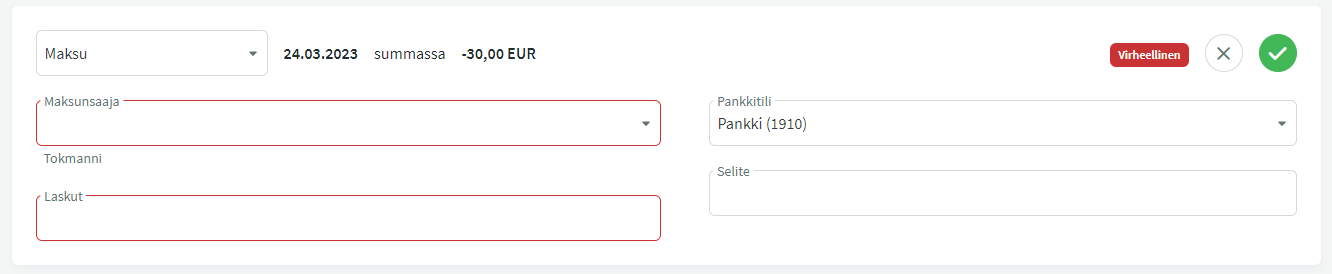
Select “accounting entry” from the drop-down menu in the top-left corner and fill in the account postings. You can also use saved default entries and add an attachment to the entry if desired.
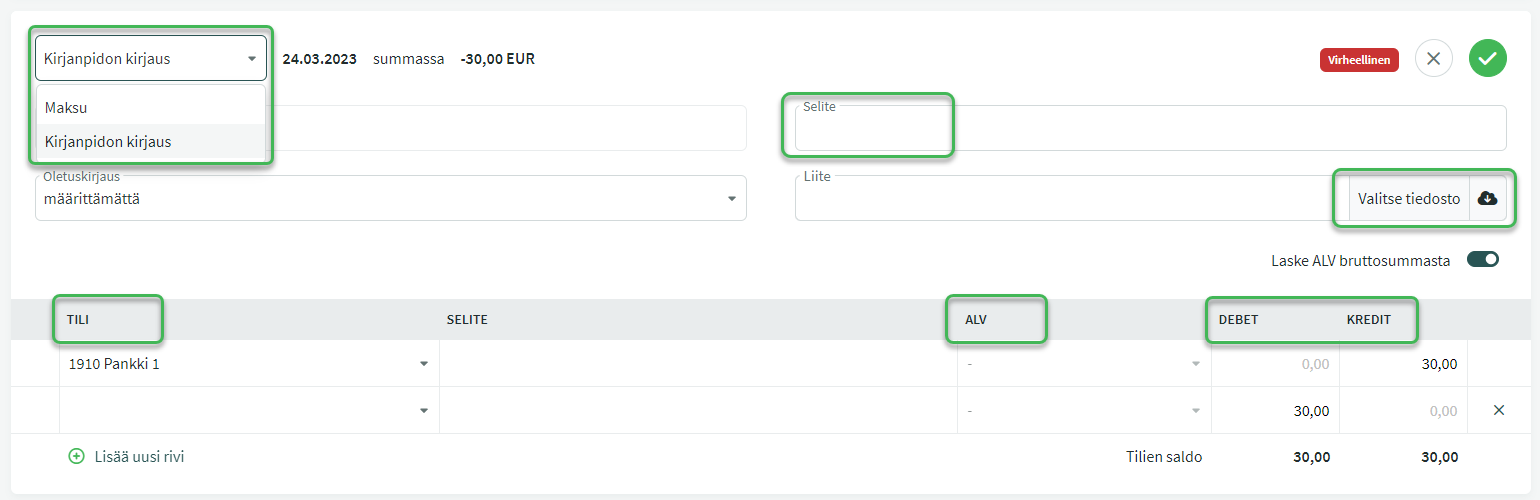
Once the required information has been filled in, the transaction changes to “All good” status and you can save it using the green button.
If you prefer to process all bank transactions manually, disable automatic bank transaction processing in SimplBooks environment settings.
Leave A Comment?