
This guide explains how to enable Montonio payment links in SimplBooks.
Montonio is a payment service that allows your customers to pay your invoices easily via a payment link. When you enable the integration in SimplBooks, you can add a payment button or link to invoice email messages. When you send invoices by email, your customers can simply click the link and pay the invoice conveniently in their online bank or by card.
Using the integration requires a user account with Montonio. You can find more information about Montonio pricing and creating a user account on their website.
QUICK GUIDE
- Create a user account with Montonio at https://montonio.com/
- Fill in the company identification details and submit the requested documents, then wait for Montonio to process the information and receive a confirmation that registration has been completed (1–2 days).
- Log in to Montonio in a separate window. Activate the payment links service, then retrieve and copy the API keys.
- Activate the integration in SimplBooks under Settings > Integrations > Montonio > Activate.
- Paste the copied keys into the designated fields.
- Save and the integration is ready to use!
- Add payment links and/or buttons to the desired message templates under Settings > Environment settings > Message templates.
Detailed instructions
In order to connect Montonio to SimplBooks, you must first have a Montonio user account. You can
create one at: https://montonio.com/
- After creating a user account, fill in the company details in Montonio. You will then need to submit identification information required by anti-money laundering regulations as well as a business registry extract. Montonio typically confirms user information within 1–2 days; you will receive an email when the details have been verified and the services are available.
- After user details are confirmed, enable Payment links in Montonio under Stores > Payments > Payment links.
- Then retrieve the API keys from Montonio under Stores > API Keys > View API Keys.
Once the services have been activated and the company details confirmed, you can activate the integration in SimplBooks.
Detailed Montonio user instructions (in English) are available on their website.
ACTIVATING THE INTEGRATION
Activate the integration in SimplBooks under Settings > Integrations > Montonio > Activate.
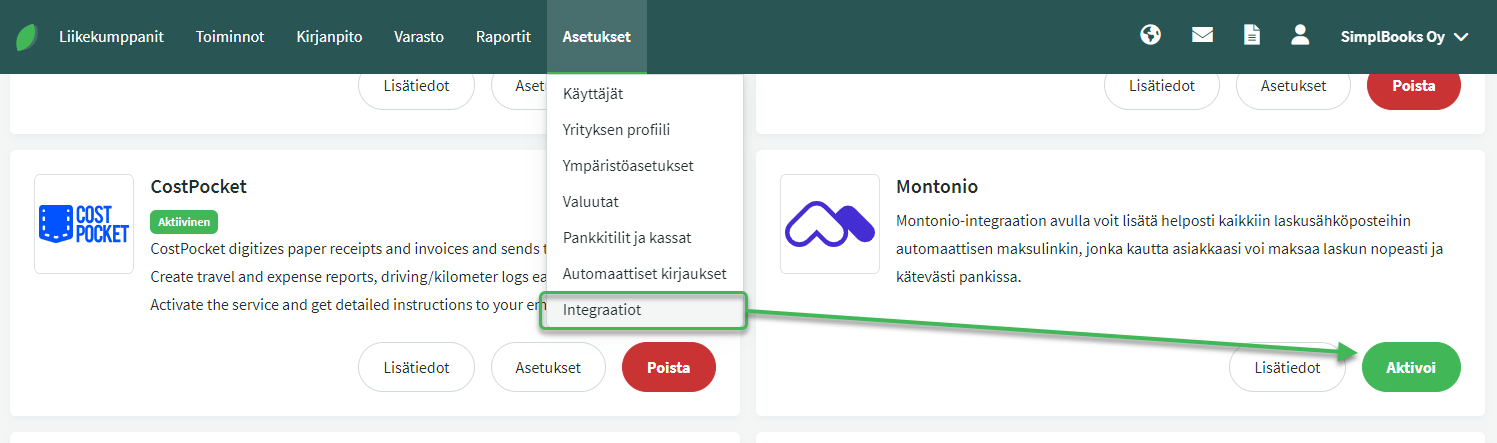
Paste the API keys copied from Montonio into the fields in SimplBooks.
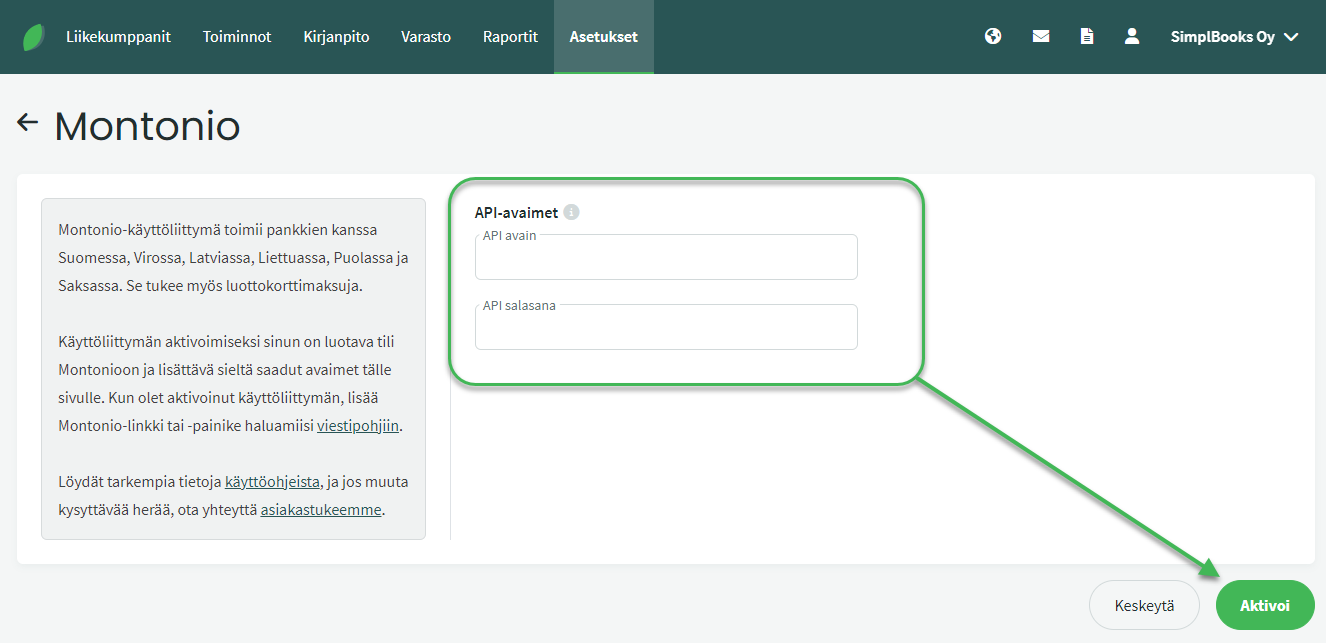
Click “Activate” and the integration is ready to use!
ADDING PAYMENT LINKS TO CUSTOMER MESSAGES
Once the integration has been created, you can add a payment link or payment button to sales invoice message templates.
Message templates are edited under Settings > Environment settings > Message templates.
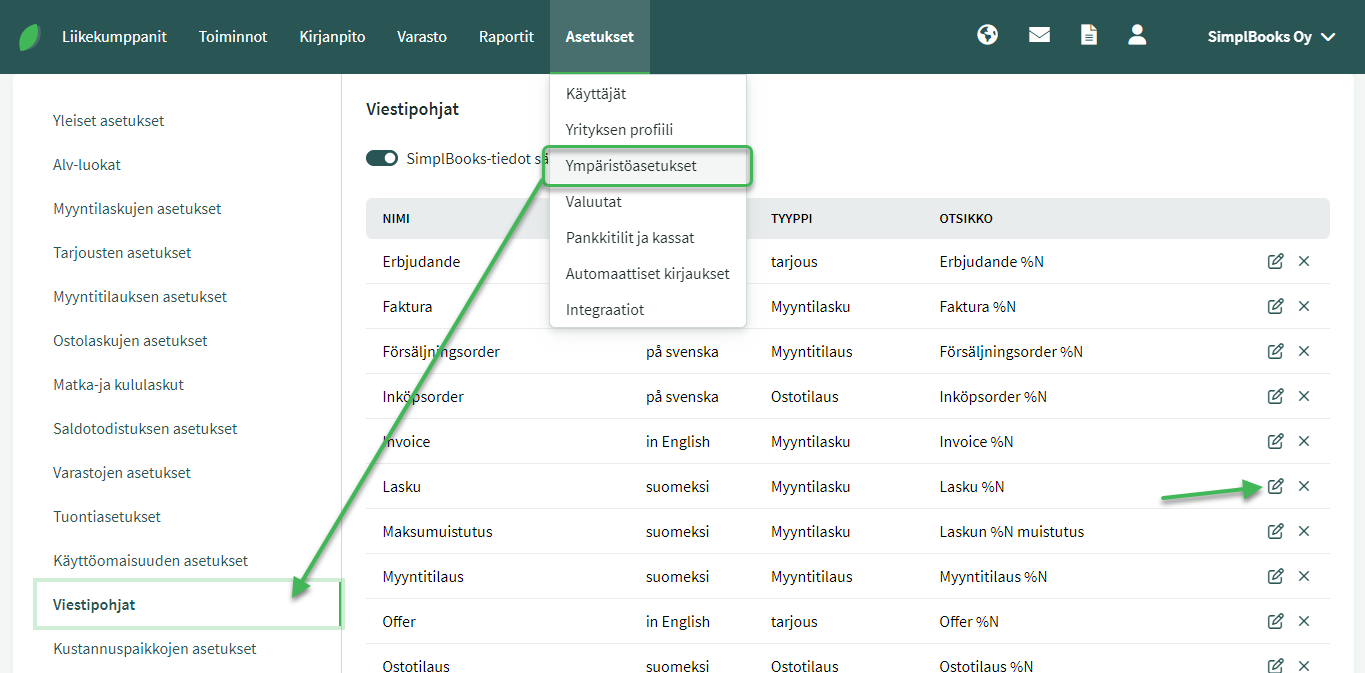
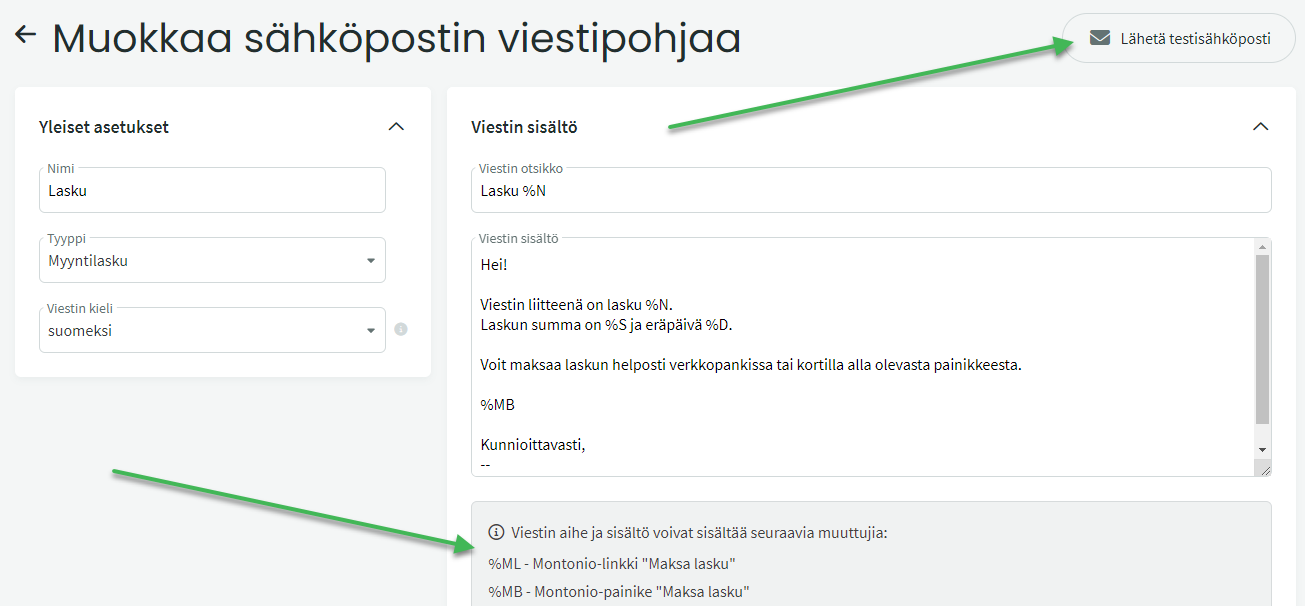
The default message template for invoices is Invoice / Faktura. After activating Montonio, the template editing view will show information about the different variables that can be used in message templates. You can choose whether to use just a payment link (%ML) or a payment button (%MB) in the message.
In the top-right corner there is a “Send test email” button, which you can click to send a test email to yourself to see what the email will look like when sent to your customer.
Add your preferred option to the appropriate place in the message template with the desired introductory text and save the changes.
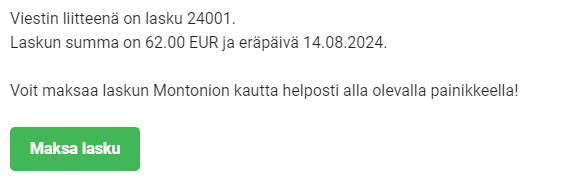
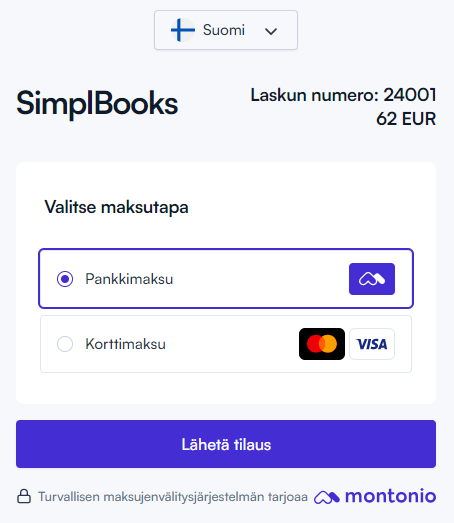
When you subsequently send a sales invoice to a customer by email, the message will contain a payment link or button that allows the invoice to be paid in just a few clicks, conveniently by card or via online banking.
Example of a payment link and button in an email:

Example of the payment view presented to the customer:
Leave A Comment?