
This guide explains how to create a new quotation, send it to a customer, and convert it into a sales invoice.
1. You can create quotations under Actions > Quotations > New quotation.
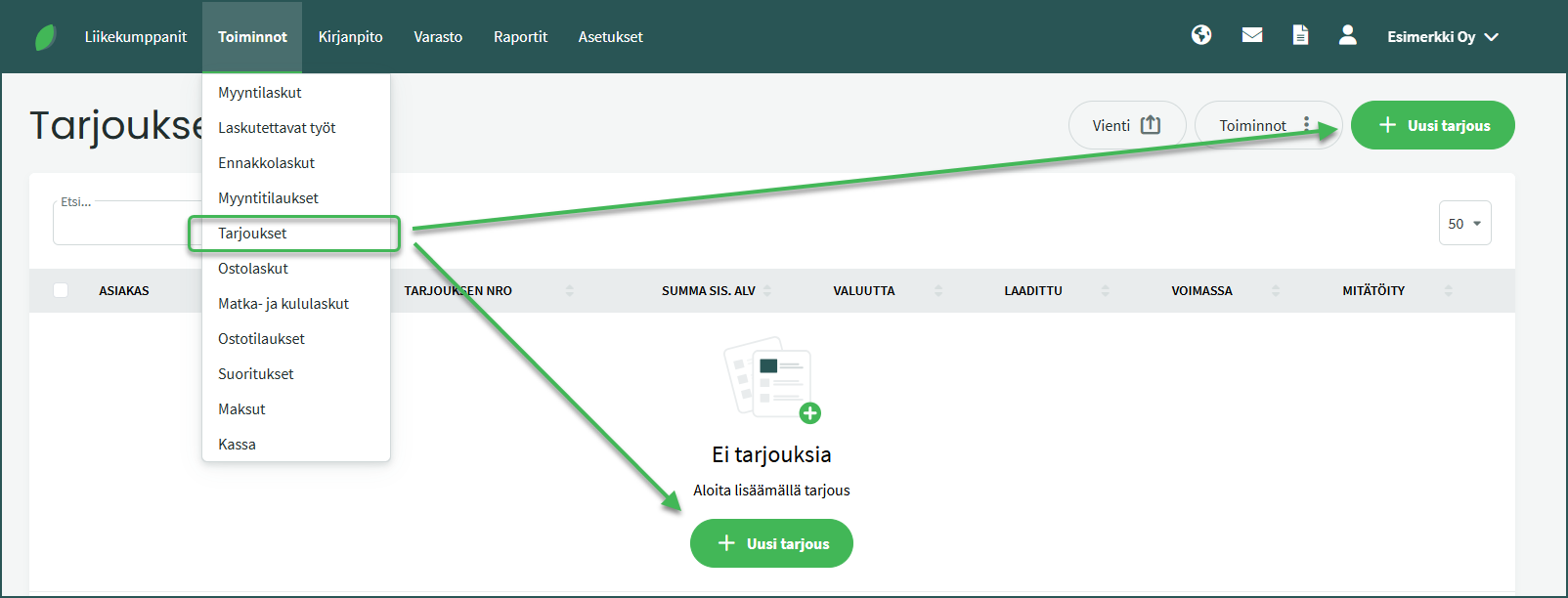
Fill in the customer details and line items in the same way as for a sales invoice, and also set an expiry date for the quotation. More details can be found in the sales invoice guide.
📢 Note! If a sales invoice has not been created from the quotation by the expiry date, the quotation is automatically moved to the status “Lost quotations”.
2. Sending the quotation
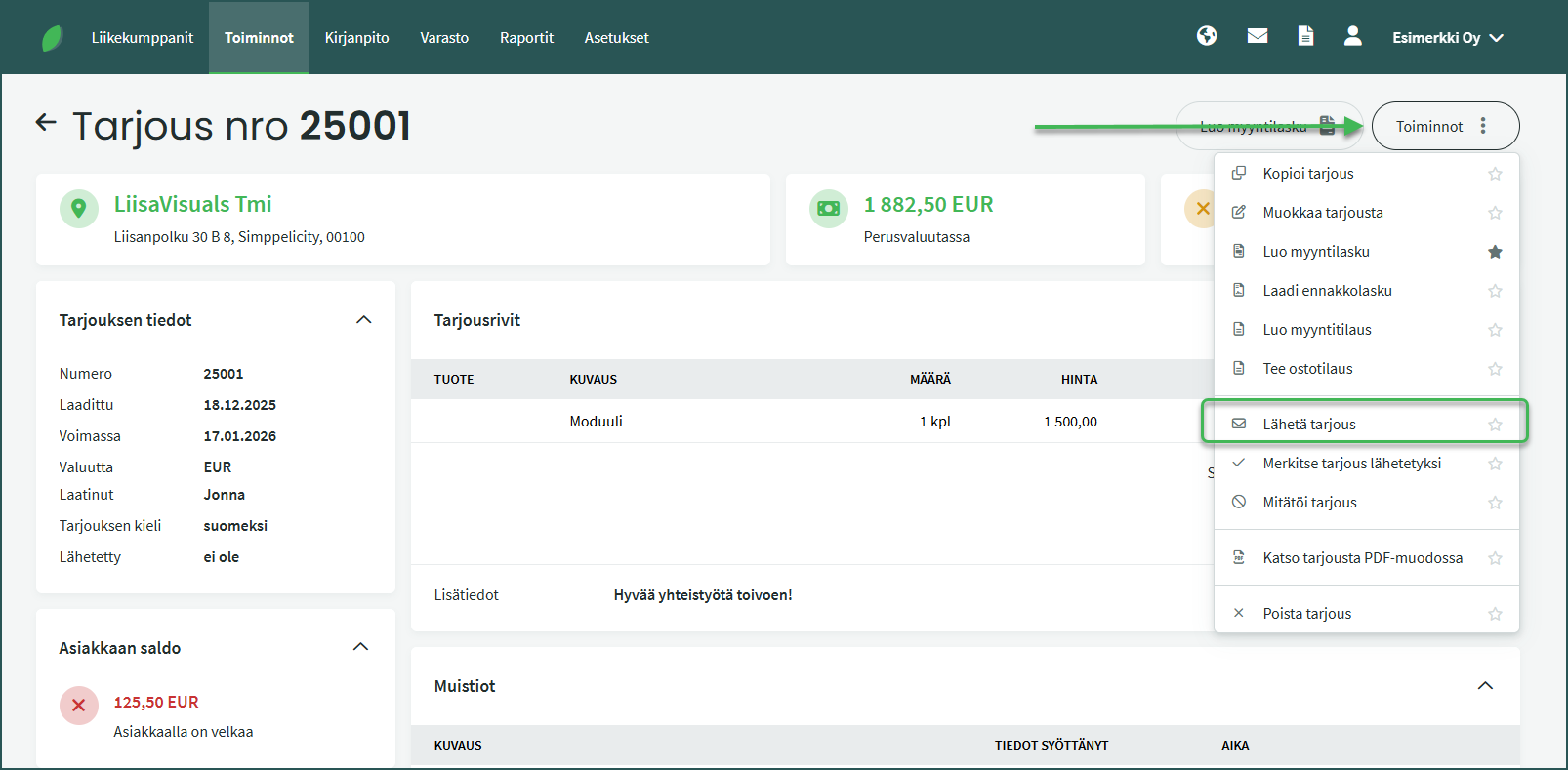
After saving the quotation, you can send it to the customer from Actions > Send quotation.
3. Converting a quotation into a sales invoice
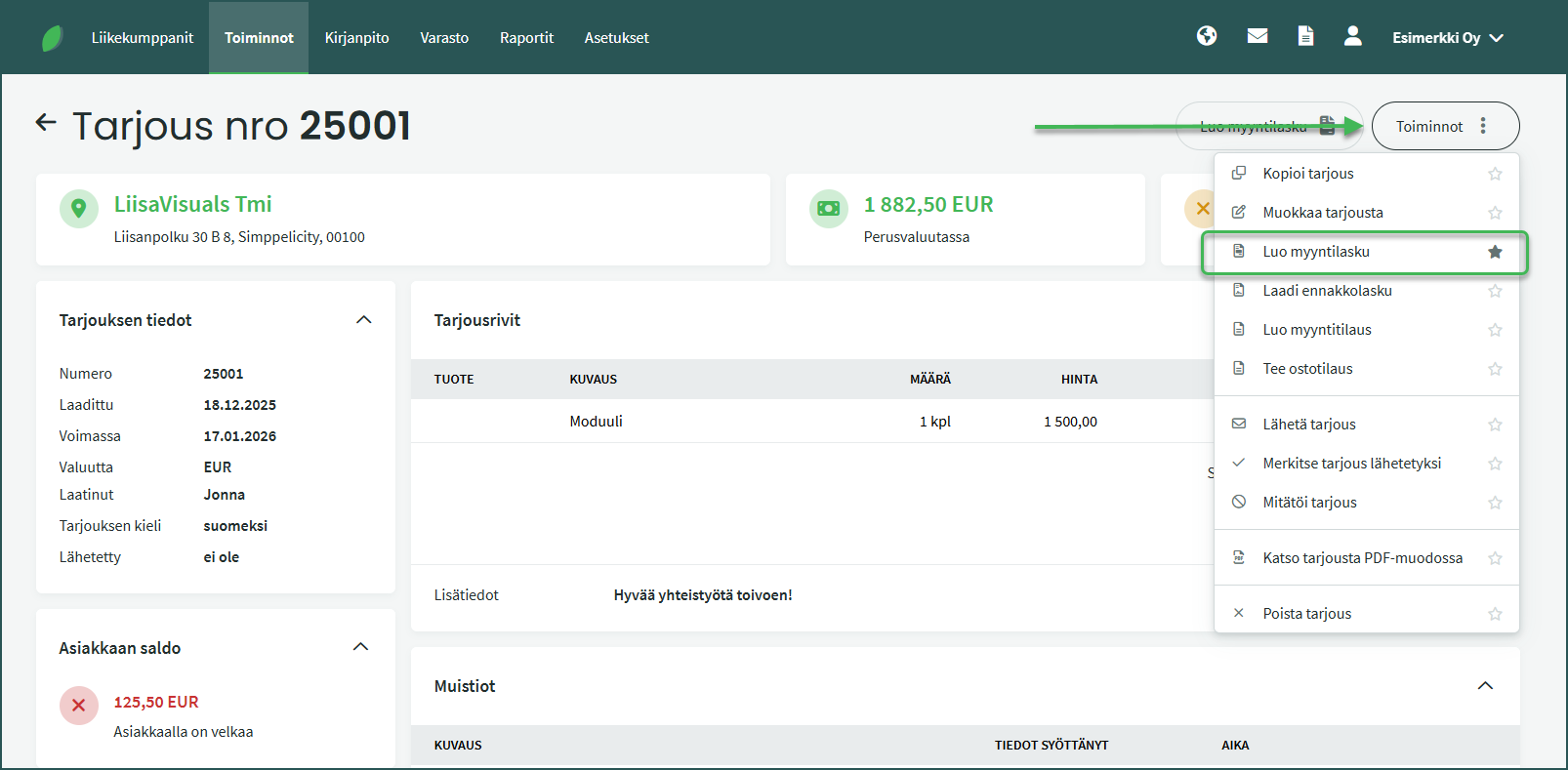
Once the quotation has been accepted, you can create a sales invoice from it, which records the sale in the accounting system.
- Open the desired quotation from the list under Actions > Quotations
- In the quotation view, select Actions > Create sales invoice from the right-hand side
- Review the sales invoice details and save
Leave A Comment?