
This guide explains how to use different currencies in SimplBooks.
You can manage currencies under Settings > Currencies.
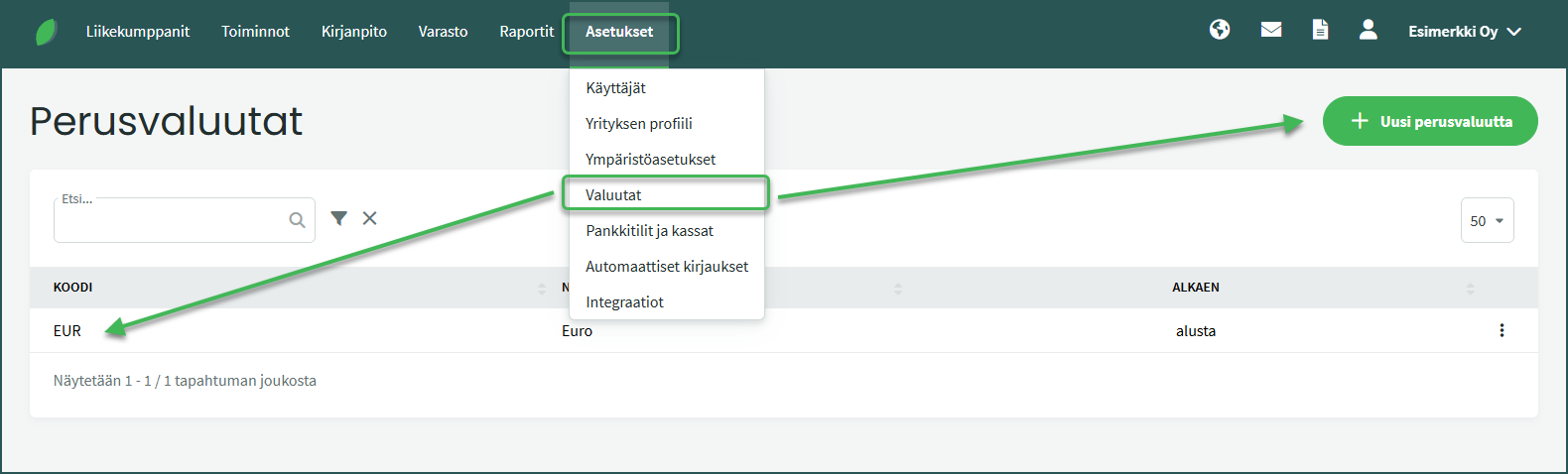
The page displays the base currency that is used by default for bookkeeping.
You can also add a new base currency if needed by clicking “New base currency“.
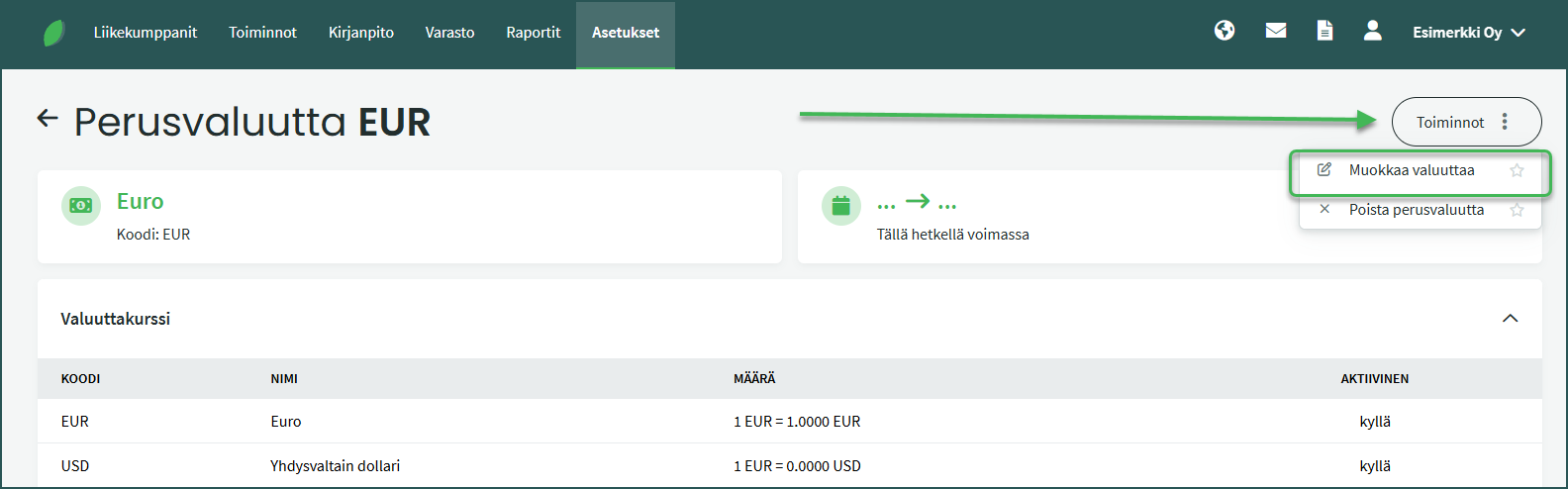
1. You can add currencies to documents by clicking the existing base currency and then selecting “Edit Currency” from the Actions menu on the right.
2. Activate all the currencies you want to use, for example when creating invoices.
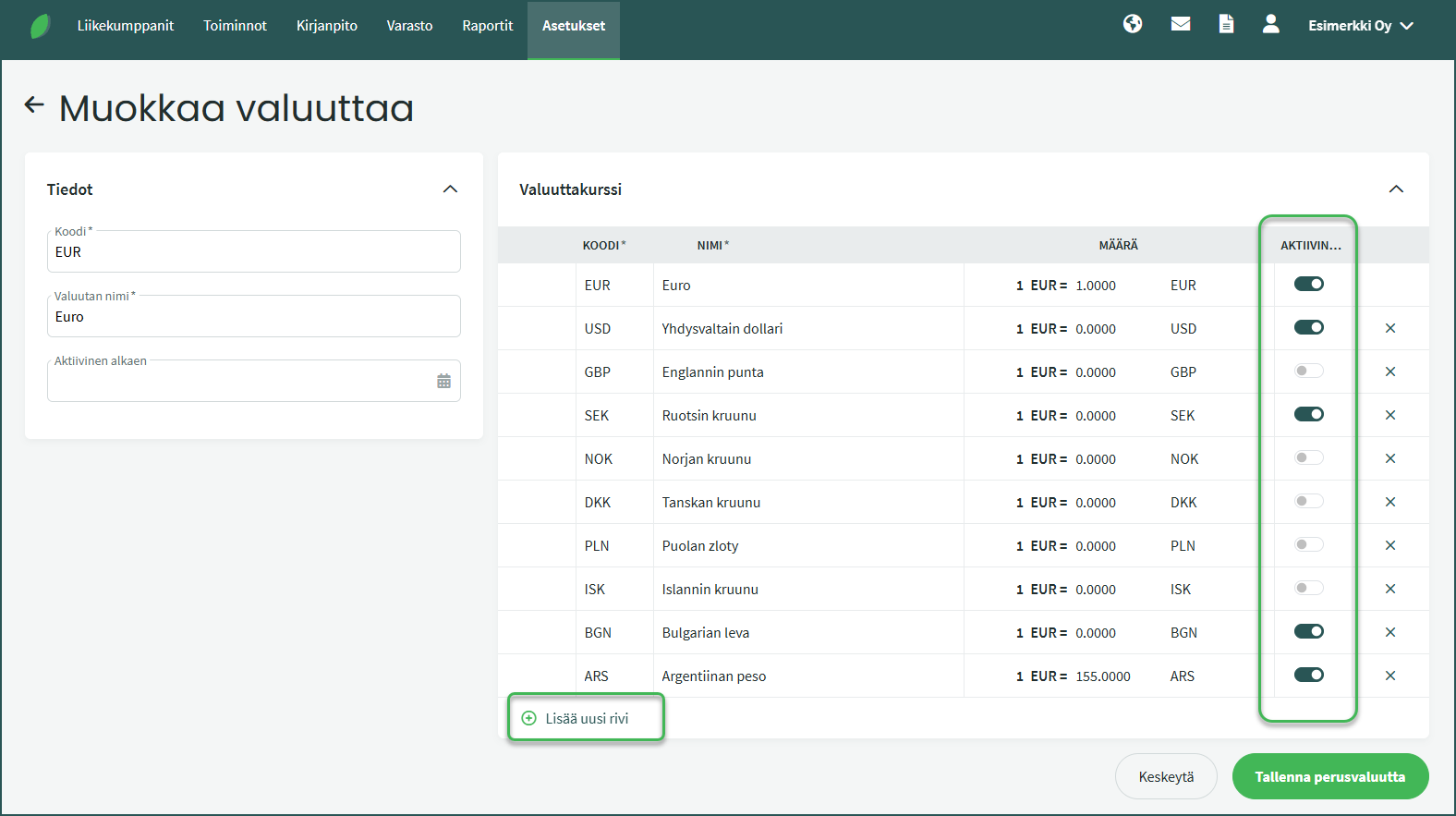
If the exchange rate you need is not found in the list, you can add it at the bottom of the list by clicking “Add new row“.
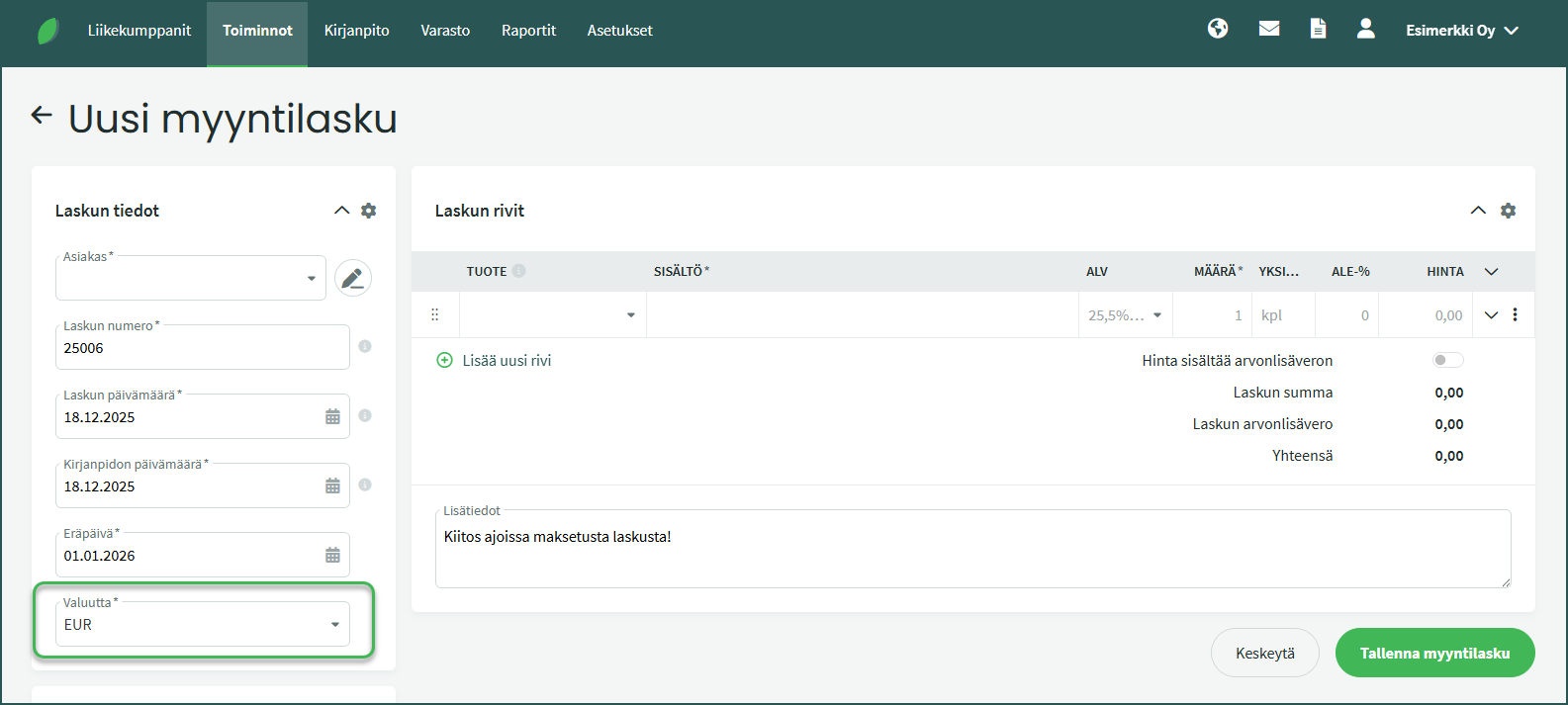
When creating a sales invoice, SimplBooks automatically fetches the current European Central Bank exchange rate, so you do not need to handle exchange rate differences yourself. It is sufficient to activate the currencies you use before creating a sales invoice and to add any new exchange rates as needed.
On a sales invoice, you can select any active currency in the Currency field, and the programme will automatically calculate the amounts using the correct exchange rate.
Leave A Comment?