
Quick guide:
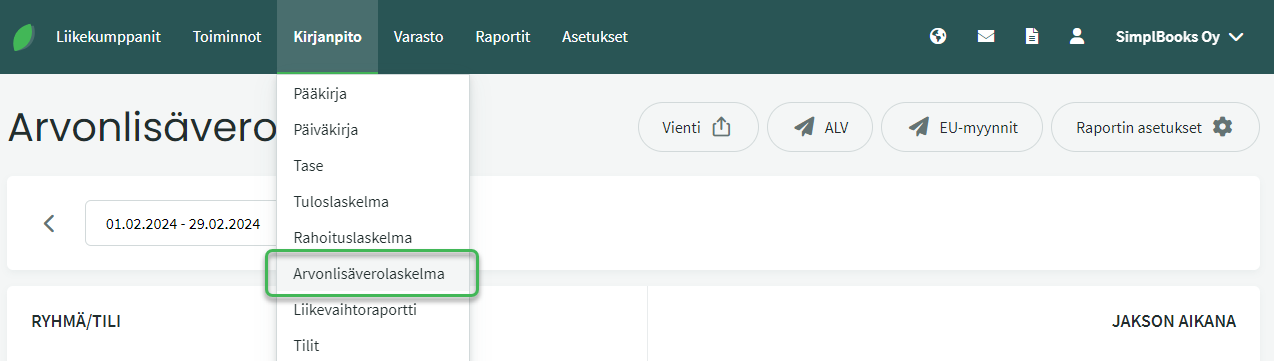
- Once accounting is complete, go to Accounting > VAT Calculation.
- Select the VAT period (the period is always 1 month, 3 months, or 12 months).
- Review the figures and save the VAT closing entry at the bottom of the page.
- Submit the VAT return directly from the software using the VAT button, OR
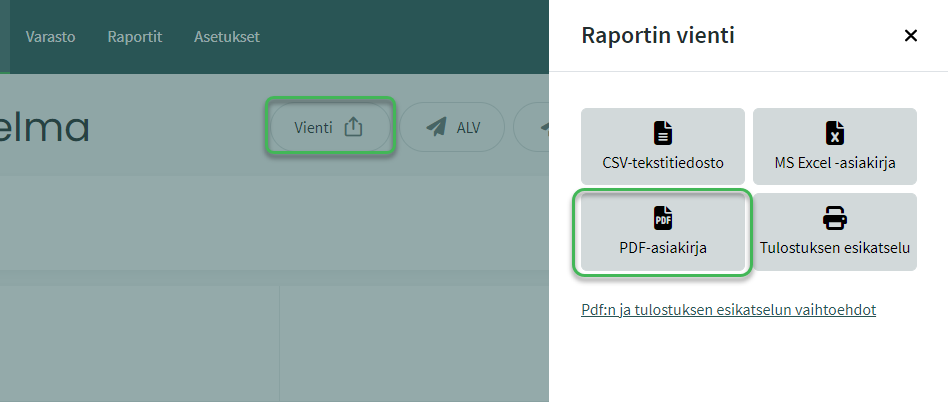
- Export the VAT calculation as a PDF using the “Export” option and submit the VAT return yourself in OmaVero.
NOTE: For instructions on checking your settings in relation to the change in the standard VAT rate that took effect on 1 September 2024, click here.
DETAILED GUIDE
1. VAT CALCULATION
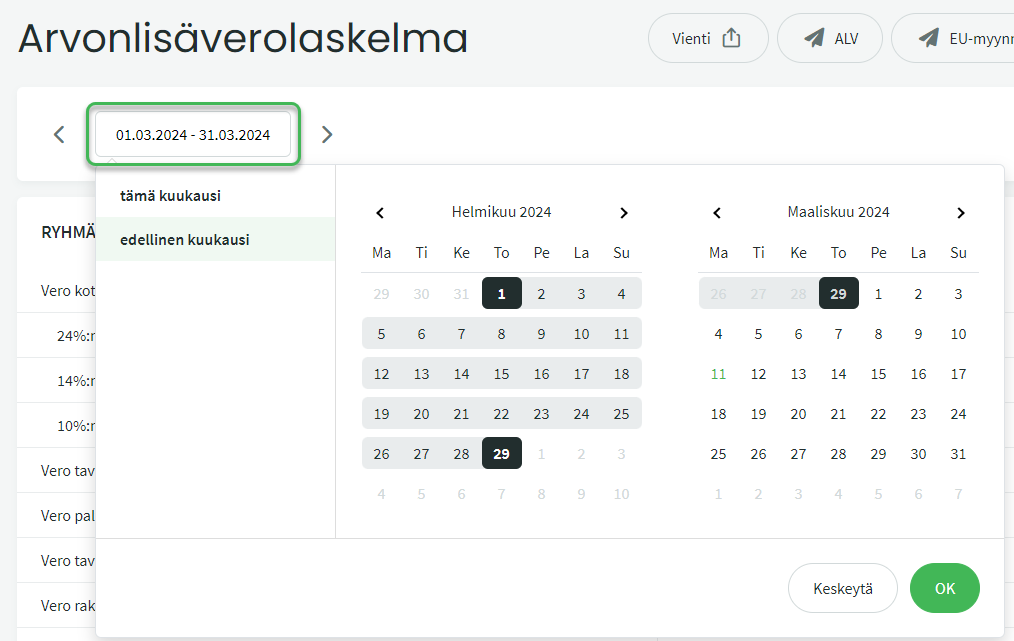
Set the correct period in the date field.
- VAT is reported in periods of either 1 month, 3 months, or 12 months (quick-select options are coming to the software).
- Once you have selected, for example, a 3-month period, you can navigate forward and backward using the arrows according to the selected period.
The software calculates the VAT payable or refundable as the difference between the VAT included in sales and the VAT included in purchases.
- The figures on the calculation are based on the VAT rates selected on entries and invoices.
- If you add VAT rates to the software, also check the VAT calculation settings afterwards.
It is recommended to save or print the calculation for your records by selecting “PDF document” or “Print preview” from the Export button.
2. CLOSING THE VAT PERIOD IN THE SOFTWARE
Close a completed VAT period by saving the VAT closing entry. The closing entry appears at the bottom of the VAT calculation page; its accounting date is the last day of the selected period.
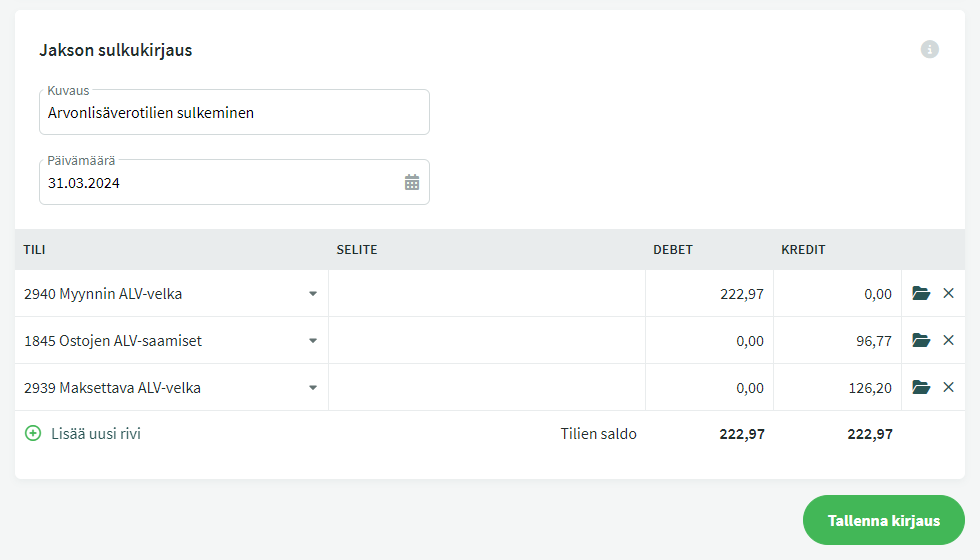
The entry clears the sales, purchases, and reverse VAT accounts and posts the VAT payable/refundable to account “2939 VAT Payable”.
- The VAT payment/refund is recorded later via the bank account or tax account receivables to account 2939.
3. VAT RETURN
You can submit the VAT return directly from the software by activating the integration. Submitting the VAT return from the software is free of charge. See the guide on how to enable the integration and how to submit the return.
If you prefer, you can also file the VAT return in OmaVero based on the VAT calculation. You can read more about filing a VAT return in the tax authority’s instructions: VAT filing and payment instructions.
NOTE! If you make (VAT-relevant) accounting changes to a period that has already been closed after the VAT closing entry has been saved and the VAT return submitted, the closing entry must be deleted and recreated and the VAT return must be resubmitted after the changes.
We recommend locking entries according to the following instructions whenever the VAT closing entry has been saved and the VAT return has been submitted.
4. LOCKING ACCOUNTING ENTRIES
Once accounting is complete and the VAT closing entry has been saved, we recommend locking entries to prevent accidental postings to a past period.
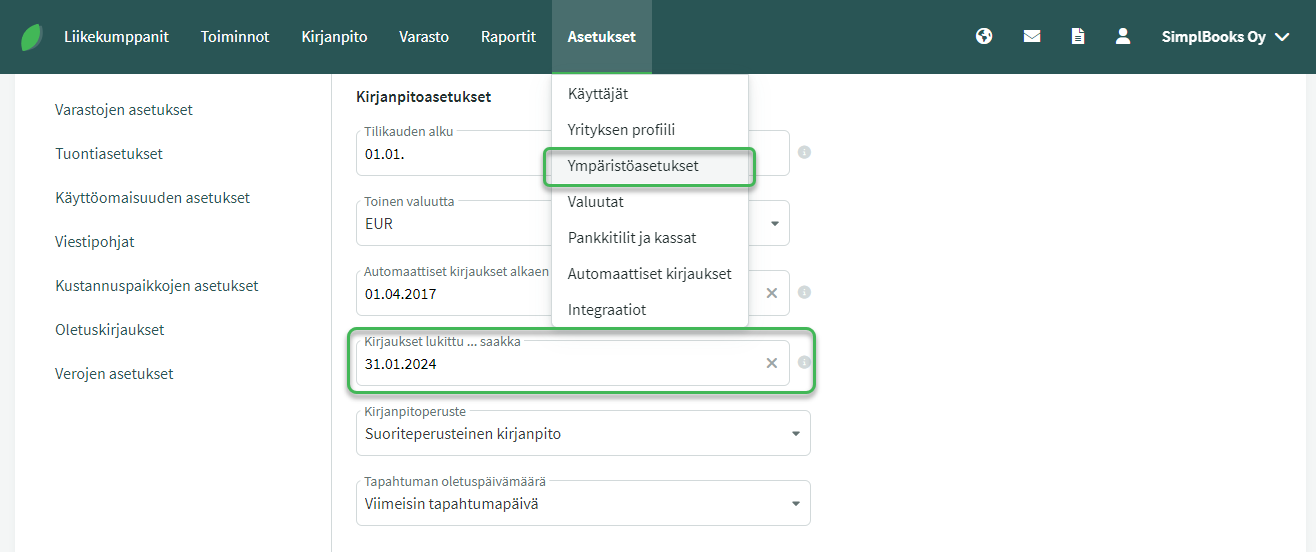
Enter a date in the field and save the settings at the bottom of the page.
Leave A Comment?