
This guide explains how to import receipts from Finago eTasku into SimplBooks.
Importing receipts from Finago eTasku into the SimplBooks accounting software is easy with the integration! You can capture receipts with the eTasku app directly into their service, from where they are automatically transferred to accounting once a day. You can also manually trigger an import in SimplBooks at any time.
Finago eTasku is a program designed for the digital capture and management of receipts, available as a mobile app or via a web browser. Whether you handle your own bookkeeping or have outsourced it to an accounting firm — Finago eTasku is a useful tool in both cases!
QUICK GUIDE
- Create a Finago eTasku user account at https://www.etasku.fi/aloita/
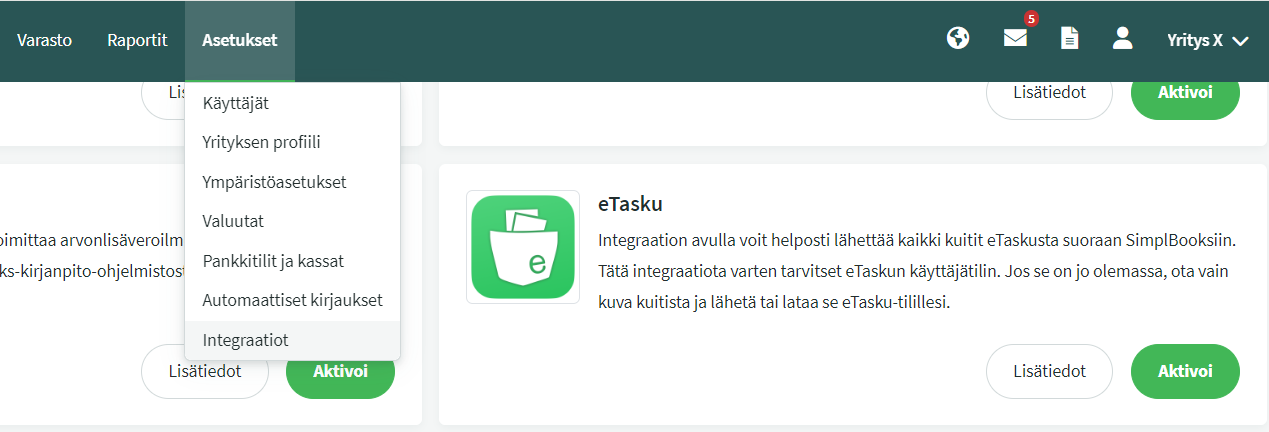
- Activate the integration in SimplBooks under Settings > Integrations > eTasku > Activate.
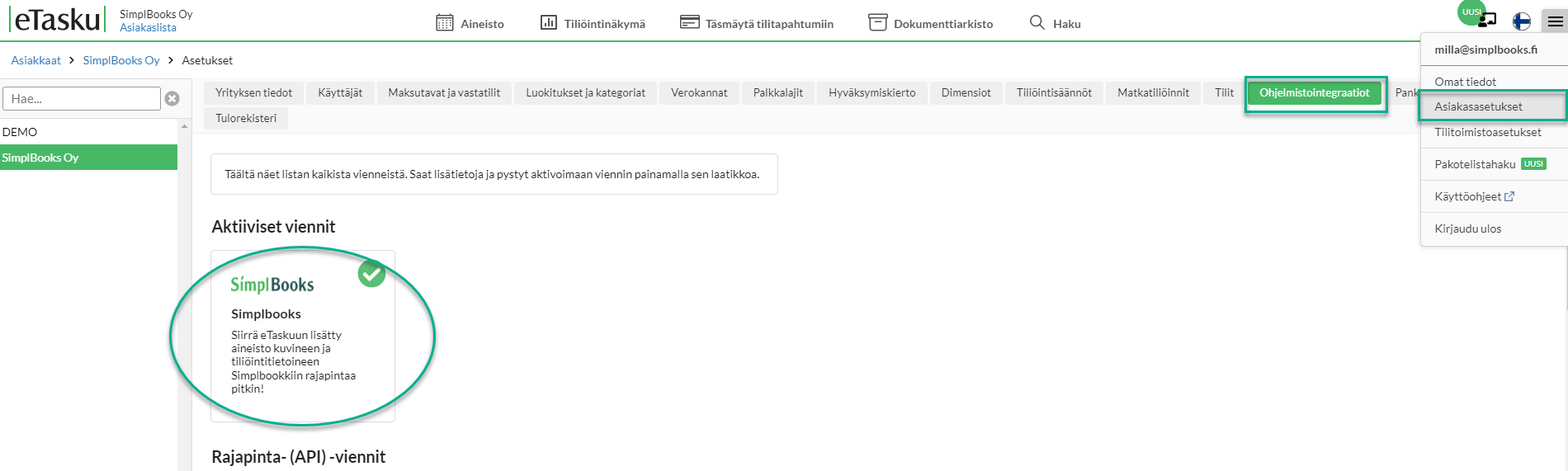
- Log in to Finago eTasku in a separate window as the accounting company. If your account has multiple companies in Finago eTasku, select the correct one from the list.
- In Finago eTasku, go to Client Settings from the menu in the top right corner (you can also access settings from the client list by clicking the gear icon next to the company name).
- In Finago eTasku, navigate to the Software Integrations tab. Click SimplBooks > Activate.
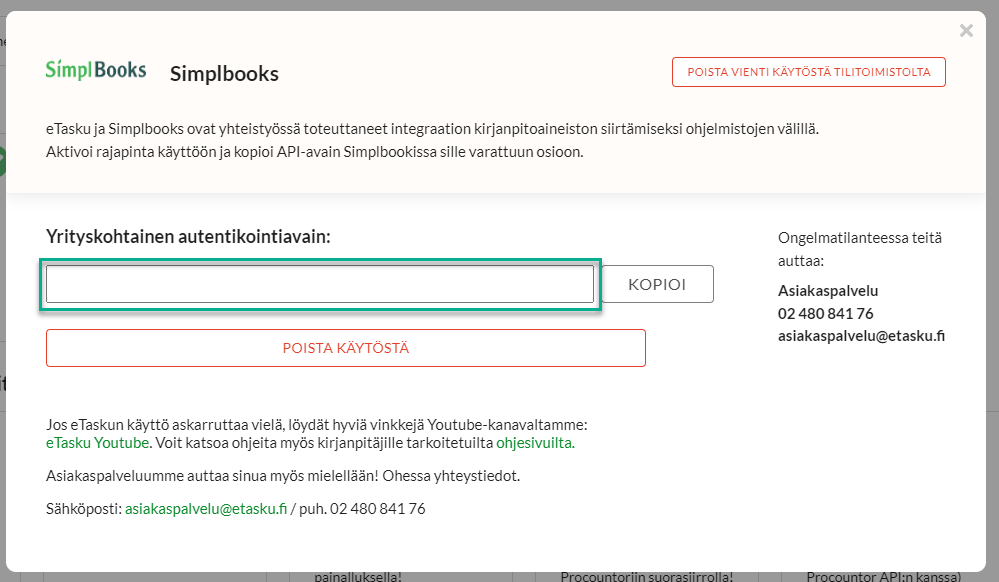
- Copy the company-specific authentication key.
- In SimplBooks, paste the company-specific authentication key you copied into the designated field.
- Select your preferred settings — save, and the integration is now active!
Detailed Guide
To connect Finago eTasku to SimplBooks, you must first have an eTasku user account. You can
create one at: https://www.etasku.fi/aloita/
Please note that you must log in as an accounting company for the connection to work! For entrepreneurs who manage their own bookkeeping, this can be arranged by contacting Finago eTasku customer support.
Finago eTasku Customer Support
asiakaspalvelu@etasku.fi
02 480 841 76
Detailed Finago eTasku user instructions for accountants can be found here.
Activate the integration in SimplBooks under Settings > Integrations > Activate.
Log in to Finago eTasku in a new window as the accounting company. If your account has multiple companies in Finago eTasku, select the correct one from the list.
Go to Client Settings from the menu in the top right corner (you can also access settings from the client list by clicking the gear icon next to the company name).
Navigate to the Software Integrations tab. Click SimplBooks > Activate.
Copy the company-specific authentication key.
Return to SimplBooks and paste the key you copied into the “Identifier” field.
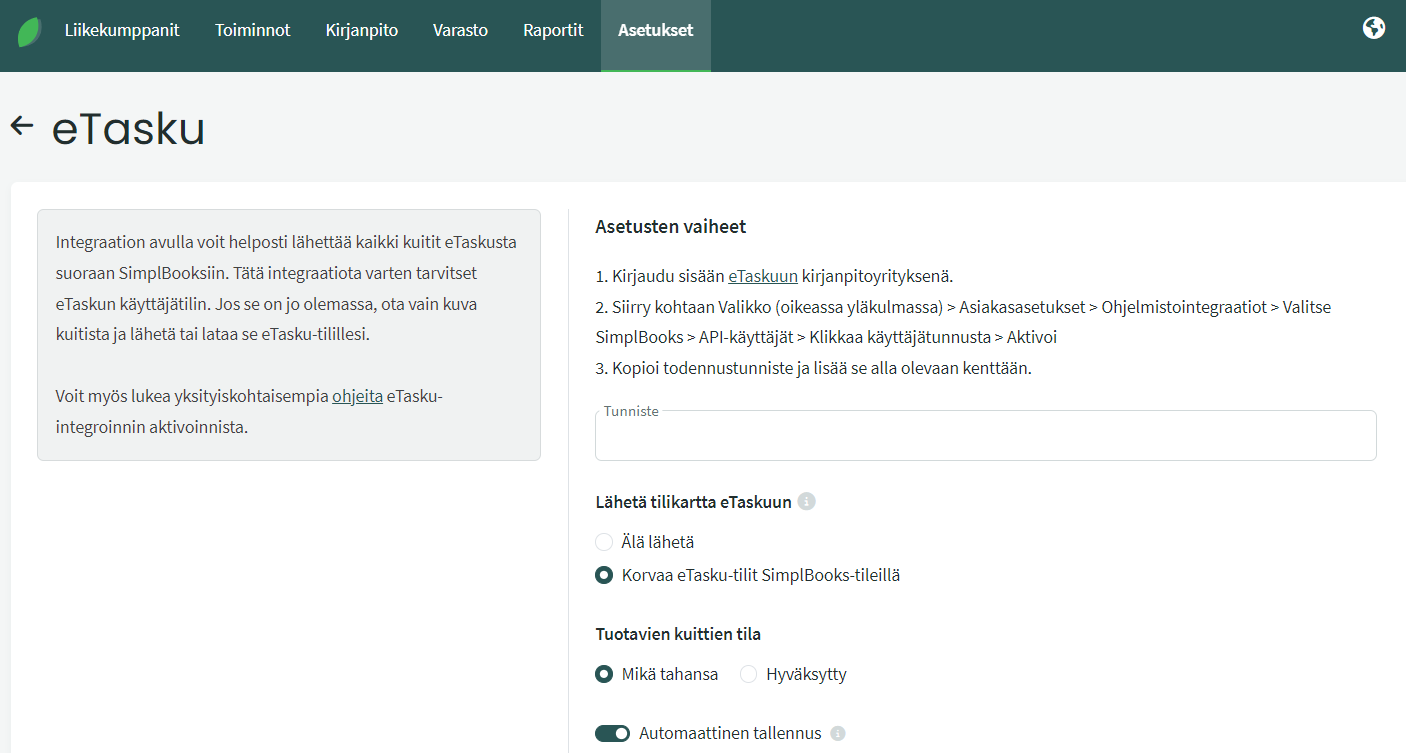
- Choose whether you want to send the chart of accounts you use in SimplBooks to Finago eTasku (recommended, as this allows account coding to be done directly there).
- Choose which status receipts must have to be imported automatically (Approved = only receipts approved in Finago eTasku are imported automatically).
- Save. The integration is now active!
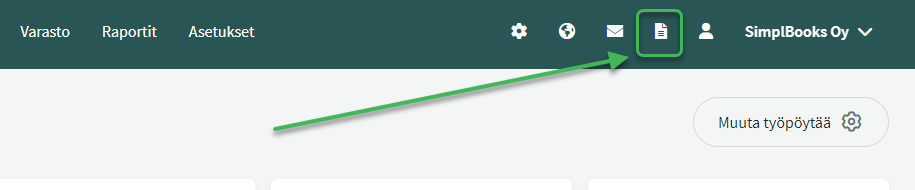
Once the integration is set up, the previous day’s documents are automatically transferred from Finago eTasku to SimplBooks once a day for processing. Imported documents can be found by clicking the document icon in the top right corner of the program — “Imported Documents”.
Data from Finago eTasku can also be imported manually, which allows you to perform a retrospective import. The manual import is available on the same “Imported Documents” page.
Processing receipts in SimplBooks
You can save receipts imported from Finago eTasku as a purchase invoice, an expense invoice, or directly as an accounting entry.
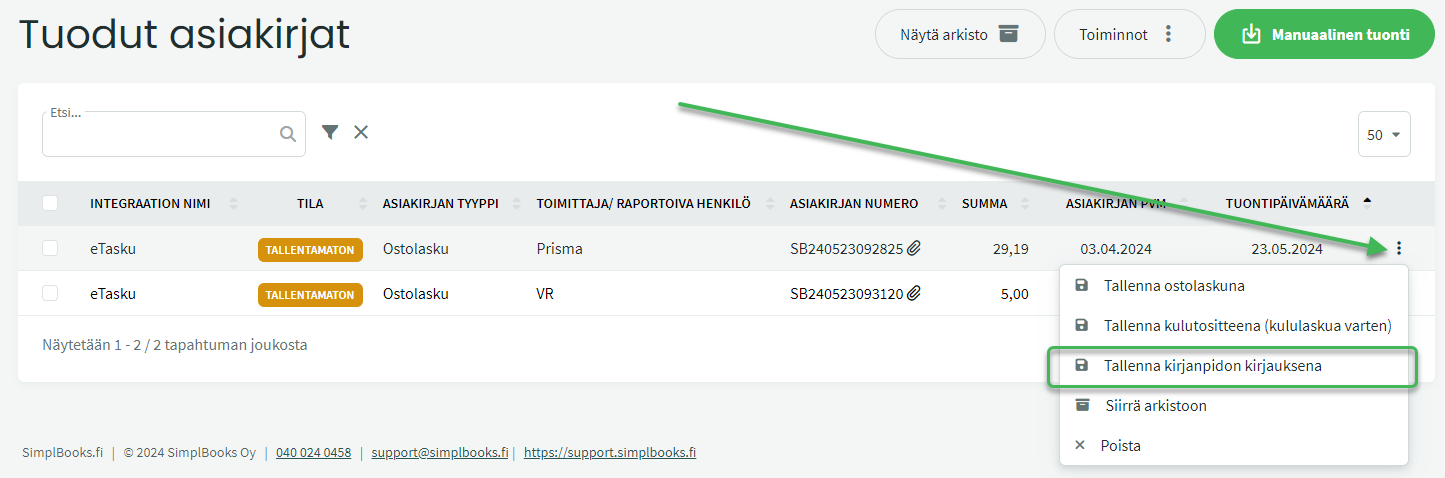
- If you save an imported receipt as an accounting entry, the program automatically fills in the merchant name as the description, and also the expense account if it was specified in Finago eTasku.
- The default payment account for accounting entries is the account set under Settings > Automatic Entries > Payments > Payments to suppliers. This account can be freely changed when making the entry.
- If you want to save an imported receipt as a purchase invoice and the status is “unsaved” or “faulty”, check that the purchase invoice in SimplBooks has a supplier, expense account, and VAT.
- The purchase invoice number can be entered in eTasku in the “document number” field. If the field is left blank, SimplBooks will generate the purchase invoice number automatically.
Note: Travel expense reports cannot currently be imported from Finago eTasku.
Additional Information
- Send the chart of accounts to Finago eTasku
When activating the integration, you can optionally send the chart of accounts from SimplBooks to Finago eTasku via the API. Note: If you make changes to the chart of accounts in SimplBooks, those changes will not automatically update in Finago eTasku. In that case, the chart of accounts must be re-sent manually from SimplBooks under SETTINGS > Integrations > eTasku.
- You can choose which receipts to import
You can transfer document data along with images to SimplBooks without processing them in Finago eTasku, if the status is set to “Any”. If you want to transfer only reviewed and approved receipts, select “Approved” as the status.
- You can code documents in Finago eTasku or in SimplBooks
If you send the chart of accounts to Finago eTasku and do the account coding there, the data will arrive ready in SimplBooks. If you import invoices from Finago eTasku without account coding, you will need to complete the account coding on the purchase invoice in SimplBooks.
- Automatic saving
When the automatic saving feature is activated in SimplBooks, error-free documents are automatically saved as purchase invoices.
Leave A Comment?