
This guide explains how to transfer travel expenses from expense reports to sales invoices.
Instructions for creating an expense report can be found here.
Want to know more?
Read more on our blog: Can you invoice travel expenses to a client? Yes, here’s how to price them
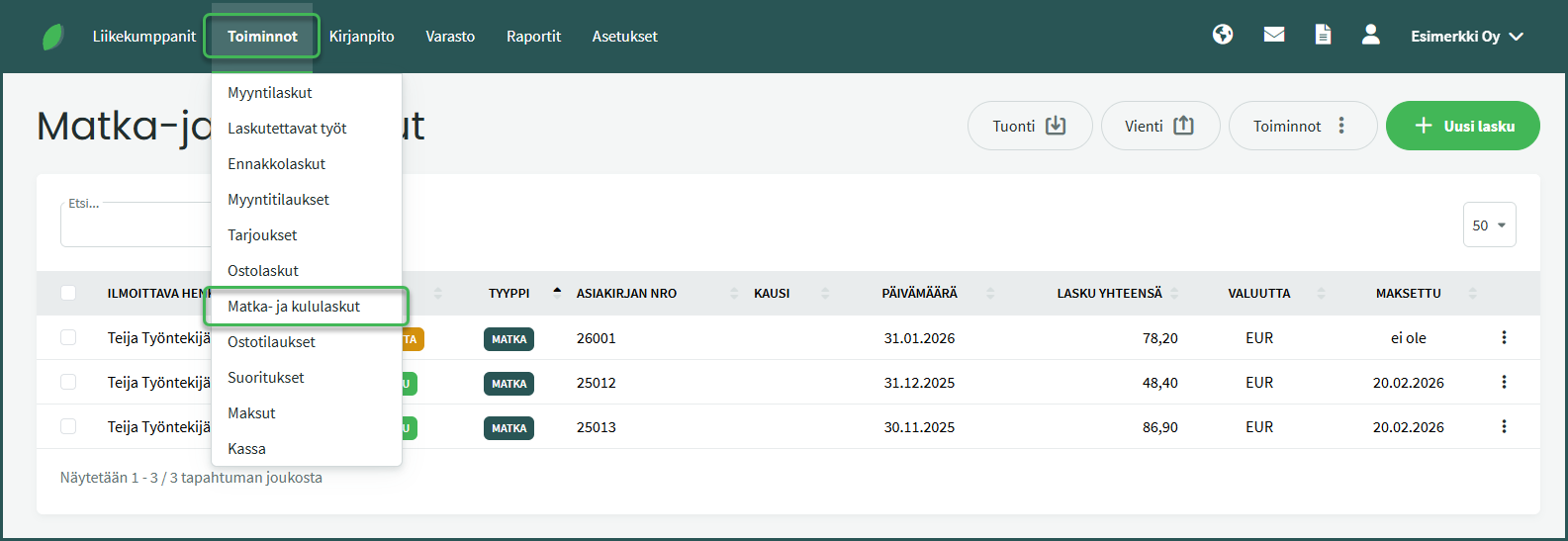
- Go to Actions > Expense Reports.
- Open the desired expense report by clicking on it.
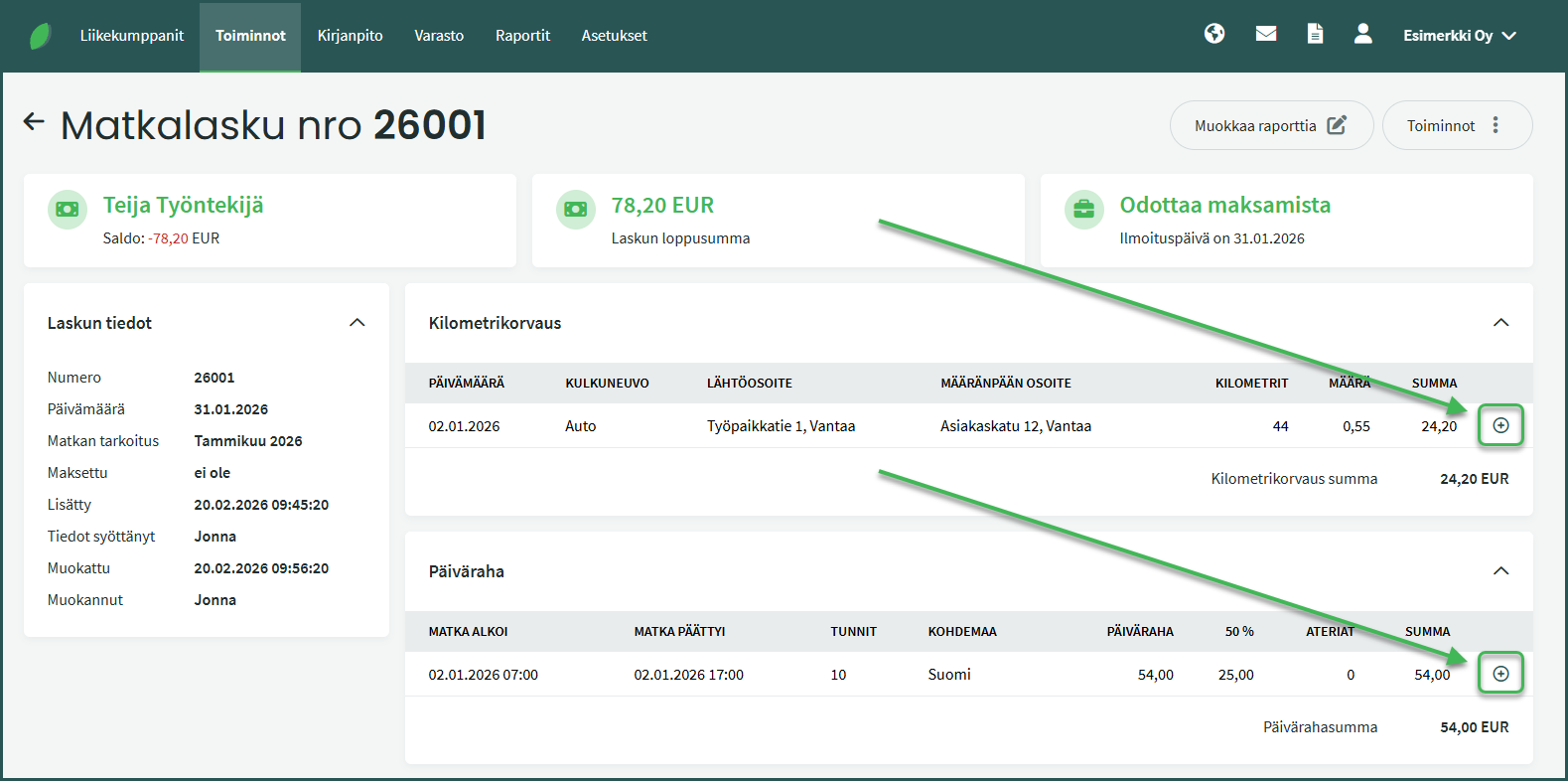
- Click the plus button at the end of the billable daily allowance or mileage reimbursement line and select “Create billable work“.
- Select the customer you want to invoice for the travel expenses, and save.
- The next time you create a new sales invoice for that customer under Actions > Sales Invoices > New Sales Invoice, the program will automatically suggest adding the billable work to the invoice. Click the suggestion to add the travel expenses to the sales invoice.
DETAILED GUIDE
1. Open the expense report by clicking on it in the list under Actions > Expense Reports.
2. Click the plus button at the end of the billable daily allowance or mileage reimbursement line.
3. Verify the details and assign a customer to the billable work — this is the customer you want to invoice for the travel expenses.
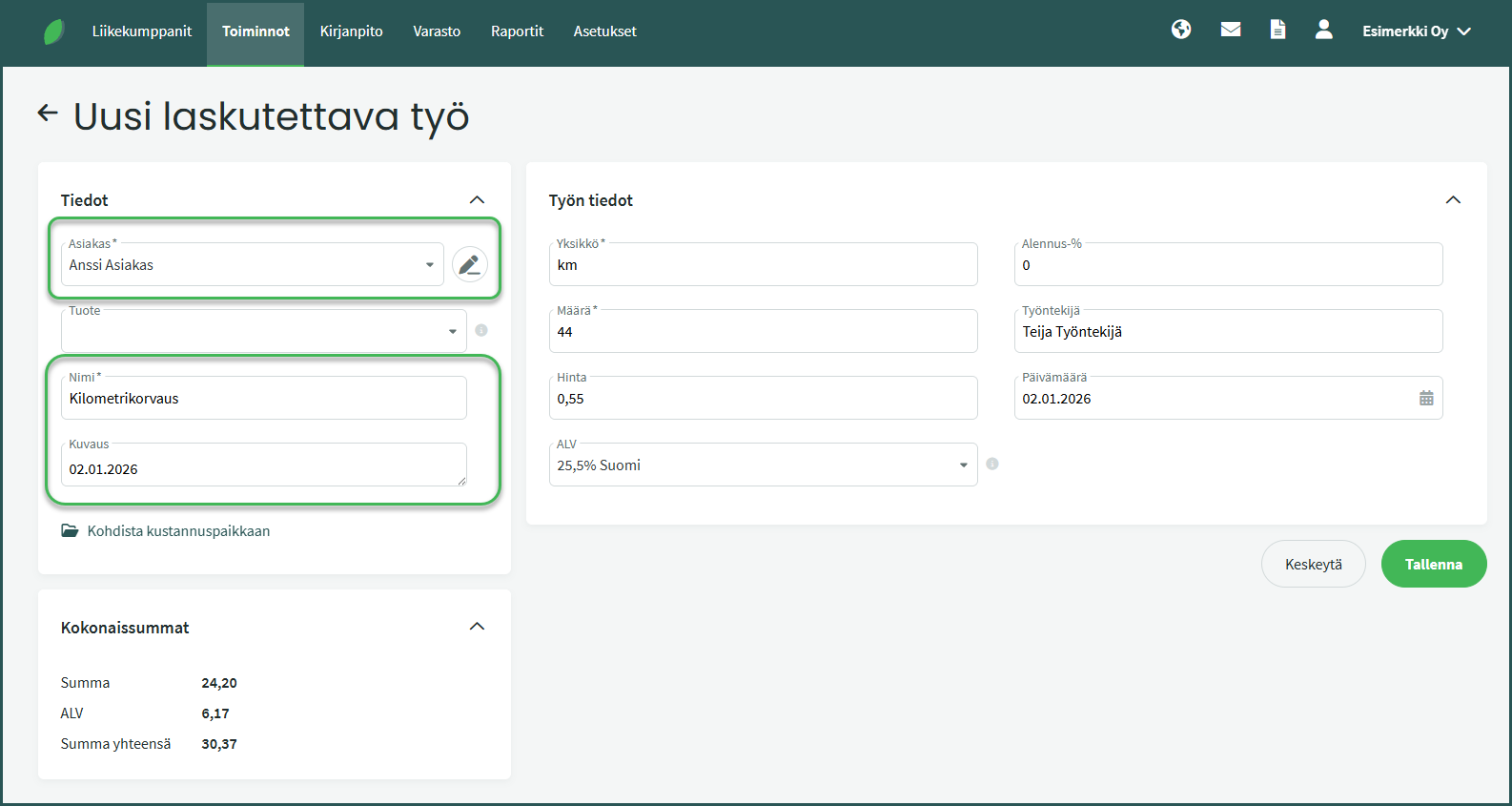
Update the employee and any other details as needed, then save the billable work.
4. The next time you create a new sales invoice for the customer under Actions > Sales Invoices > New Sales Invoice, the program will automatically suggest adding the billable work to the invoice.
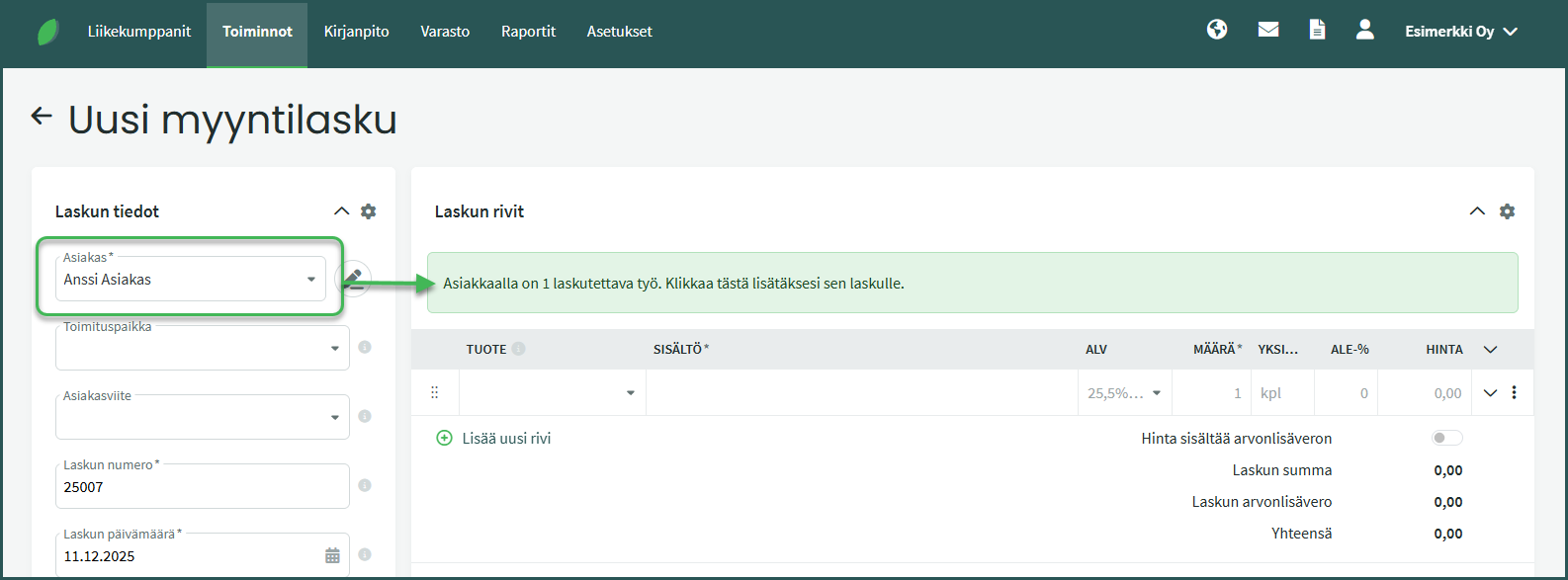
By clicking the suggestion, the program adds the travel expenses to the sales invoice. You can also add other line items to the invoice as needed.
Leave A Comment?