
This guide explains how to mark a sales invoice as paid.
Quick guide
- Open the desired sales invoice under Transactions > Sales Invoices.
- Select Actions > Mark as Paid on the right.
- Choose the appropriate bank account or cash register and save.
💡 Tip: In SimplBooks, payments for purchase invoices are called payments, while received payments for sales invoices are called receipts.
DETAILED GUIDE
1. Sales invoices are marked as paid under Transactions > Sales Invoices.
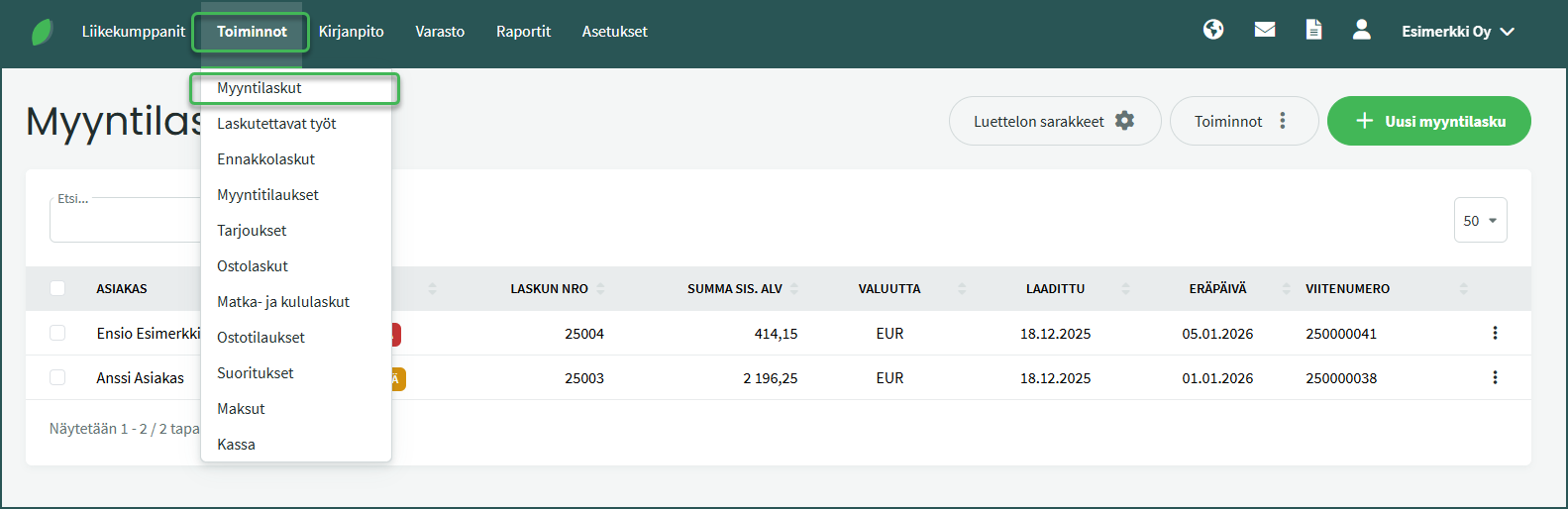
Open the desired invoice by clicking on it.
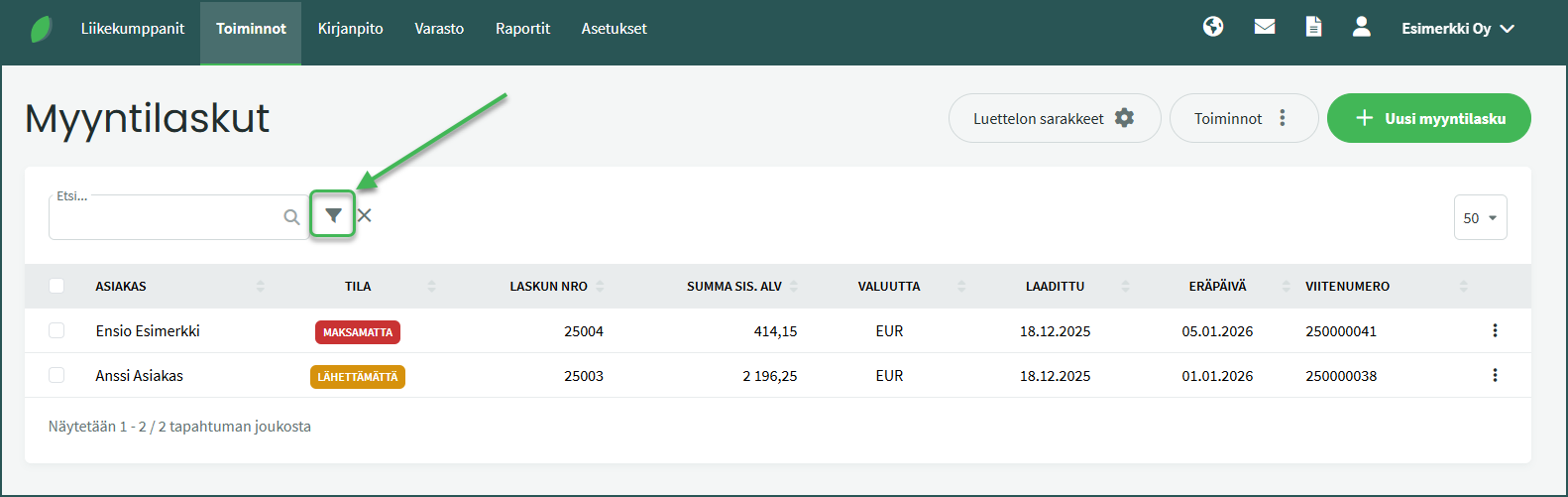
2. If you have many sales invoices, you can filter them by clicking the filter icon to the right of the Search field.
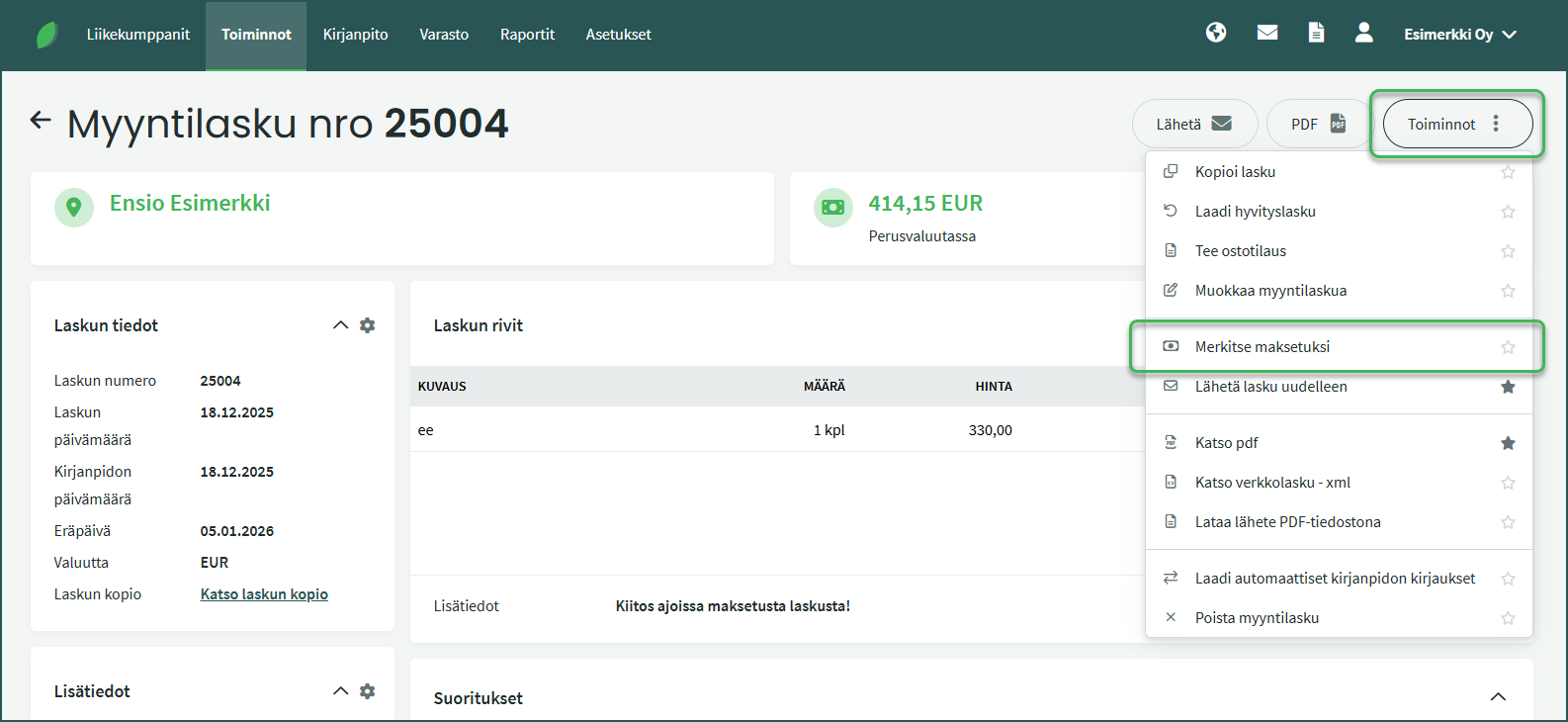
3. Once you have opened the desired sales invoice, select “Mark as Paid” from the Actions menu.
4. In the view that opens, you can create a new payment for the sales invoice or apply an existing receipt to it.
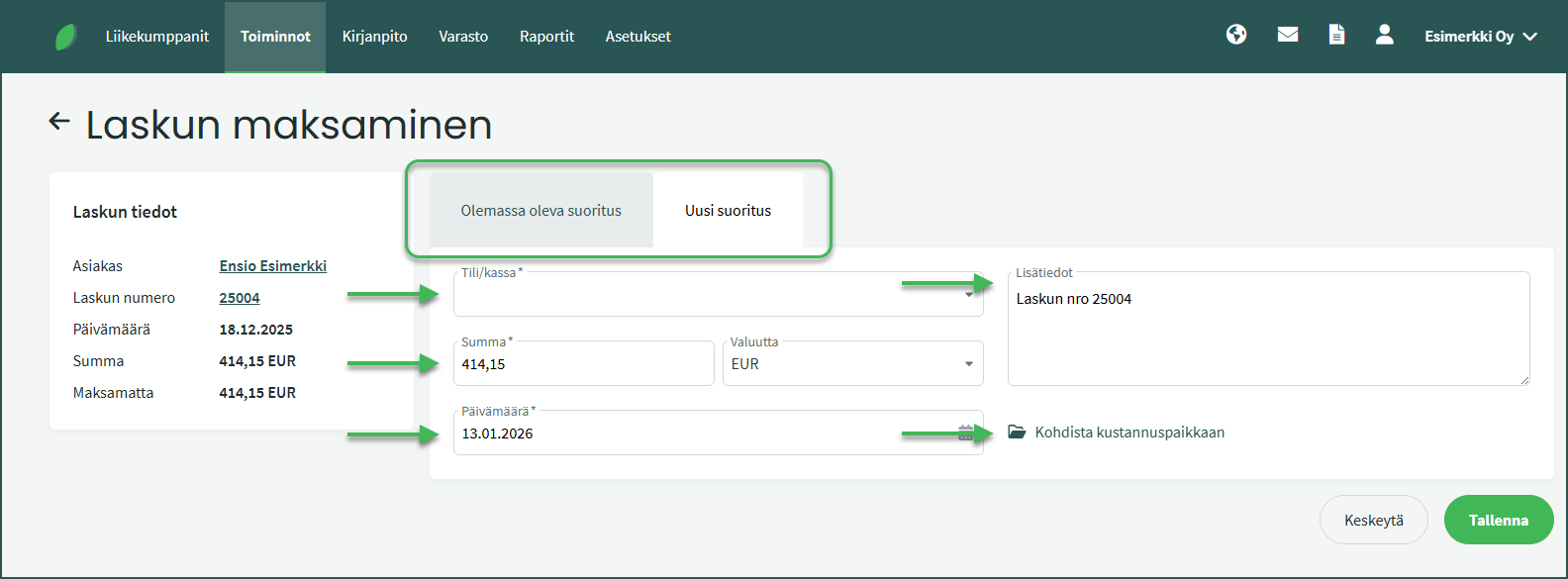
- Account/Cash register – Select the bank account or cash register to which the payment was received.
- Read how to add bank accounts and cash registers to the software here.
- Credited invoices and credit notes are marked as paid to a credit account.
- Amount – Enter the received payment in the “Amount” field.
- The software automatically suggests the outstanding balance of the invoice.
- If the amount received is less than the invoice total, the invoice will remain in “Partially Unpaid” status.
- If the receipt is greater than the invoice total, the software marks the invoice as “Paid“. The excess portion of the payment is attached to the customer and is visible in the customer details under Business Partners > Customers and Suppliers. The excess can be applied to a future invoice, for example.
- Date – Remember to verify that the date matches the actual date of payment.
- Additional information – You can add any relevant notes about the payment in this field.
- Assign to cost centre – You can assign the payment to a cost centre.
📢 Note! If the customer has unapplied receipts, the software will automatically suggest them at this point. You can also view unapplied receipts under Transactions > Receipts. You can read more about receipts and how to manage them here.
Leave A Comment?