
This guide explains how to generate the purchase report and what information it provides.
What is the purchase report?
The purchase report shows how much the company has made in purchases during a selected period. The report can be viewed by product, supplier, or cost centre. It also shows the payment status of purchase invoices.
📢 Note! The purchase report only includes data from purchase invoices and payments. Purchases recorded directly as accounting entries do not appear in the report.
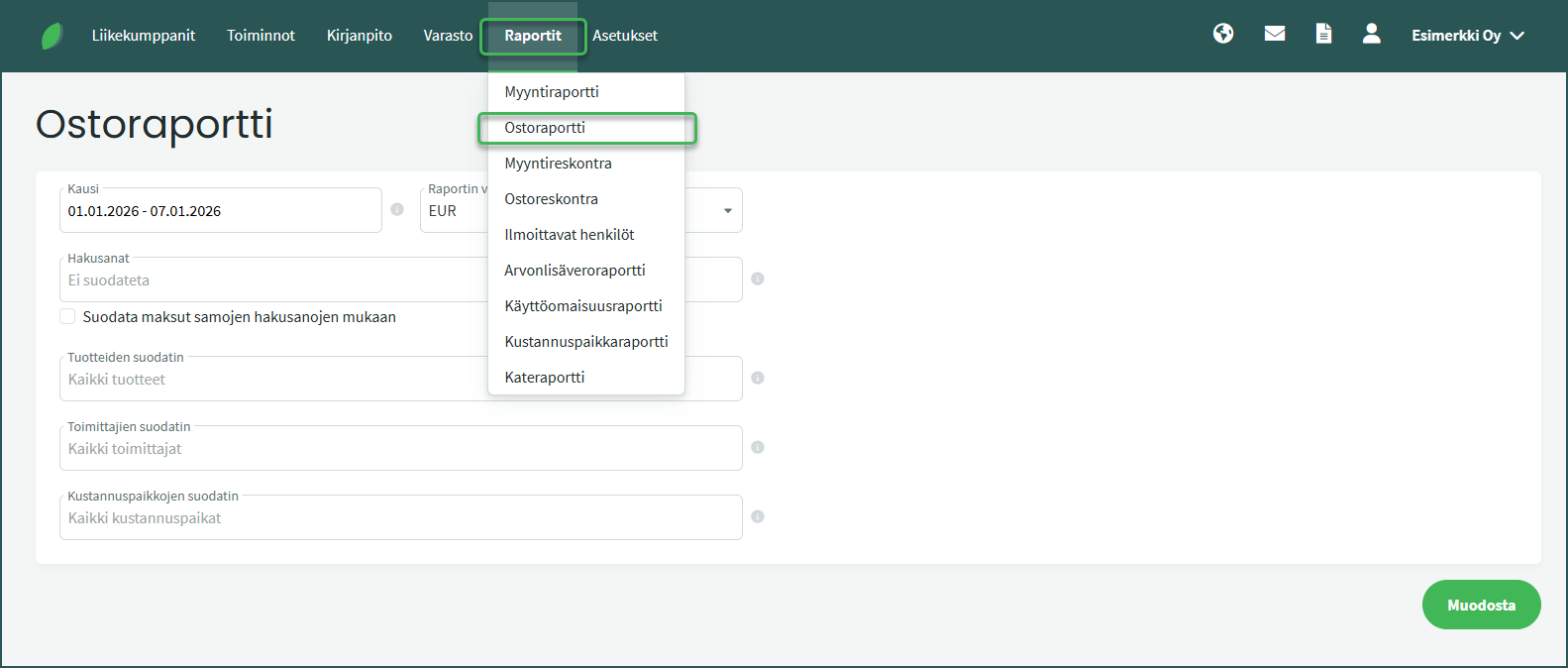
1. You can find the purchase report under Reports > Purchase Report.
2. Select at least the report period and click “Generate” at the bottom of the page.
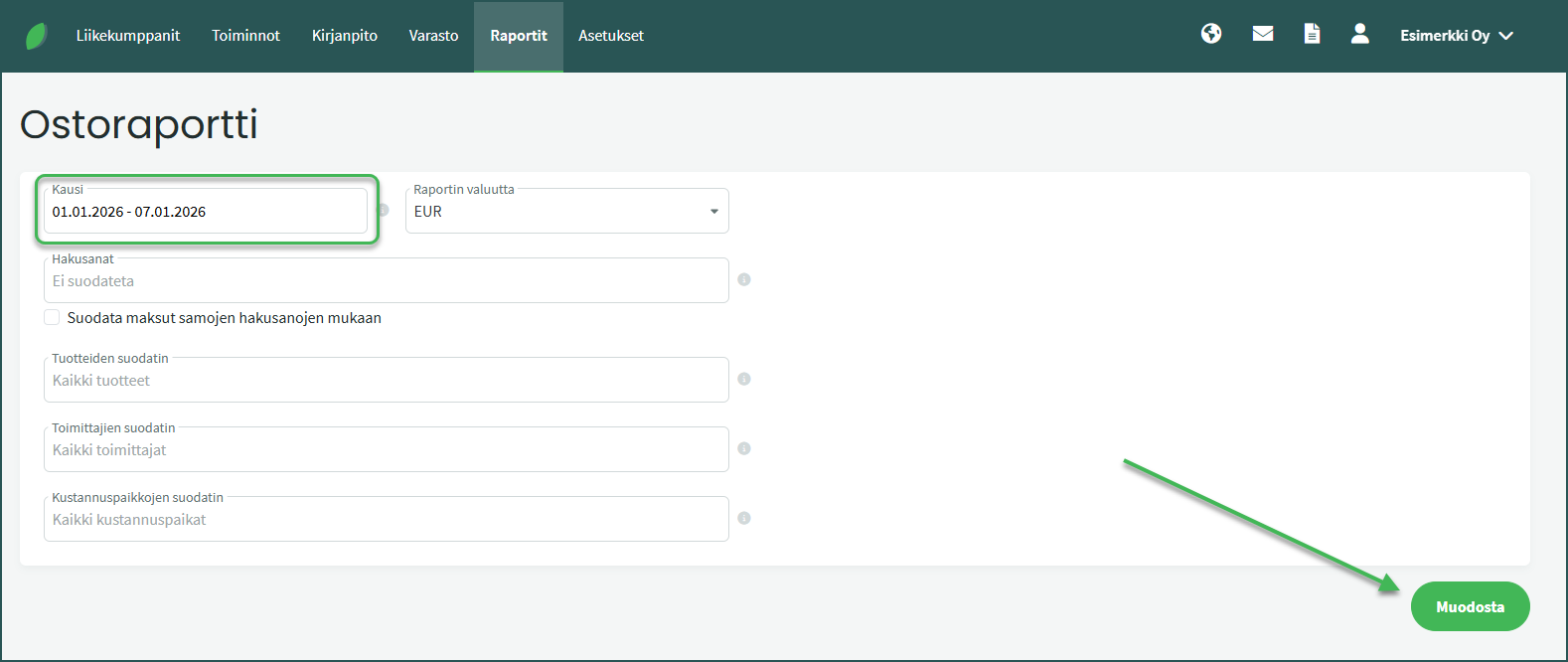
The report lists all expenses recorded via purchase invoices for the selected period.
3. You can filter the report to show only the days on which purchases or payments were recorded.
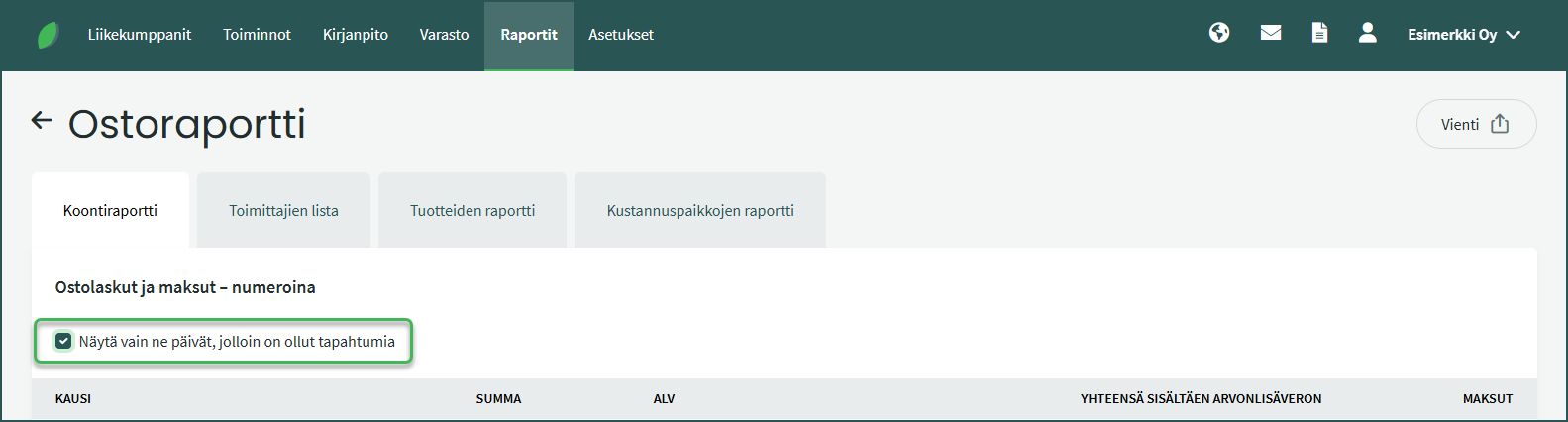
By default, the report displays all days.
4. You can browse differently grouped reports using the tabs.
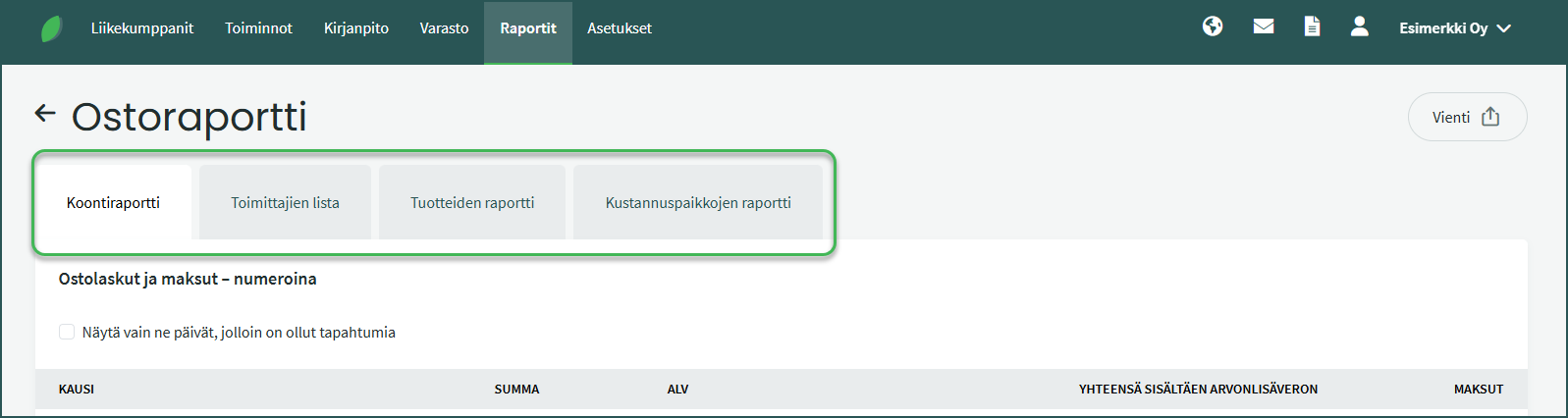
- Summary report shows purchases in chronological order.
- Supplier list shows purchases by supplier along with the payment status of purchase invoices (paid, unpaid, overdue).
- Product report shows purchases by product. If no products were used on purchase invoices, those invoices will display the product name as “unspecified“.
- Cost centre report shows purchases by cost centre. If no cost centre was assigned to a purchase invoice, the cost centre name will appear as “unspecified“.
Leave A Comment?