
Bank connections significantly speed up bookkeeping. With a bank connection, you can see your bank account balance on the SimplBooks dashboard, and bank account transactions are automatically imported into the program once a day. Payments and receipts are automatically matched to invoices when the details correspond, so accounting entries do not need to be added manually.
Activating a bank connection takes just a few minutes using your online banking credentials. You can start using bank transaction import and the account balance on the dashboard right away.
If you wish, you can also enable the payment feature, which allows you to pay invoices directly from SimplBooks. Activating the payment connection usually takes a few days.
SETTING UP A BANK CONNECTION
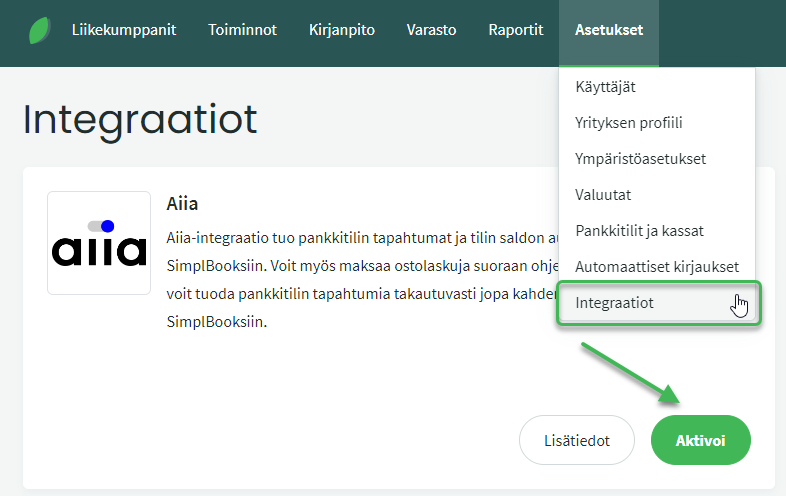
Bank connections are activated under Settings > Integrations > Aiia > Activate.
After activating the bank connection, you will see the bank account balance on the SimplBooks dashboard. The balance will appear by 16:00 at the latest on the following day, but it is usually visible immediately after activation.
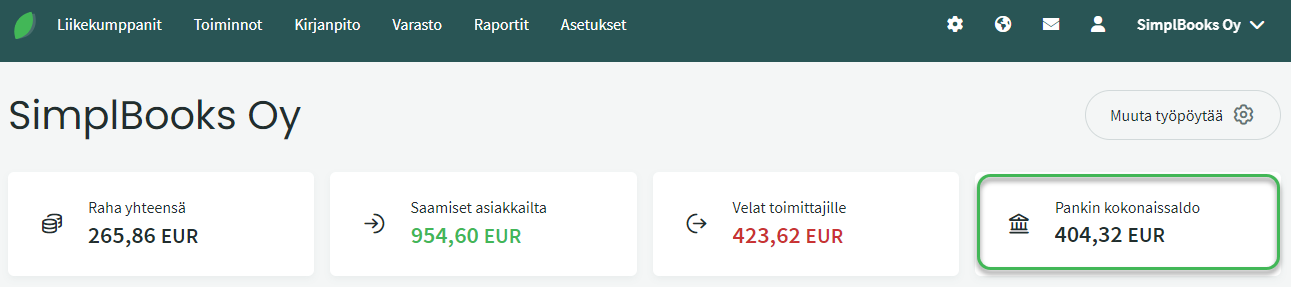
Whenever the bank account balance is updated on the dashboard, the previous day’s bank transactions are also imported into the program.
- Weekday bank transactions are imported by 16:00 on the following day.
- Weekend bank transactions are imported by 16:00 on Monday.
- NOTE: If transactions are posted in your bank on Monday, they will be imported on Tuesday.
Only transactions occurring after the bank connection is activated are imported automatically. A major advantage of the PSD2 bank connection is that you can also import bank transactions retroactively for up to two years. Some banks support a shorter period, so it is worth checking with your own bank.
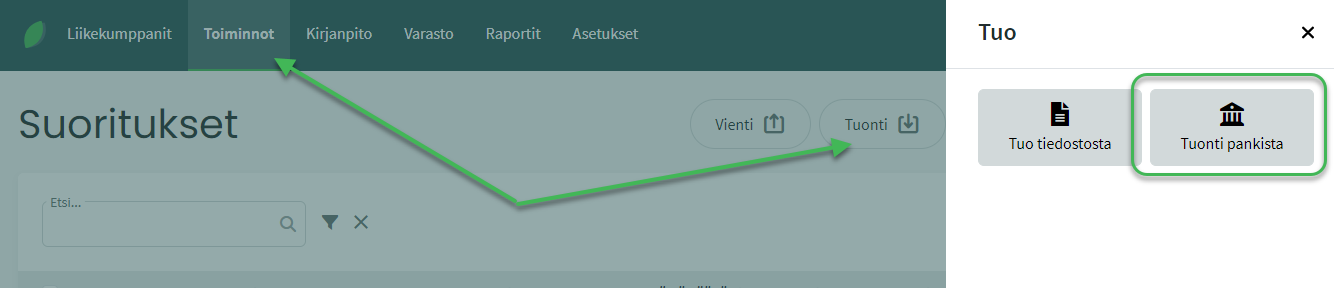
You can import bank transactions up to the current date under Actions > Receipts > Import > Import from bank.
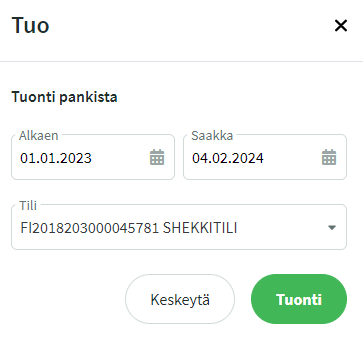
Set the date range for the transactions you want to import and click Import.
NOTE: The automatic import does not check whether a transaction has already been imported. For this reason, manual import should only be used for retroactive transactions and in the event of issues. For example, if you manually import Wednesday’s bank transactions on Thursday morning, the program will import them again automatically on Thursday afternoon.
See the guide for processing bank transactions here.
Leave A Comment?