
This guide explains how to configure the languages used in SimplBooks.
SimplBooks can be used easily in multiple languages. If you actively make use of the language options, there are a few small but important technical points to keep in mind.
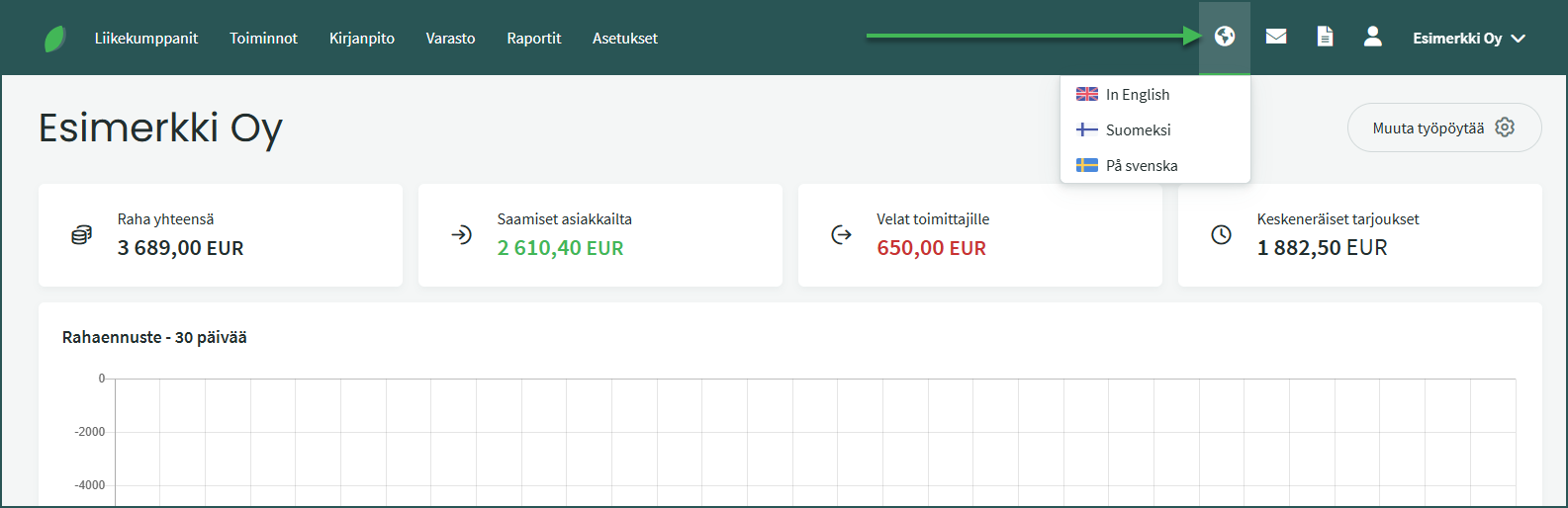
- Changing the program language – You can change the program language from the globe icon in the top right corner of the view.
- Customer language setting – You do not need to change the entire interface language to send, for example, an English sales invoice to a customer. You can set a language for an individual customer under Business Partners > Customers and Suppliers > Select customer > “Edit customer/supplier“.
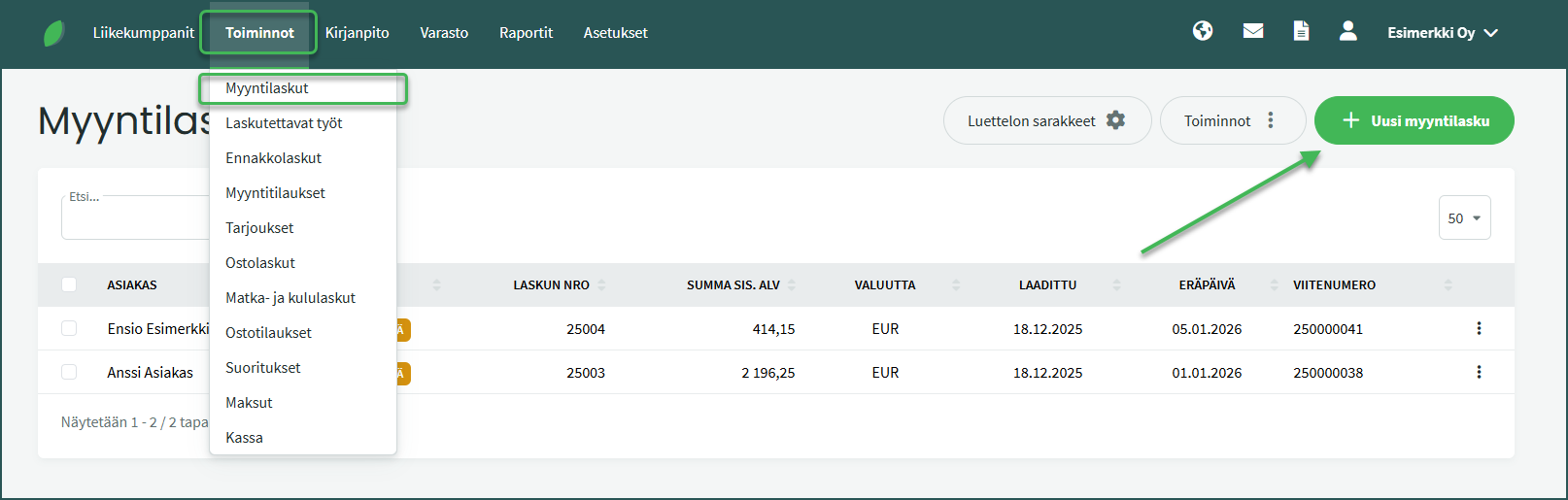
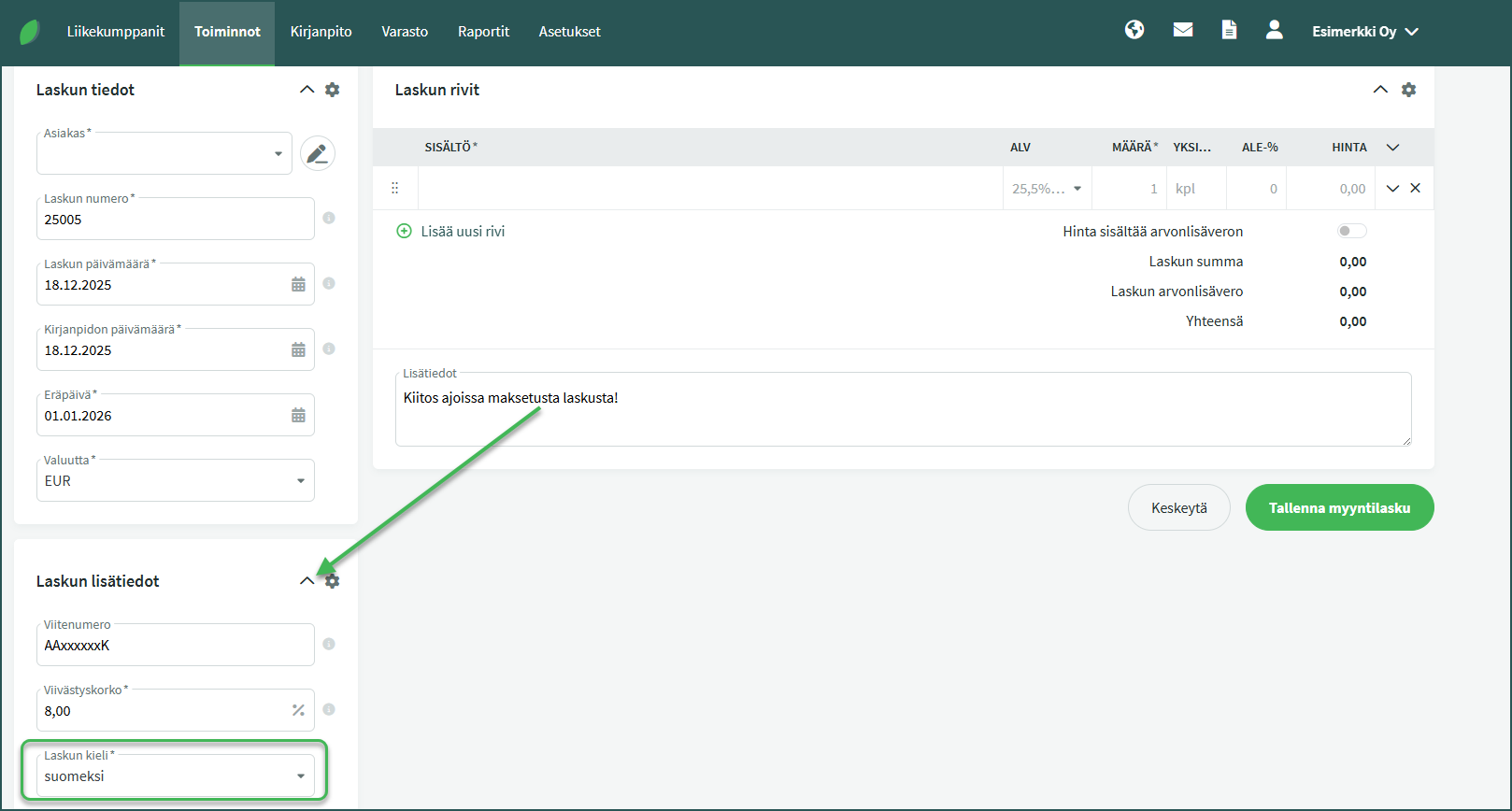
- Sales invoice language setting – You can select the desired language for an invoice when creating it, under “Invoice additional details“.
- Email message template language setting – If there is no ready-made message template in your desired language, you can add new message templates under Settings > Environment Settings > Message Templates.
- General language settings – If you use multiple languages, remember to add translations for all program features (e.g. products and accounts), as otherwise fields will appear empty when switching language.
1. You can change the program language by clicking the globe icon in the top right corner of the program
2. You can add languages under Settings > Environment Settings > General Settings
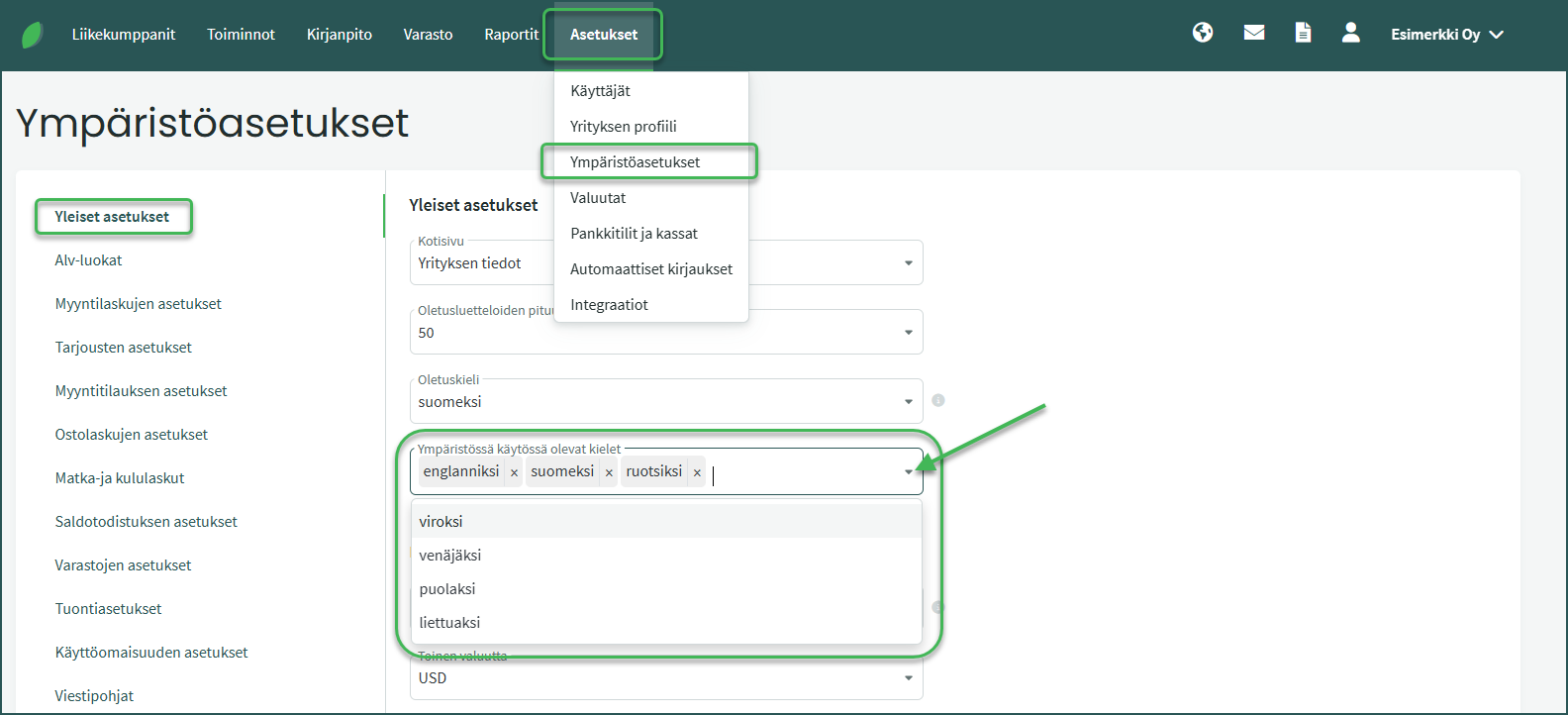
- Add the desired language to the “Languages available in the environment” field.
1. You can edit the language settings of an existing customer or create a new customer under Business Partners > Customers and Suppliers
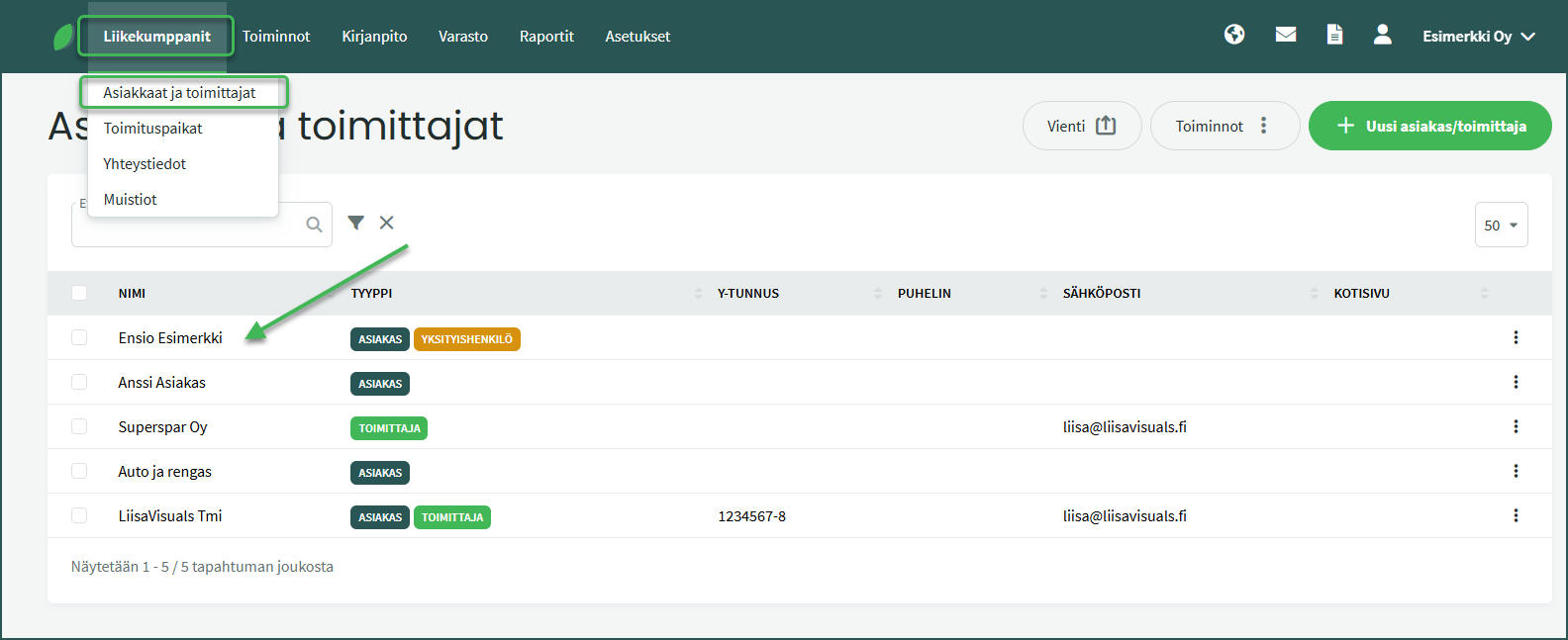
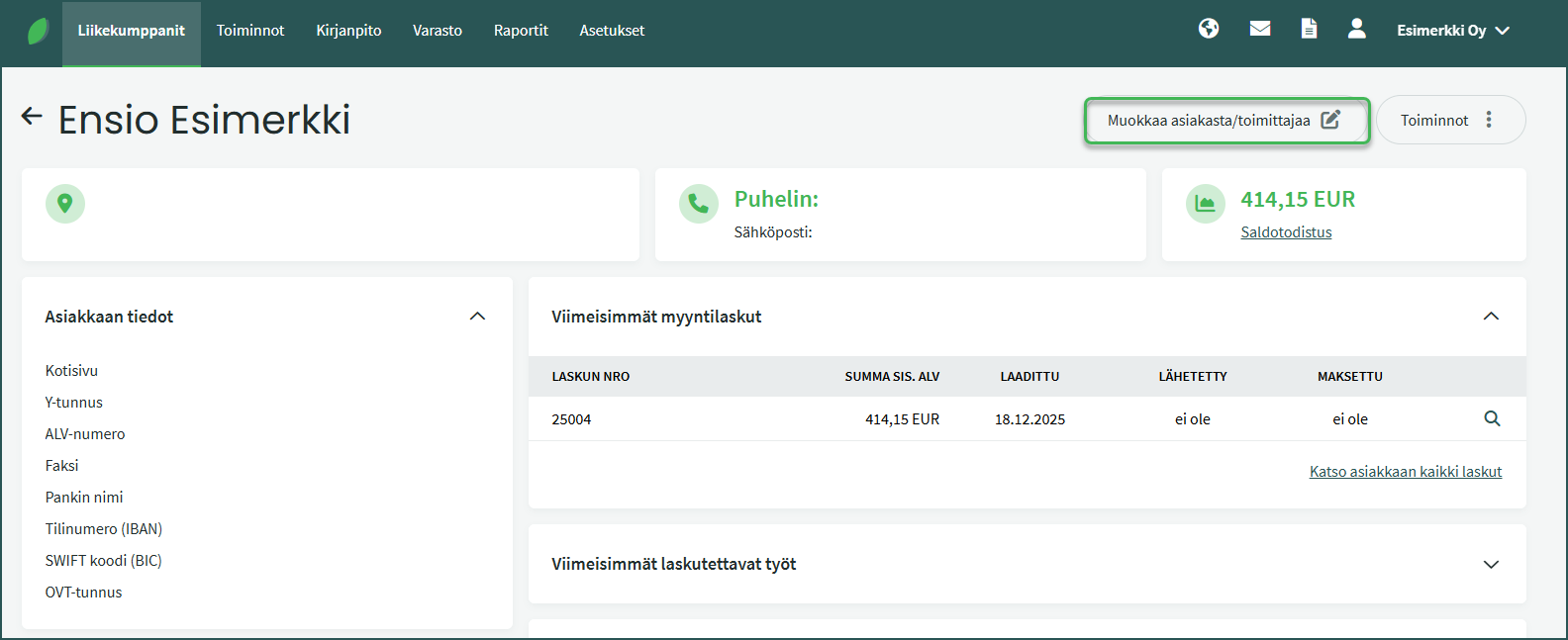
2. Select the desired customer and click “Edit customer/supplier” on the right
3. Set the desired language under Customer/Supplier Settings > Document language
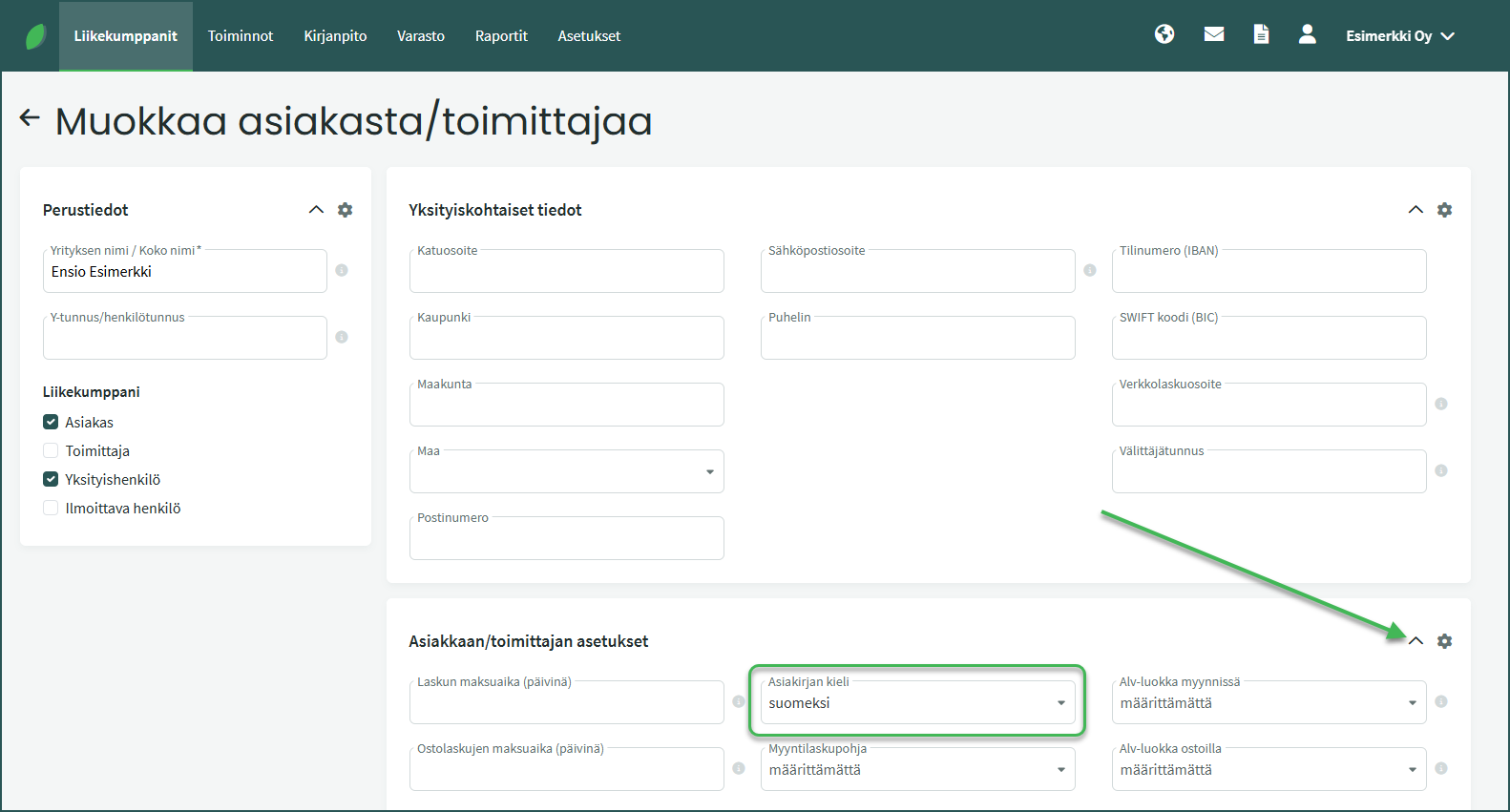
- The default is always the language you selected during initial setup.
📢 Note! Once a language has been added to the customer’s details, you no longer need to select the language separately when creating an invoice.
1. You can select the invoice language when creating a sales invoice under Actions > Sales Invoices > New Invoice.
2. Select the language from “Invoice additional details”
📢 Note! You can edit invoice templates under Settings > Environment Settings > Sales Invoices > Document Templates. See the detailed guide here.
1. You can add new email message templates in different languages under Settings > Environment Settings > Message Templates.
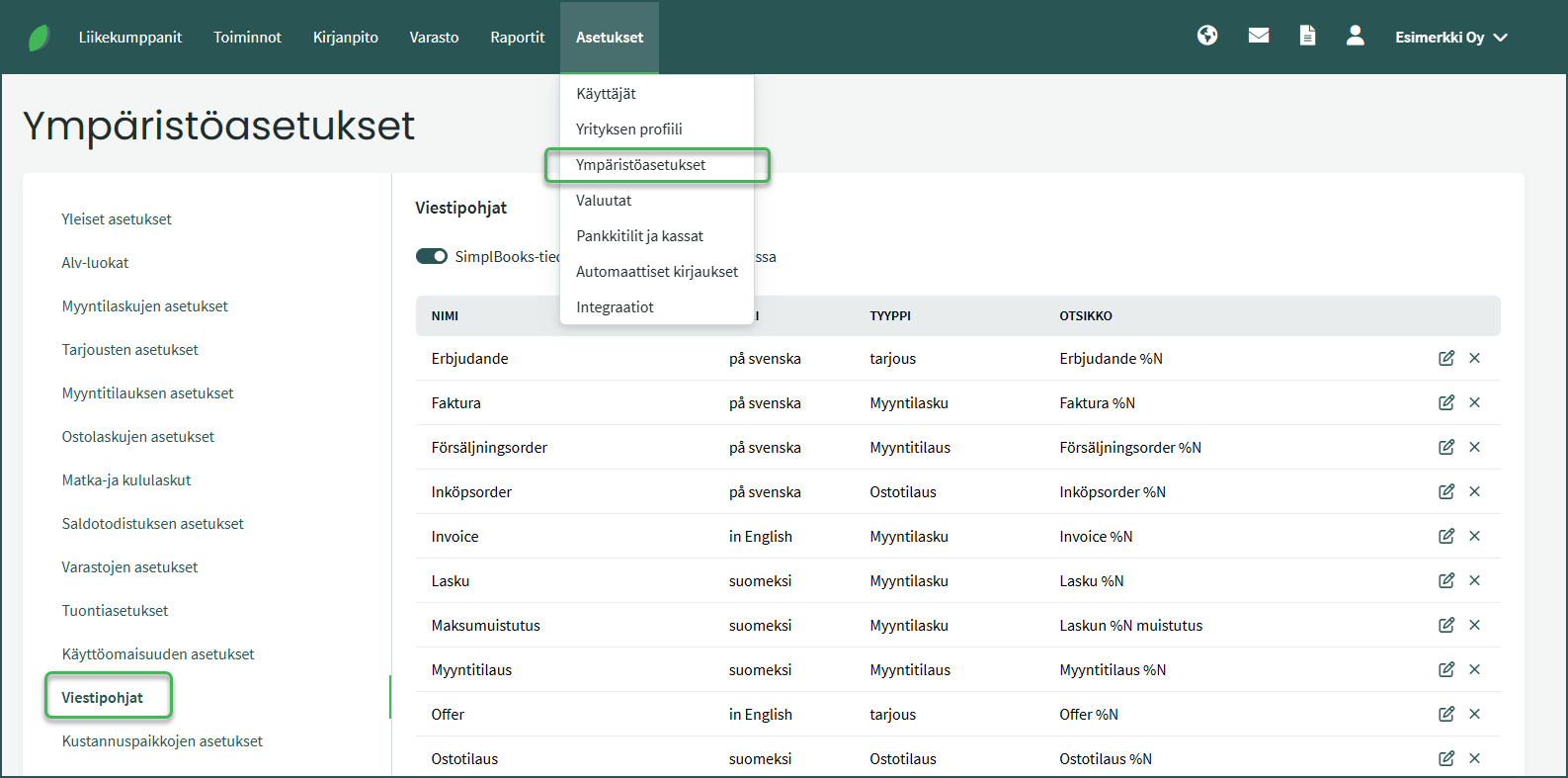
💡 Tip: Ready-made message templates make sending invoices easier, as the program will suggest pre-written messages based on the language set for the customer.
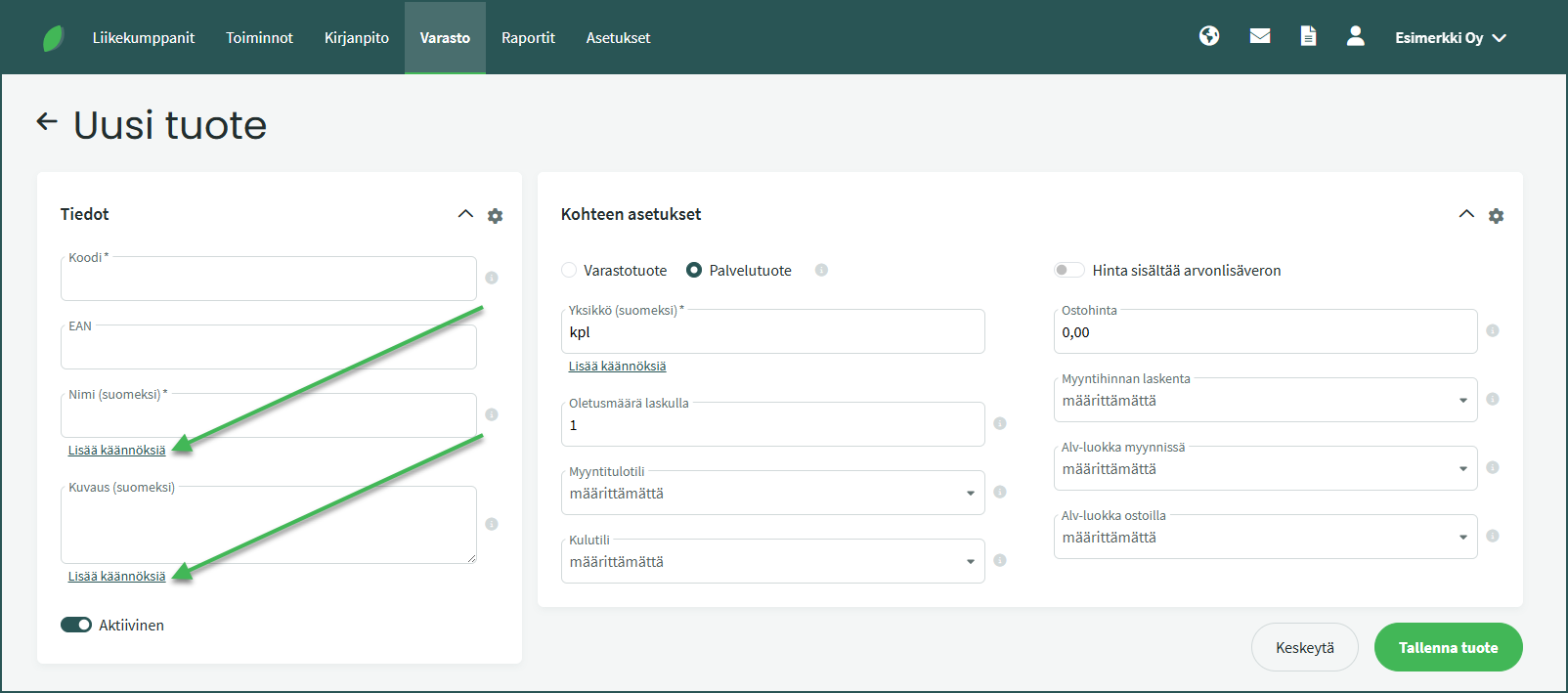
If you use multiple languages and modify program features, you must add names and descriptions in all languages you use. For example, when adding a new product or accounting account, translations are filled in under “Add translations”.
📢 Note! Even if the name is the same in all languages, it is still a good idea to add translations, because otherwise the field will appear empty when switching the program language.
Leave A Comment?