
This guide explains how to record sales that fall under the VAT special scheme One Stop Shop (OSS) in SimplBooks.
What is One Stop Shop (OSS)?
One Stop Shop (OSS) is an EU-wide VAT system that companies selling to consumers in different EU countries can use to declare and pay VAT. This means that VAT on consumer sales to other EU countries can be reported through the special scheme via the national tax authority’s portal, without having to register separately in each country of sale. The scheme covers services sold to consumers within the EU and distance sales of goods to consumers.
For example, if you sell products from Finland to consumers in both France and Sweden, you can declare and pay the VAT for both countries through the special scheme after registering for OSS. You can read more about registration and filing on the Finnish Tax Administration’s website.
OSS SALES SETTINGS
This guide first walks through the required common OSS settings, and then the settings for one country of sale (France is used as the example). You can set up the same configuration for multiple countries by following the same steps.
COMMON SETTINGS
Create a new accounting account for OSS VAT liabilities
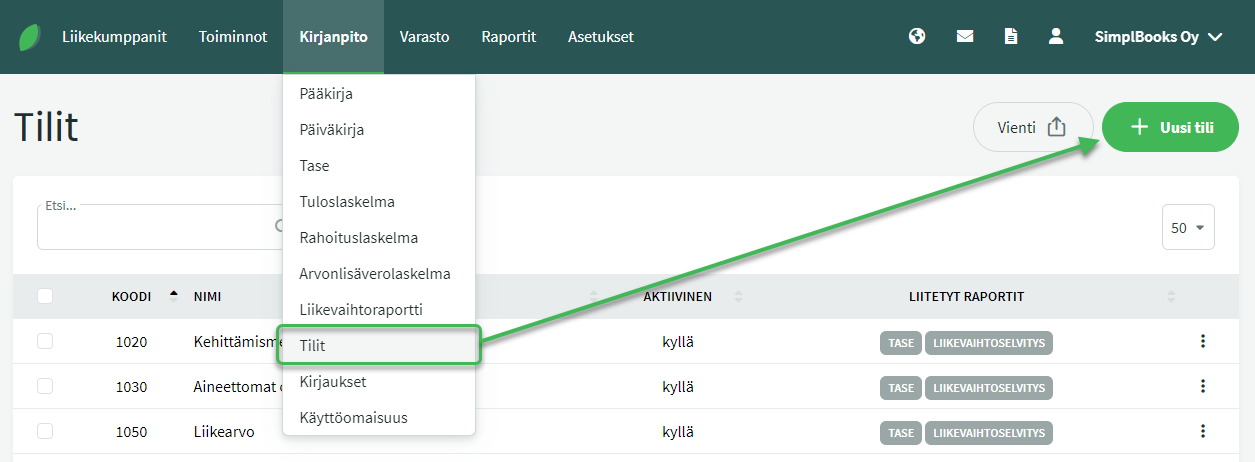
Enter account code 2942 and a name such as “OSS VAT liability”.
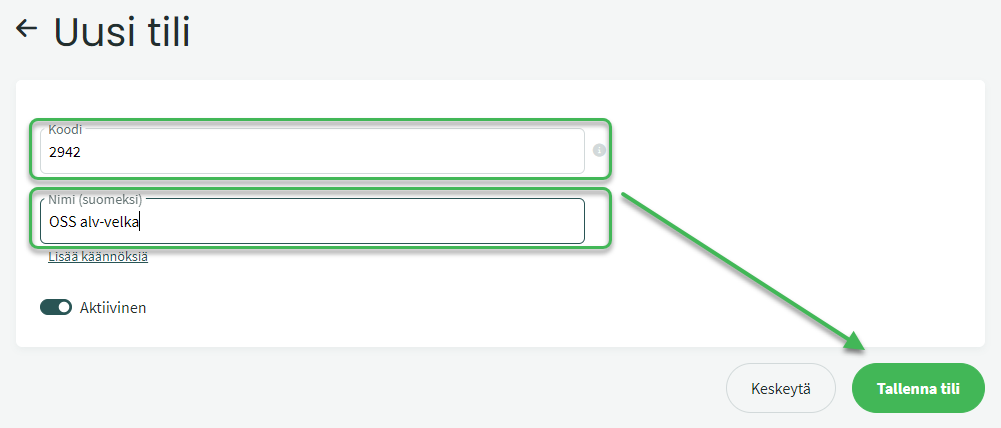
Once the details are filled in, save the account.
- This account can be used for setting up VAT classes for all OSS sales and for recording OSS VAT payments going forward.
PER-COUNTRY AND PER-VAT-RATE SETTINGS
1. Create a new country- and VAT-rate-specific accounting account
Enter an account code. For example: “3006: OSS sales to France 20%”.
- Numbers 3000–3005 are reserved in the default chart of accounts, so choose a number in the range 3006–3099.
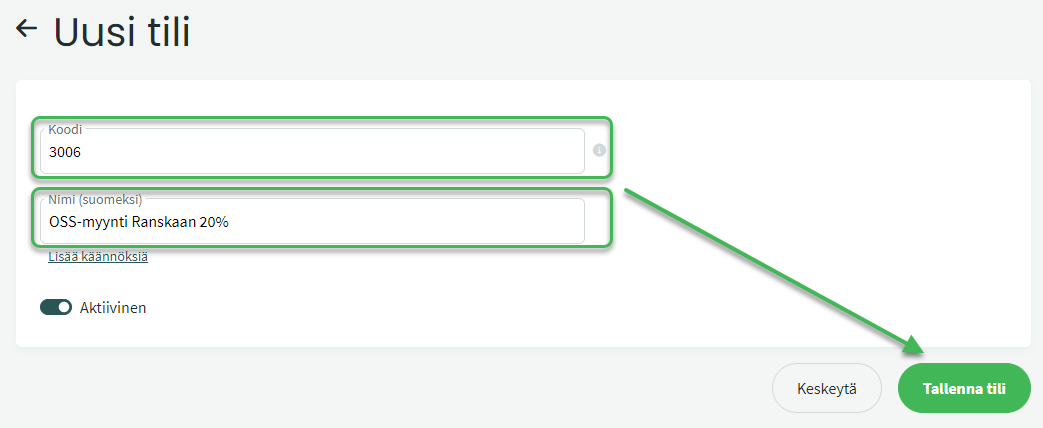
Once the details are filled in, save the account.
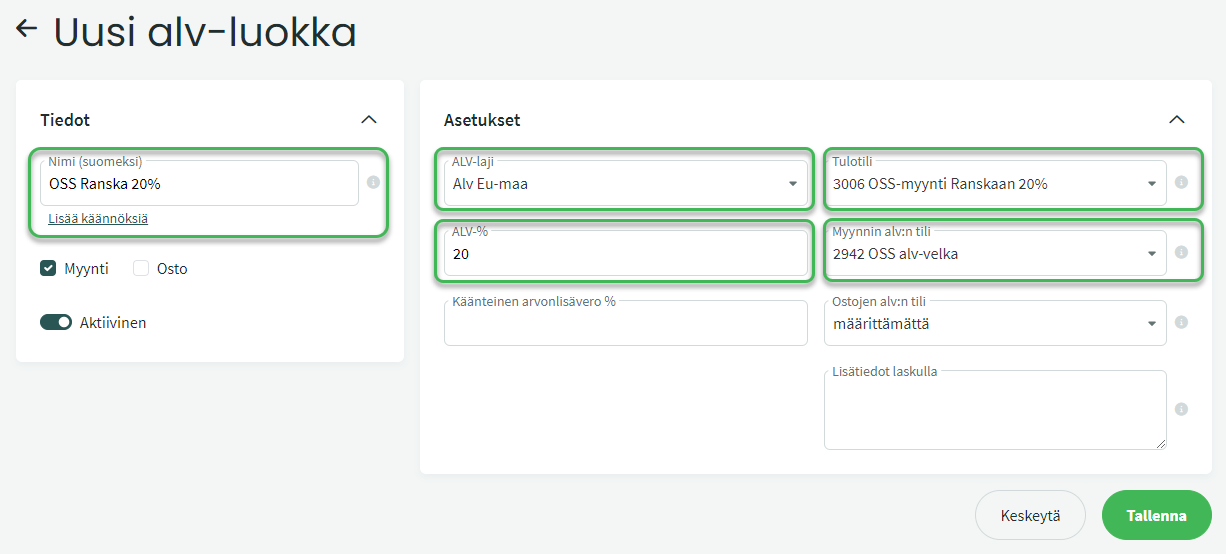
2. Create a new country- and VAT-rate-specific VAT class
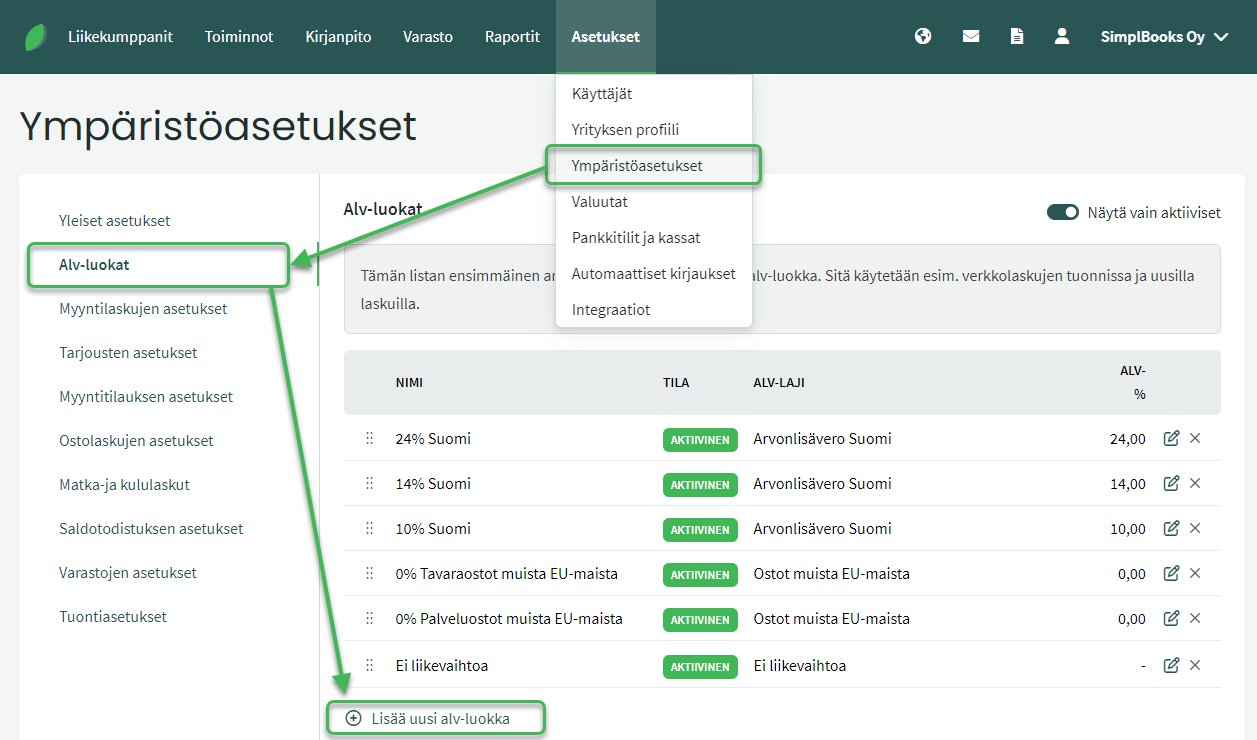
Fill in the VAT class details:
- Name. For example: “OSS France 20%”.
- VAT type. Select “VAT EU country”.
- VAT %. The VAT rate for the sale; in this example, 20.
- Revenue account. The sales account you created; in this example, 3006.
- Sales VAT account. The VAT liability account you created; in this example, 2942.
- Additional info on invoice. Optional field — you can enter any text you want to appear on the invoice when this VAT rate is used.
Leave all other fields blank.
3. Update the VAT calculation settings
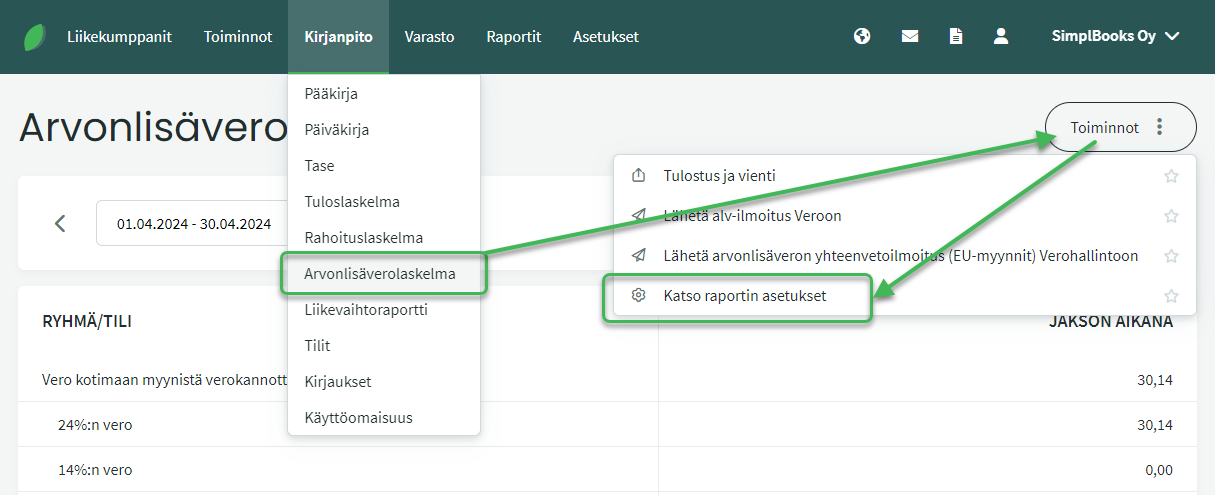
VAT calculation settings are edited under Accounting > VAT Calculation > Actions > View report settings.
Add the sales account and VAT class you created to the VAT calculation settings as a new row under “Revenue subject to 0% VAT rate”. If you are adding multiple OSS sales accounts and VAT classes, create a separate row for each.
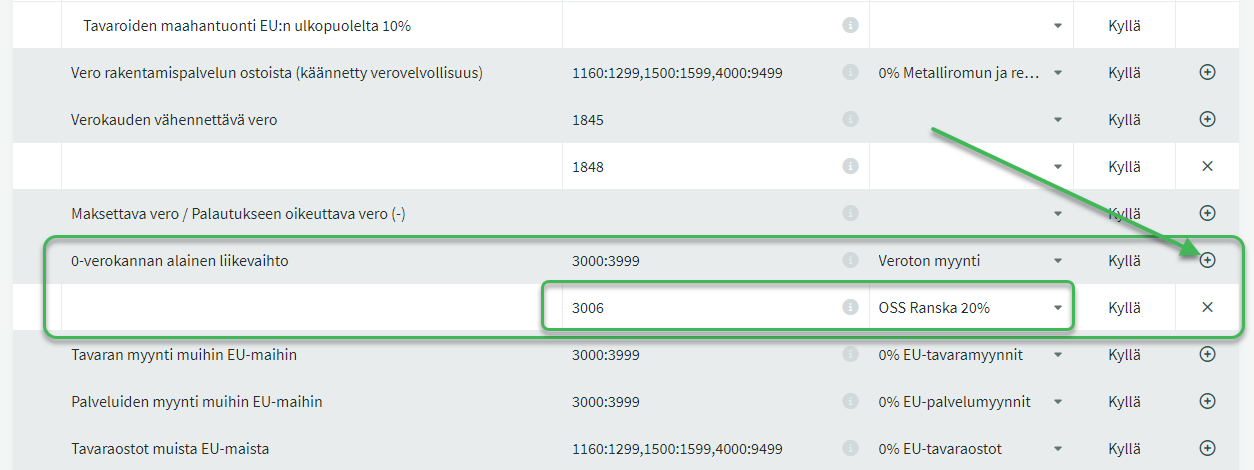
Remember to save the settings after adding the rows.
These settings ensure that the software correctly pulls data into the VAT calculation. You only need to complete the settings once for each country-specific VAT rate, after which you can select the account and VAT rate when recording sales in accounting.
The total amount of OSS sales is reported on the VAT return under “Revenue subject to 0% VAT rate”.
NOTE: For the separate VAT special scheme return filed via the tax authority’s portal, you can find country-specific sales from the general ledger under the sales accounts you created.
When you pay the special scheme VAT, record the payment to account 2942 to reduce the OSS VAT liability.
- The amount payable can be seen in the general ledger for account 2942.
At the time of writing, the OSS special scheme reporting and payment period is quarterly. The tax falls due on a different schedule than domestic VAT and must be paid to the tax authority separately. Detailed instructions for filing and payment are available on the Finnish Tax Administration’s website.
Leave A Comment?