This guide explains how to add a new customer or supplier to the program, and how to view and edit the details of existing customers and suppliers.
HOW TO ADD A NEW CUSTOMER OR SUPPLIER?
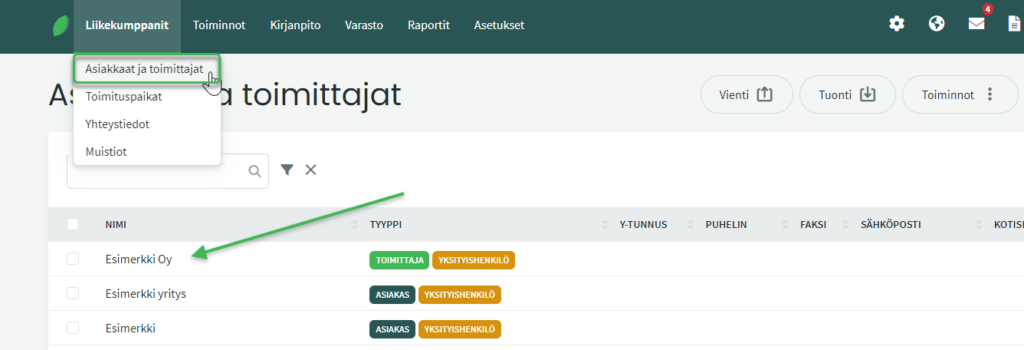
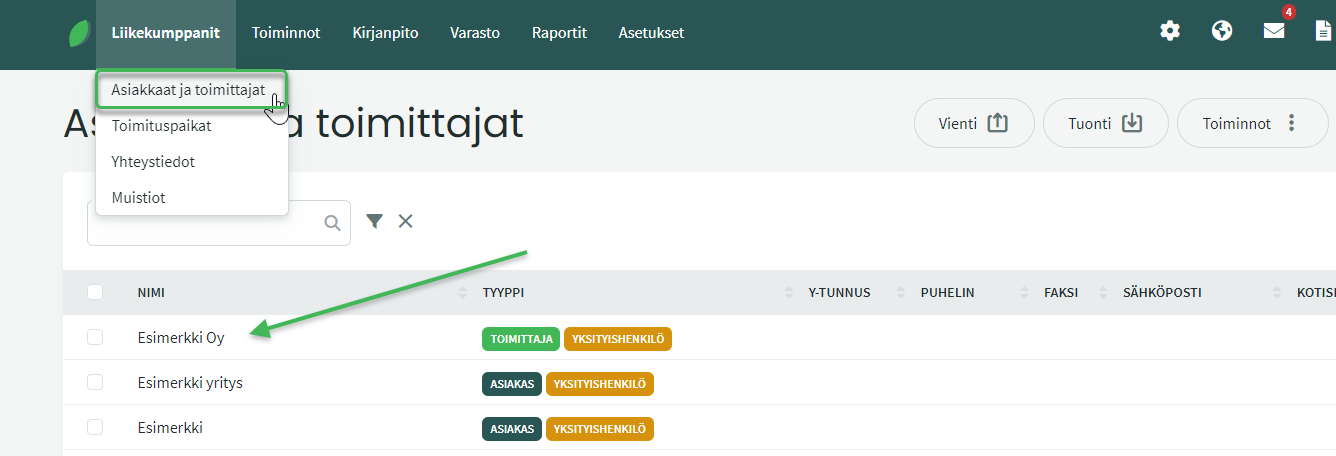
A new customer/supplier is added via Business Partners > Customers and Suppliers > Add new customer/supplier.
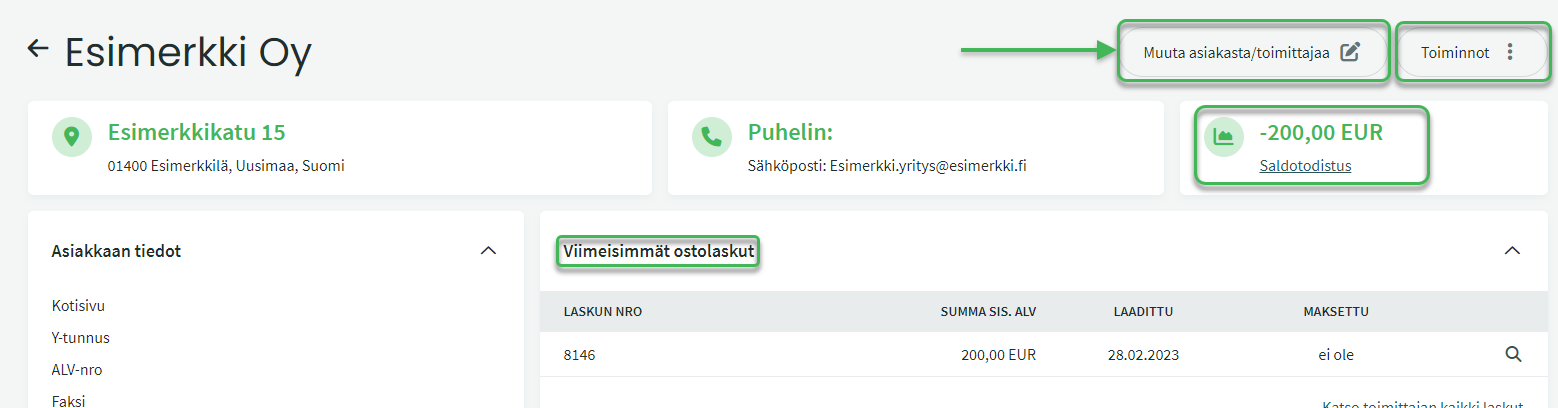
On this page you can also see customers and suppliers already in the program. You can select a customer/supplier by clicking on them, and edit their details by choosing “Edit customer/supplier” on the right.
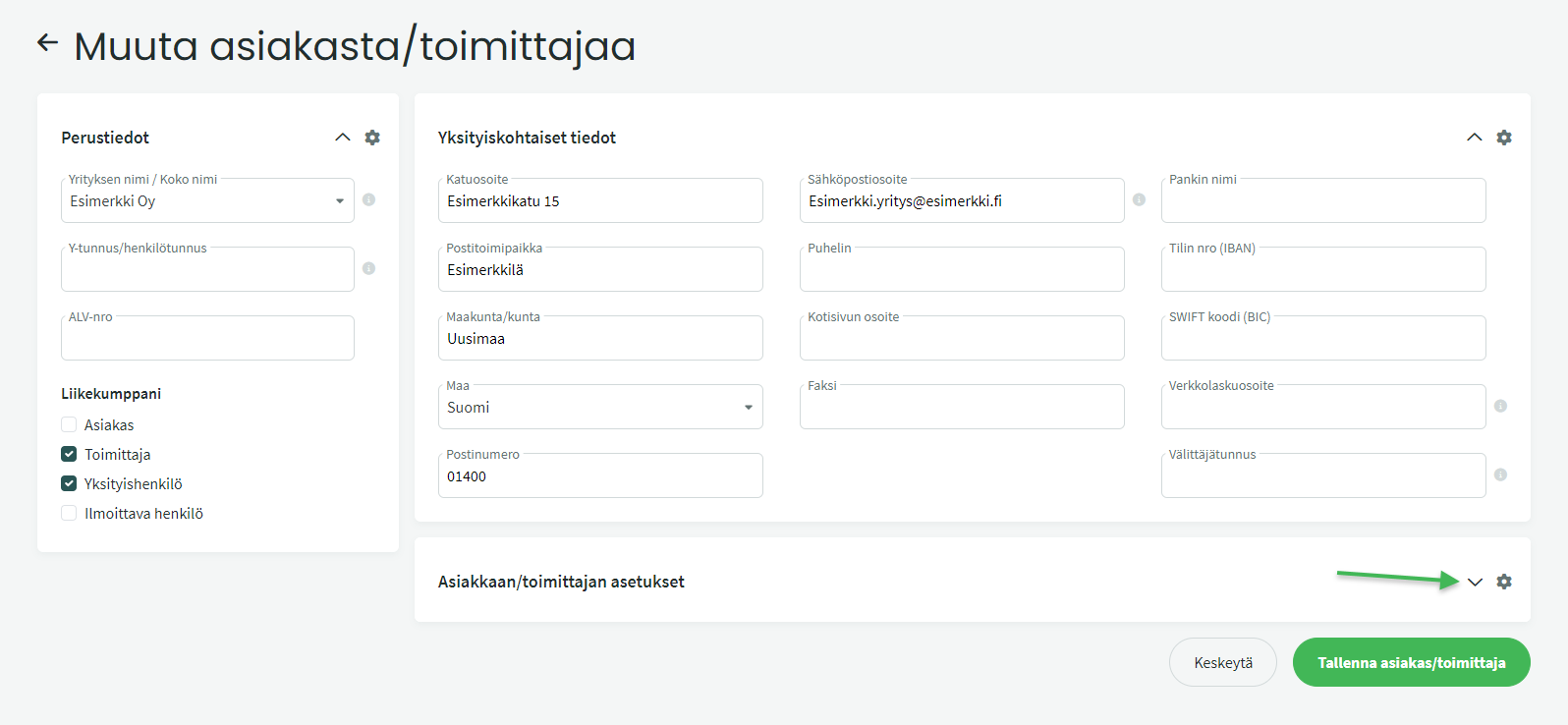
You can add the following information to a customer/supplier record, for example:
Business ID. Not mandatory, but we recommend adding it. The program will then check whether that Business ID is already in use, preventing a customer or supplier from being added twice.
If you want to send e-invoices to customers, the Business ID must be added.
E-invoice address (optional). If you provide an e-invoice address, it will be used as the default address when sending e-invoices.
An e-invoice address does not have to be added — e-invoices can be sent from the program based on the Business ID alone. However, you can add an e-invoice address if the recipient has, for example, a private e-invoice address or multiple receiving addresses.
Email. Default address for sending invoices and quotes.
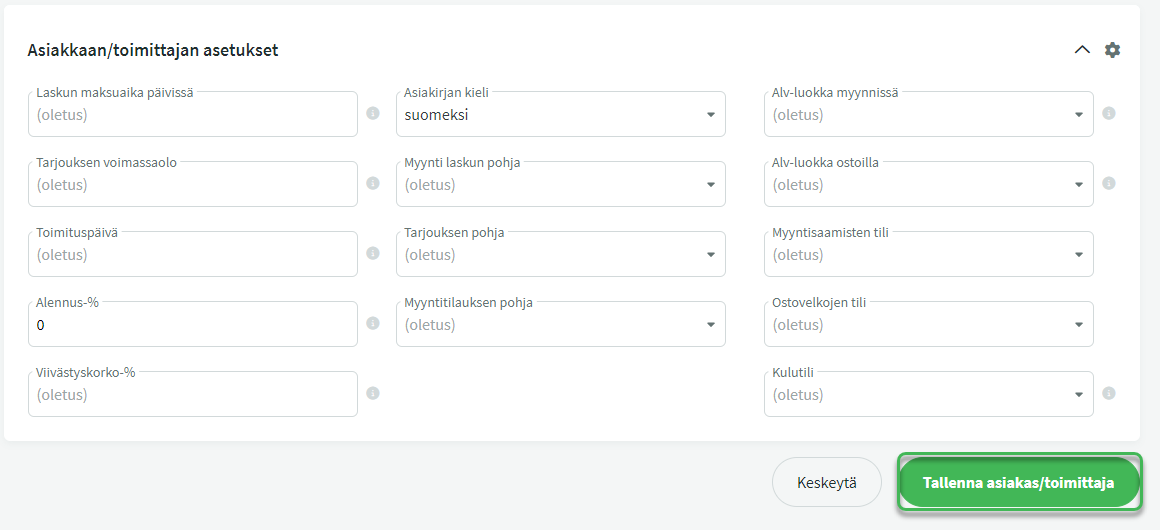
Customer/supplier settings. You can define a specific payment term, accounting accounts, and invoice templates for each customer/supplier. If you do not change these settings, the program will use the default settings.
NOTE: A customer/supplier is also added to the register with basic details when you create their first invoice.
The customer/supplier page displays, for example:
Balance. Shows how much is receivable from the customer or payable to the supplier — i.e., their debt to your company or how much your company owes them.
Actions. You can send new invoices to the selected customer or supplier, delete the selected customer/supplier, edit their details, and send a balance confirmation.
We use cookies to improve the quality of our service. You can always disable cookies by changing your browser settings and deleting stored cookies.OkRead more
Privacy & Cookies Policy
Privacy Overview
This website uses cookies to improve your experience while you navigate through the website. Out of these, the cookies that are categorized as necessary are stored on your browser as they are essential for the working of basic functionalities of the website. We also use third-party cookies that help us analyze and understand how you use this website. These cookies will be stored in your browser only with your consent. You also have the option to opt-out of these cookies. But opting out of some of these cookies may affect your browsing experience.
Necessary cookies are absolutely essential for the website to function properly. This category only includes cookies that ensures basic functionalities and security features of the website. These cookies do not store any personal information.
Any cookies that may not be particularly necessary for the website to function and is used specifically to collect user personal data via analytics, ads, other embedded contents are termed as non-necessary cookies. It is mandatory to procure user consent prior to running these cookies on your website.


Leave A Comment?