
This guide explains how to edit the opening balance entry automatically created by the program, if needed.
- This guide is for a new company that has no bookkeeping history before using SimplBooks.
- If your company’s bookkeeping has already been done in another system and you are migrating it to SimplBooks, see the guide for entering opening balances here.
Starting bookkeeping
You can start using SimplBooks and recording transactions as soon as an opening balance entry exists in the system. The program automatically creates journal entry number 1, i.e. the opening balance entry, on the first day of the current year when the company environment is created.
- If you are recording transactions from that point onwards, the opening balance does not need to be changed.
- If you are also doing bookkeeping for a period in the previous calendar year, the date of the opening balance entry needs to be changed.
📢 Even though a new company has no actual opening balances, the entry is still necessary. It signals to the program that the bookkeeping has started.
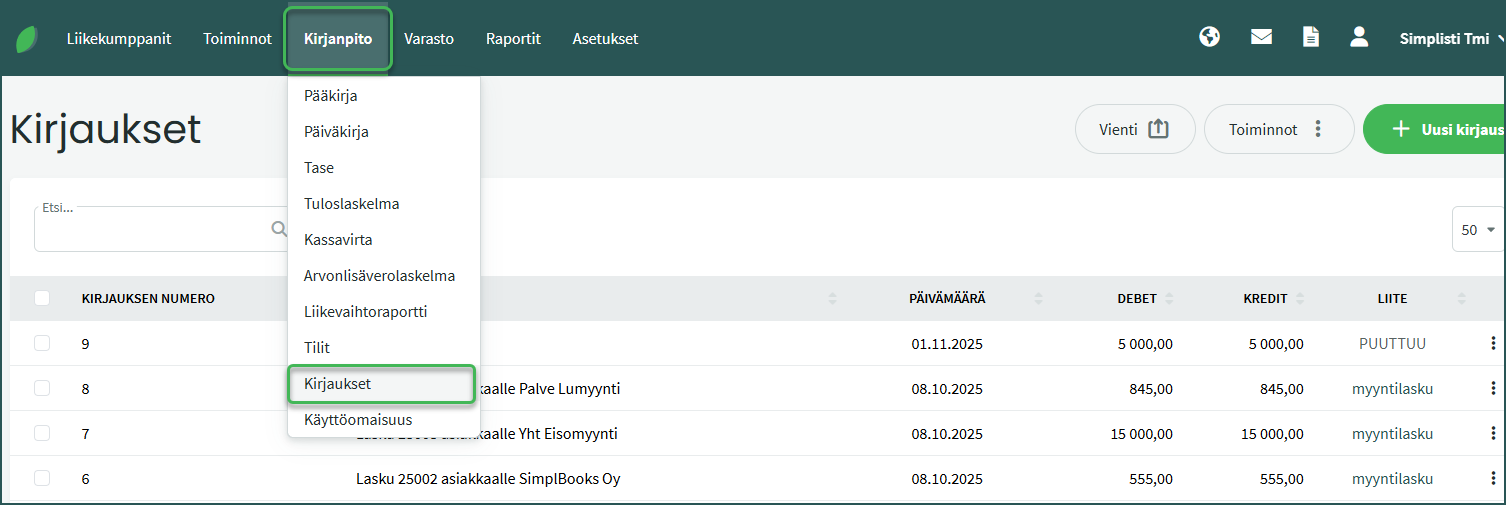
1. You can find the opening balance entry under Accounting > Transactions.
2. Open the entry and select “Edit transaction”
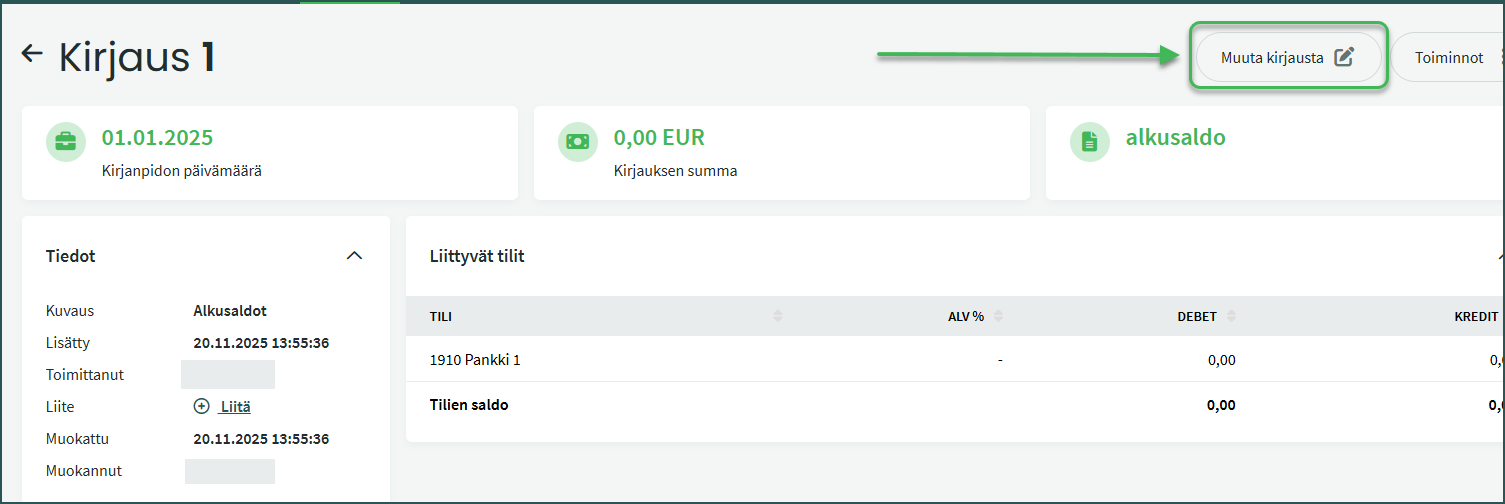
- The opening balance entry number is automatically 1.
3. Make the necessary changes
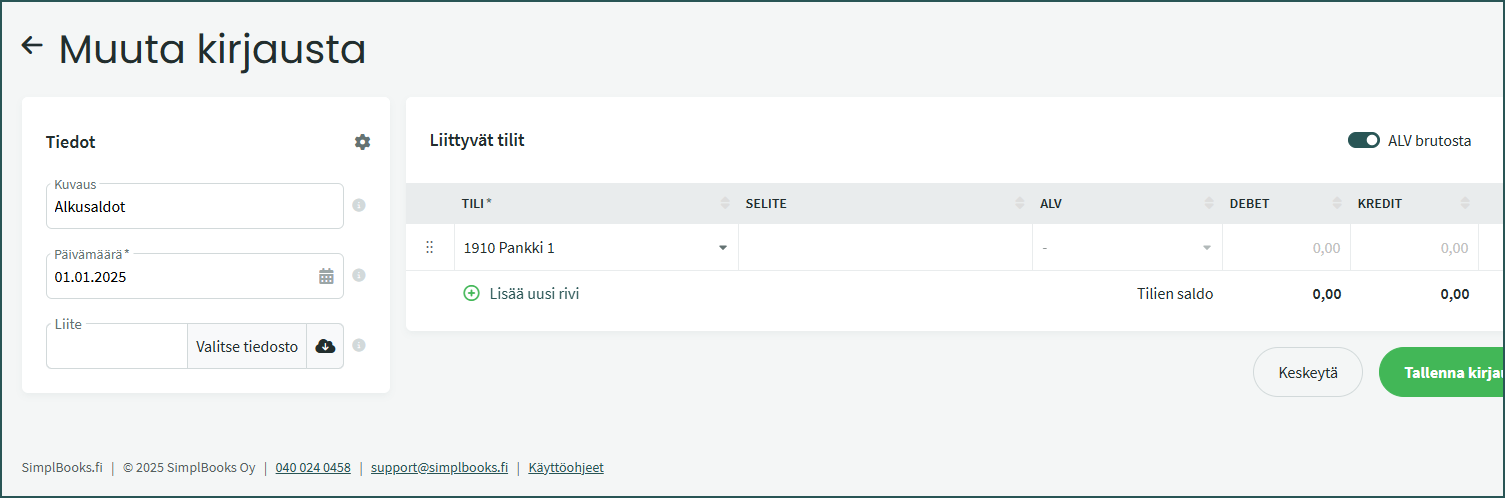
Update the necessary details:
- Description: for example, “Opening balances”.
- Date: The date from which you start recording transactions in SimplBooks. Typically the first day of the first financial period.
Save the transaction.
📢 Note! If you have already made other transactions in the program before updating the opening balances, or if you want to start adding transactions right away, don’t worry! The opening balance entry can also be changed later.
Leave A Comment?