
This guide explains how to start using SimplBooks for a company whose accounting has previously been handled elsewhere.
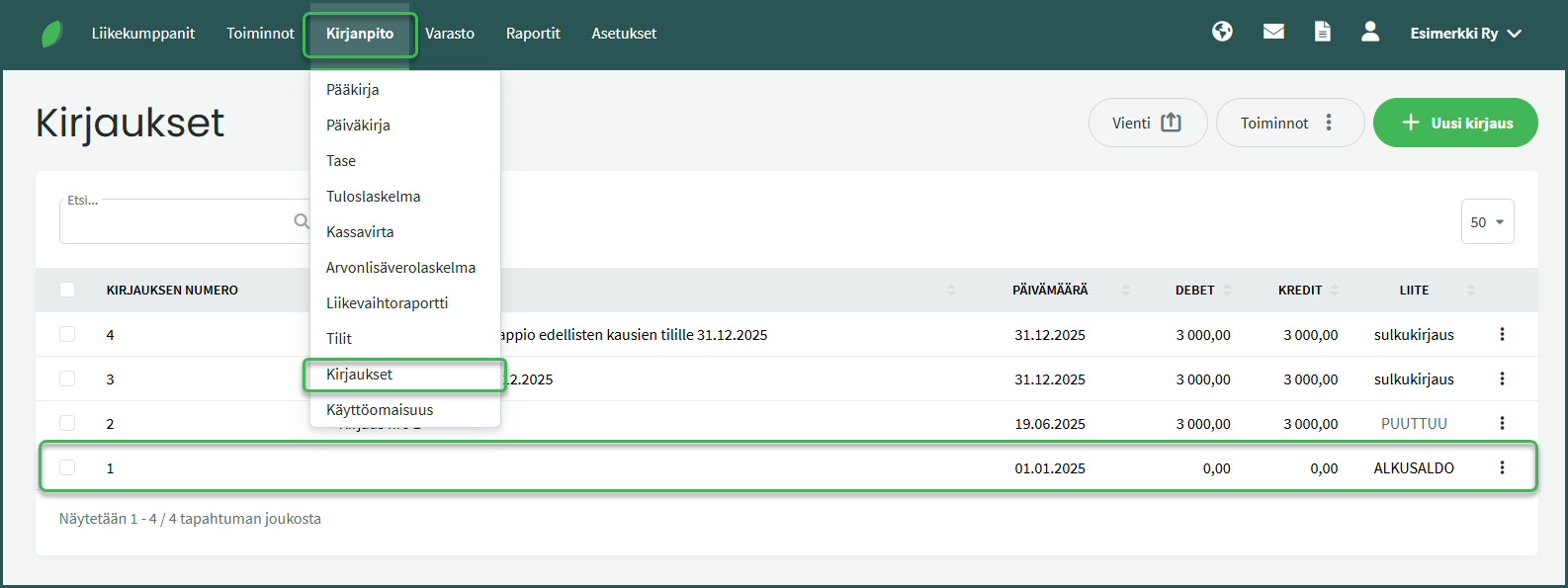
1. Open the opening balance entry automatically created by the software by clicking on it in Accounting > Transactions.
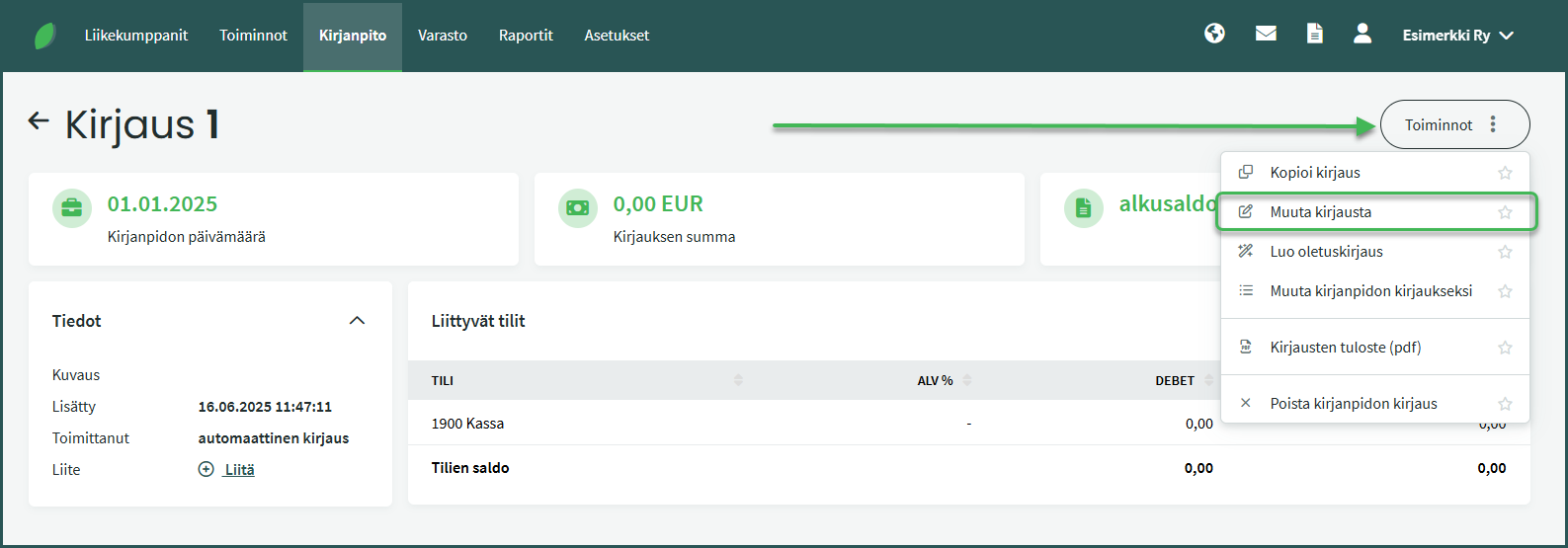
2. Select “Edit transaction” from the Actions section on the right.
3. Add the required information:
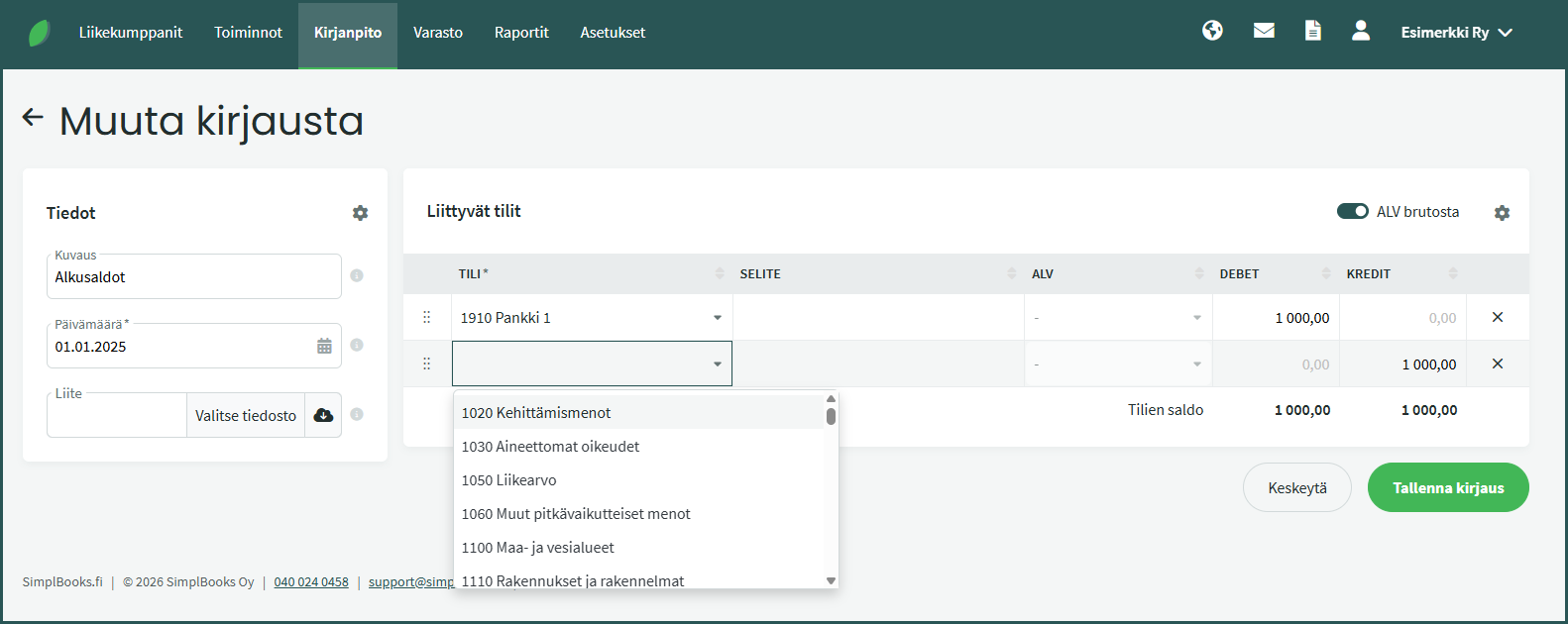
- Description – For example, “opening balances” (not mandatory).
- Date – The date from which you will start your accounting in SimplBooks.
- Enter the opening balances by adding new rows to the entry.
- Balance sheet assets are entered on the debit side.
- Balance sheet liabilities are entered on the credit side.
- Income statement revenue is entered on the credit side and expenses on the debit side.
To enter opening balances, you will need a detailed balance sheet from the previous financial year, where the closing balance of each account is shown separately.
For example, if you start using SimplBooks on 1 January 2026, you will need the balance sheet from your previous software dated 31 December 2025. For the opening balance entry, use the first day of the financial year as the date, for example 1 January 2026.
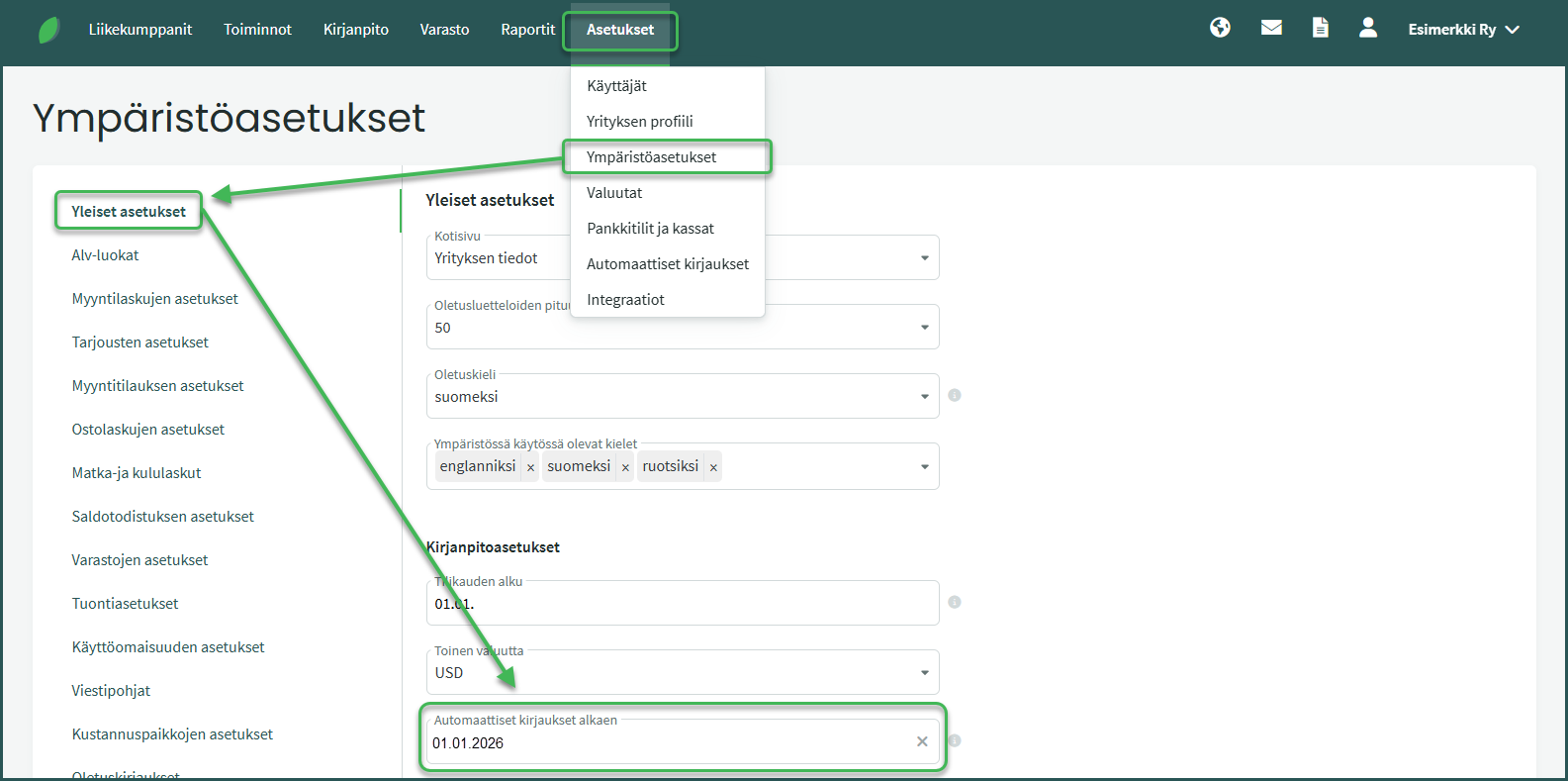
1. Go to Settings > Environment Settings > General Settings and check that the date in “Automatic transactions starting from” is the same as the date of the opening balance entry.
2. Enter the balance sheet assets on the debit side and liabilities on the credit side.
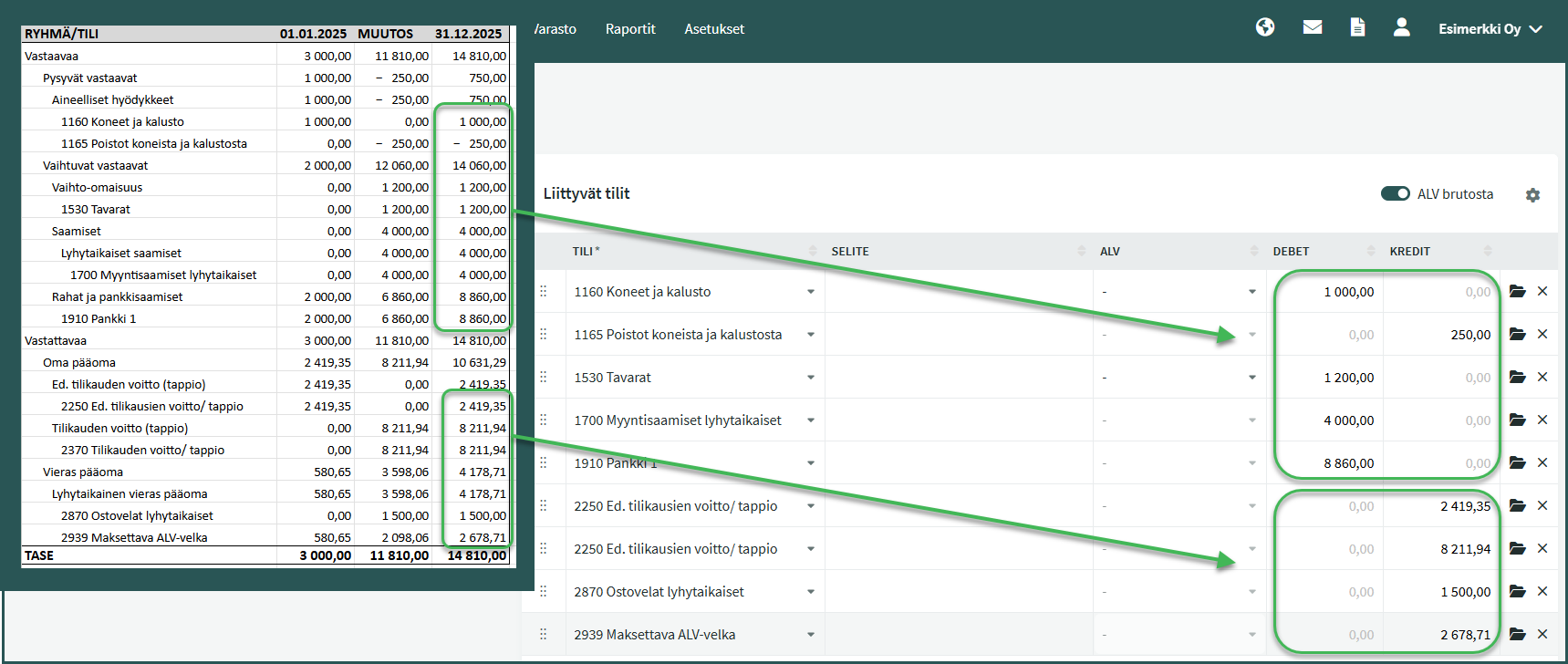
- Finally, check that the debit and credit balances match and save the transaction.
Entering comparative figures from the previous financial year is not mandatory.
If you enter profit and loss statement balances as comparative figures in addition to the balance sheet opening balances, the date of the opening balance entry must be the day before the financial statement date (e.g. 30 December 2025).
1. Go to Settings > Environment Settings > General Settings and check that the date in “Automatic transactions starting from” is the same as or earlier than the date of the opening balance entry.
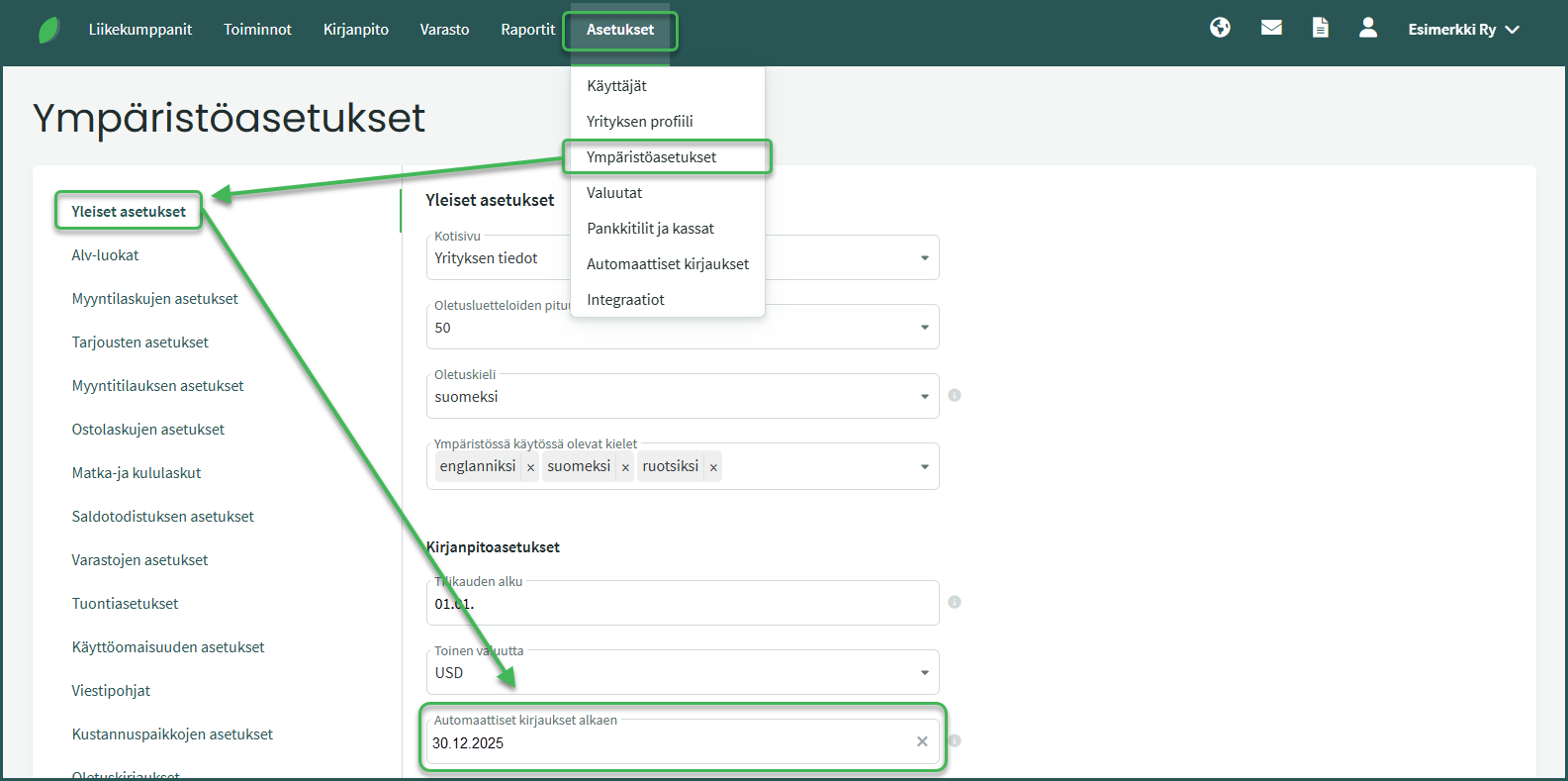
2. In the opening balance transaction, enter both balance sheet and profit and loss statement balances. Enter all balance sheet balances except for the profit for the financial year. The software calculates it automatically based on the profit and loss statement balances.
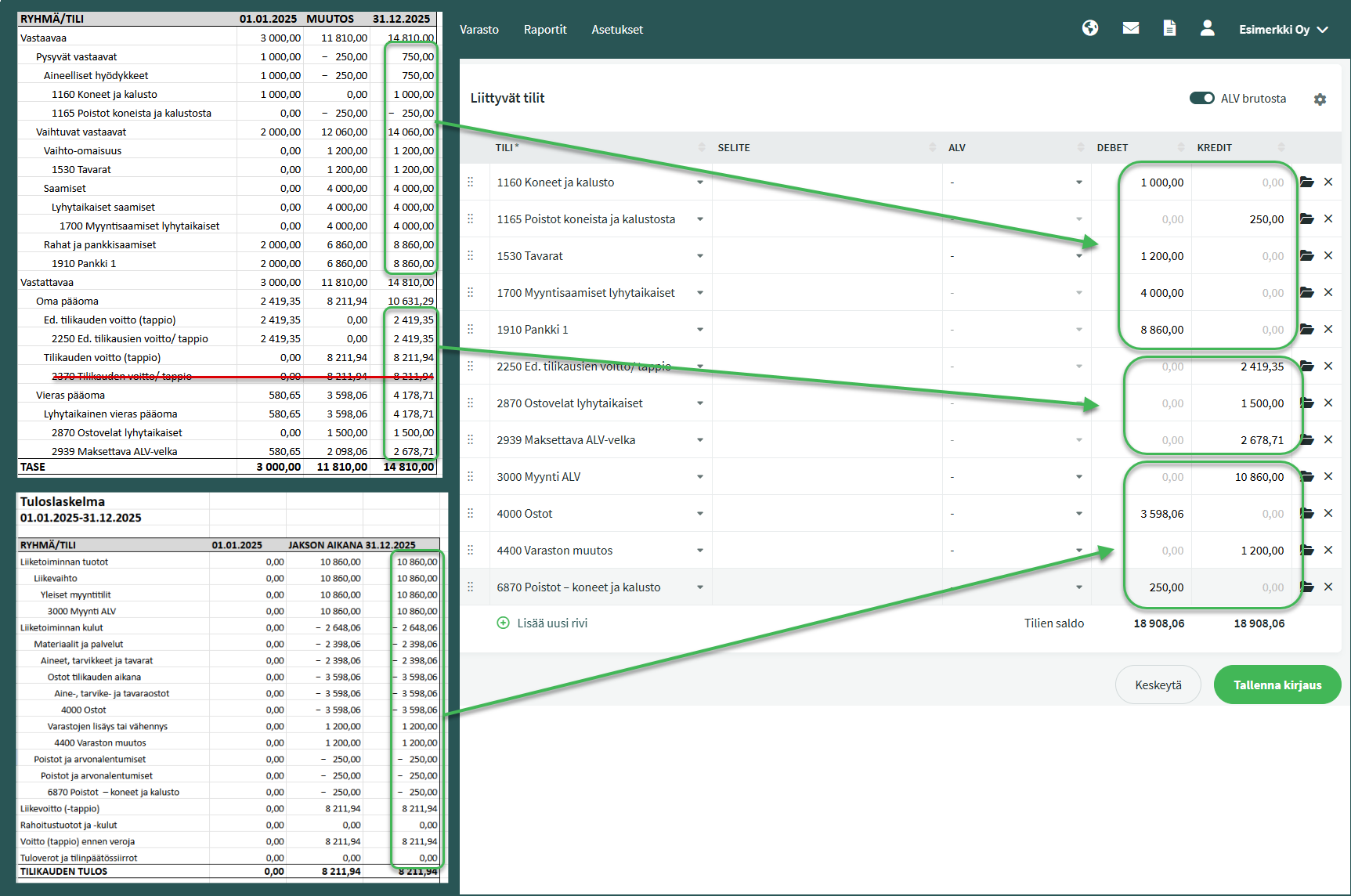
- Enter balance sheet assets on the debit side and liabilities on the credit side.
- Enter profit and loss statement revenue on the credit side and expenses on the debit side.
- Finally, check that the debit and credit balances match and save the transaction.
If you start using the software in the middle of the financial year and do not want to add comparative figures from the previous financial year, you can enter only the balances for the current financial year in the opening balance transaction.
For example, if you start using SimplBooks on 1 April 2026 and your financial year follows the calendar year, enter the balance sheet and profit and loss statement balances as of 31 March 2026. The opening balances are entered with the date 1 April 2026.
1. Go to Settings > Environment Settings > General Settings and check that the date in “Automatic transactions starting from” is the same as or earlier than the date of the opening balance entry.
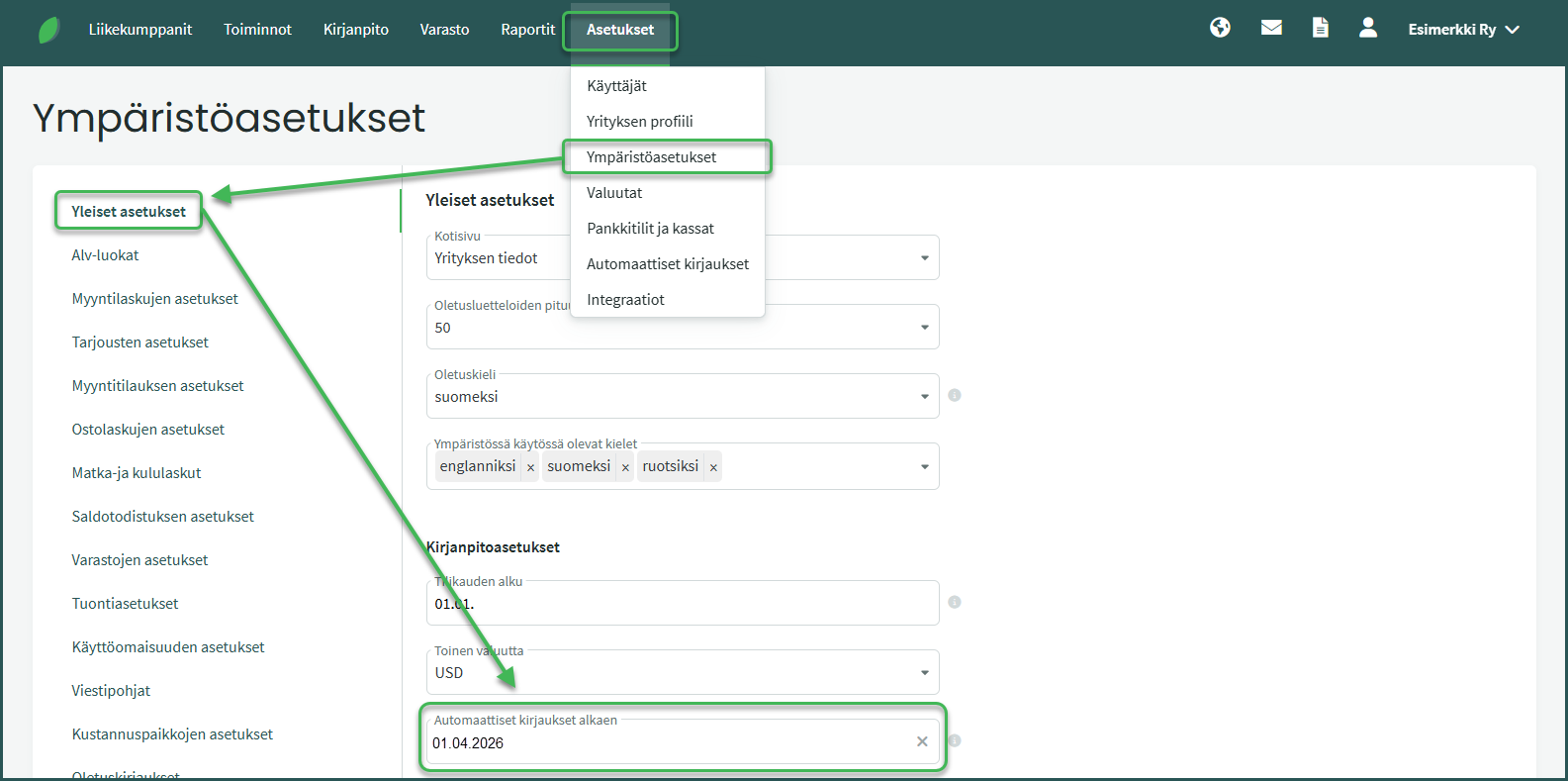
2. In the opening balance transaction, enter both balance sheet and profit and loss statement balances. Enter all balance sheet balances except for the profit for the financial year. The software calculates it automatically based on the profit and loss statement balances.
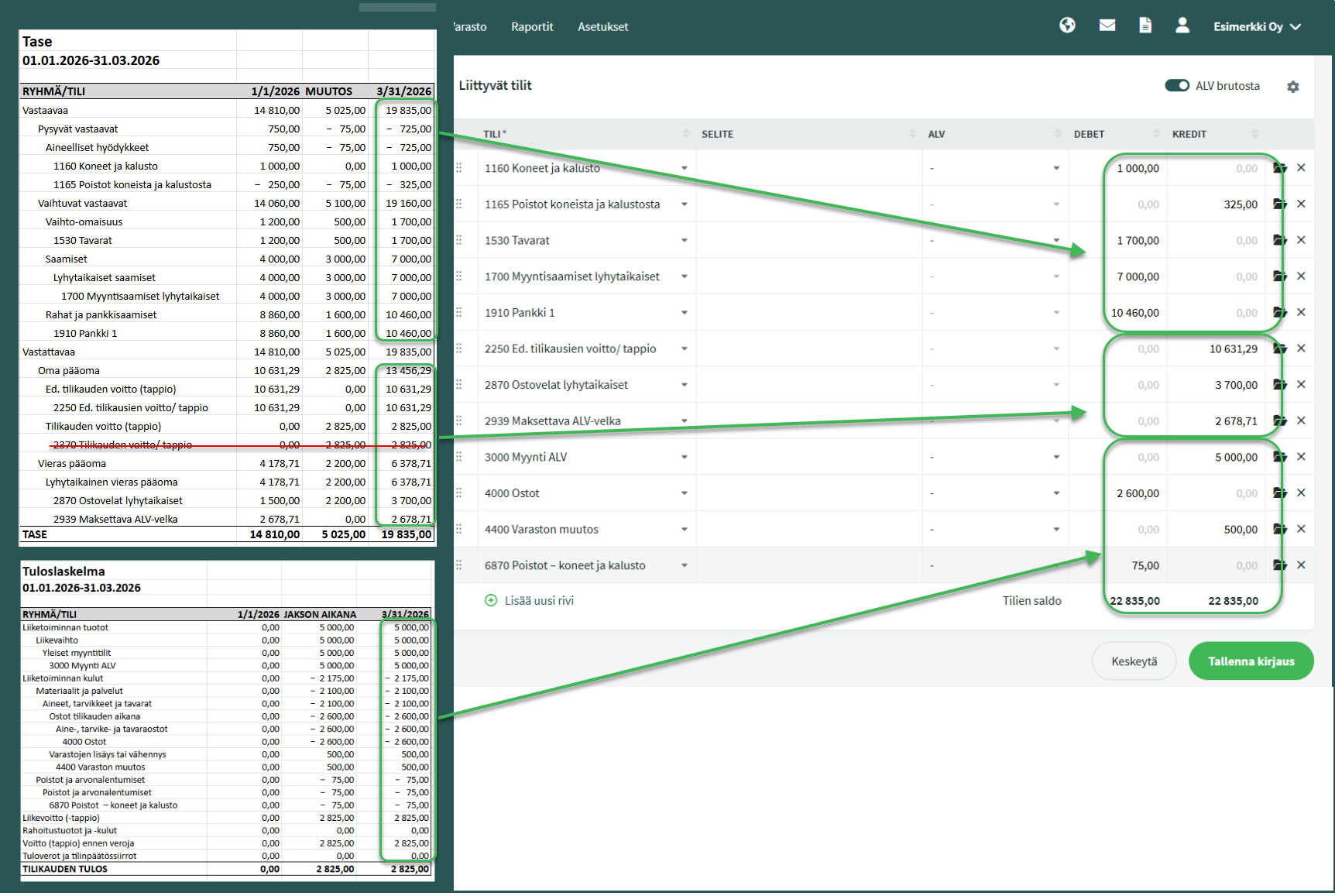
- Enter balance sheet assets on the debit side and liabilities on the credit side.
- Enter profit and loss statement revenue on the credit side and expenses on the debit side.
- Finally, check that the debit and credit balances match and save the transaction.
Entering comparative figures from the previous financial year is not mandatory.
If you start using the software in the middle of the financial year and want to include comparative figures, enter the balance sheet and profit and loss statement balances from the previous financial statements in the opening balance transaction.
For example, if you start using SimplBooks on 1 April 2026 and your financial year follows the calendar year, enter balances as of 31 December 2025. The date of the opening balance transaction must be the day before the financial statement date (e.g. 30 December 2025).
1. Go to Settings > Environment Settings > General Settings and check that the date in “Automatic transactions starting from” is the same as or earlier than the date of the opening balance entry.
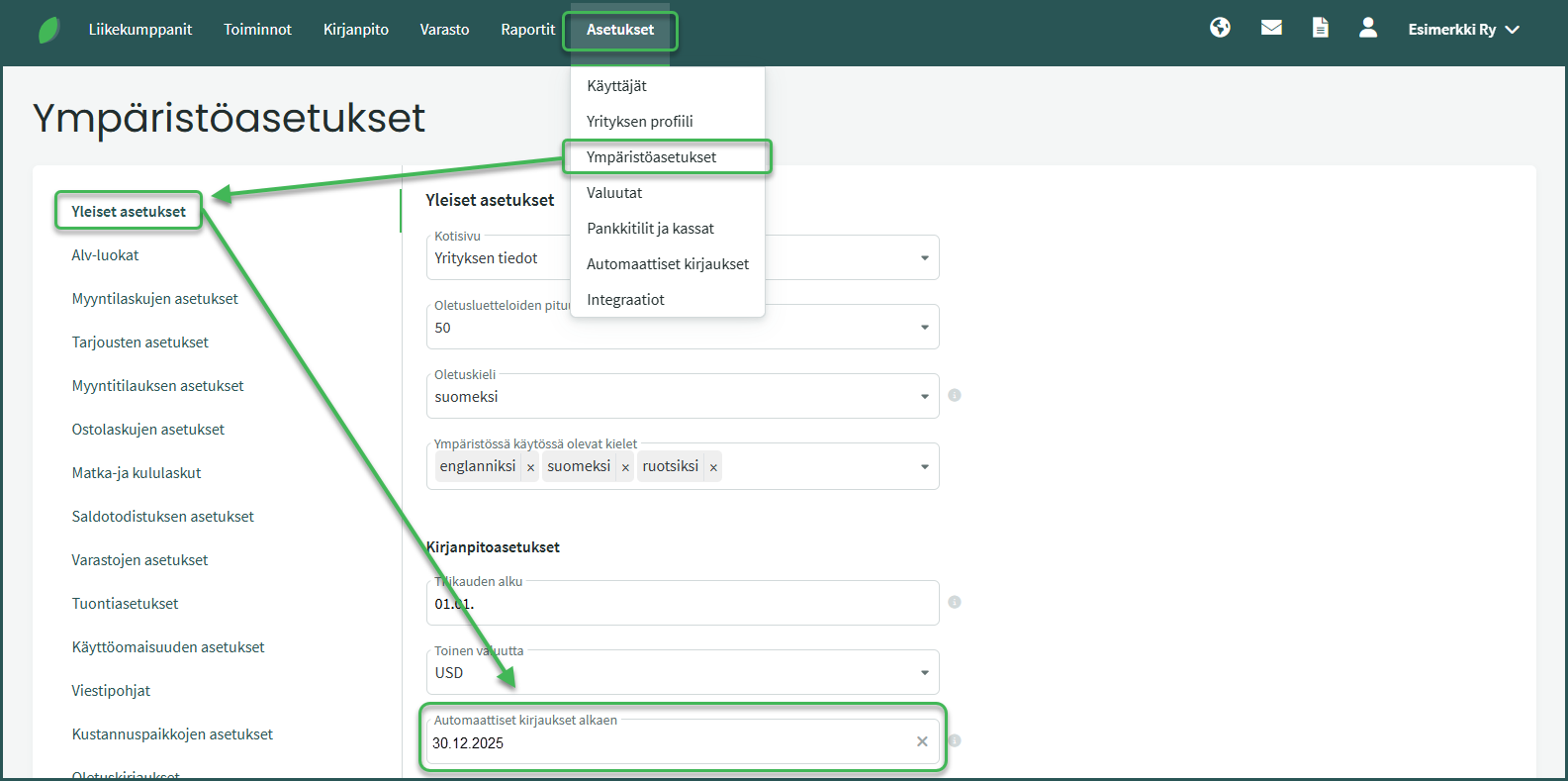
2. In the opening balance transaction, enter both balance sheet and profit and loss statement balances. Enter all balance sheet balances except for the profit for the financial year. The software calculates it automatically based on the profit and loss statement balances.
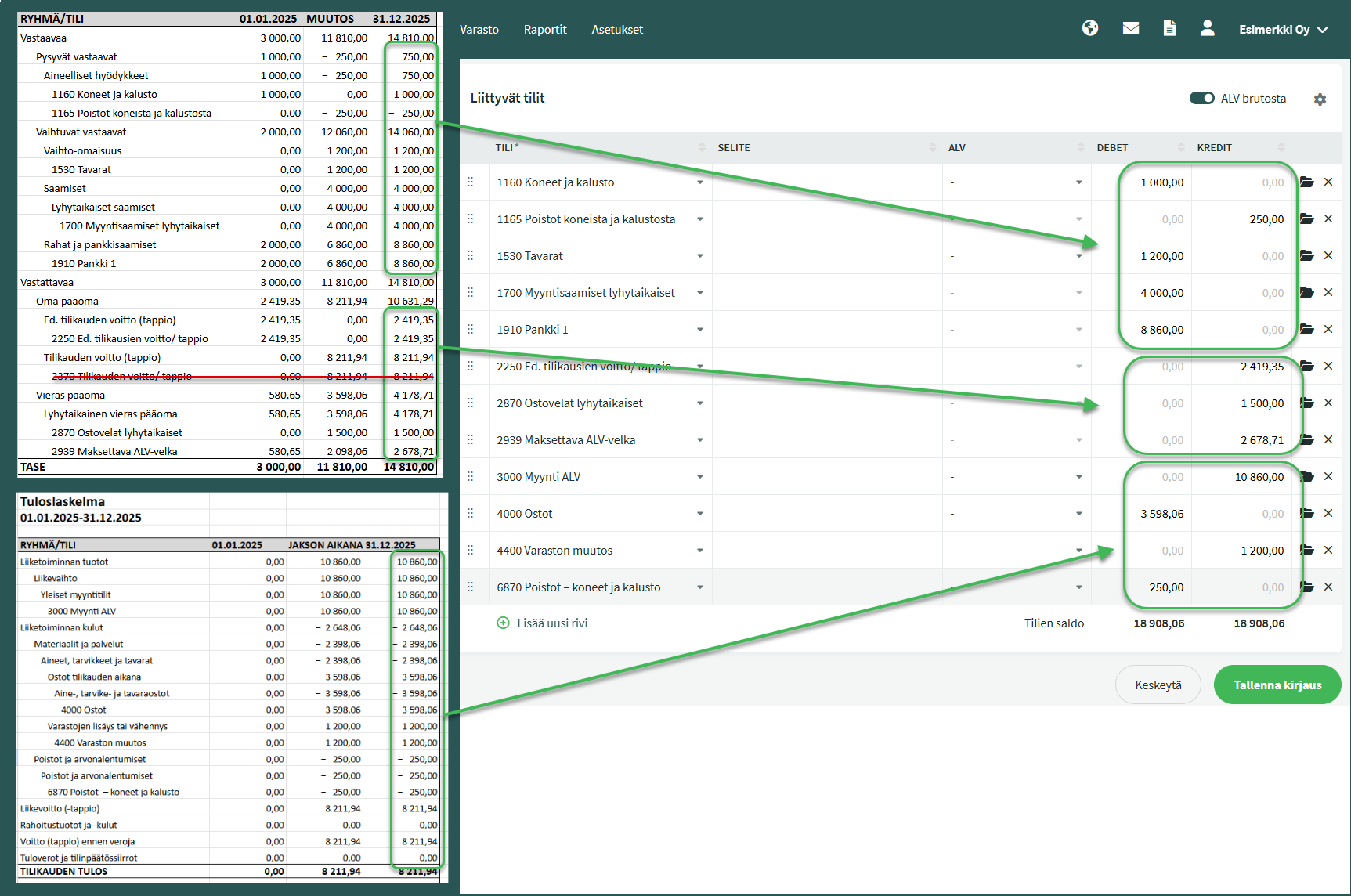
- Enter balance sheet assets on the debit side and liabilities on the credit side.
- Enter profit and loss statement revenue on the credit side and expenses on the debit side.
- Finally, check that the debit and credit balances match and save the transaction.
The software calculates the profit for the 2025 financial year and closes the financial year as of 31 December 2025. After this, the opening balance sheet is automatically created for 1 January 2026.
3. In addition to the opening balance transaction, create a new accounting transaction for the current financial year’s transactions via Accounting > Transactions > New transaction.
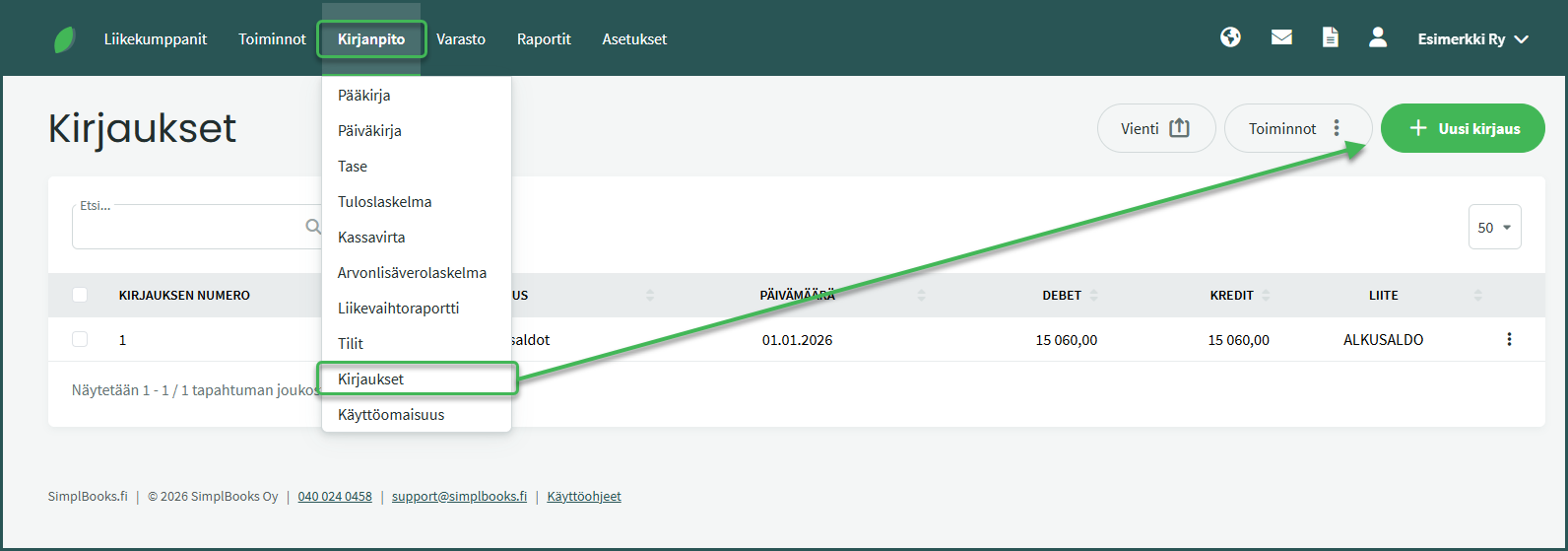
- You will need the balance sheet and profit and loss statement from the beginning of the financial year up to the date you start using SimplBooks (e.g. 1 January–31 March 2026).
4. Enter the changes in the balance sheet (not opening or closing balances) and the profit and loss statement balances. Enter all balance sheet balances except for the profit for the financial year. The software calculates it automatically based on the profit and loss statement balances.
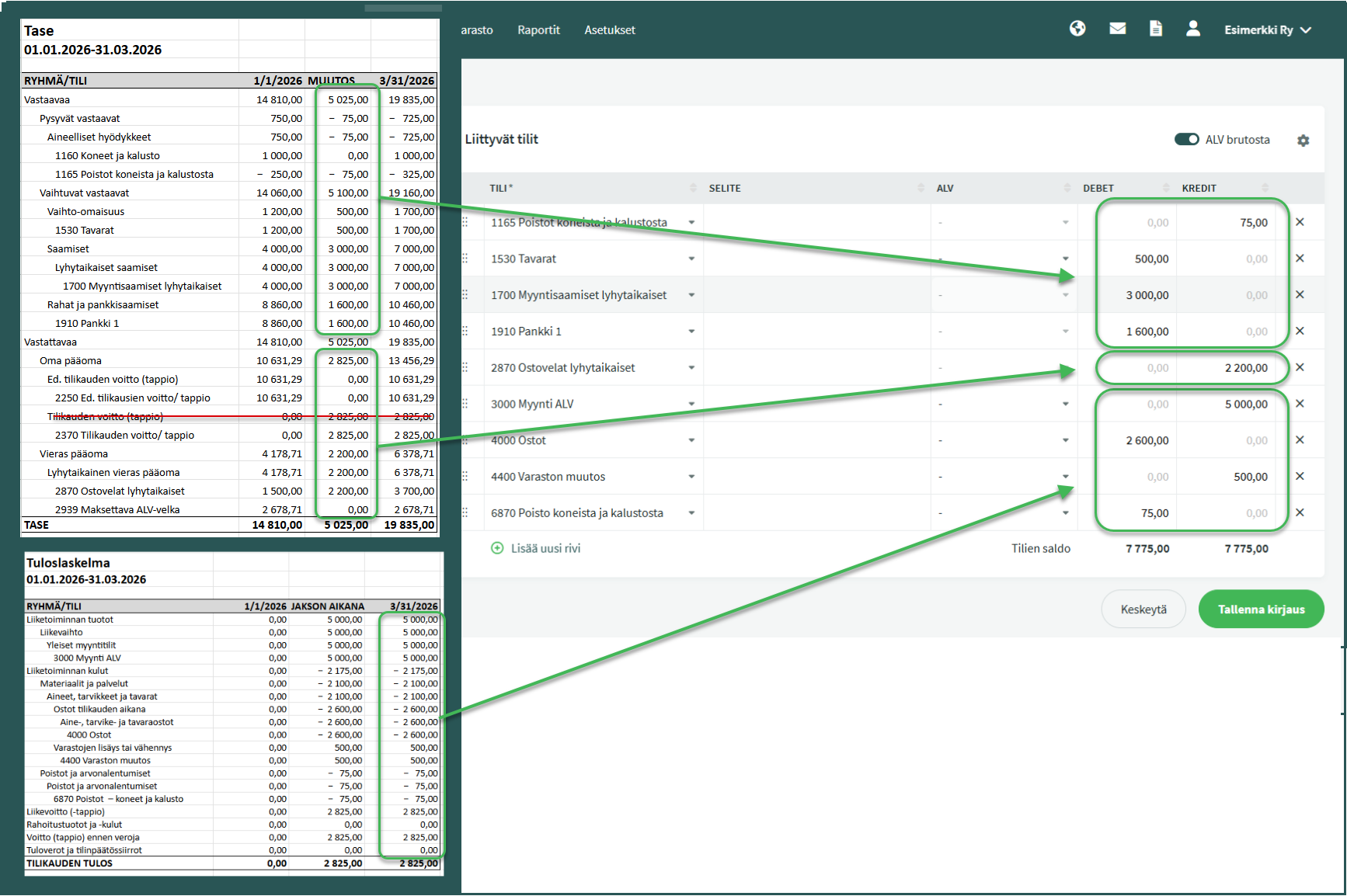
- Finally, check that the debit and credit balances match and save the transaction.
FAQ
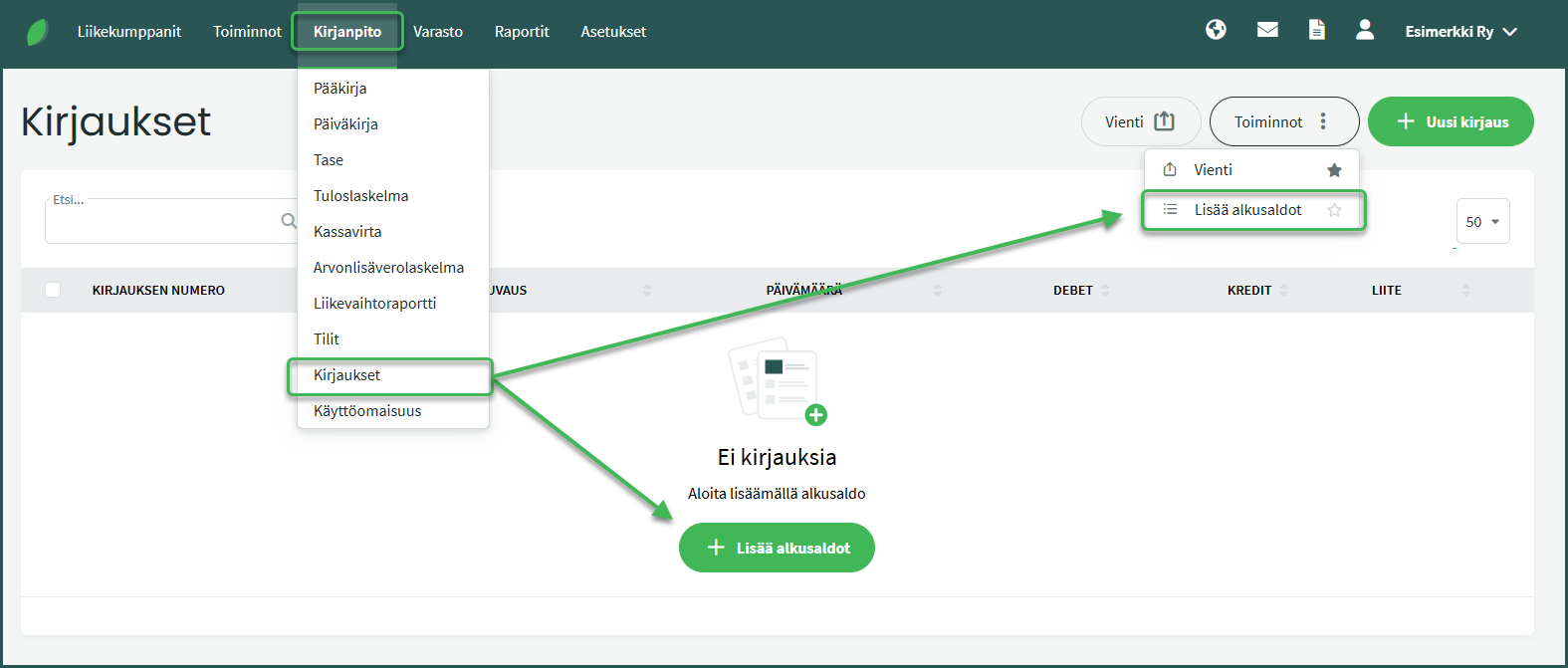
If the opening balance transaction has been deleted, you can recreate it under Accounting > Transactions. Select “Add initial balance” either in the transaction view or from the Actions menu.
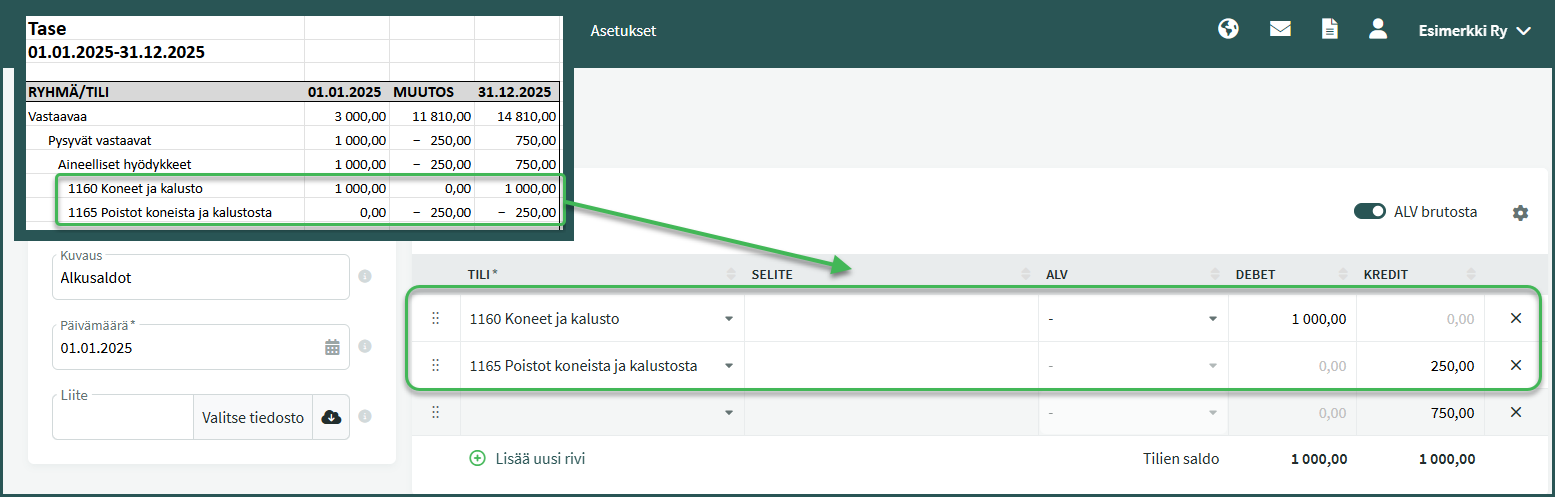
You cannot enter minus signs in the opening balance transaction fields. If a balance is negative, record it on the opposite side compared to other balances on the same side of the balance sheet.
Leave A Comment?