
This guide explains how to import larger numbers of customers or suppliers into SimplBooks.
In SimplBooks, the same company or person can be both a customer and a supplier.
A supplier list is imported the same way as a customer list, but the contact can be changed to a supplier after import if needed.
IMPORTING THE CUSTOMER AND SUPPLIER LIST
You can import customers and suppliers into the program as a CSV or XML file.
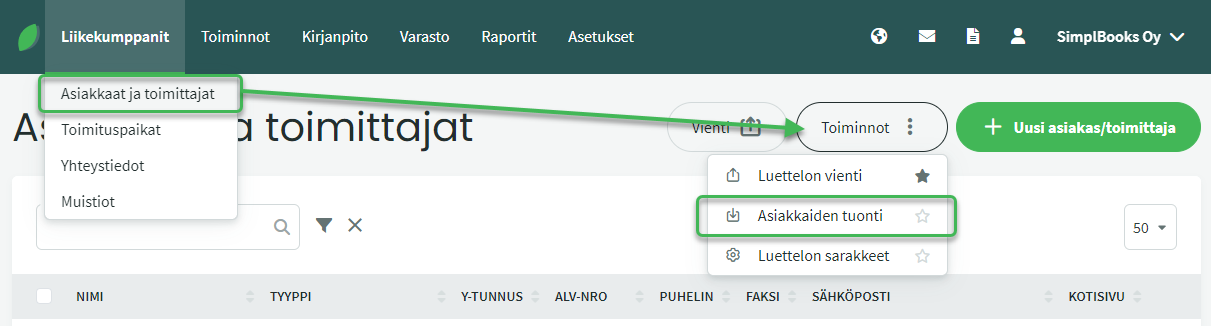
You can import customers or suppliers by going to Business Partners > Customers and Suppliers > Actions > Import Customers.
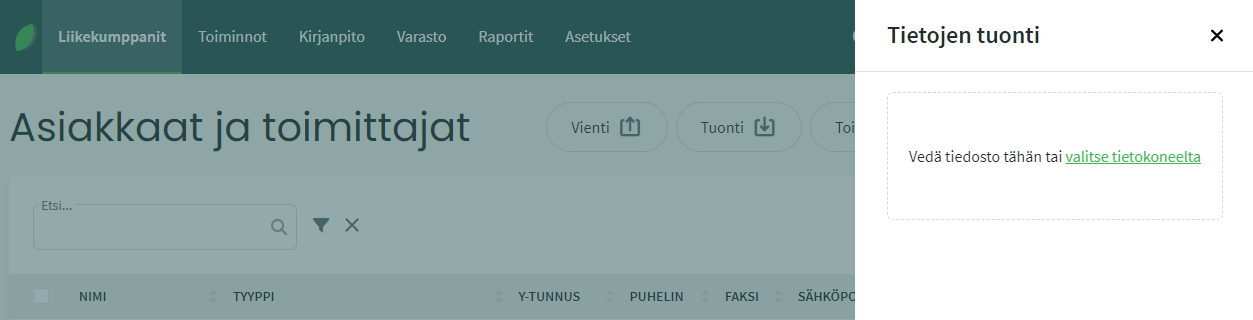
Select the file to import and click “Import” at the bottom.
Assign column headers using the dropdown menus. There are two required fields:
- Name = “Company or person”
- Street address = “Street address”
The columns shown depend on the content of the file being imported. You can also specify, for example, the business ID and email address.
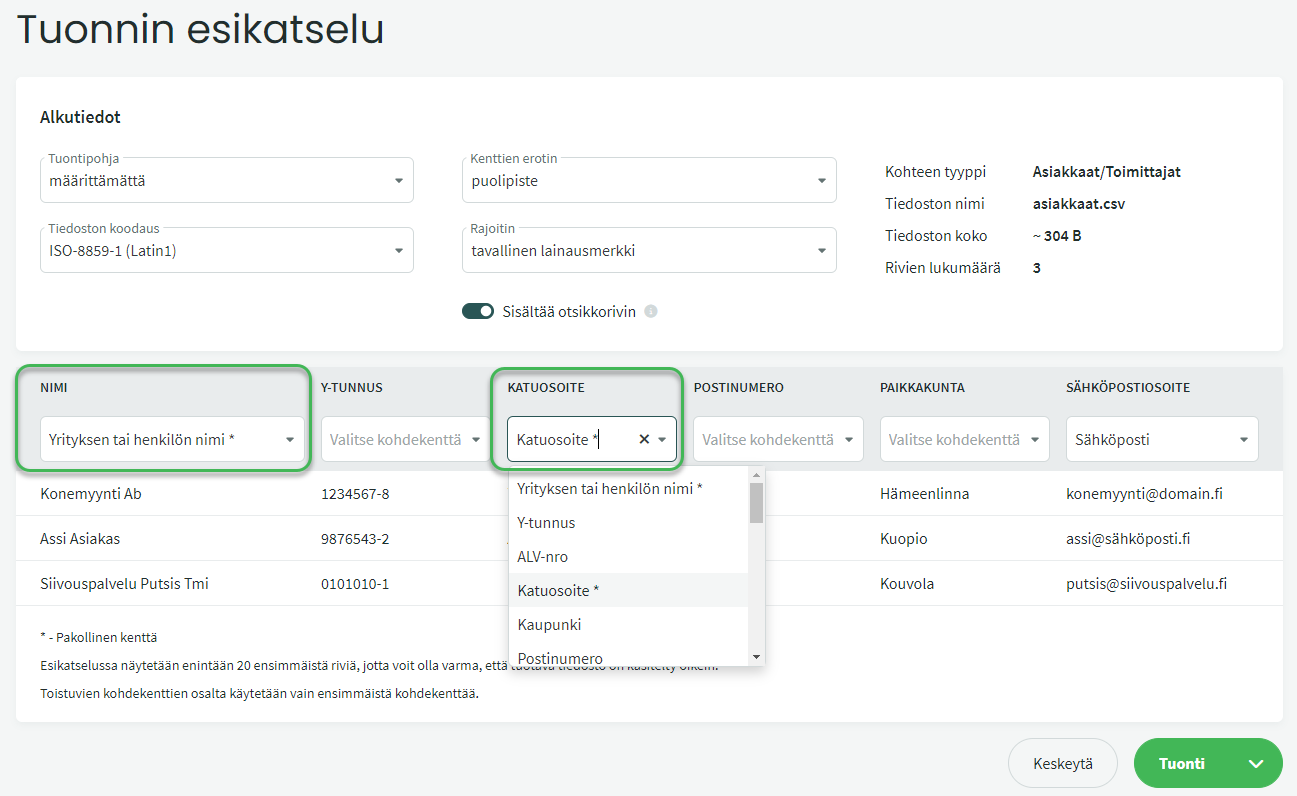
Once you have selected the headers for the columns you want, click “Import”.
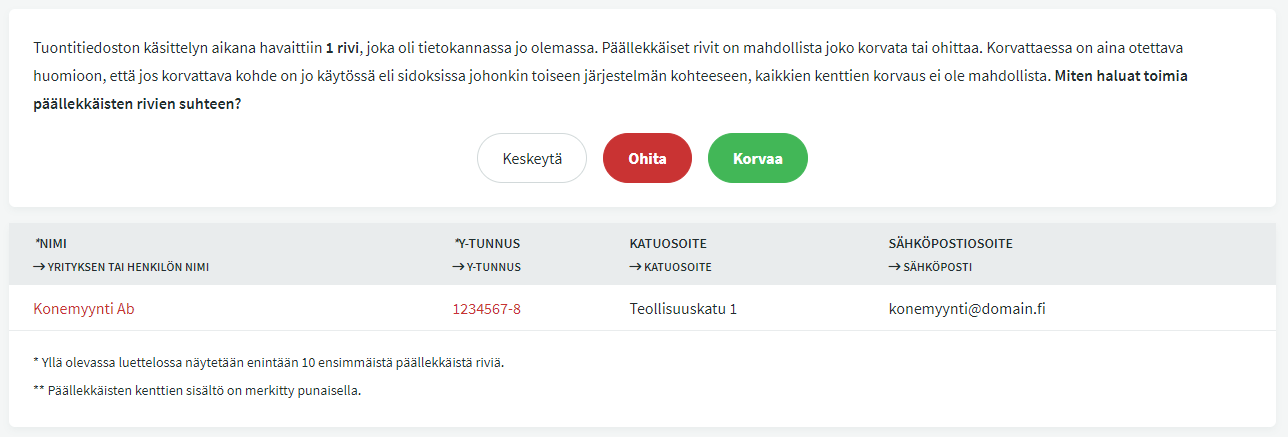
The program detects if there is already existing data in the system with the same information and will ask how you want to handle duplicate records.
CONVERTING A CUSTOMER TO A SUPPLIER
If you have not assigned a dedicated column for the business partner type being imported, the program will import the records as customers by default. If needed, you can convert a customer to a supplier by going to Business Partners > Customers and Suppliers > select the desired customer.
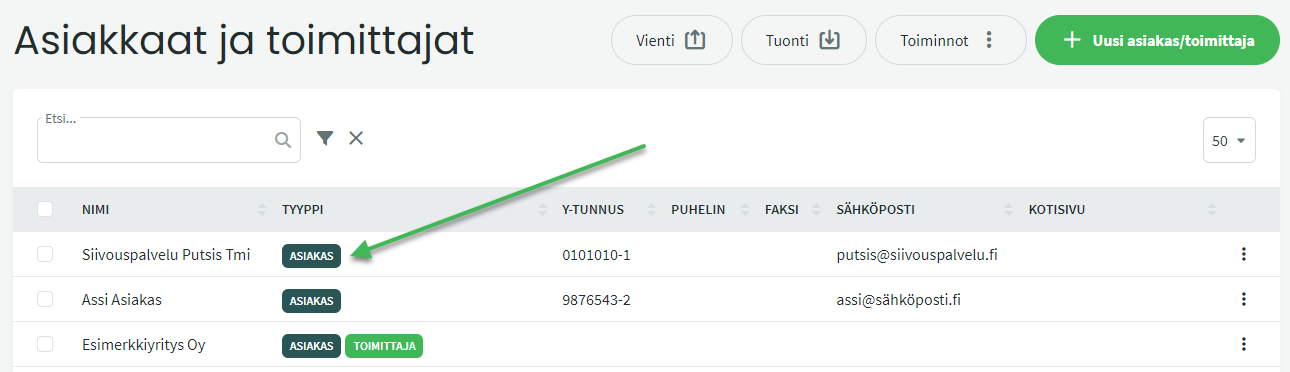
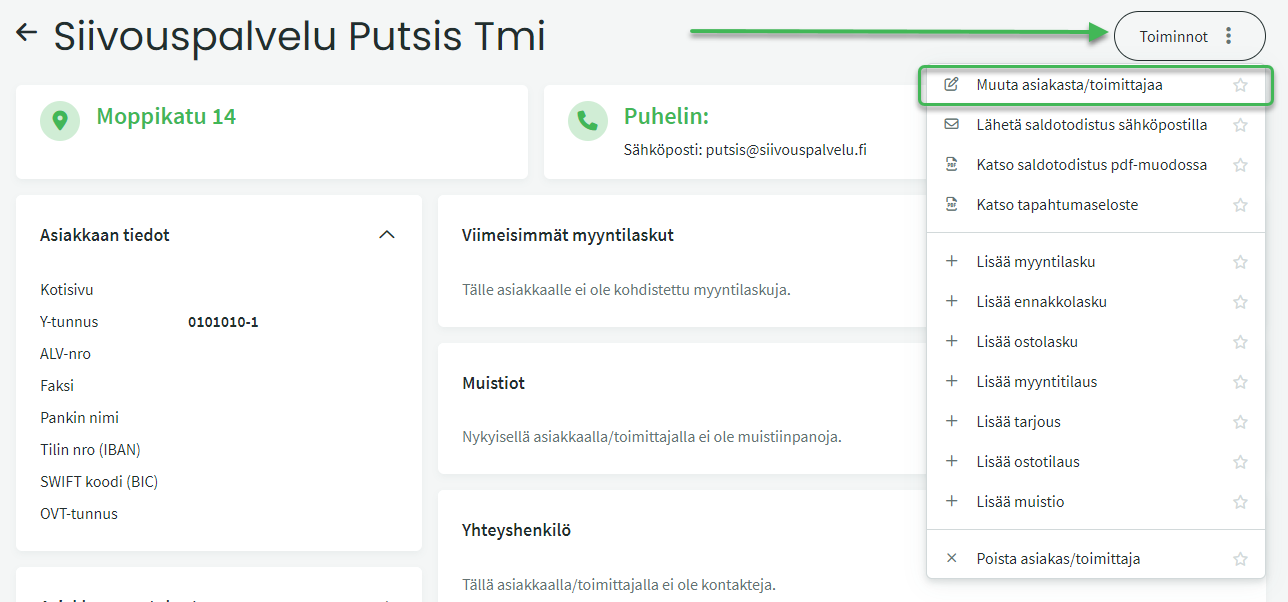
Select “Convert customer/supplier” from the Actions menu on the right.
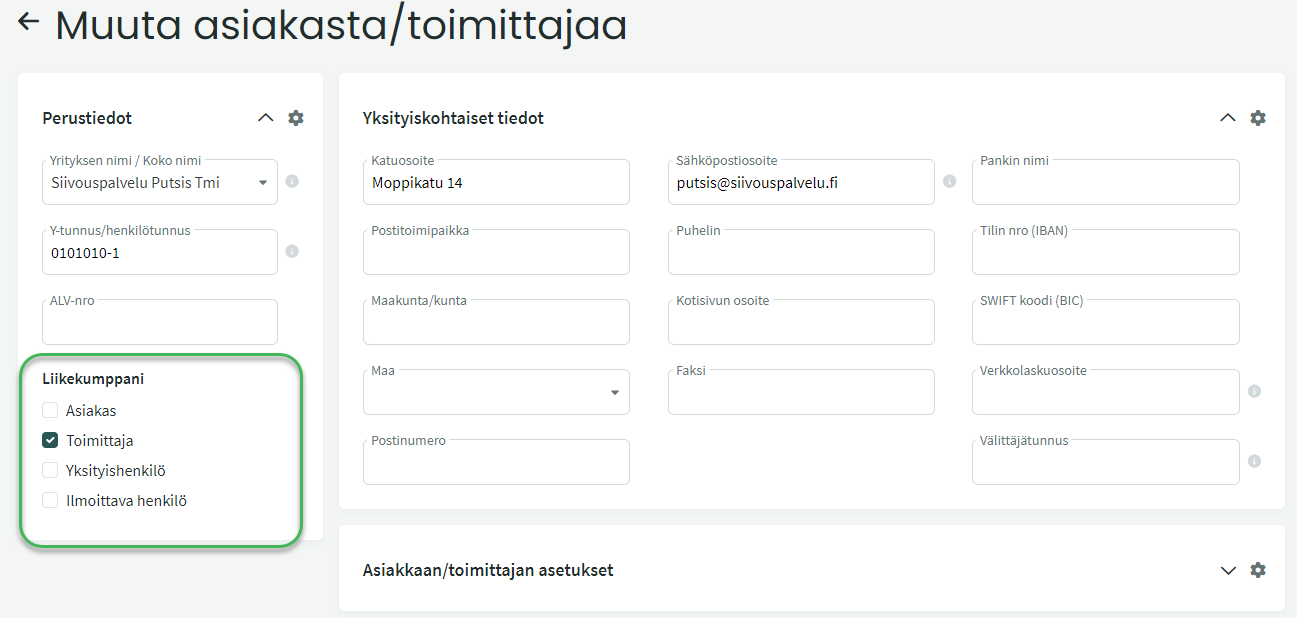
Switch the selection from customer to supplier. If needed, you can keep both options enabled, meaning the same business partner is both a customer and a supplier (you can then save both purchase and sales invoices for them).
SimplBooks default settings cover standard situations, and we recommend using partner-specific settings only in special cases.
More detailed instructions for editing customer and supplier information can be found here.
Leave A Comment?