
This guide explains which settings you should check before you start creating invoices or doing bookkeeping in SimplBooks.
The guided setup helps you fill in your company’s basic information when you log in to the software.
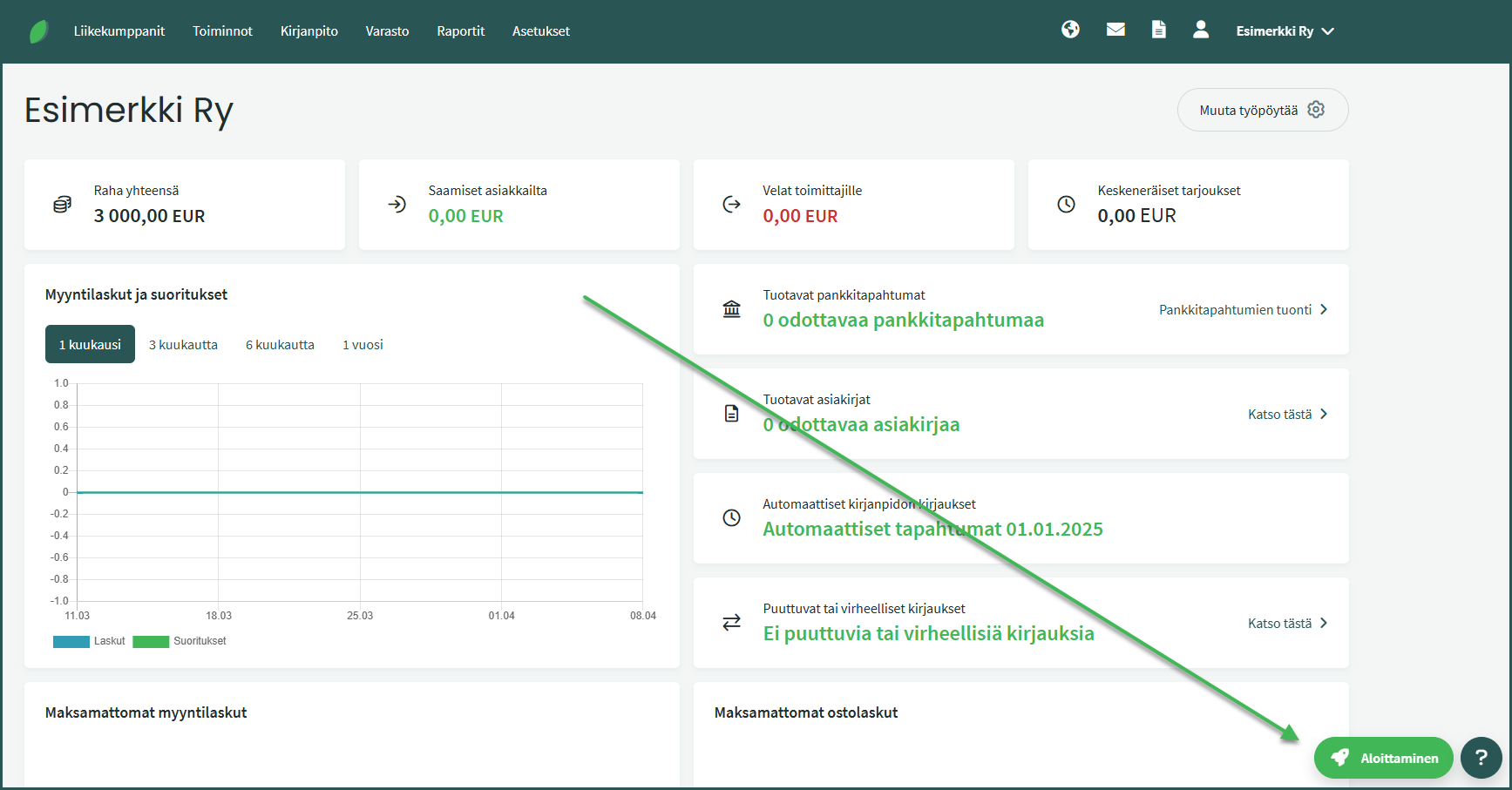
You can open the guided setup from the icon available on every page until all the steps have been completed.
You can edit the general settings under Settings > Environment settings > General settings
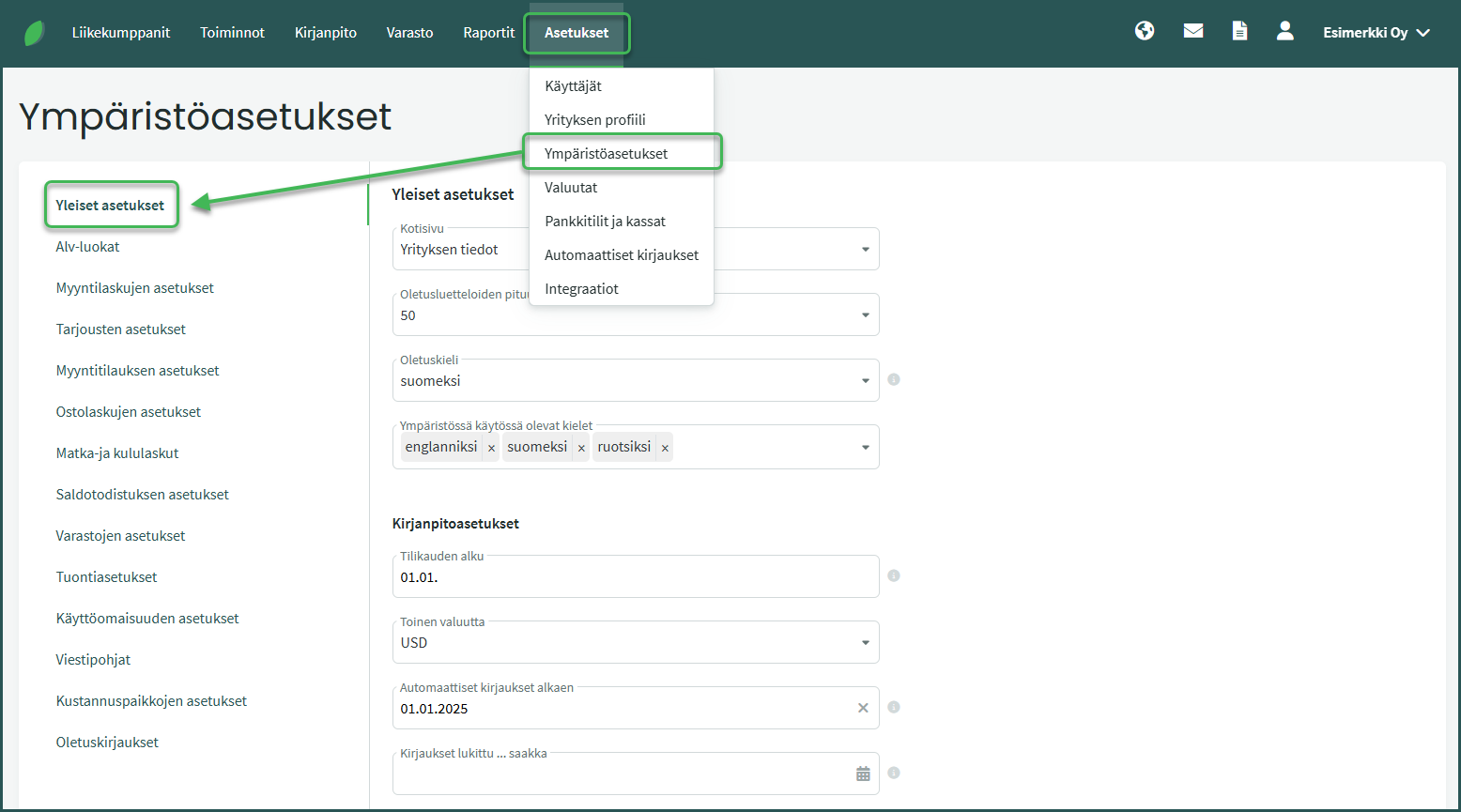
- Beginning of the financial year – The start date of the financial year should be entered as the normal start date of the financial year, even if the first financial year is exceptionally longer or shorter than 12 months. For example, if the financial year is a calendar year and the first financial year is 1.8.2023–31.12.2024, set the financial year start date to 1.1. The start date of the financial year can be found, for example, in the trade register extract.
- Automatic transactions starting from – The start date for automatic transactions must be the same as or earlier than the date of the first transaction made in the system. More information about automatic entries can be found in our guide.
- Transactions locked until – In the “Transactions locked until” field, you can enter a date up to which the accounting is complete. After this date, no new entries or changes can be made for the earlier period. We recommend locking transactions whenever the accounting is completed (and the VAT closing has been made), but at the latest at the end of the financial year.
- Default transaction date – Tapahtuman oletuspäivämäärä määrittää, mikä päiväys uudelle kirjaukselle tulee automaattisesti. Voit valita joko kuluvan päivän tai viimeisimmän tapahtumapäivän, eli edellisen tallennetun kirjauksen päiväyksen. Myynti- ja ostolaskujen vastaavat oletuspäivät löytyvät kohdista “Myyntilaskujen asetukset” ja “Ostolaskujen asetukset. The default transaction date determines which date is automatically assigned to a new transaction. You can choose either the current date or the last transaction date, meaning the date of the most recently saved entry. The corresponding default dates for sales and purchase invoices can be found under “Invoice settings” and “Purchase settings.”
You can edit the VAT classes under Settings > Environment settings > VAT classes
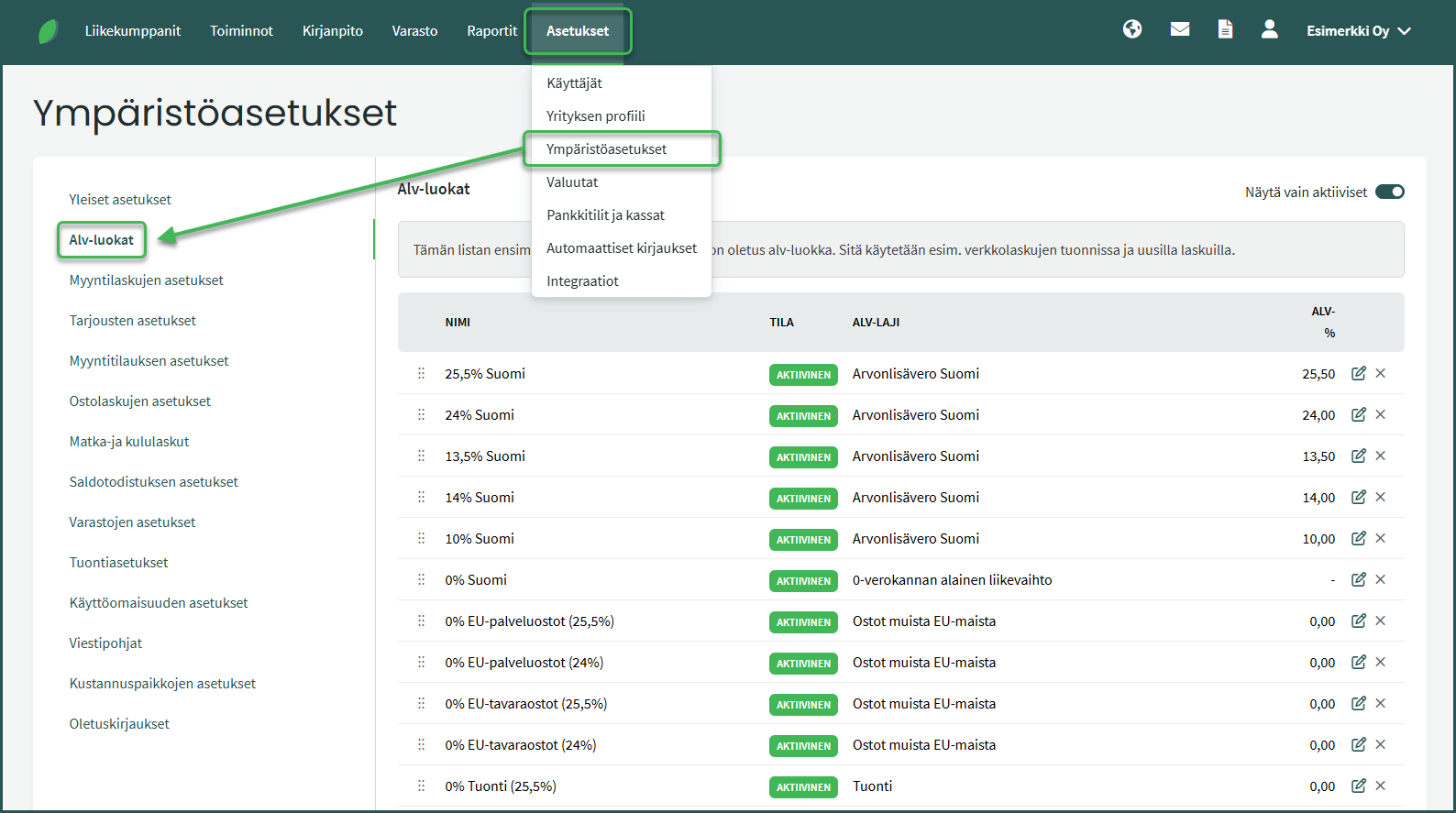
In sales and purchases, the correct VAT class must always be selected so that the information is correctly included in the VAT statement.
In sales, we recommend using separate sales accounts for different VAT rates. These are already included in the program’s default chart of accounts, and the VAT category settings automatically direct sales to the correct accounting account based on the selected VAT class:
- 25,5 % > the software records the income to account ”3000 Sales VAT 25,5%”
- 13,5 % > the software records the income to account ”3001 Sales VAT 13,5%”
- 10 % > the software records the income to account ”3002 Sales VAT 10%”
You can edit the invoice settings under Settings > Environment settings > Invoice settings
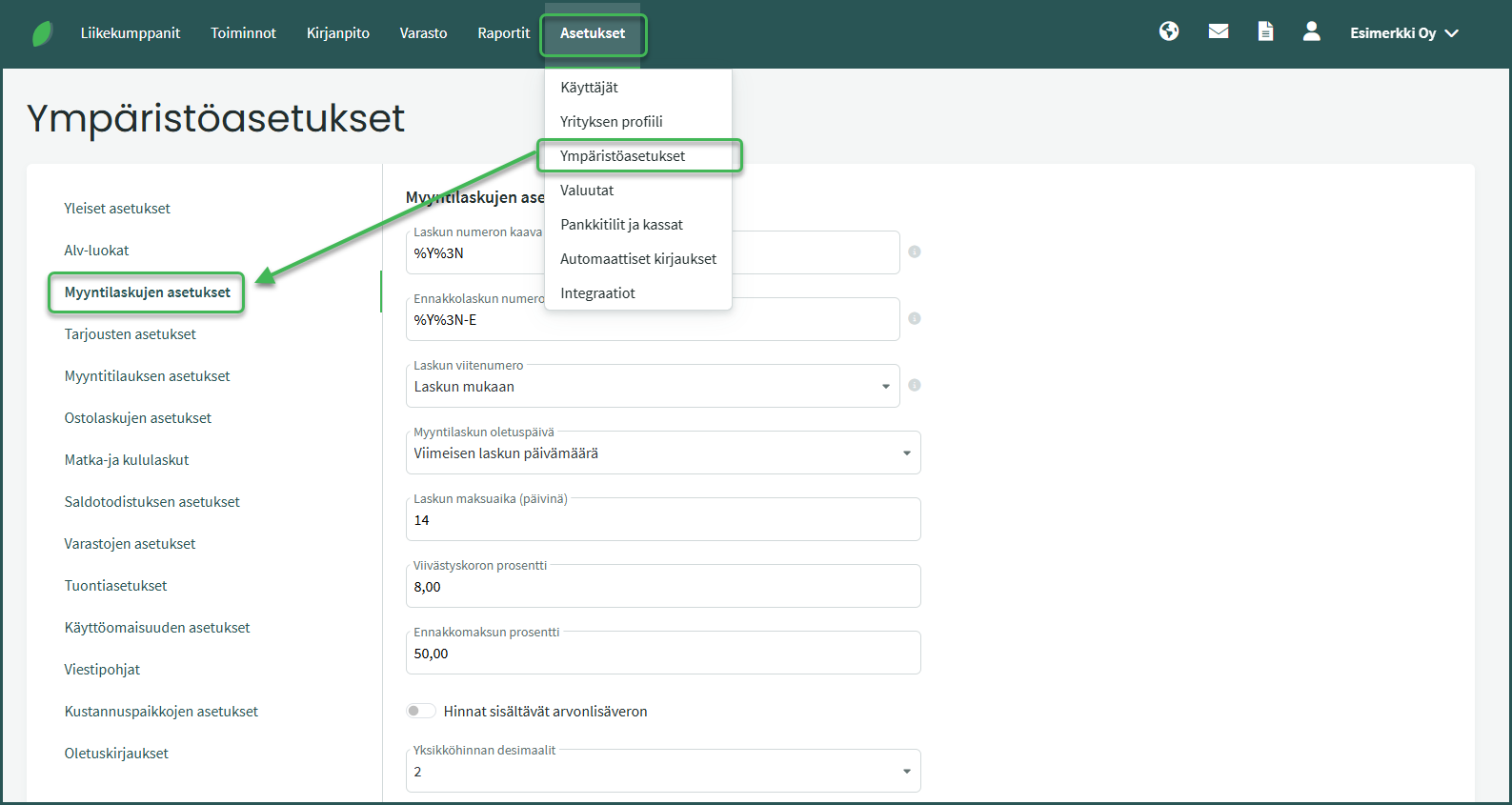
- Invoice number formula – The invoice number formula defines how invoice numbers are generated. The software includes a default formula, but you can modify it if needed. More information about automatic numbering formulas can be found in our guide.
- Invoice reference number – The invoice reference number defines how reference numbers are generated for invoices. You can choose whether the program creates a unique reference number for each invoice (invoice based) or whether it always uses the same reference number for the same customer (client based). More information about reference number formulas can be found here.
- Invoice due date (in days) – The invoice payment term defines how many days of payment time are given by default for sales invoices. The due date can also be changed when creating each sales invoice. In addition, you can set a custom payment term for customers under Partners > Clients and suppliers.
- Additional info, on invoice – The content of the “Additional info on invoice” field is automatically added to every sales invoice. You can use this field to include, for example, a greeting (“Thank you for your cooperation”) or payment instructions (“Please use the reference number when paying”). The text can also be edited when creating the invoice.
- Invoice templates – The software includes basic invoice templates that are suitable for everyday use, so you can start creating invoices immediately if you wish. If needed, you can create new invoice templates and edit them here. More detailed instructions for creating invoice templates can be found here.
Leave A Comment?