
Bank connections significantly speed up bookkeeping. With a bank connection, you can see your bank account balance on the SimplBooks home screen, and bank account transactions are automatically imported into the system once per day. Payments and receipts are matched to invoices automatically when the details correspond, so accounting entries do not need to be added manually.
Activating bank connections takes just a few minutes using your online banking credentials. Transaction imports and the account balance on the home screen are available immediately.
If you wish, you can also enable the payment feature, which allows you to pay invoices directly from SimplBooks. Activating the payment connection typically takes a few days.
ACTIVATING THE PAYMENT CONNECTION
After setting up the bank connection, the bank connection provider Aiia will send you a link to an additional information form by email during a business day.
- The form must be completed if you want to pay invoices directly from the software.
- The information requested on the form is required by law, and payment service providers are obligated to collect it.
Aiia processes the signed form within approximately one week and activates the payment feature. You will receive a notification by email when payments are activated.
You can then pay purchase invoices directly from SimplBooks.
PAYING INVOICES
Purchase invoices are found in the software under Activities > Purchase Invoices. Open an invoice and verify the invoice details.
- The reference number can be a Finnish standard reference or an international RF-prefixed reference. If the invoice does not have a reference number, leave the field blank.
- The supplier’s details must include an IBAN account number and a SWIFT code.
You can review and edit the supplier’s details from an invoice in edit mode under Invoice Details:
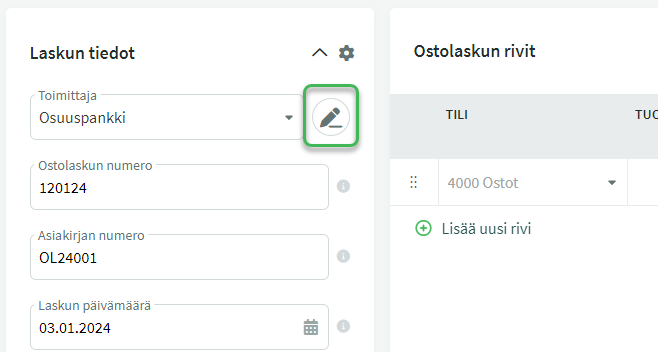
Changes made here are also saved to the supplier’s details when the invoice is saved.
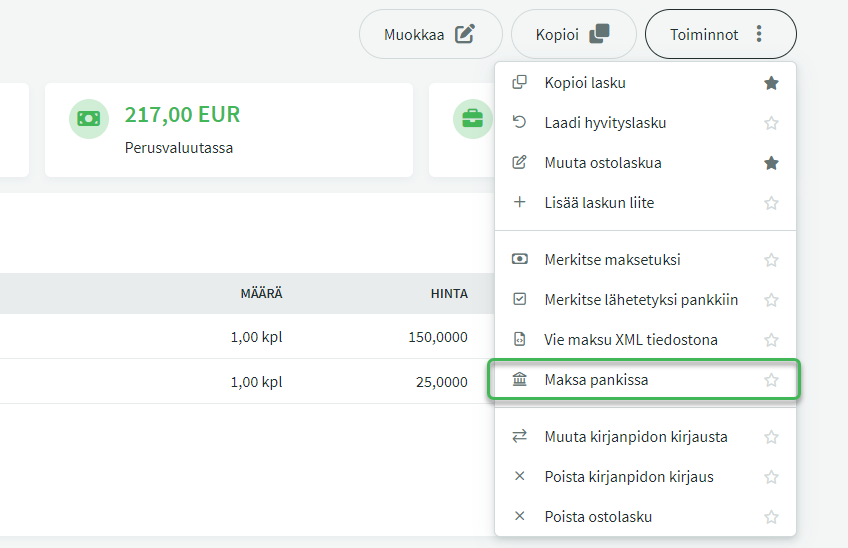
Once the invoice details are correct, you can pay an individual invoice by selecting “Pay in bank” from the Actions menu.
You can also pay multiple invoices at once from the invoice list view. NOTE: Paying multiple invoices at once is currently supported by Osuuspankki and Danske Bank.
Select the invoices you want to send to the bank for payment from the list view. Then click Bulk Actions > Export selected rows > Pay in bank.

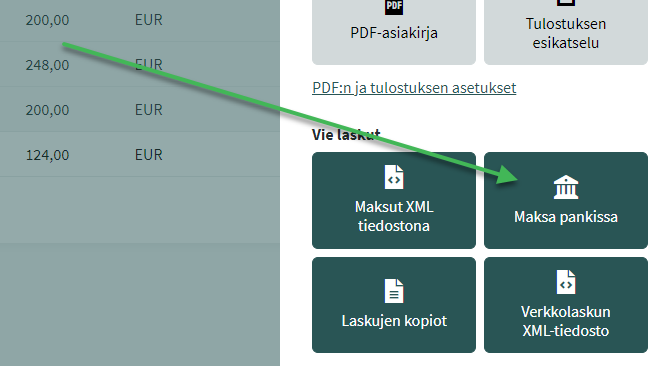
Select the bank account from which you want to pay the invoices.

When paying, you can choose whether the invoice is paid on the due date or on the current day. If your bank does not support future-dated payments via PSD2 connections, the next business day will be used.
Once you have confirmed the payment with your online banking credentials, the payment details are sent to the bank. The status of the invoice or invoices in the system changes to “Sent to bank”. The invoice changes to “Paid” status when the payment day’s bank transactions are imported into SimplBooks.
INVOICE STATUS ACTIONS
The Actions menu in the purchase invoice view contains various options related to paying purchase invoices.
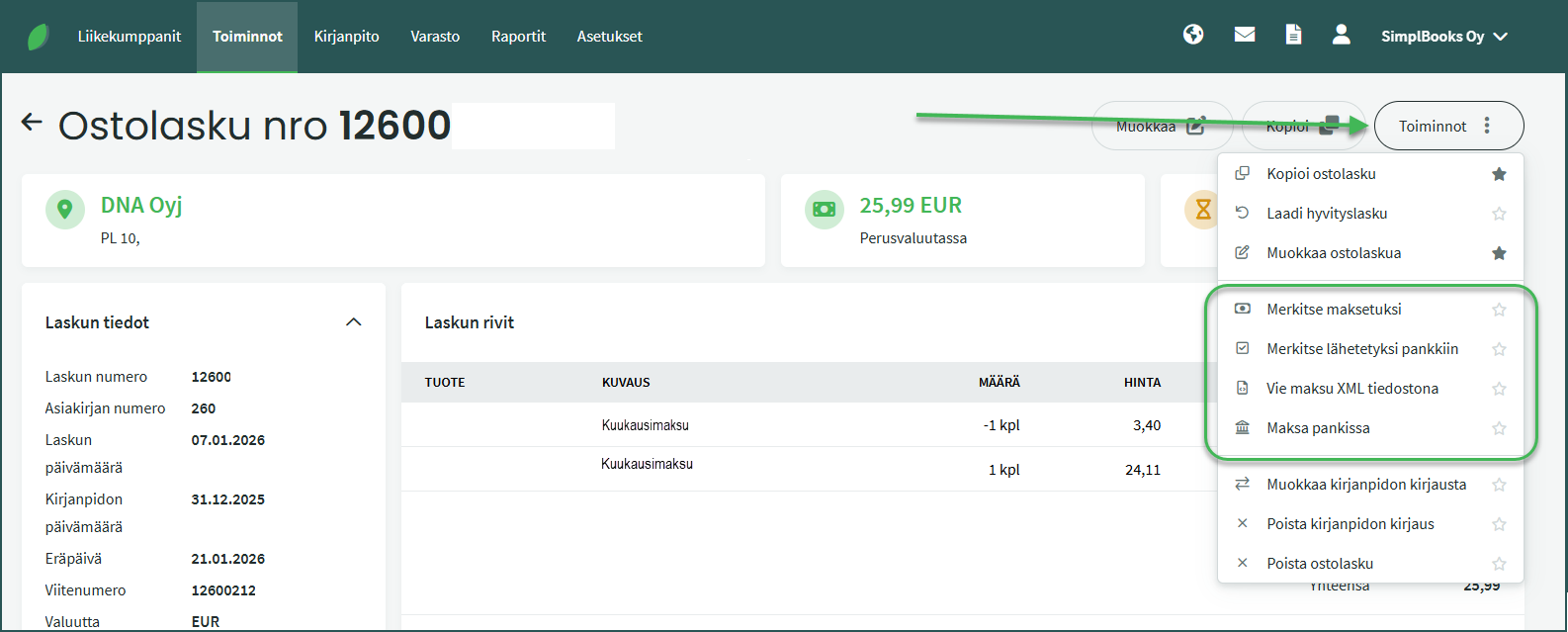
- Mark as paid – You can match a payment already in the system (e.g. imported from the bank or a bank statement) to the invoice, or create a new payment. If the payment amount covers the full invoice amount, the invoice will show the status “Paid“.
- Mark as sent to bank – If you have scheduled the purchase invoice payment in your online banking, you can use this action. The purchase invoice will then show the status “Awaiting in bank“.
- Export payment as XML file – This allows you to save the payment as an XML file to your computer.
- Pay in bank – This action sends the payment to the bank. The purchase invoice will then show the status “Awaiting in bank“. Payments are always confirmed with online banking credentials. If the confirmation is not completed, the payment will not be sent to the bank.
Leave A Comment?