
Please note that the program only makes automatic postings when opening balances have been added to the program and automatic postings are enabled. The program automatically creates an empty opening balance entry when you start using it. If bookkeeping has previously been done elsewhere, you can read more about entering opening balances here.
HOW TO CHANGE THE DEFAULT ACCOUNTS FOR AUTOMATIC POSTINGS?
Click for detailed instructions!
Automatic postings are enabled when a start date has been set under Settings > Environment Settings > General Settings > Automatic postings from.
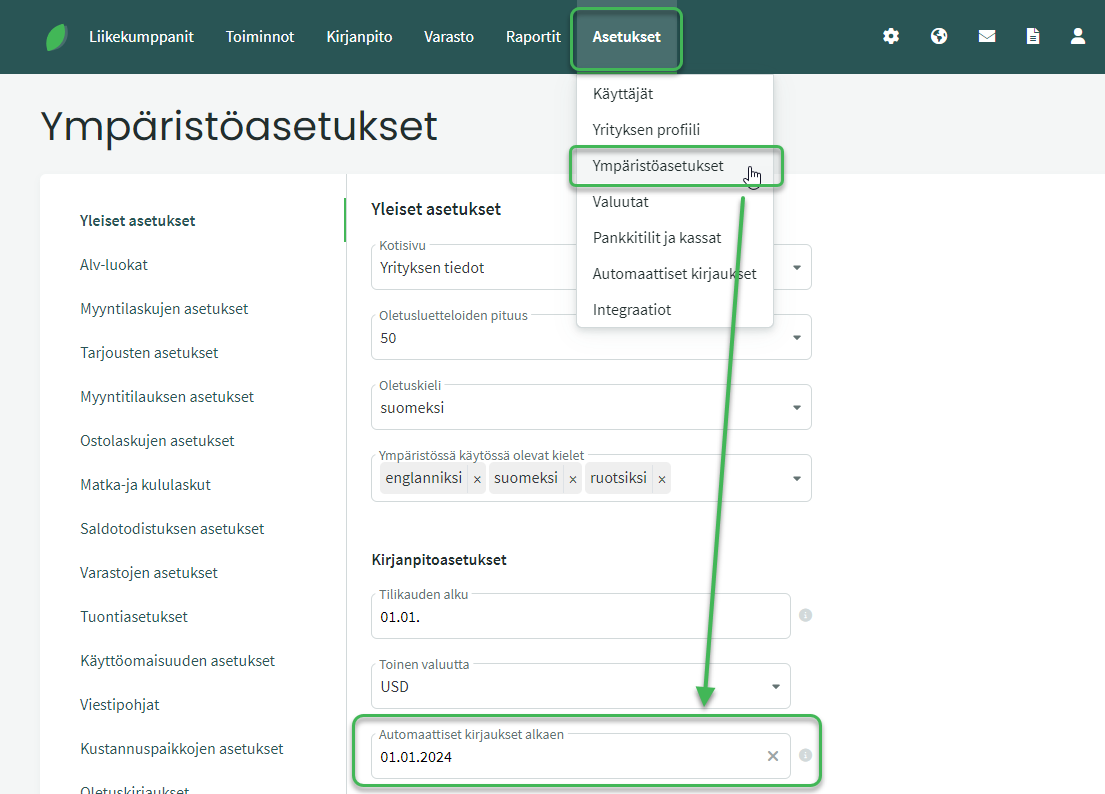
Automatic postings are enabled by default when you start using the program, and we do not recommend disabling them.
When you start using SimplBooks, the program already has default accounts set up for all bookkeeping functions such as purchase and sales invoices. You do not need to change the default accounts unless you want to assign a different account to a specific function.
You can view and change the accounts for automatic postings under Settings > Automatic Postings.
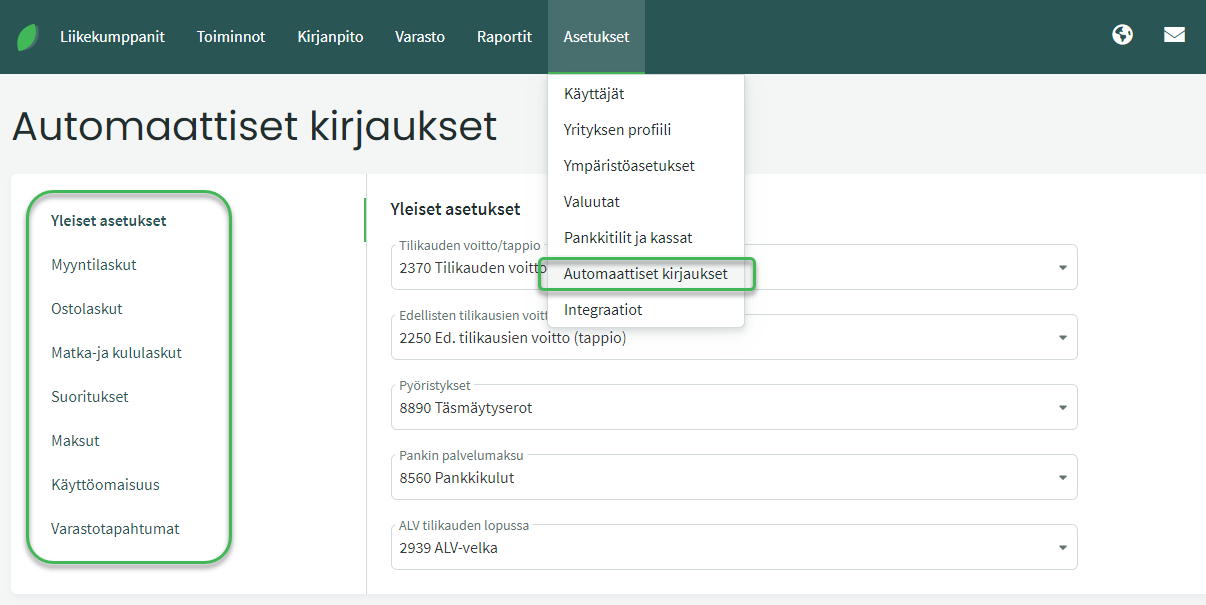
On this page you can change not only the default accounts for sales and purchase invoices, but also the default accounts for travel and expense reports, for example. Select the desired tab from the menu on the left side.
In addition to expense and revenue accounts, the tabs also allow you to change the default accounts for accounts receivable, accounts payable, VAT payable, and VAT receivable, for example.
HOW TO CHANGE THE ACCOUNTS FOR DIFFERENT VAT CLASSES ON SALES INVOICES?
When you create a sales invoice and select a VAT class, the program posts the revenue by default to the account that corresponds to that VAT class. For example:
- 24% Finland > posts revenue to account 3000 Sales VAT 24%
- 14% Finland > posts revenue to account 3001 Sales VAT 14%
- 10% Finland > posts revenue to account 3002 Sales VAT 10%
Sales must be posted to separate accounts by tax class, because they are reported in different sections of the VAT return.
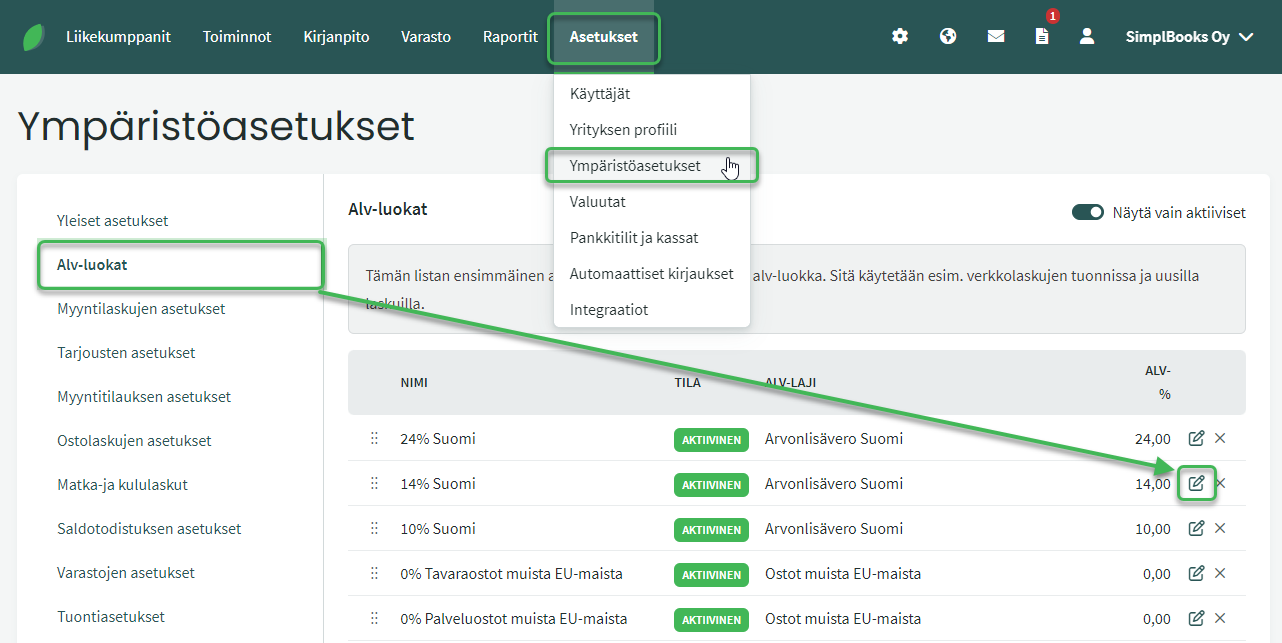
- If you want to change the default accounts for VAT classes on sales invoices, you can do so under Settings > Environment Settings > VAT Classes. Select the desired VAT class and edit.
- If you change the VAT class settings, remember to also check the VAT calculation settings.
The ledger accounts used for sales and purchase invoices can also be influenced by editing the settings for products and business partners.
- Default accounts can be assigned to products under Inventory > Products > select the desired product > Edit.
- Accounts can be assigned to customers and suppliers under Business Partners > Customers and Suppliers > select the desired customer or supplier > Edit Customer/Supplier.
If a ledger account is assigned to a product, customer, or supplier, it overrides the general default account when invoices are created.
Leave A Comment?