
This guide is for businesses that have been doing bookkeeping elsewhere before switching to SimplBooks. If you have just started your business and have no prior balances, please see the guide Starting bookkeeping for a new business.
The software automatically creates an empty opening balance entry for the first day of the current financial year when a company environment is set up. Opening balances are entered by editing this entry.
If you are switching to the software at the start of a new financial year, you only need to enter the balance sheet balances as described in section 1.
If you are switching to the software mid-financial year, also enter the income statement balances as described in section 2.
If you want to enter the previous financial year’s comparative figures, see section 3 of this guide.
1. Setting up the software at the start of a new financial year
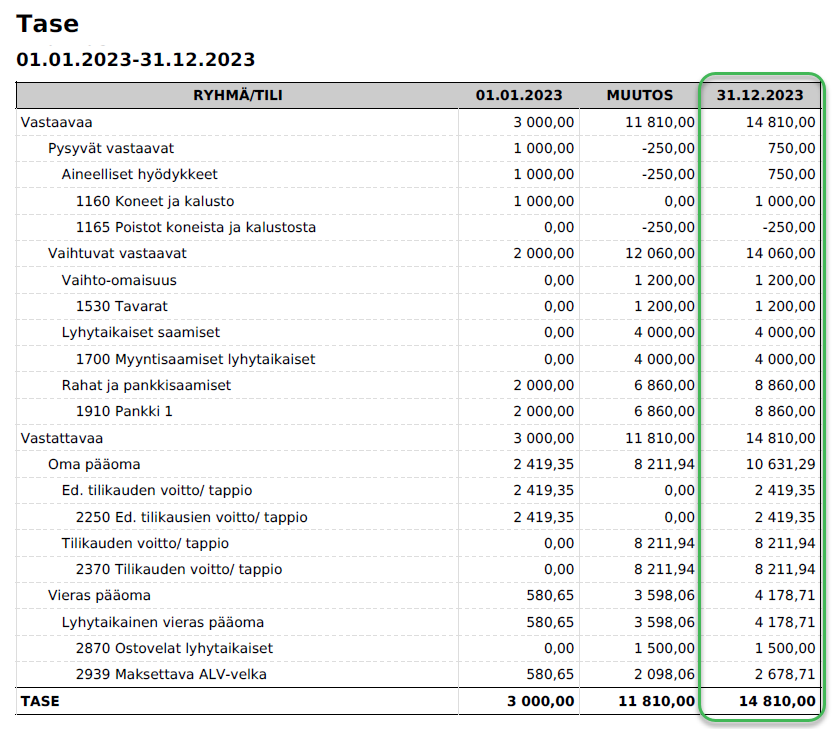
To enter opening balances, you will need the detailed balance sheet from the previous financial year, meaning the closing balance of each account used must be shown separately. For example, if you start using SimplBooks on 1 January 2024, you need the balance sheet as of 31 December 2023 from your previous software.
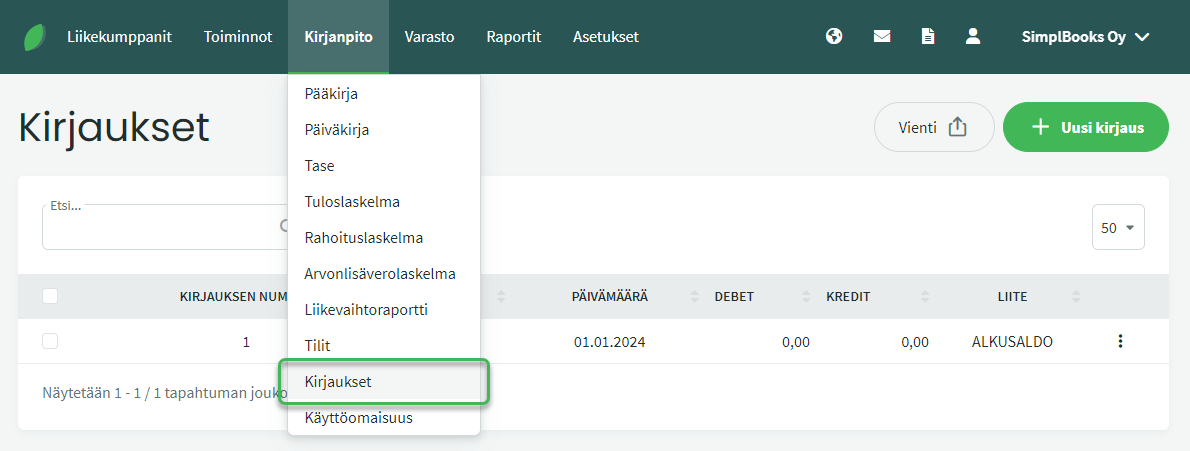
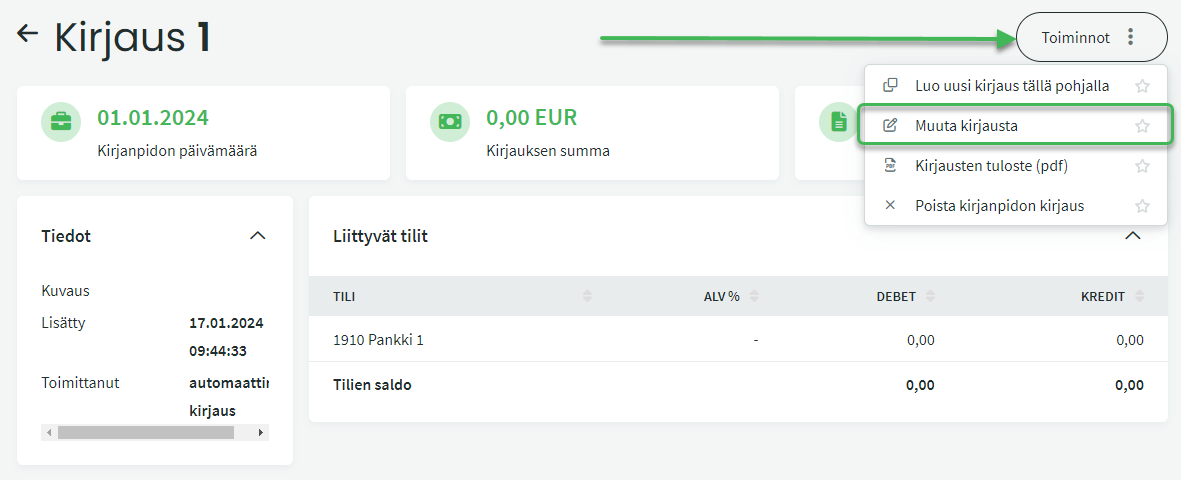
Open the opening balance entry automatically created by the software by clicking on it, then select “Edit entry” from the Actions section on the right.
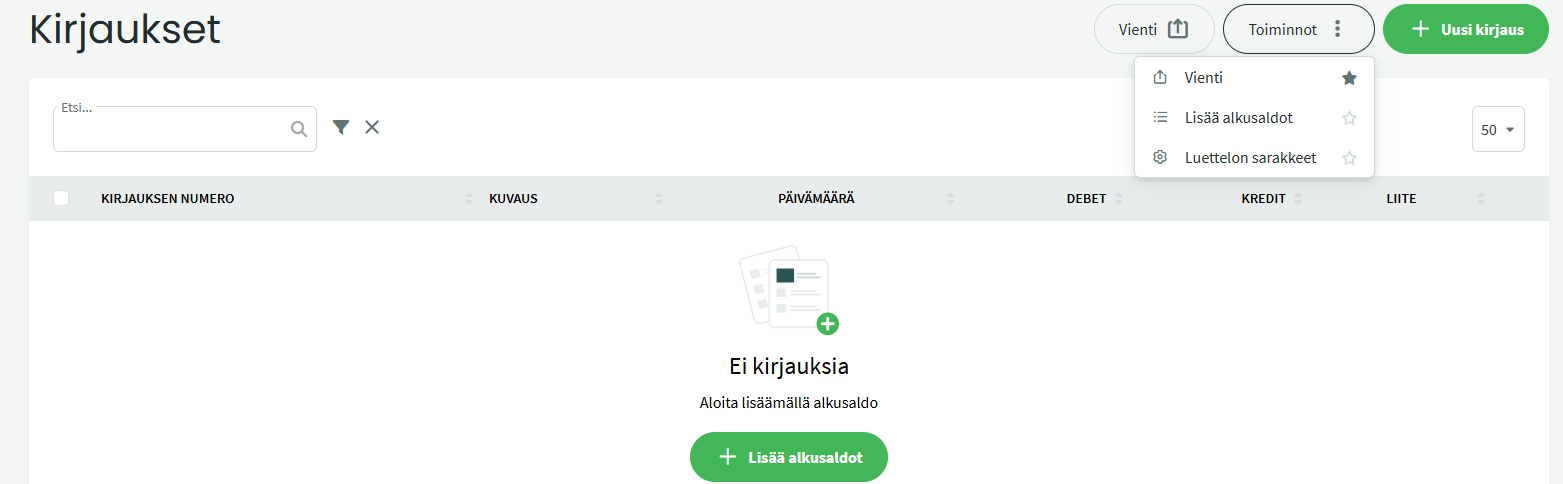
If the opening balance entry has been deleted, you can recreate it by selecting “Add opening balances”. There can only be one opening balance entry.
Add the required information:
- Description. For example, “opening balances” (not mandatory).
- Date. The date from which you will be doing bookkeeping in SimplBooks.
- Add all accounts related to the opening balances on the same entry, one below the other.
- Tip! If there are many opening balances, it is worth balancing the debit and credit sides periodically by temporarily adding a reconciliation differences account to the entry and saving. This way, your work is not lost.
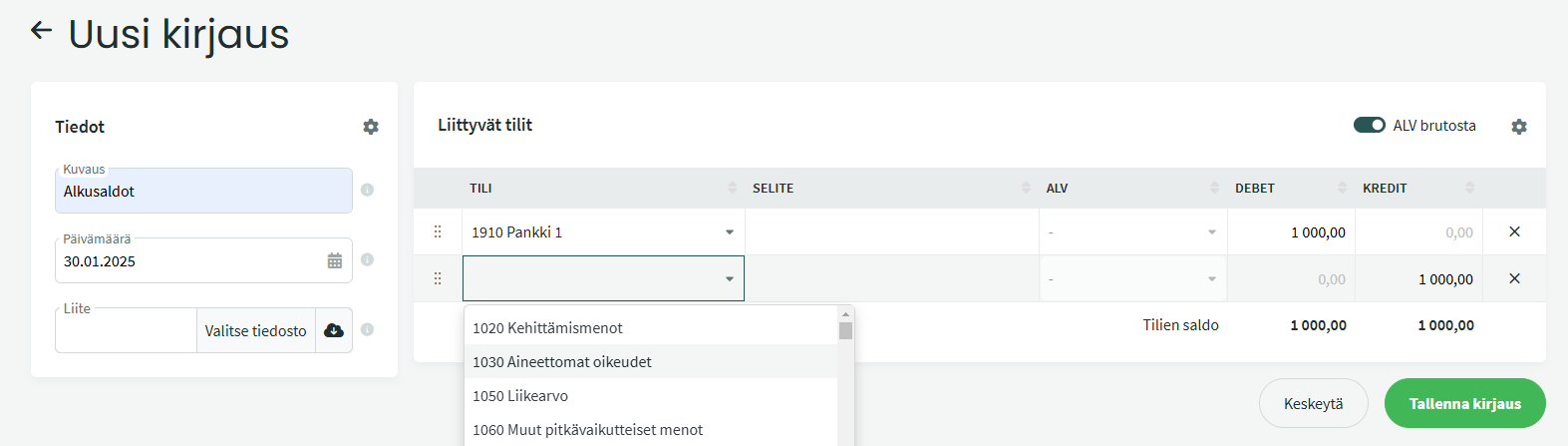
Enter balances by adding new lines to the entry. Fill in the account and amount for each line.
- Assets are entered in the debit column and liabilities in the credit column.
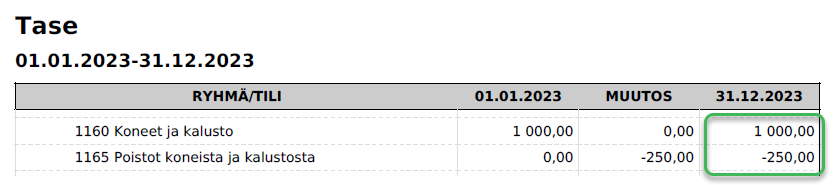



Finally, verify that the debit total of the opening balance entry equals the credit total, i.e. the entry is balanced.
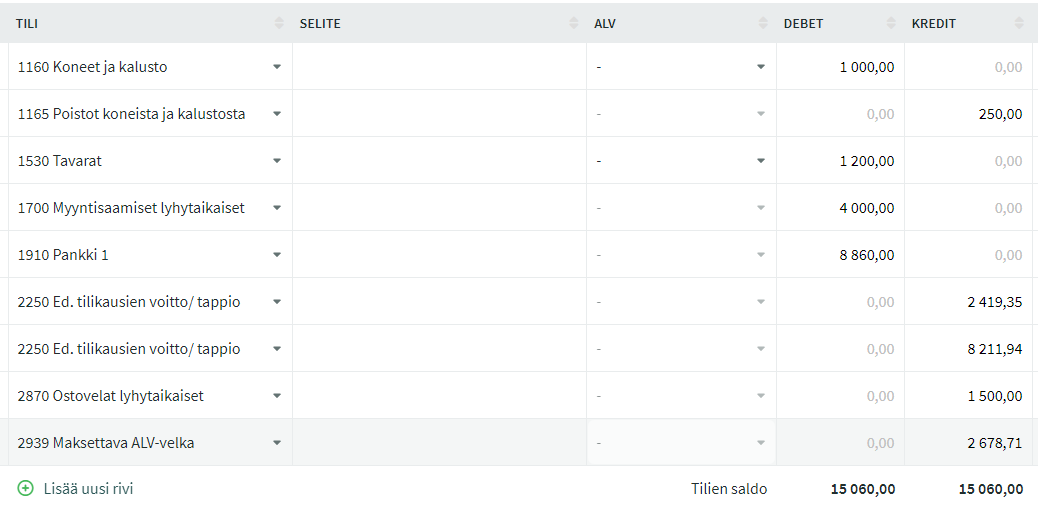
If you are switching to the software mid-financial year, also enter the income statement balances as described in section 2. Remember to save the entry when you are done.
2. Setting up the software mid-financial year
When you start using the software mid-financial year, first add the balance sheet balances to the opening balance entry as described in section 1. For example, if you start using SimplBooks on 1 December 2023 and your financial year is the calendar year, you will need the balance sheet and income statement as of 30 November 2023 from your previous software. Opening balances are entered with the date 1 December 2023.
Enter all balance sheet balances except the current year profit/loss. The software calculates this automatically based on the income statement balances.
- The current year profit/loss account is never posted to manually — the software calculates its balance automatically.
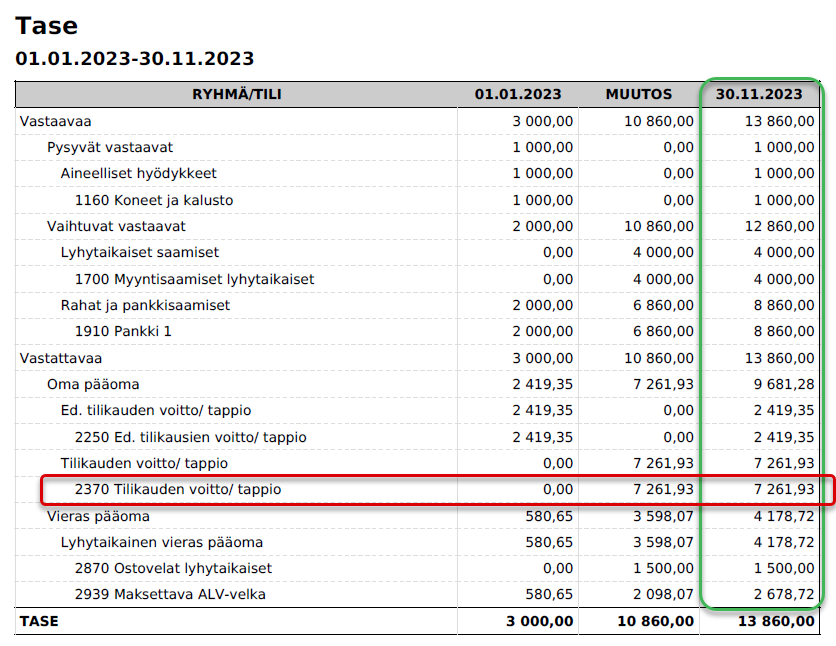
After entering the balance sheet balances, add the income statement balances.
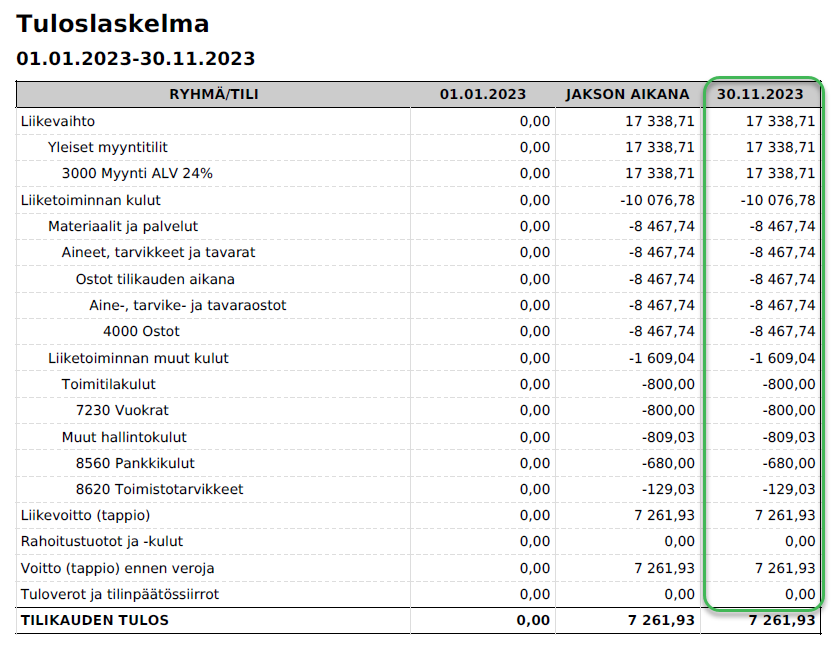
From the income statement, enter income in the credit column and expenses in the debit column.
Finally, verify that the debit and credit totals match each other, then save the entry.
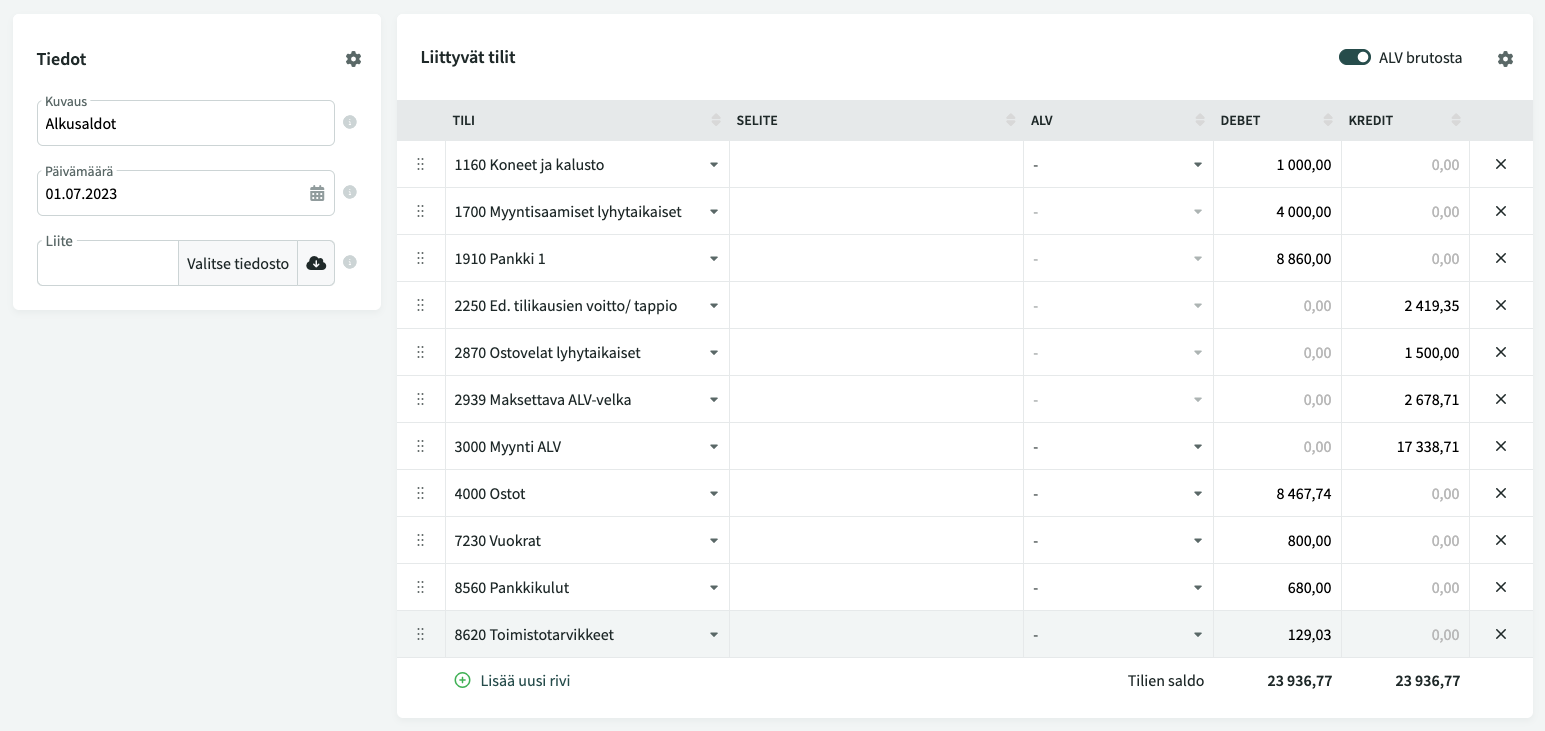
3. Entering comparative figures from the previous financial year
Entering comparative figures from the previous financial year is not mandatory — only do this if needed.
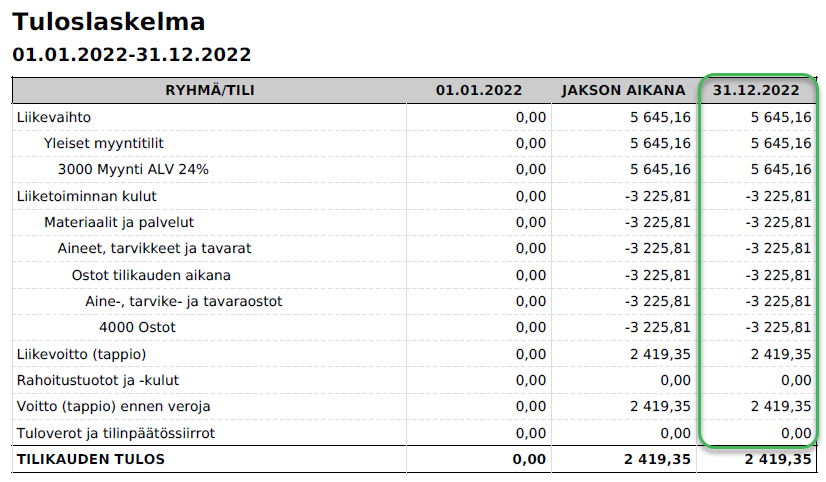
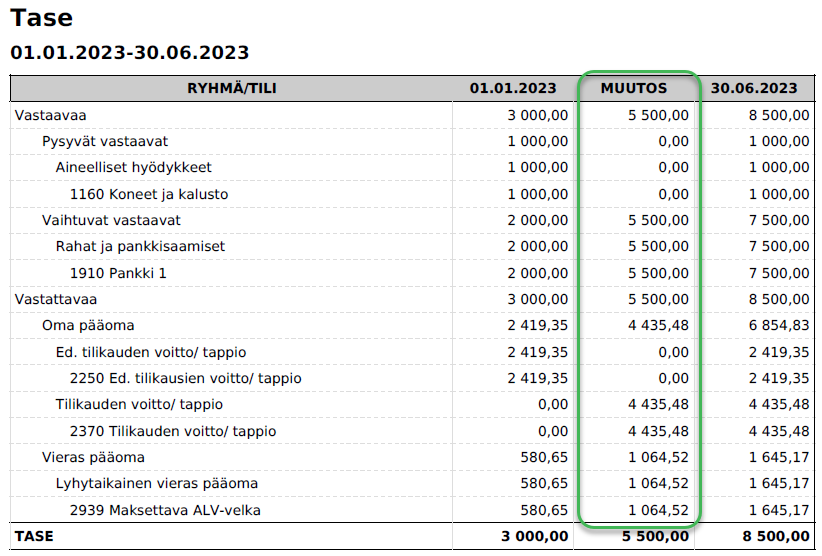
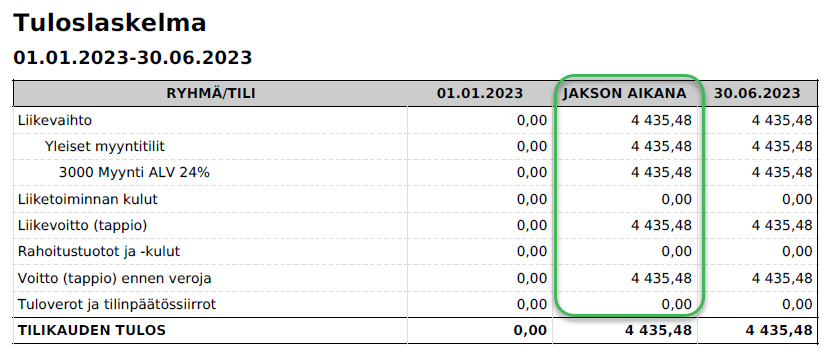
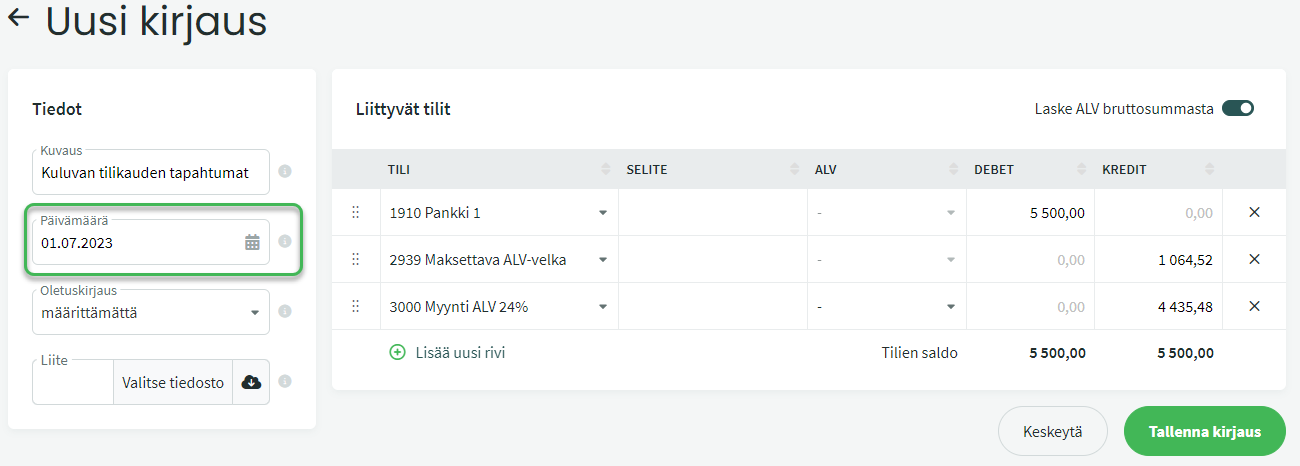
If you want to enter comparative figures, enter them as an opening balance and then, if needed, enter the current financial year data as ordinary journal entries.
Example: You start doing bookkeeping in SimplBooks on 1 July 2023 and the financial year is the calendar year.
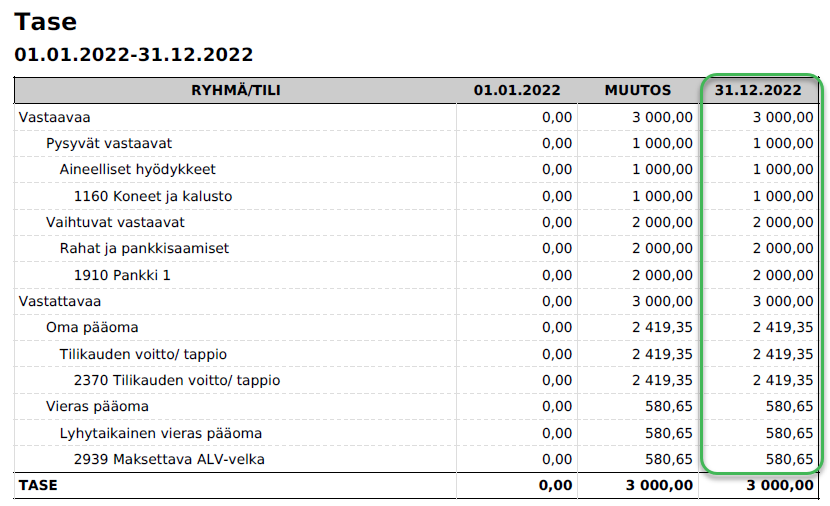
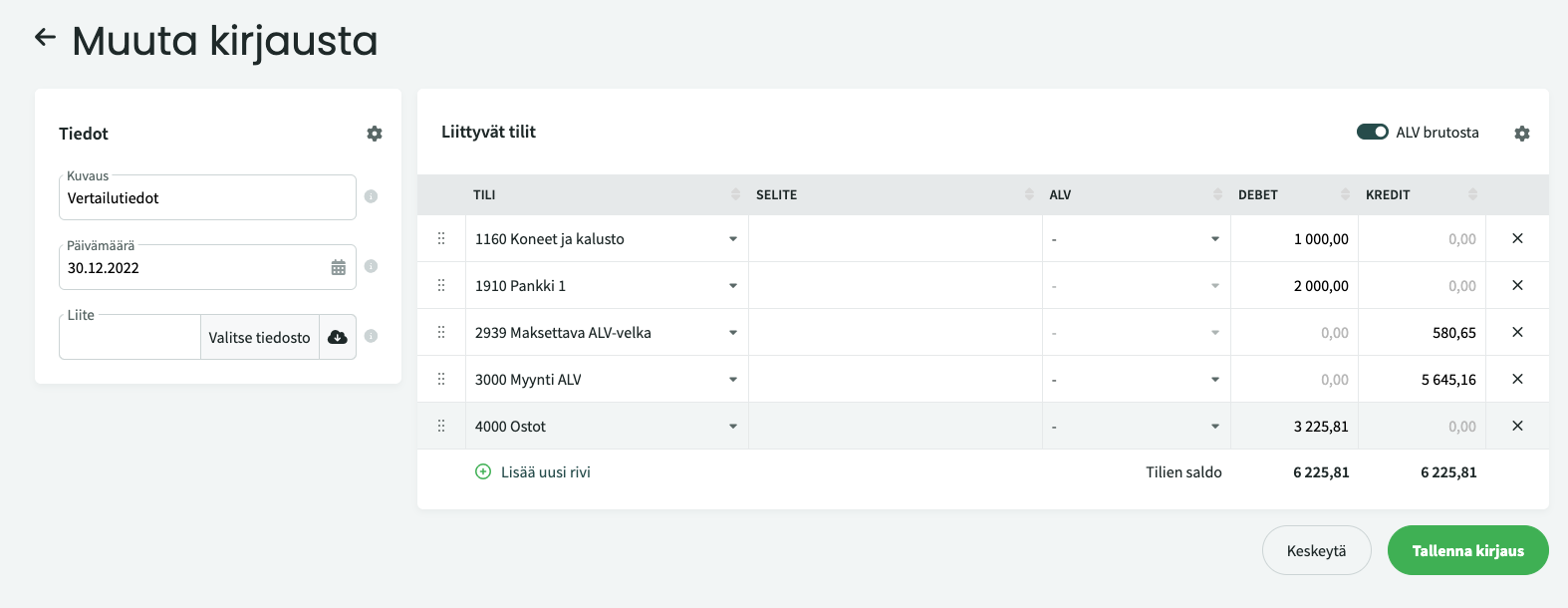
Make sure that the automatic posting start date is the same as or earlier than the opening balance date (under Settings > Environment Settings > Automatic postings from).
The software will calculate the 2022 financial year profit and close the financial year with the date 31 December 2022, after which the opening balance sheet for 1 January 2023 is ready.
Leave A Comment?