
This guide explains how to add new fixed assets to your accounting and how to record depreciation.
If you are adding fixed assets that your company already owned before you started using SimplBooks, see Recording existing fixed assets in SimplBooks.
How does the depreciation method affect how fixed assets are added?
The method for adding fixed assets depends on the depreciation method used.
Does the program record depreciation automatically?
Currently, only straight-line depreciation can be recorded automatically in SimplBooks. Declining-balance depreciation must be recorded manually as accounting entries.
Want to learn more?
Read more on our blog: Straight-line or declining-balance depreciation – what is the difference?
Using the Assets feature is not mandatory. You can also add fixed assets to your accounting with a financial transaction and record depreciation manually. This is particularly convenient if you only have a small number of fixed assets and use degressive depreciation.
The Assets view is most useful when fixed assets are depreciated using linear depreciation and acquisitions are recorded through sales or purchase invoices.
You can add a new fixed asset directly through a purchase invoice. You can read more about creating purchase invoices here.
1. On the purchase invoice row, select the same account that has been specified as the asset account under Settings > Automatic Entries > Asset.
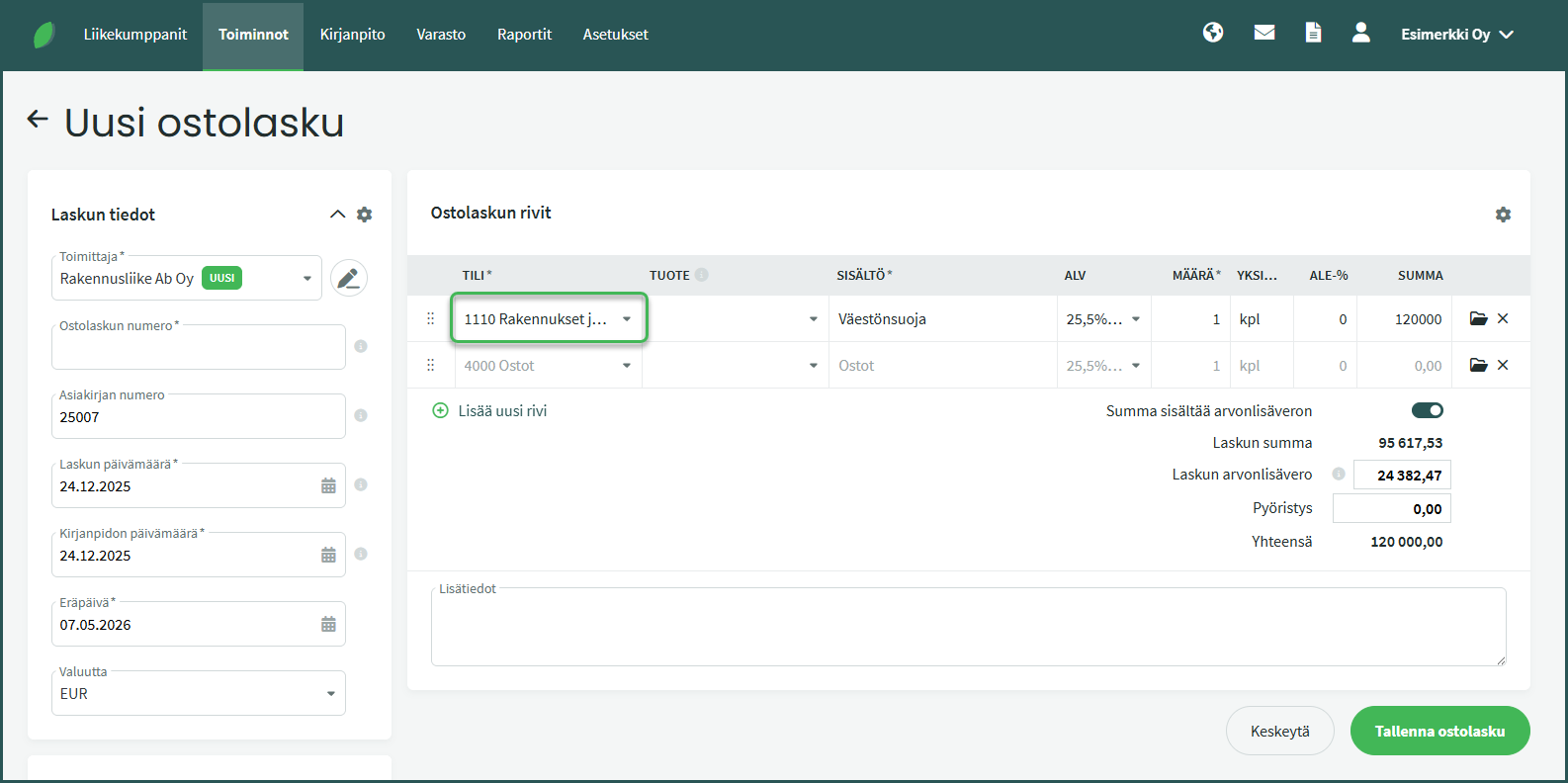
2. When a asset account has been selected on the purchase invoice row, the program will ask when saving the invoice whether you want to create a fixed asset from it. Select Yes.
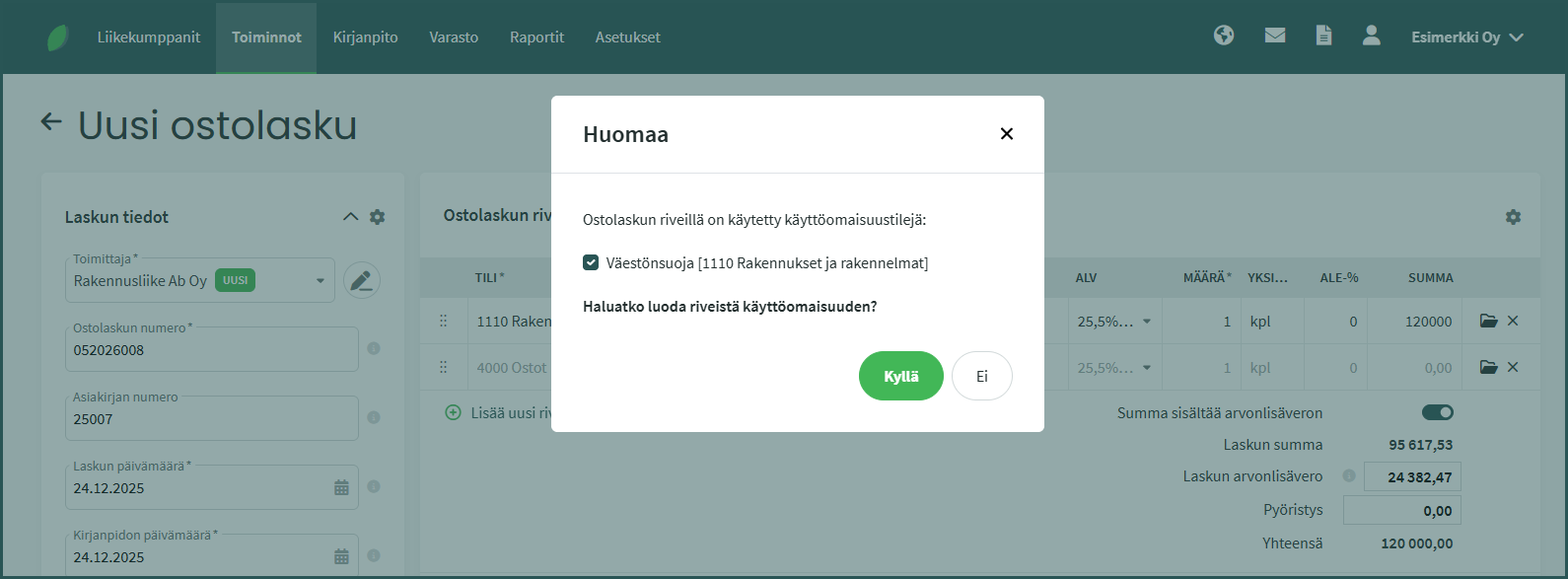
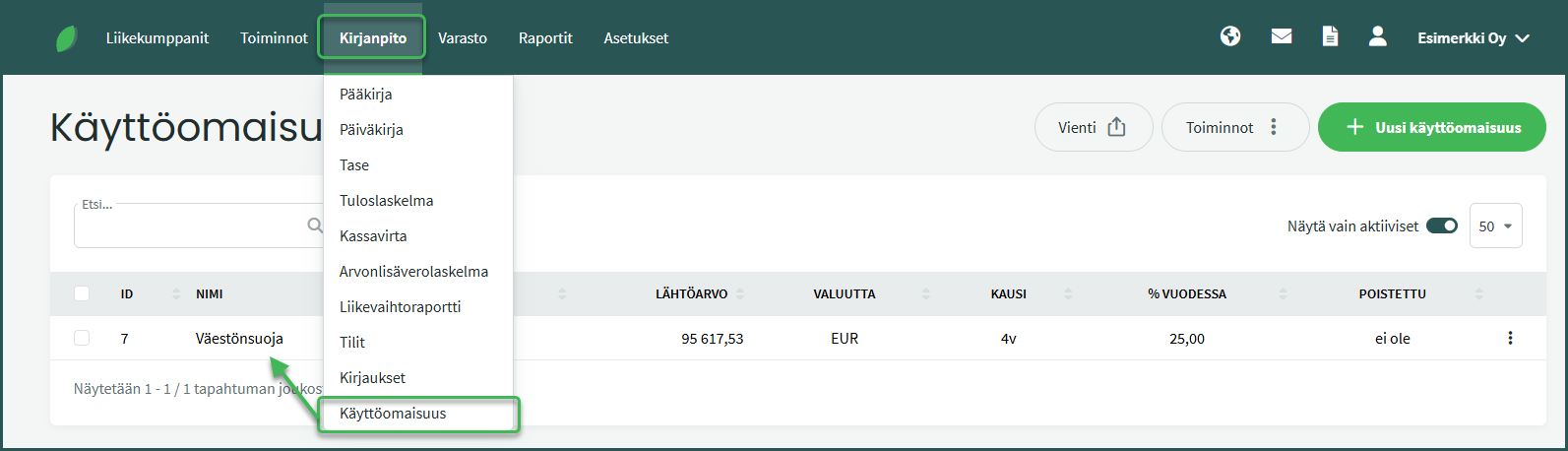
3. The fixed asset will then appear under Accounting > Assets. Click the fixed asset to open it.
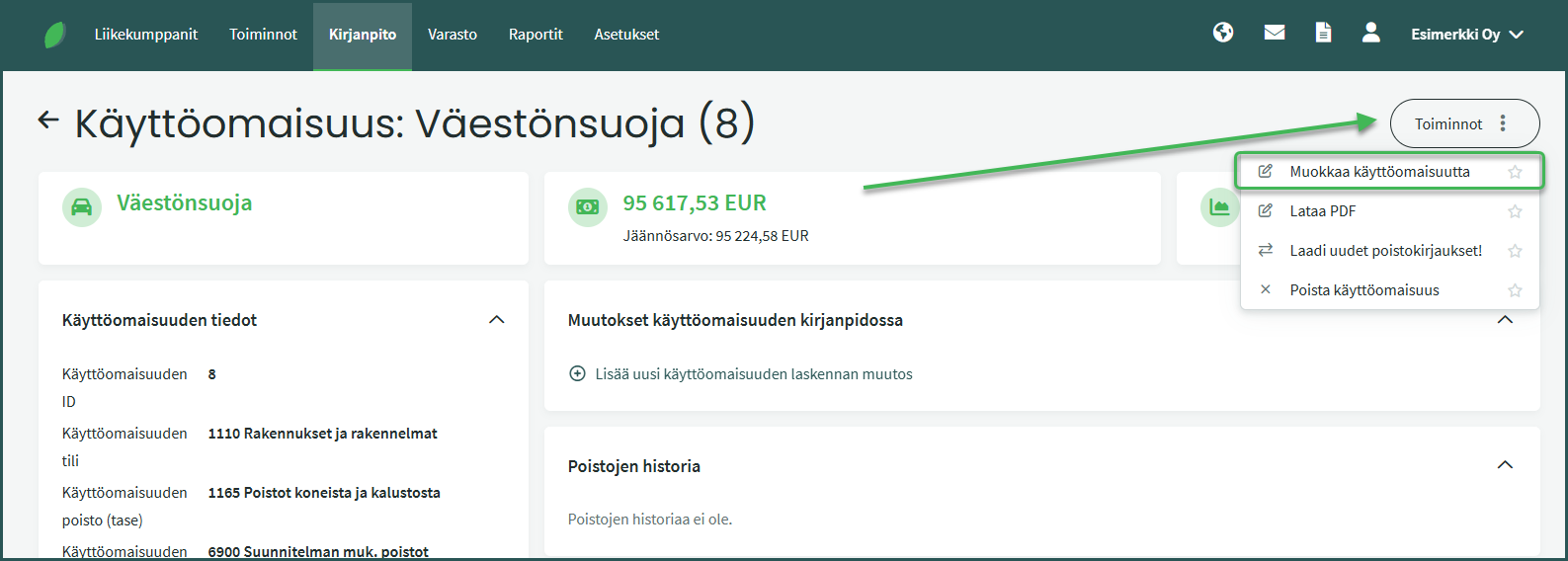
4. Under Actions on the right, select “Edit asset”.
5. Enter the required information
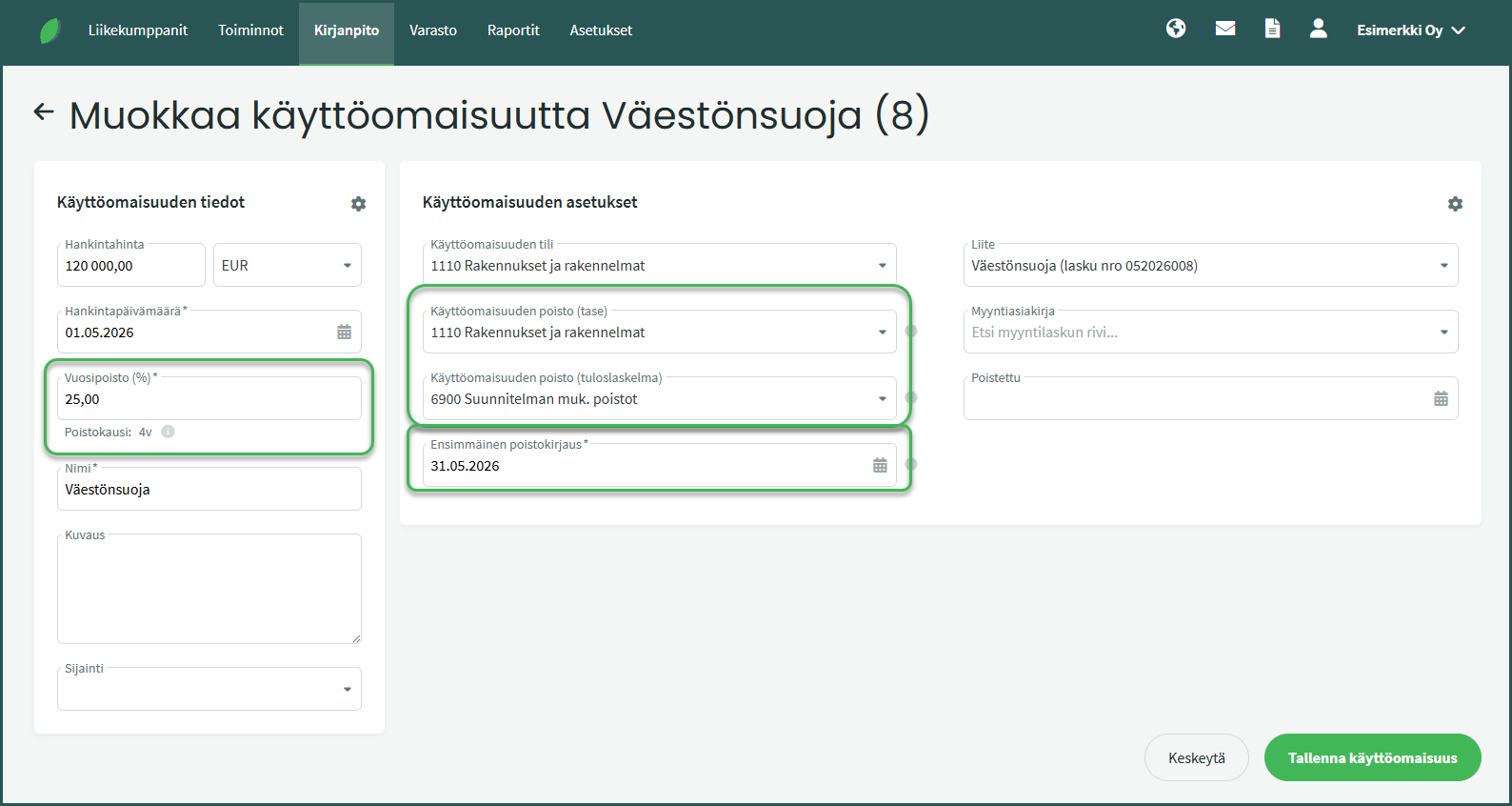
- Depreciation per year (%)
- Linear depreciation is entered in the program as a percentage, even though depreciation is calculated based on the depreciation period in years. For example, 10 years = 10%, 5 years = 20%, 4 years = 25%, etc.
- First depreciation transaction
- Specify when you want the first depreciation entry to be recorded. Depreciation can be recorded monthly or annually.
If necessary, you can also change the name of the fixed asset and the accounting accounts used for depreciation. Save the fixed asset settings. The program will automatically create linear depreciation entries starting from the date you specified.
If you later want to keep the depreciation already recorded unchanged but change the depreciation period, you can make this change in the fixed asset details.
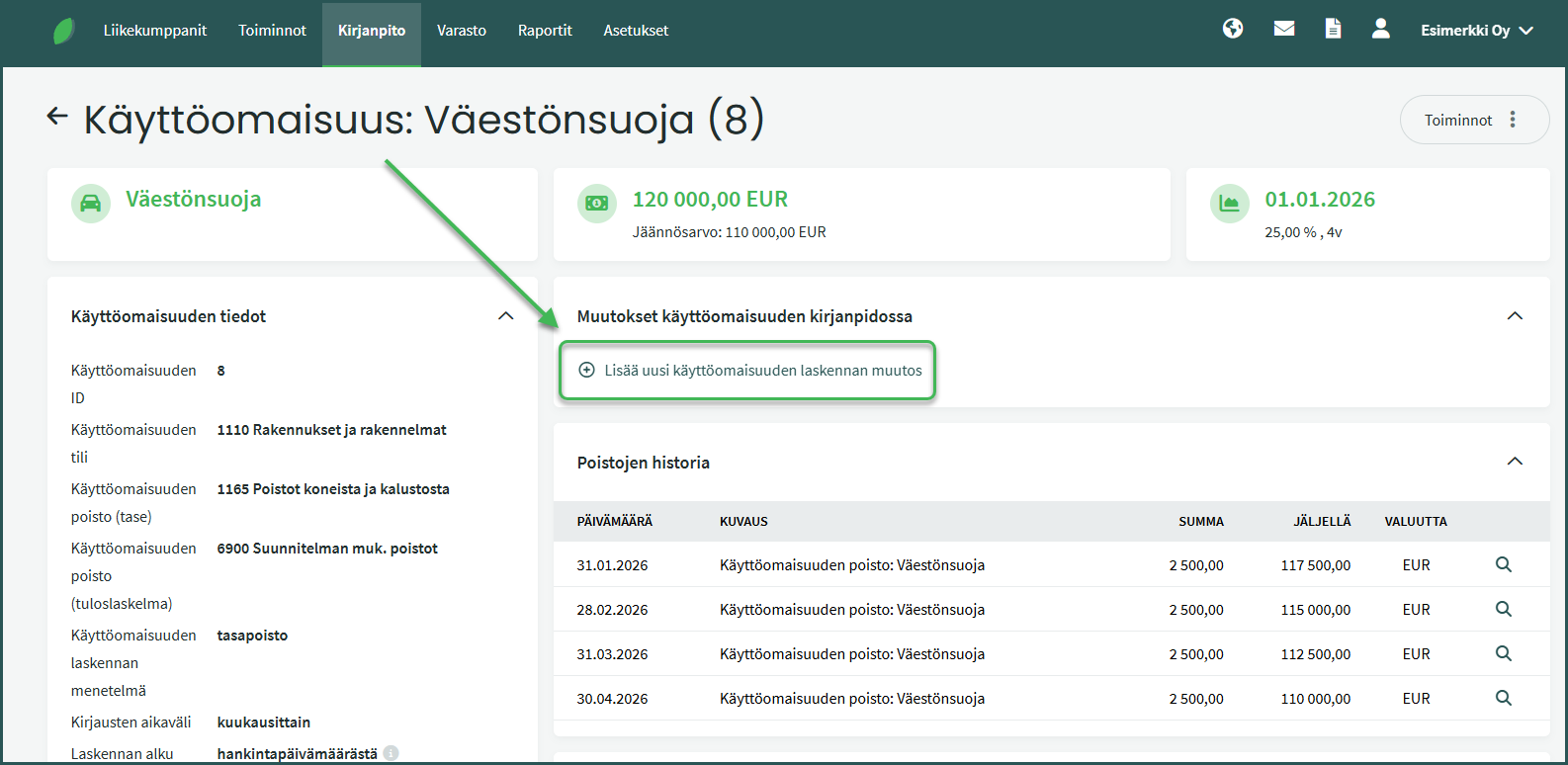
1. Open the fixed asset under Accounting > Assets. Under “Alter asset depreciation plan”, select “Add new change to asset”.
2. Enter the required information
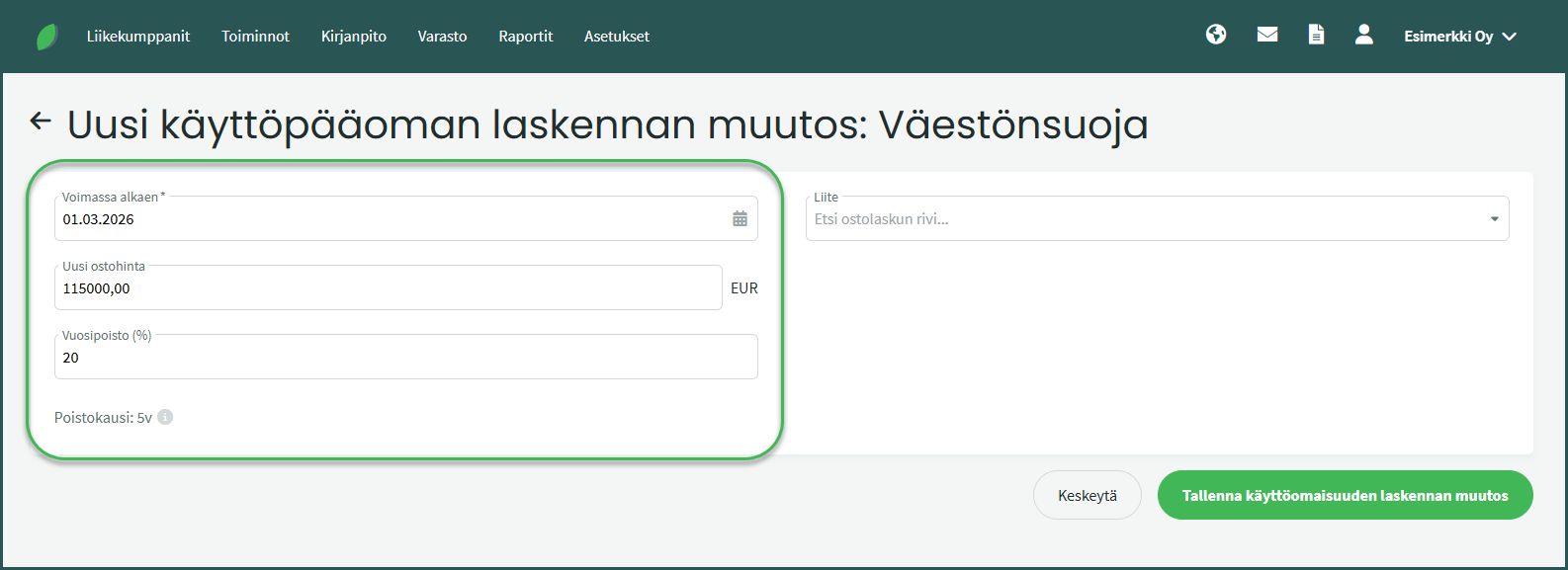
- Valid from – Specify the date from which the change takes effect.
- New acquisition cost – Enter the remaining value of the fixed asset.
- Depreciation per year (%) – Specify the new depreciation period as an annual percentage.
- A civil defence shelter was acquired on 1.1.2026. Its original acquisition cost was €120,000 and its original depreciation period was four years.
- After two months (1.3.2026), the depreciation period is changed to five years.
- Depreciation for the first two months amounts to (€2,500 × 2) €5,000.
Enter the following for the fixed asset calculation change:
- Valid from: 1 March 2026
- New acquisition cost: 115,000
- Depreciation per year (%): 20
3. When you save the calculation change, the program will ask from which date the new depreciation entries should be created.
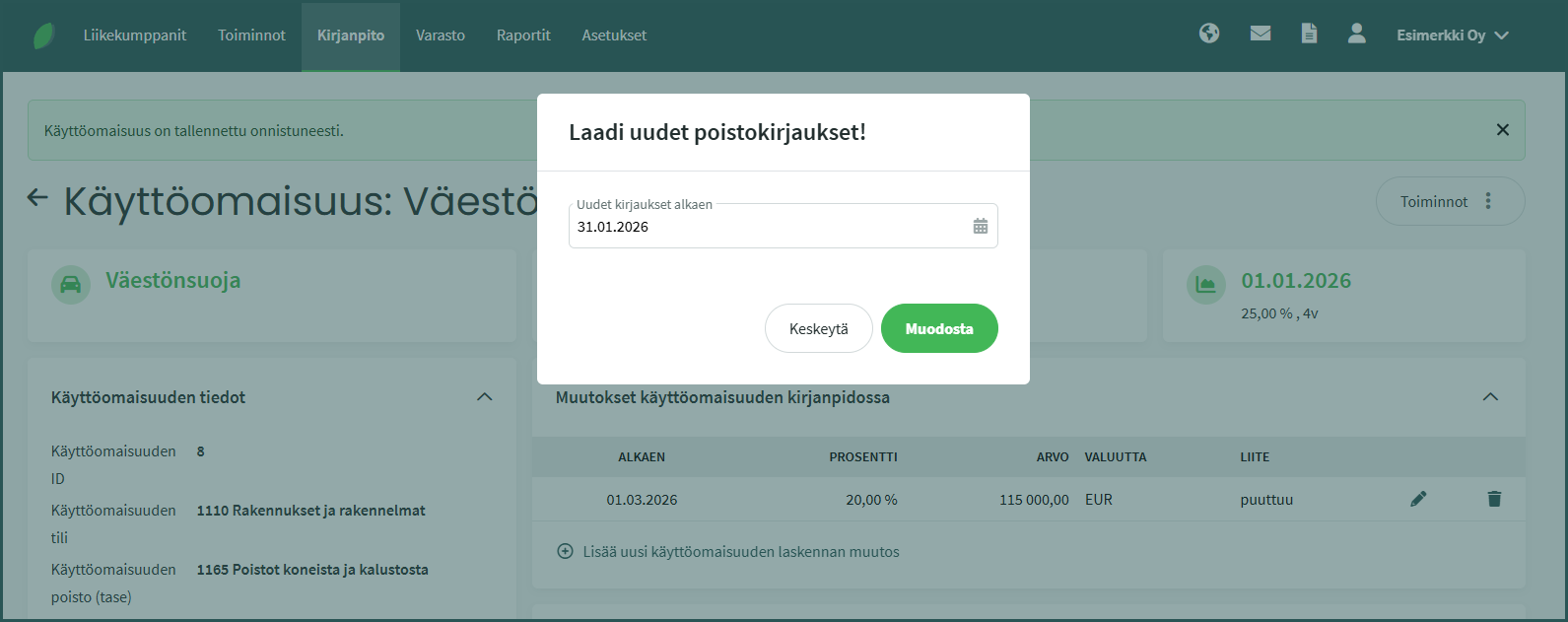
Select the date based on when you want the new depreciation period to start affecting future depreciation entries.
OPTION 1 – Adding a fixed asset using degressive depreciation with a financial transaction.
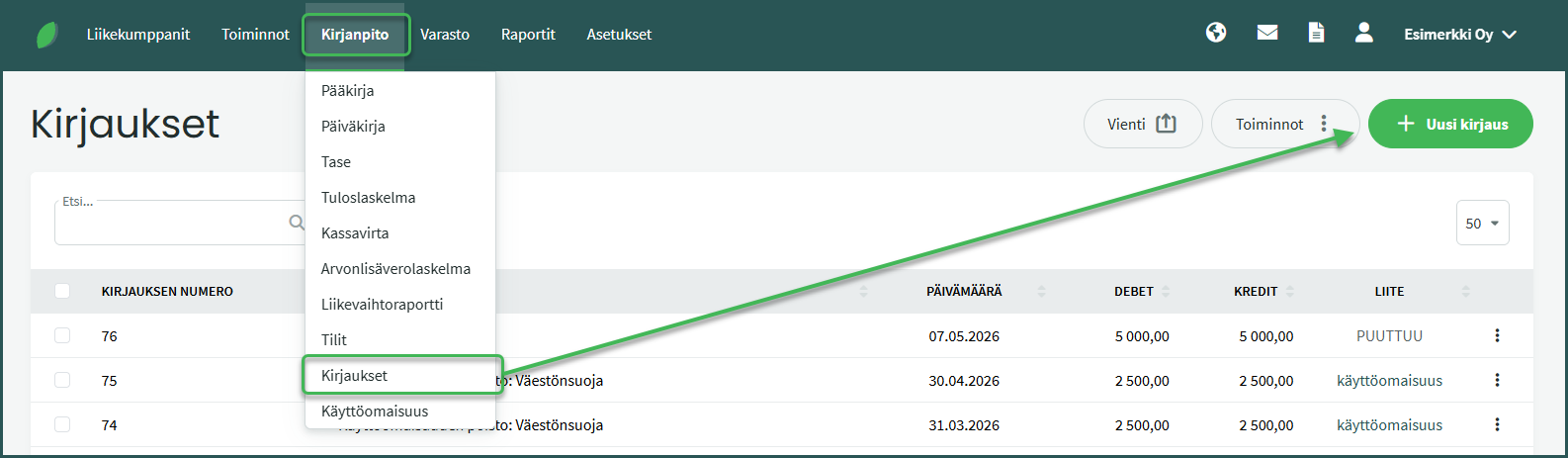
1. You can add a fixed asset using degressive depreciation as a financial transaction under Accounting > Transactions > New transaction.
2. Enter the required information
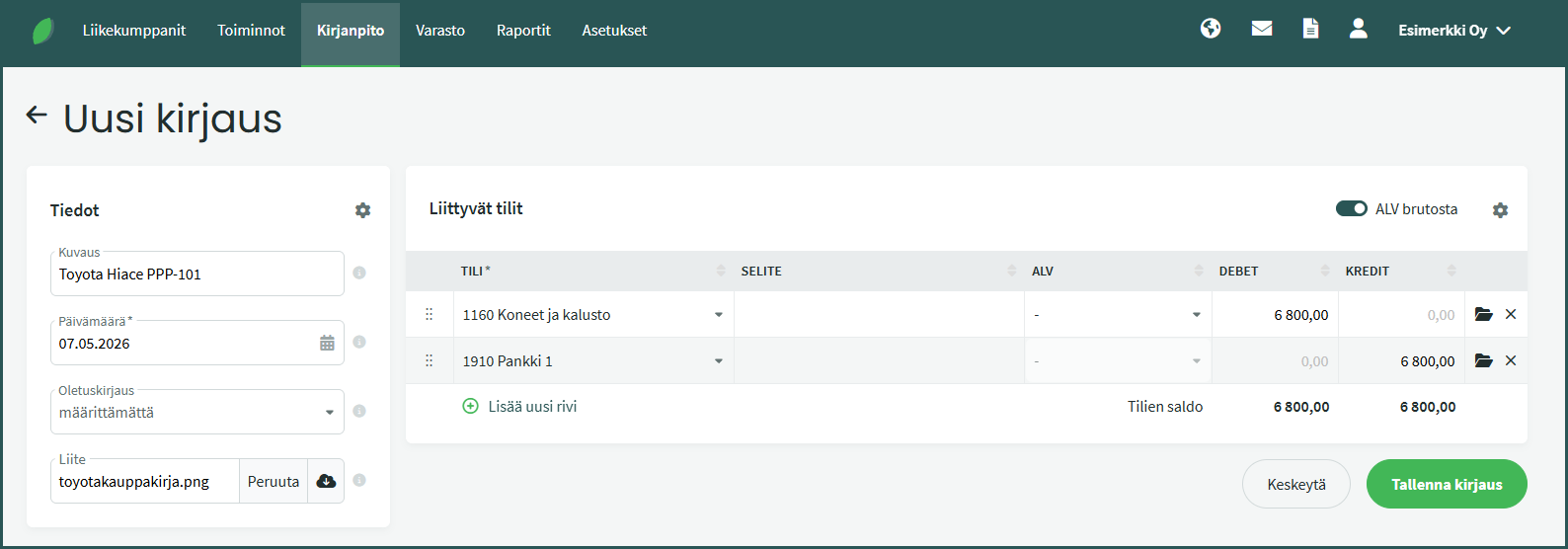
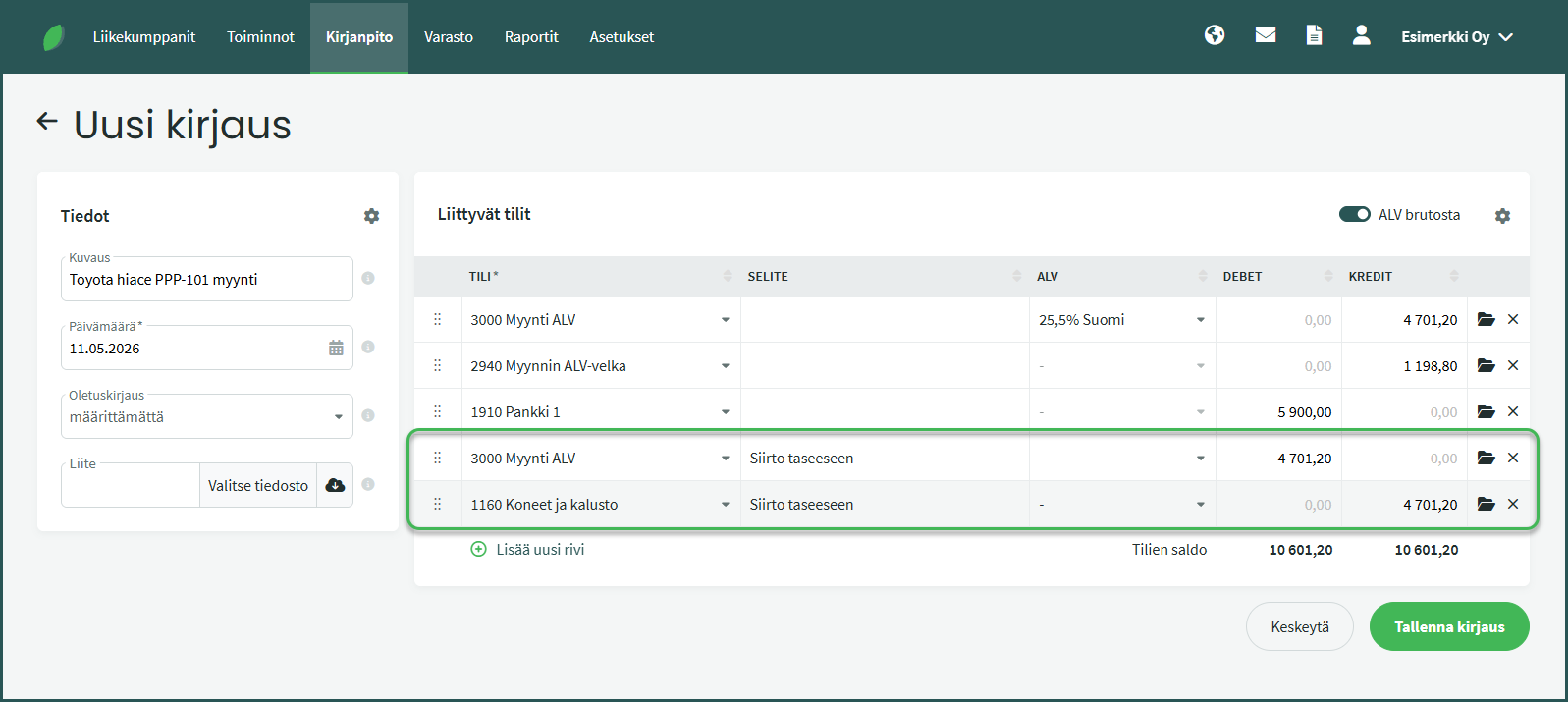
If you are selling a fixed asset and the entry includes VAT payable, the entry must be recorded through a profit and loss account. First record the sale, for example, to account 3000 Sales, and then transfer the fixed asset portion to the balance sheet.
OPTION 2 – Adding a fixed asset using degressive depreciation in the Assets view
If you prefer, you can add a fixed asset using degressive depreciation in the Assets view in the same way as a fixed asset using linear depreciation. After adding the fixed asset, change the annual depreciation rate to 0%, as depreciation will be recorded manually.
1. Add the fixed asset using degressive depreciation in the same way as a fixed asset using linear depreciation.
2. Open the added fixed asset under Accounting > Assets.
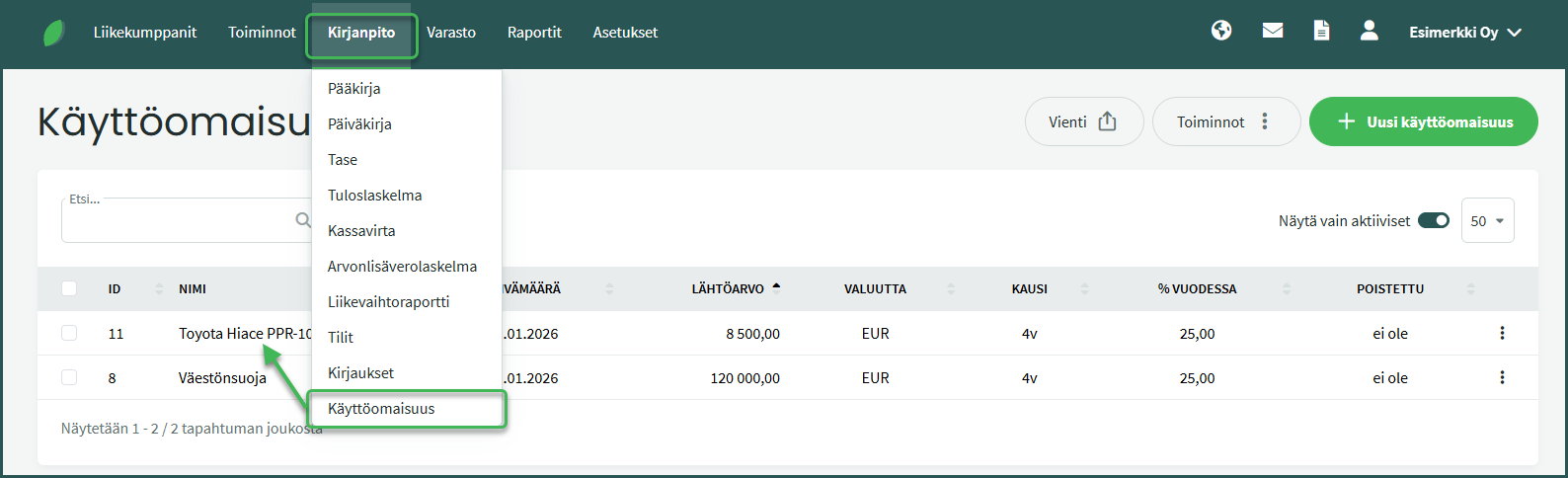
3. Under Actions on the right, select “Edit asset”.
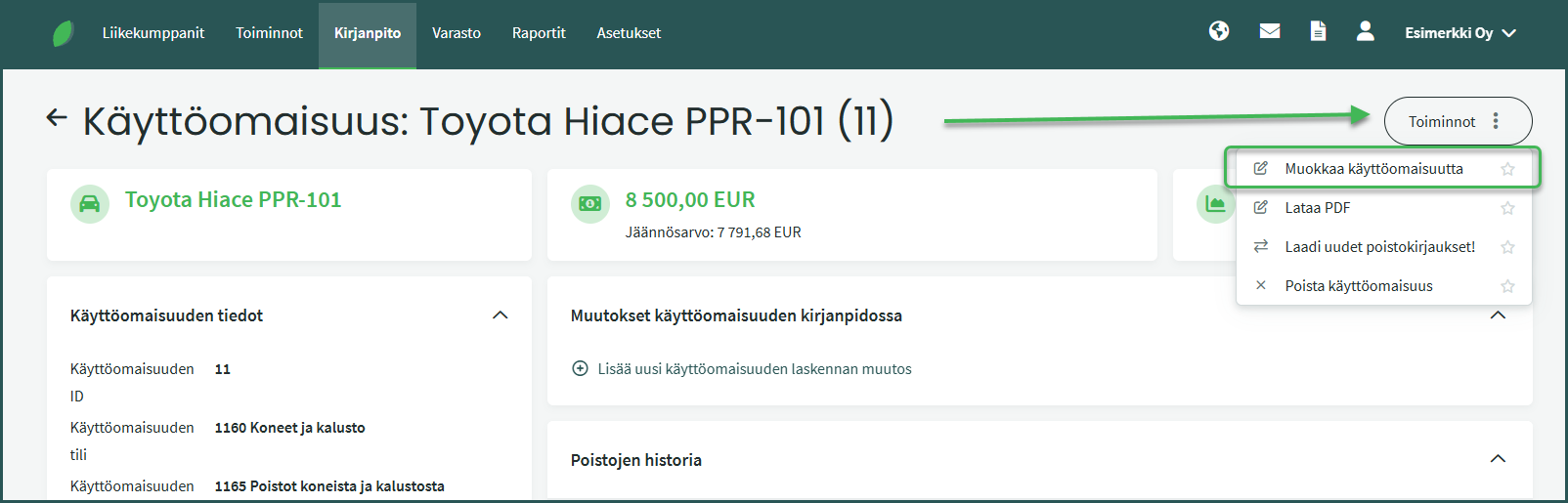
4. Change the annual depreciation rate to 0% and make sure that the fixed asset has an appropriate name.
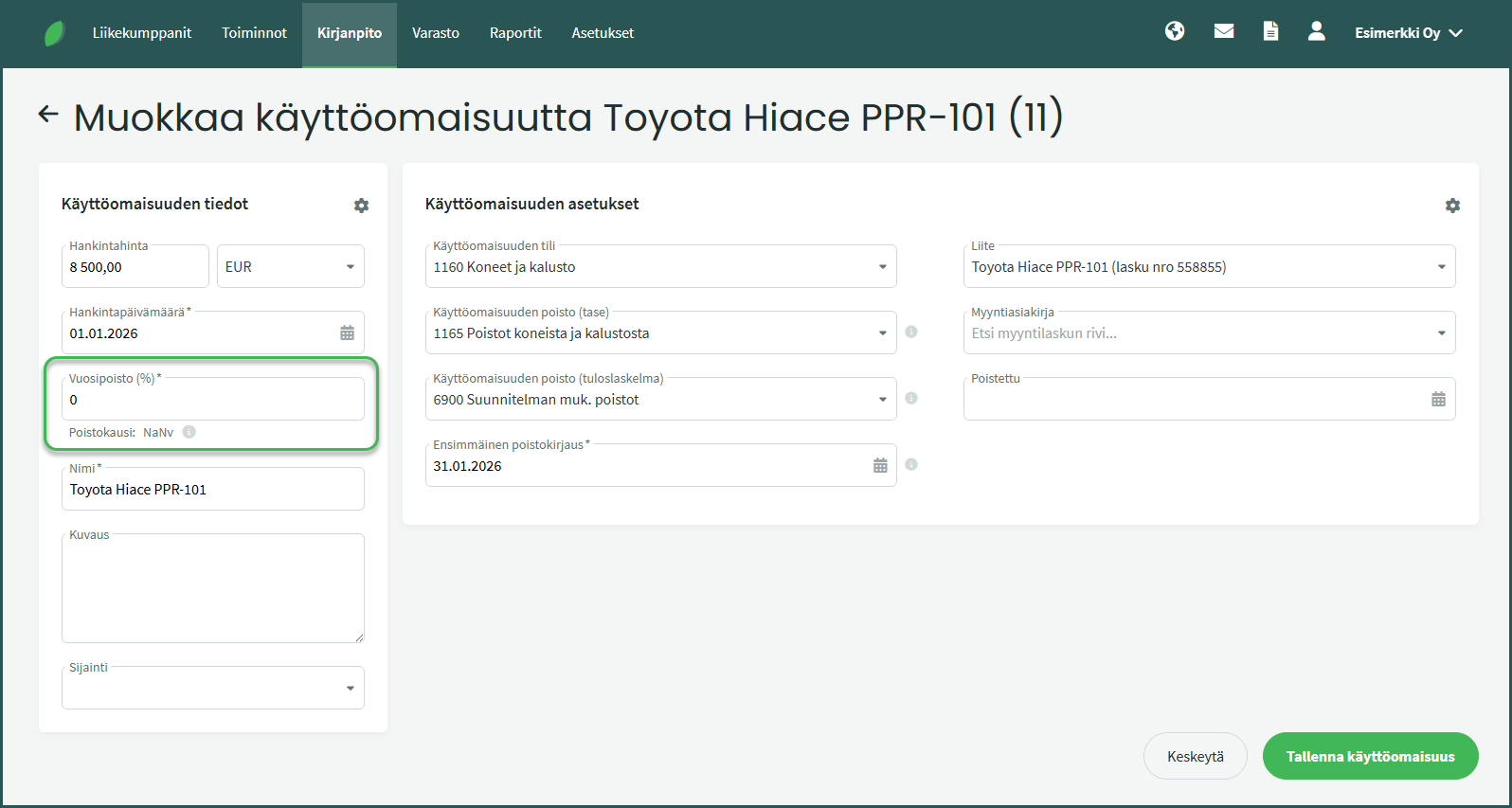
Because degressive depreciation is recorded in the Transactions view, you do not need to complete the other fixed asset settings. Save the fixed asset.
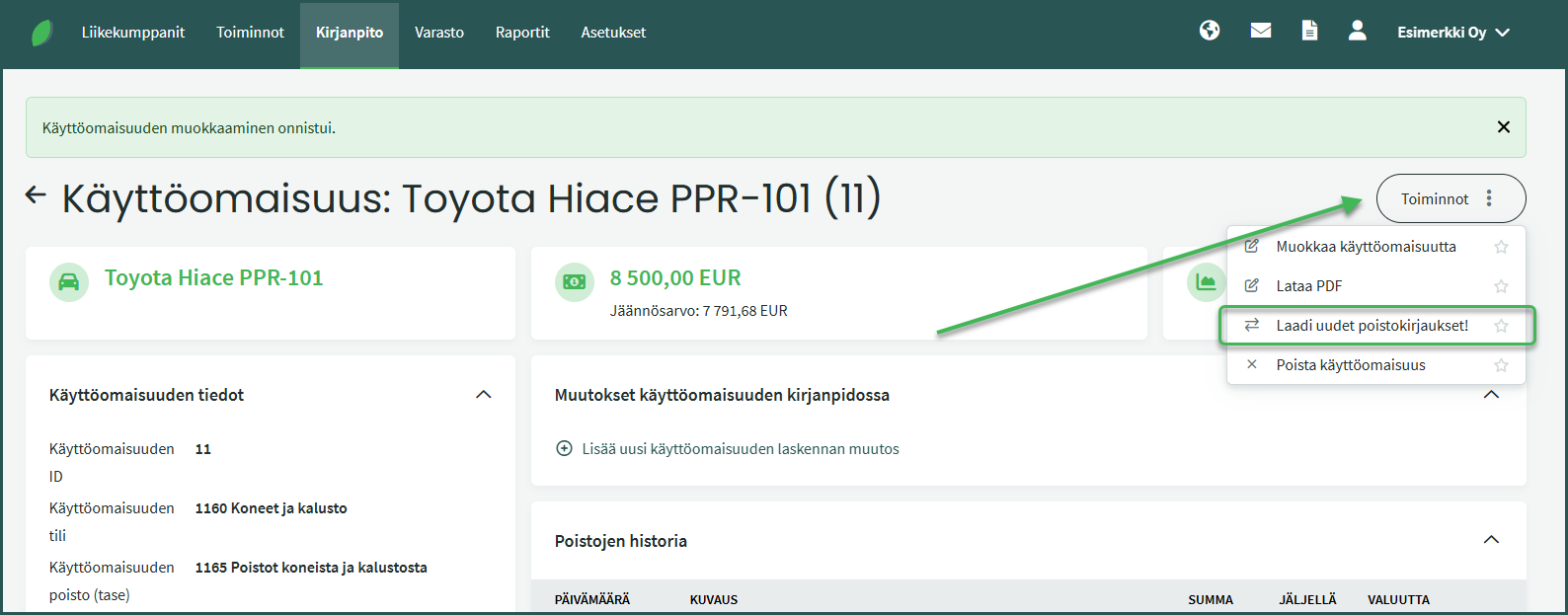
5. Under Actions on the right, select “Make new depreciation transactions”.
1. Degressive depreciation is recorded under Accounting > Transactions > New transaction
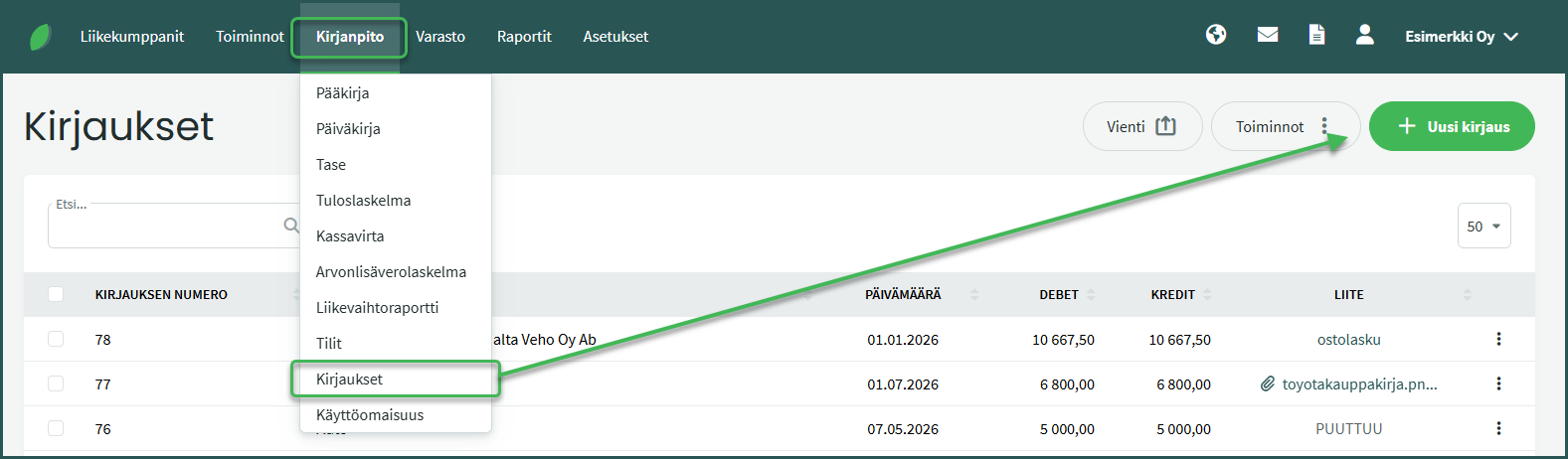
2. Specify the depreciation date for the transaction (depreciation can be recorded, for example, monthly or annually) and select the accounting accounts.
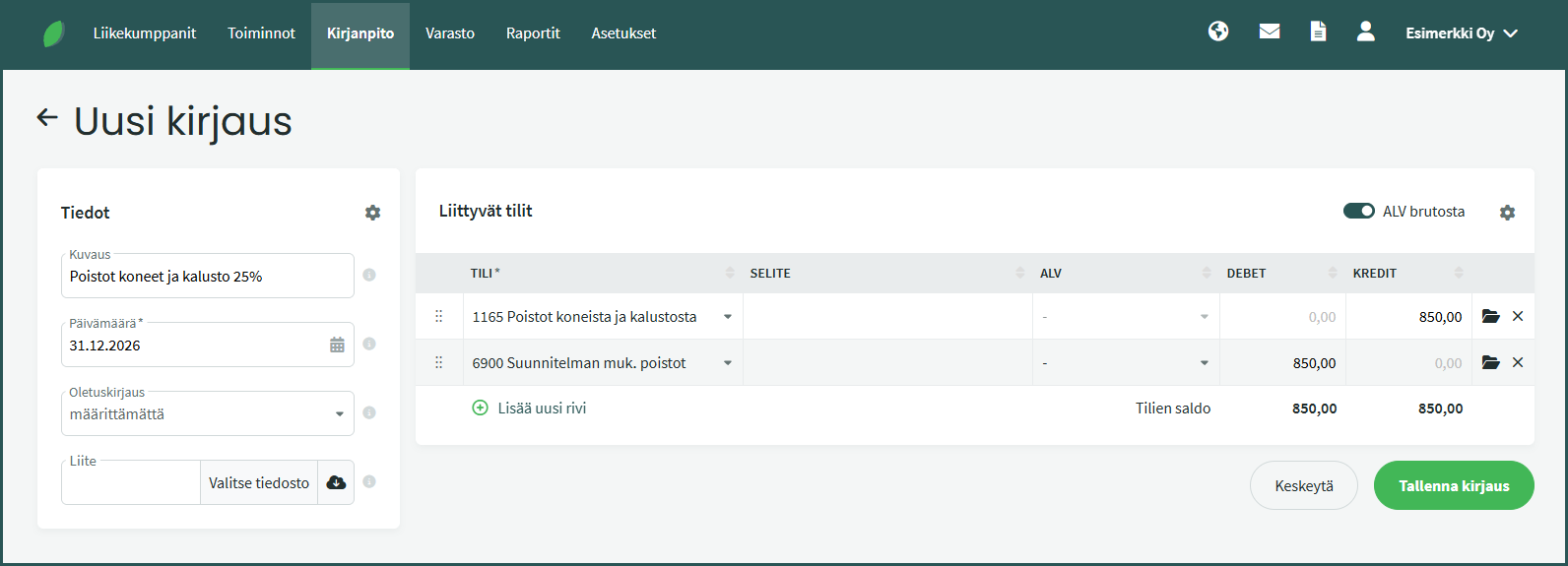
- Balance sheet depreciation account
- If you want to track depreciation in a separate account, you can use, for example, account “1165 Accumulated depreciation”.
- You can also record depreciation to the same account as the fixed asset.
- Profit and loss depreciation account
- For example, “6900 Depreciation”.
- You can also add separate depreciation accounts for different fixed asset groups if you want them to appear on separate rows in the profit and loss statement (for example, depreciation of buildings and depreciation of machinery). Instructions for adding accounts can be found here.
Leave A Comment?