
Why Can’t I Add a Product to a Sales Invoice?

This guide explains why a product cannot be added to a sales invoice and how to resolve the situation.

SimplBooks has two different product types: inventory products and service products.

  • An inventory product can only be added to a sales invoice if it is in stock. If the inventory balance is zero, the product cannot be added to the invoice.
  • Service products, on the other hand, can be added to sales invoices without any stock balance.
📢 Note! Using inventory tracking adds complexity to your bookkeeping, and we recommend using it only when it adds value to your business.

What is an inventory product?

Inventory products are linked to stock and appear in the balance sheet under the inventory account. When you add an inventory product to a sales invoice, the system checks whether the product is in stock. If the inventory balance is zero, the product cannot be added to the invoice.

You can add items to inventory either via a purchase invoice or by adding opening inventory.

You can read about adding a new product to inventory in this guide (step 2).

📢 Note! When purchasing goods into inventory and selling goods from inventory, the purchase invoice date must be earlier than the sales invoice date.

An exception applies when negative inventory balances have been allowed in the warehouse settings. You can check this at Settings > Environment Settings > Warehouse Settings > Inventory quantity can be negative.


What is a service product?

Service products are not linked to inventory and can be added to sales invoices freely. If you sell services and add products to the system, always add them as service products.

💡 Tip: If you do not want to use inventory tracking, you can also add physical products as service products.

Can I change a product that has already been added?

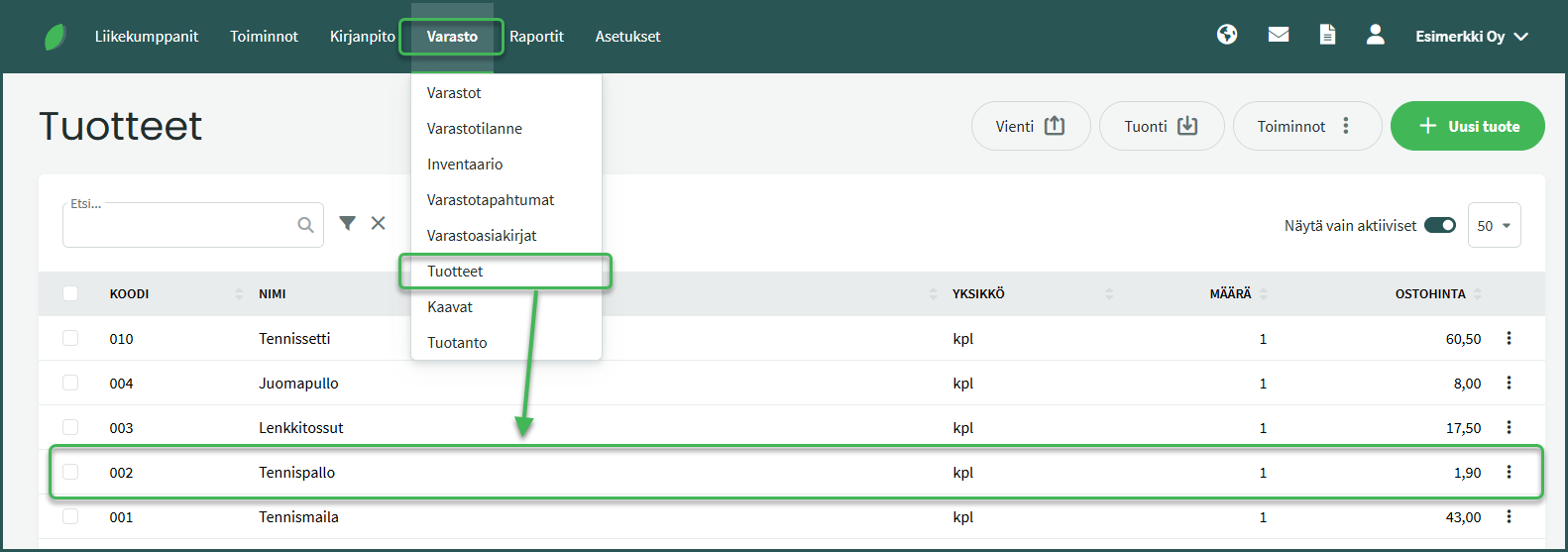
If you no longer want to use inventory tracking for an already-added product, you can edit it to become a non-inventory product at Inventory > Products.

Open the product by clicking on it.
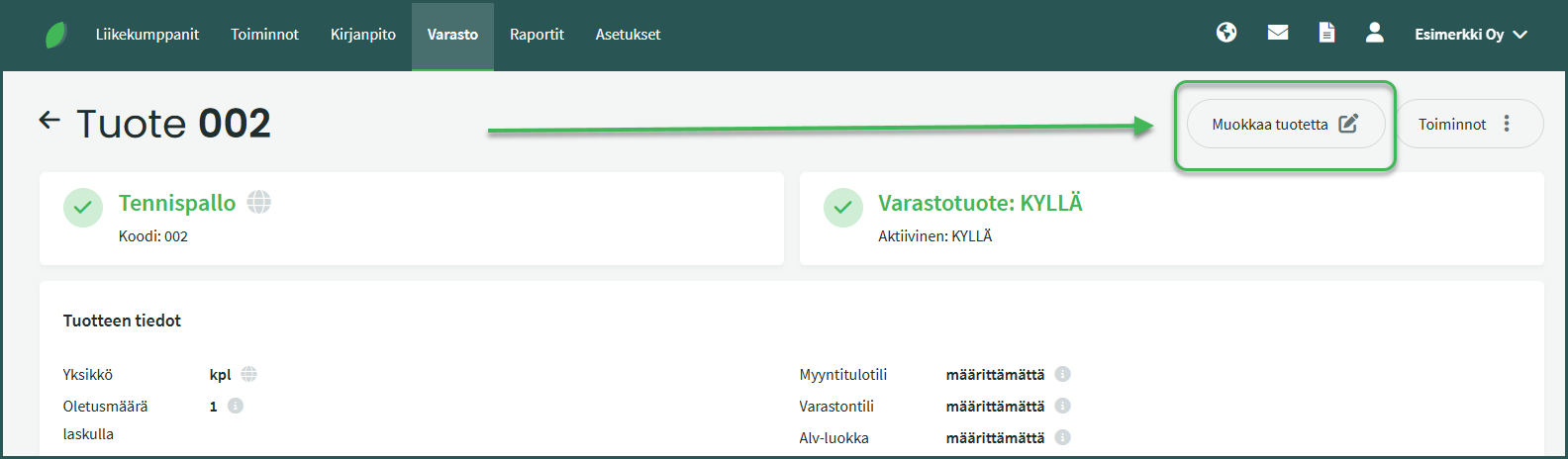
Select “Edit product” on the right side.
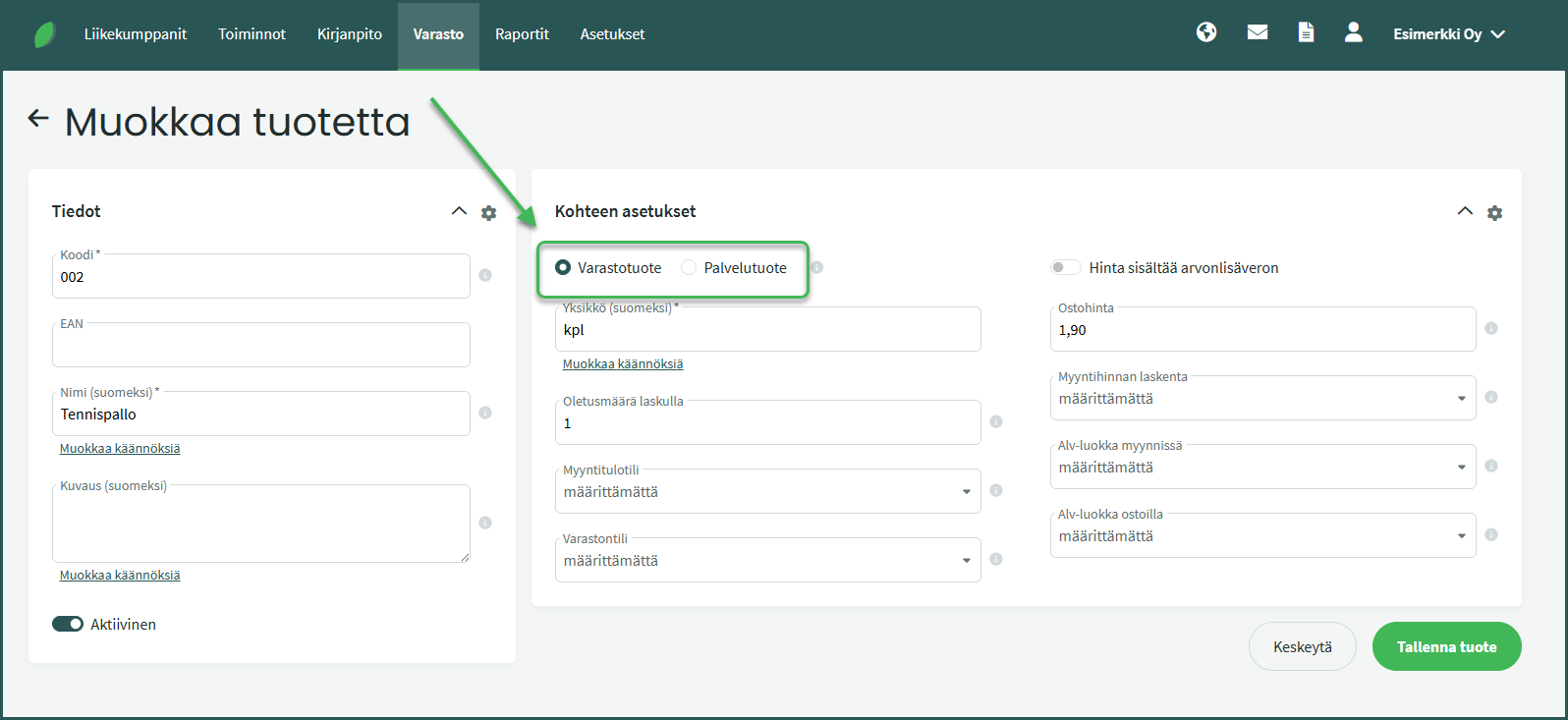
Change the product from an inventory product to a service product and save.

Was this article helpful?

Related Articles

Leave A Comment?