
NOTE! Closing entries appear in the program immediately after the financial period ends, but they do not prevent bookkeeping for the previous period. They are updated automatically if changes are made to the preceding period.
If closing entries are not generated automatically, the settings must be checked. Missing automatic closing entries can be noticed, for example, if the program displays an error message: The balance sheet is not in balance.
See HERE for answers to frequently asked questions about closing entries!
A separate closing entry is generated for every income statement account that has had entries during the financial period when the period changes. No closing entries are generated for balance sheet accounts.
- In the default chart of accounts, balance sheet accounts are in the range 1000–2999 and income statement accounts are in the range 3000–9999.
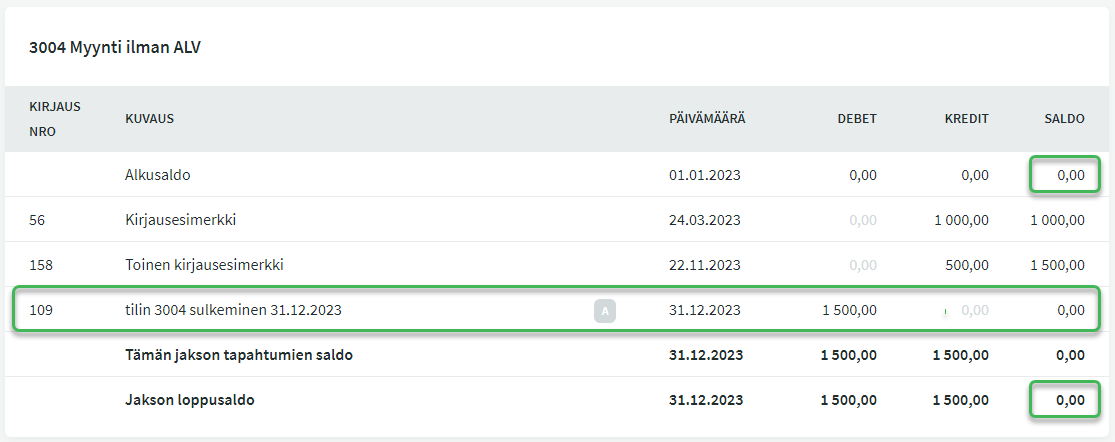
When a closing entry is correct:
- The closing entry appears in the general ledger of that account on the last day of the financial period.
- The account’s opening and closing balance for the financial period is zero.
How do you know if closing entries need to be corrected?
First of all, check that your environment settings are correct.
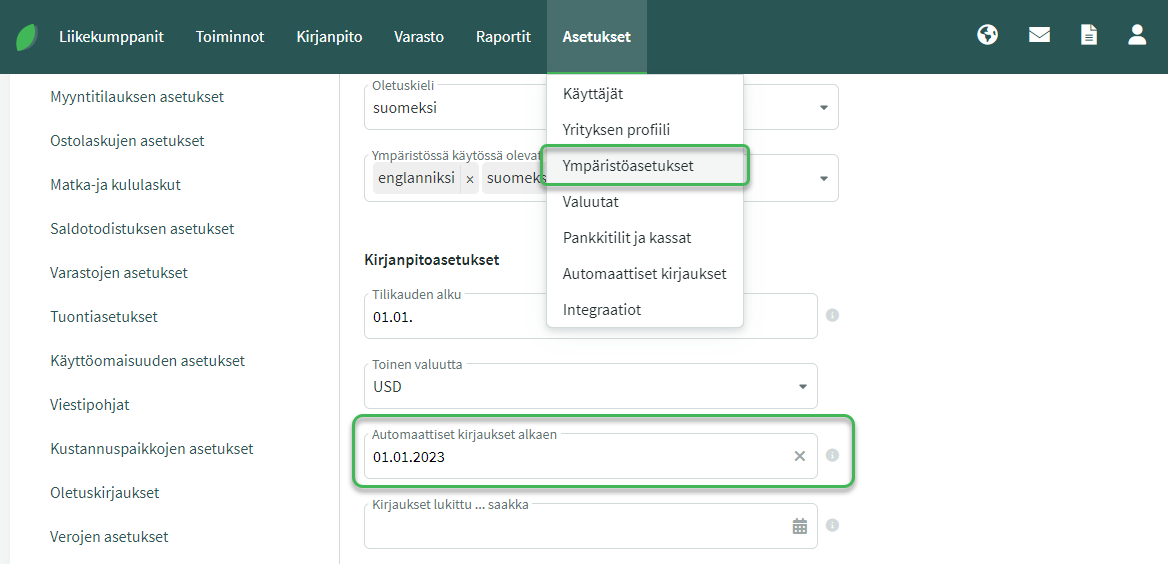
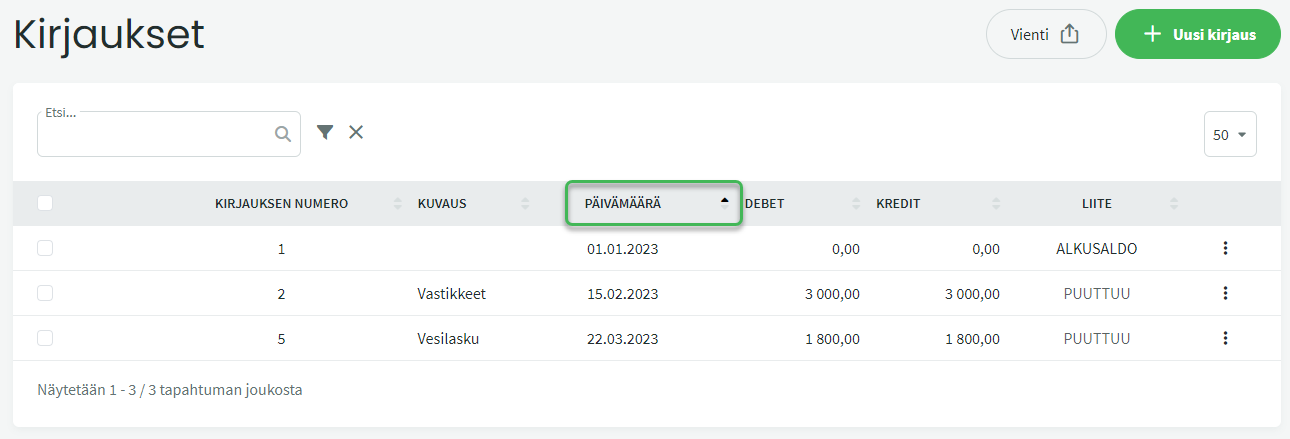
The start date for automatic entries must be the same as or earlier than the date of the first entry.
You can see the date of the first entry under Accounting > Entries. You can sort the entries by date.
Verify that accounts have been defined for automatic entries in the program settings. You can see the accounts for automatic entries under Settings > Automatic Entries:
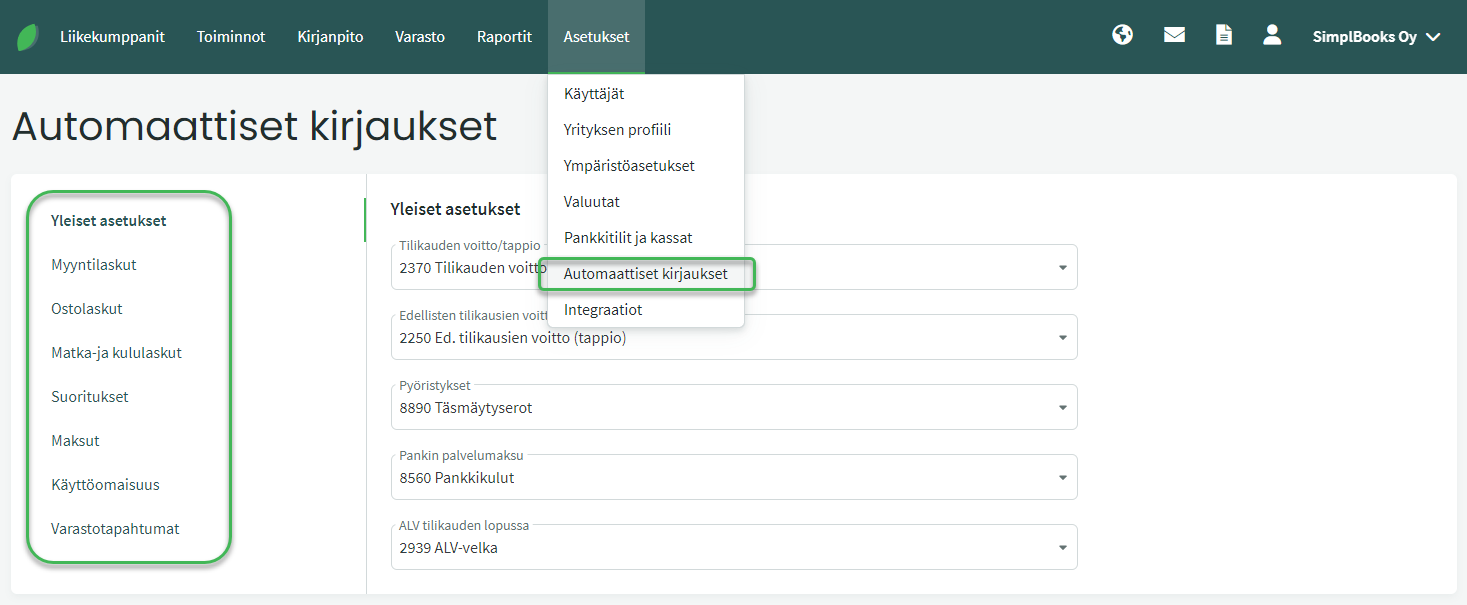
If any account for automatic entries is undefined, the program will not generate closing entries and other automatic entries correctly.
Once the settings have been checked and are correct, but the balance sheet still does not balance:
- The income statement can be a quick way to check the status of closing entries, but it does not work in every situation.
- A more reliable method is to check the situation directly from the general ledger.
CHECKING VIA THE INCOME STATEMENT
If there are problems with closing entries, a notification and information about the closing entries to be checked will most often appear above the income statement.
Open the income statement under Accounting > Income Statement. Select the financial period you want to check as the time range (usually “previous year”).
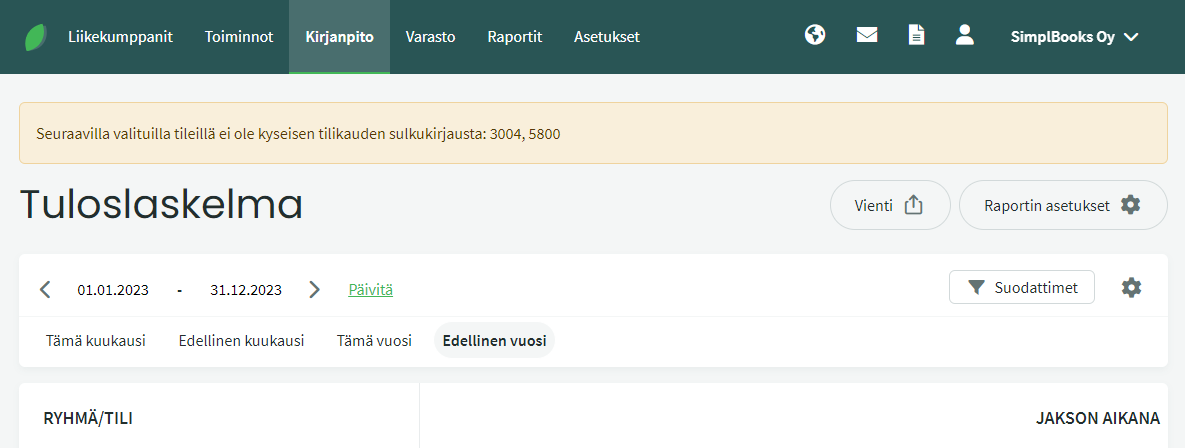
If no error message appears above the income statement, check that the opening balance for all rows is zero at the start of the period.
- If the opening balance for any row is other than zero, the previous financial period was not closed correctly.
- NOTE: The entire financial period must be selected when reviewing.
Opening balances are displayed on the income statement when the “Show start date” option is enabled in the view settings (gear icon).
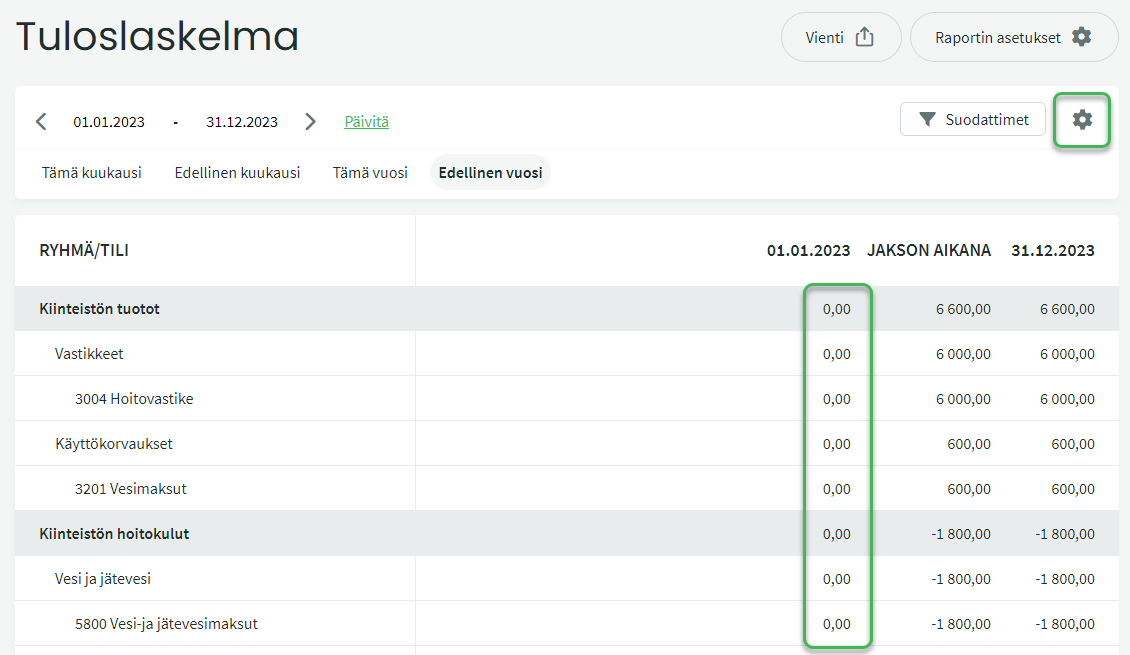
CHECKING VIA THE GENERAL LEDGER
The general ledger provides a definitive view of whether closing entries have been correctly generated for accounts. Open the general ledger under Accounting > General Ledger. Select the financial period you want (usually “previous year”).
- Go through all income statement accounts (account 3000 onwards).
- For each account, verify that a closing entry has been generated and that the account’s closing balance is zero.
- If a closing entry is missing entirely or has been generated incorrectly, the account’s closing balance will not be zero.
- If an income statement account has an opening balance other than zero, the closing entry error is in the previous financial period.
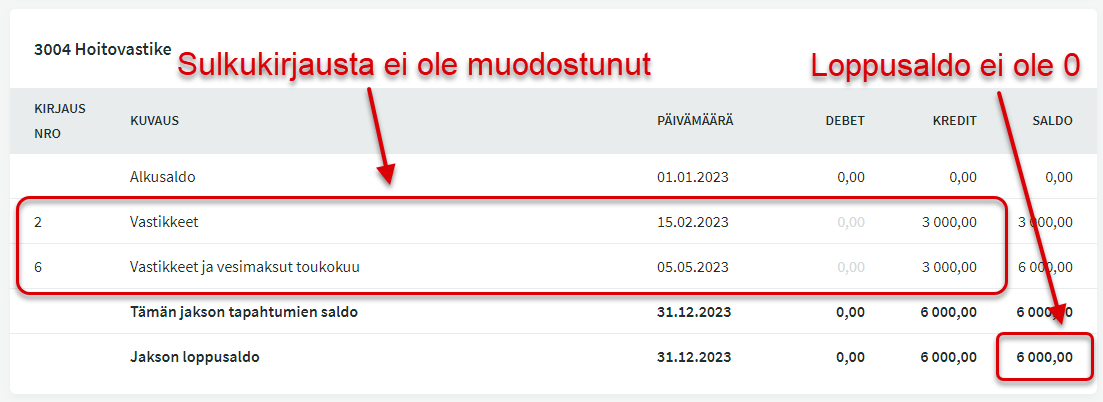
How are closing entries corrected?
If a closing entry has been generated but its amount is incorrect, open the closing entry and select “Recalculate closing entry” on the right.
If a closing entry has not been generated at all or has been deleted, open the general ledger for the account whose closing entry you want to correct. You can always access the general ledger under Accounting > General Ledger > select the desired financial period.
You can easily create a closing entry by clicking on any entry for that account and selecting “Open in new tab”.
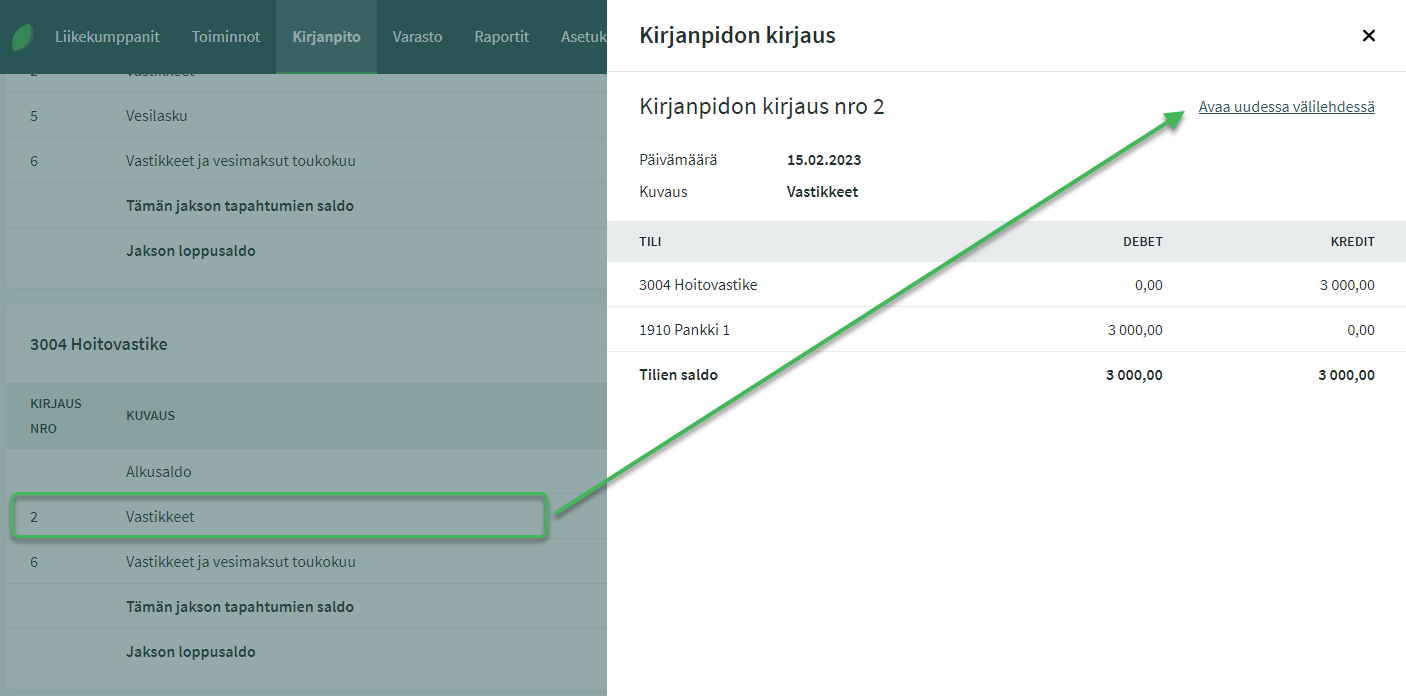
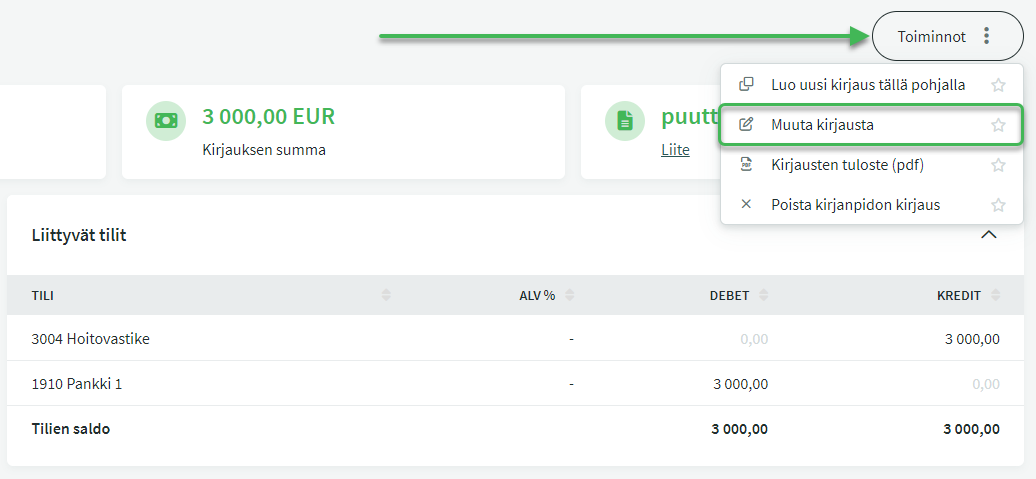
Then, under Actions on the right, select “Edit entry”, and click “Save entry” at the bottom of the page.
- You do not need to change anything in the entry — simply saving it causes the program to recalculate the closing entries.
Leave A Comment?