
This guide explains the structure of the balance sheet in SimplBooks, how to reconcile the balance sheet (find errors), and how to modify balance sheet settings.
Balance sheet structure in SimplBooks
The SimplBooks balance sheet follows the official Finnish balance sheet format. The balance sheet consists of two parts:
- Assets
- Fixed assets (long-term assets, e.g., buildings, land)
- Current assets (short-term assets, e.g., cash in bank accounts, trade receivables)
- Liabilities and Equity
- Equity (e.g., share capital, invested unrestricted equity reserves)
- Accumulated appropriations
- Mandatory provisions
- Liabilities (e.g., bank loans, VAT liability)
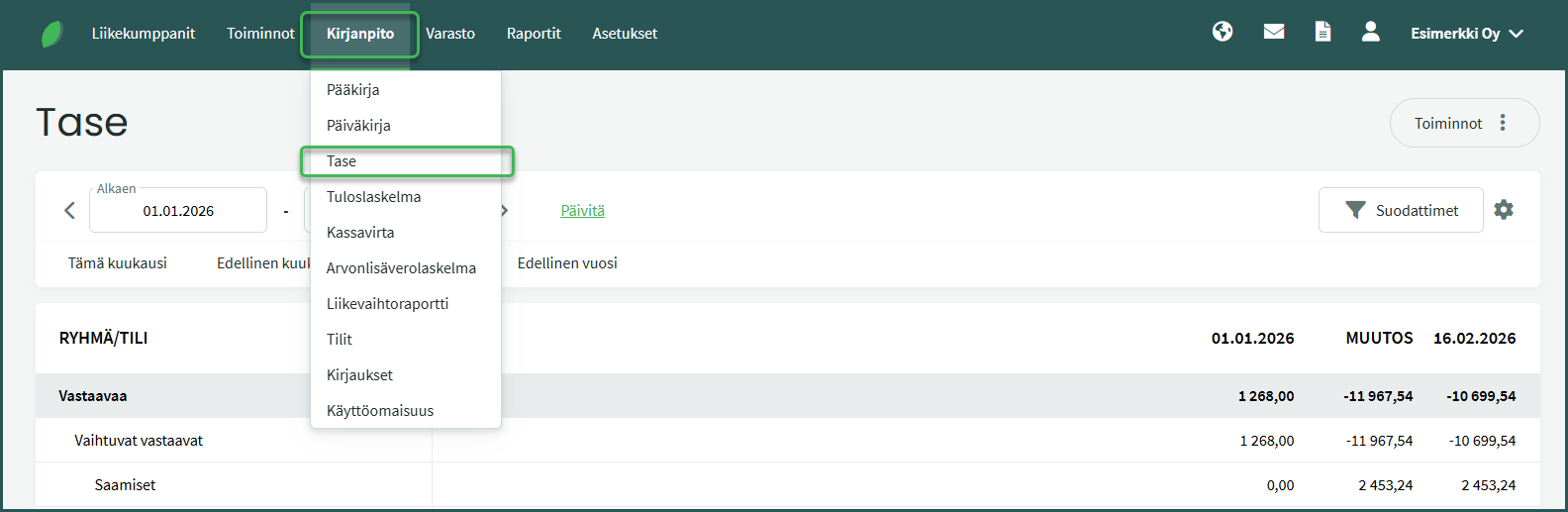
1. You can find the balance sheet under Accounting > Balance Sheet
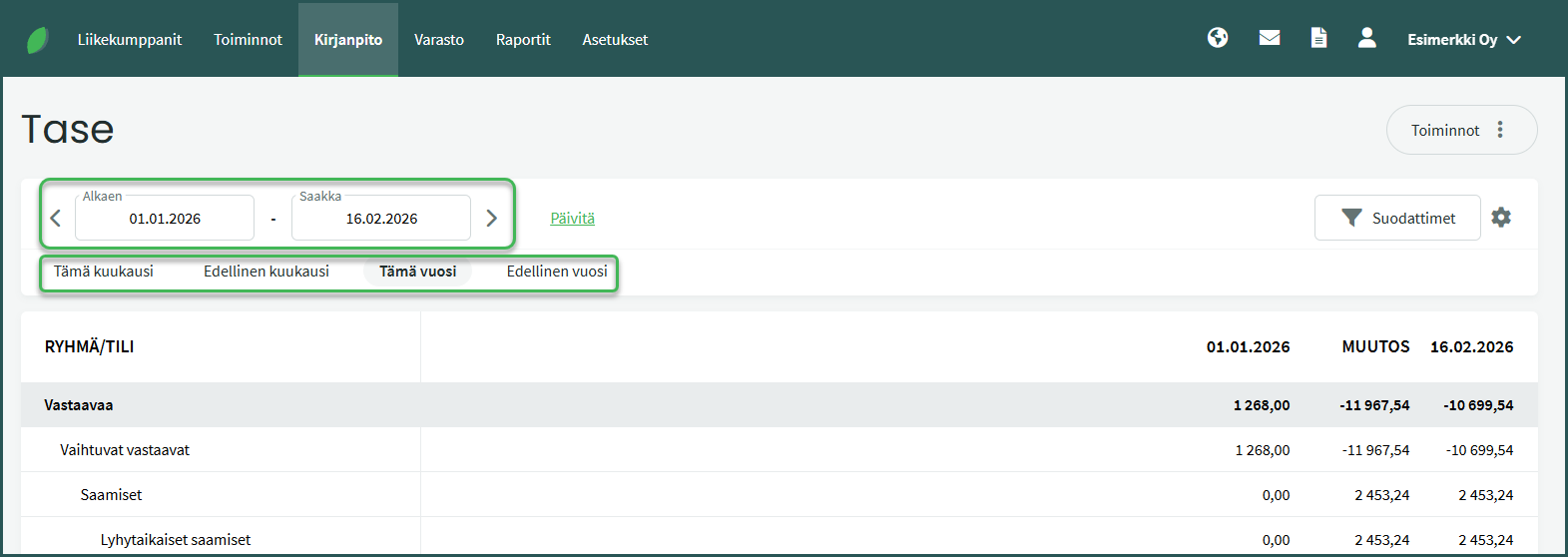
2. Select the period you want to review
3. The program will notify you if the balance sheet is out of balance.
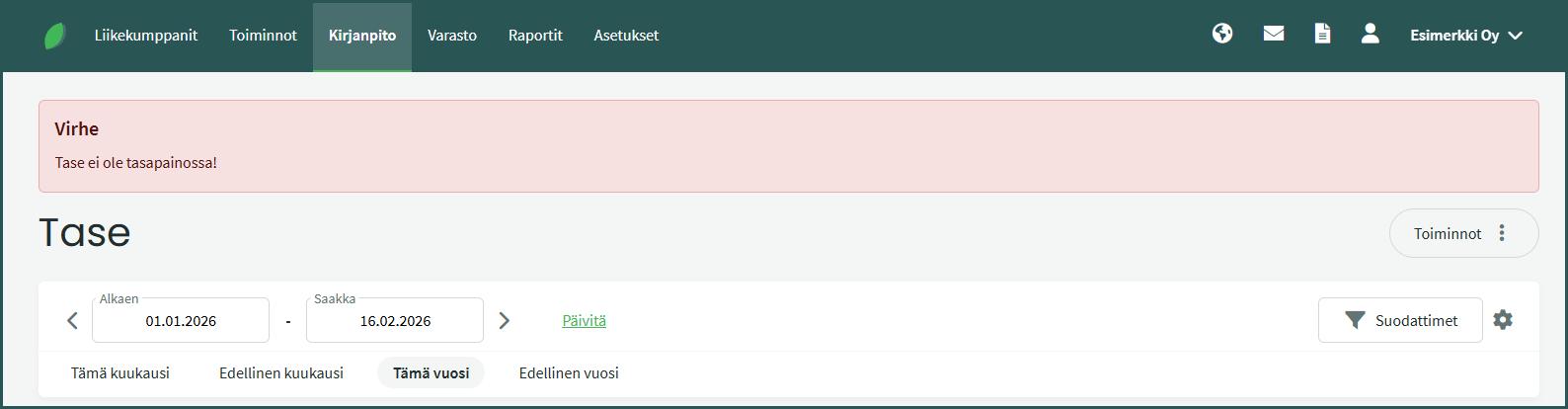
The balance sheet must be in balance, meaning the totals on the assets side and the liabilities and equity side must be equal. If this is not the case, there is an error in the bookkeeping that must be identified and corrected.
One way to identify the source of the error is to browse backward through the period until you reach the date when the balance sheet first becomes unbalanced, and then review the entries for that date.
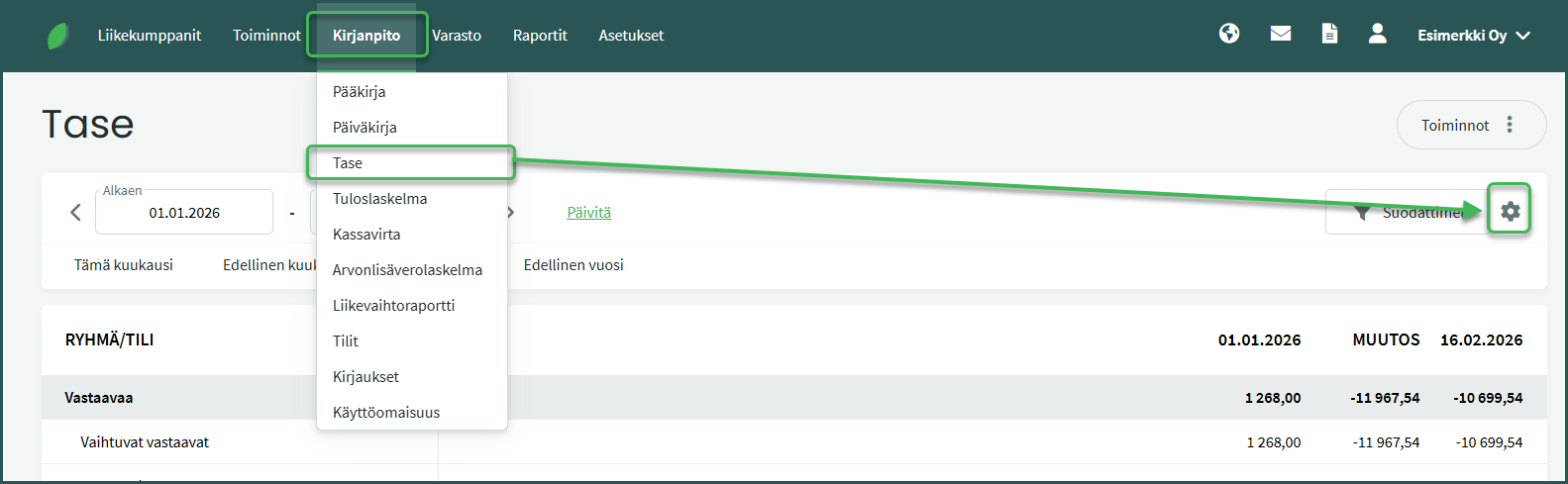
1. You can edit the balance sheet settings by going to Accounting > Balance Sheet > Actions > View report settings
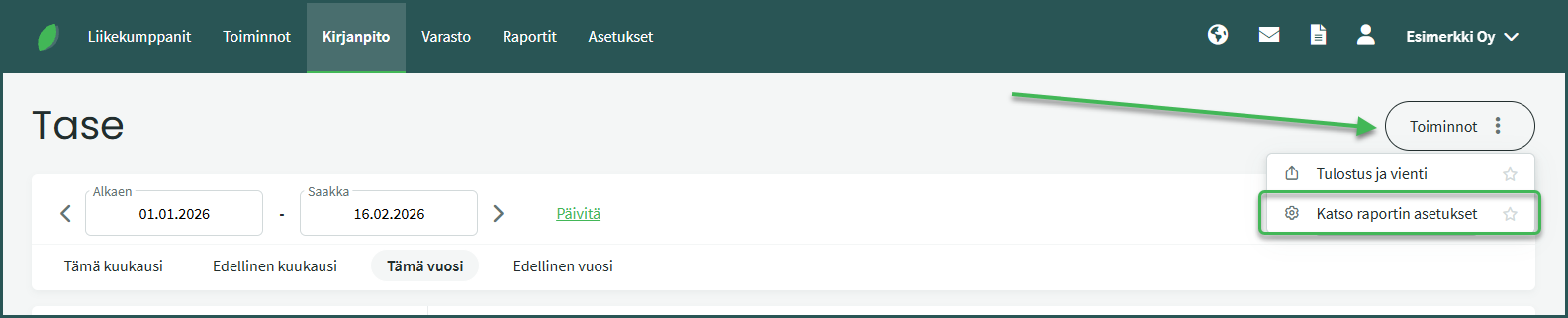
2. In the view that opens, you can define which accounting accounts appear on the report, set headings, and also restore the report’s default settings.
3. The accounts shown on the balance sheet are defined under Accounting > Balance Sheet > Actions > View report settings
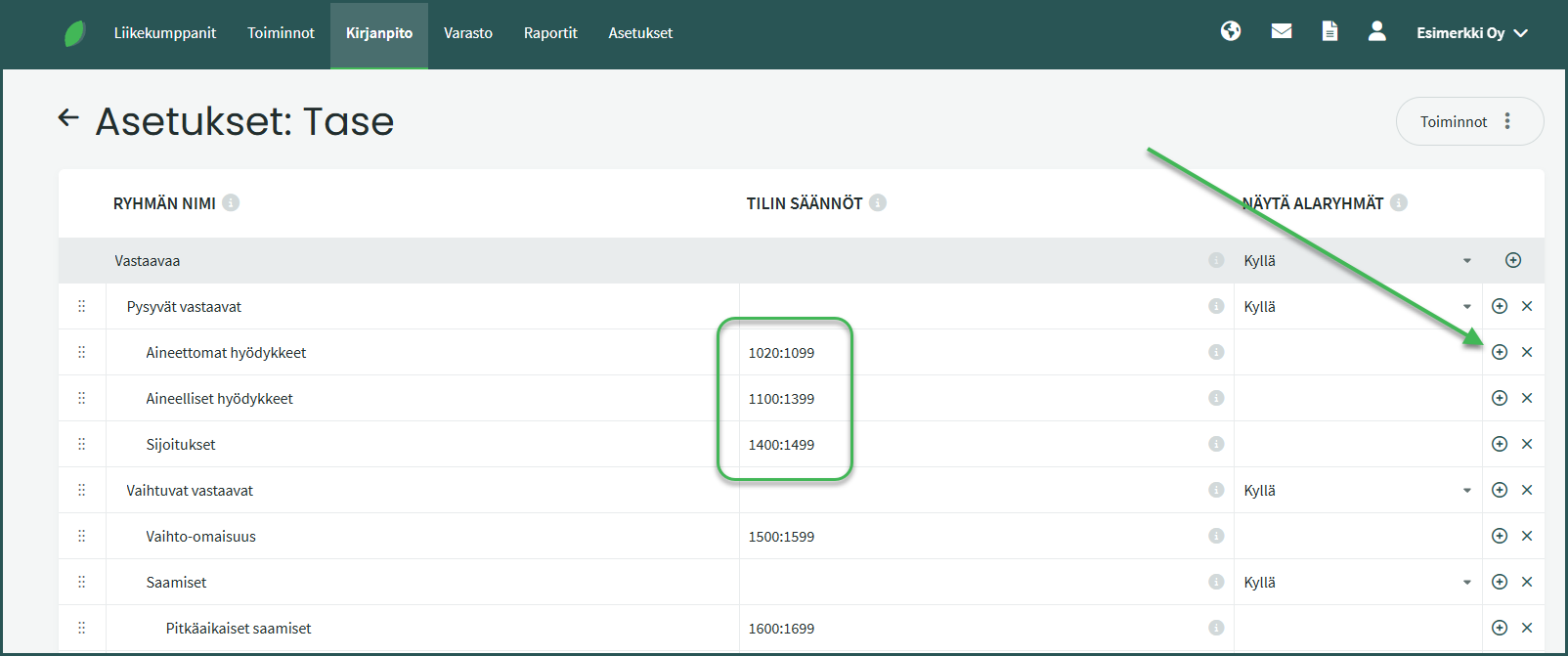
Verify that the account number you added appears in the correct location. For example, “1020:1099” means that account numbers within that range appear at that point in the report.
From the end of each row, you can add new rows and sub-rows.
1. You can view the accounts for automatic entries under Settings > Automatic entries
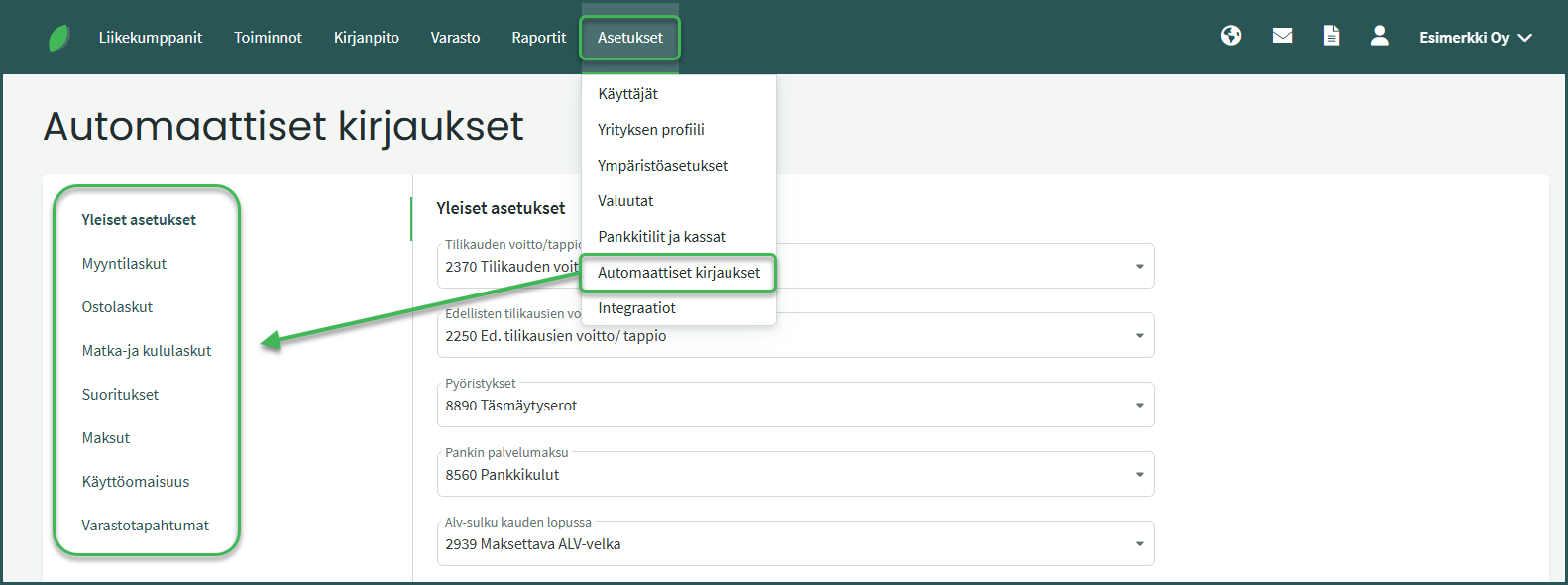
Verify that accounts have been assigned to all automatic entries in the program settings. If any account for automatic entries is left undefined, the program will not process closing entries and other automatic entries correctly.
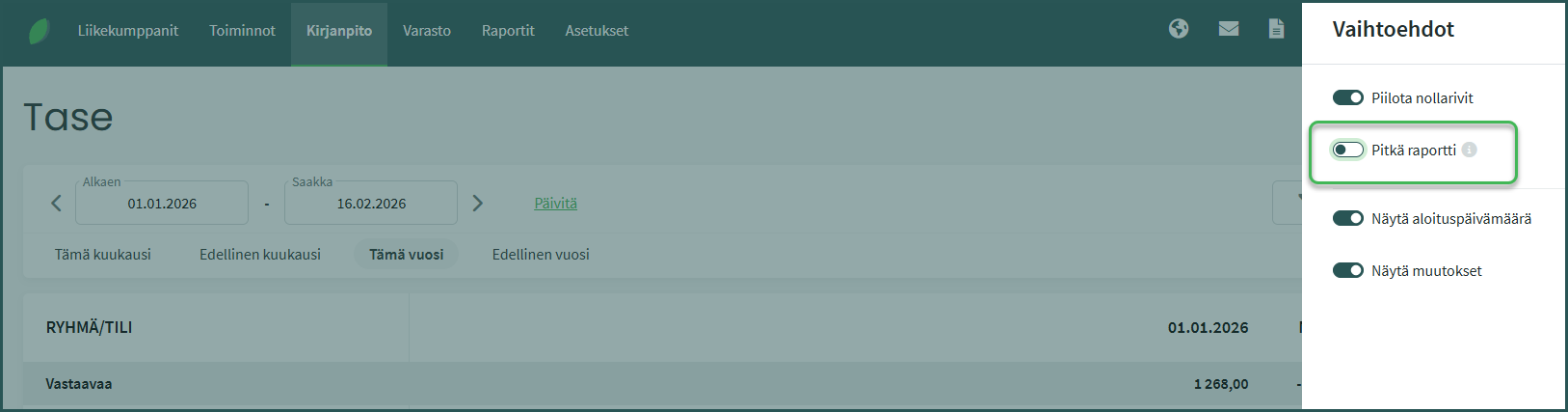
1. You can print a condensed balance sheet, for example for financial statements, by clicking the gear icon under Accounting > Balance Sheet > gear icon
2. Uncheck the “Full report” option
3. From the Filters section, you can also add a comparison period to the report.
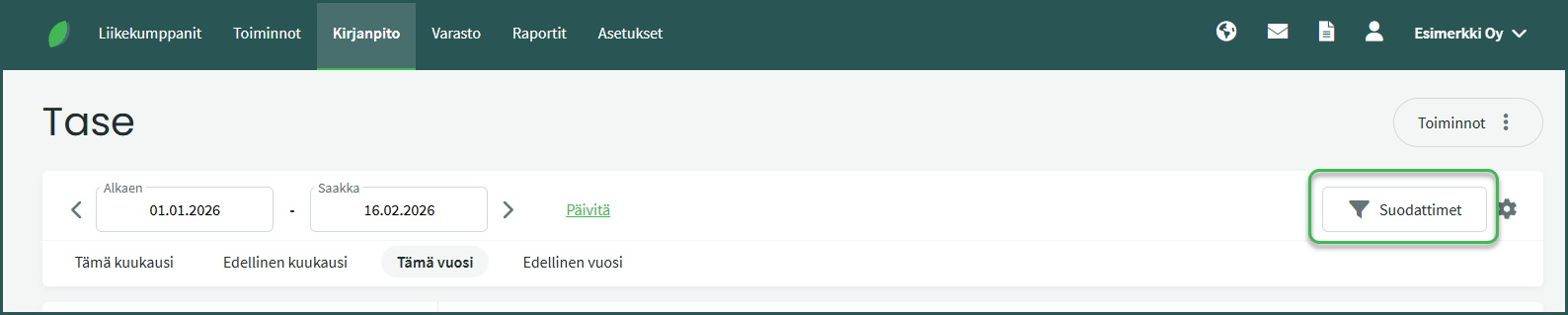
If you want, for example, a report showing one column for the most recent year and one column for the previous year, select “Compare to the same period in the previous year” from the filters, and under the gear icon uncheck “Show start date” and “Show changes“.
Leave A Comment?