
This guide explains how to process bank transactions imported into SimplBooks.
What are the benefits of bank connections?
Bank connections make bookkeeping significantly faster and easier. You can see your bank account balance directly on the SimplBooks dashboard, and bank transactions are automatically imported into the software once a day. In addition, payments and receipts are automatically matched with invoices when the details match, so there is no need to create financial transactions manually.
How long does it take to activate a bank connection?
You can activate a bank connection in just a few minutes using your online banking credentials. Bank transaction imports and the bank account balance on the dashboard will be available immediately.
Can I pay invoices directly from SimplBooks?
You can also enable the payment feature, which allows you to pay invoices directly from SimplBooks. Activating the payment connection usually takes a few days.
How often are bank transactions imported?
Once the bank connection has been activated, bank transactions from business days are imported into SimplBooks once a day.
What happens if SimplBooks cannot automatically recognize a bank transaction?
SimplBooks automatically processes invoice-related transactions, primarily using reference numbers. If the software cannot automatically match a bank transaction with an invoice, the transaction will remain pending. You can see transactions requiring attention on the SimplBooks dashboard.
Can I process bank transactions without a bank connection?
Yes. If you do not use a bank connection, you can import bank statements into SimplBooks as CSV or XML files. Bank transactions are processed in the same way regardless of whether they are imported automatically through a bank connection or manually from a file.
Additional guides:
If no matching invoice is found or the details do not match (for example, if the name differs from the one saved in SimplBooks), the transaction will be marked as Needs attention.
These transactions can either be manually matched with an invoice or processed as financial transactions.
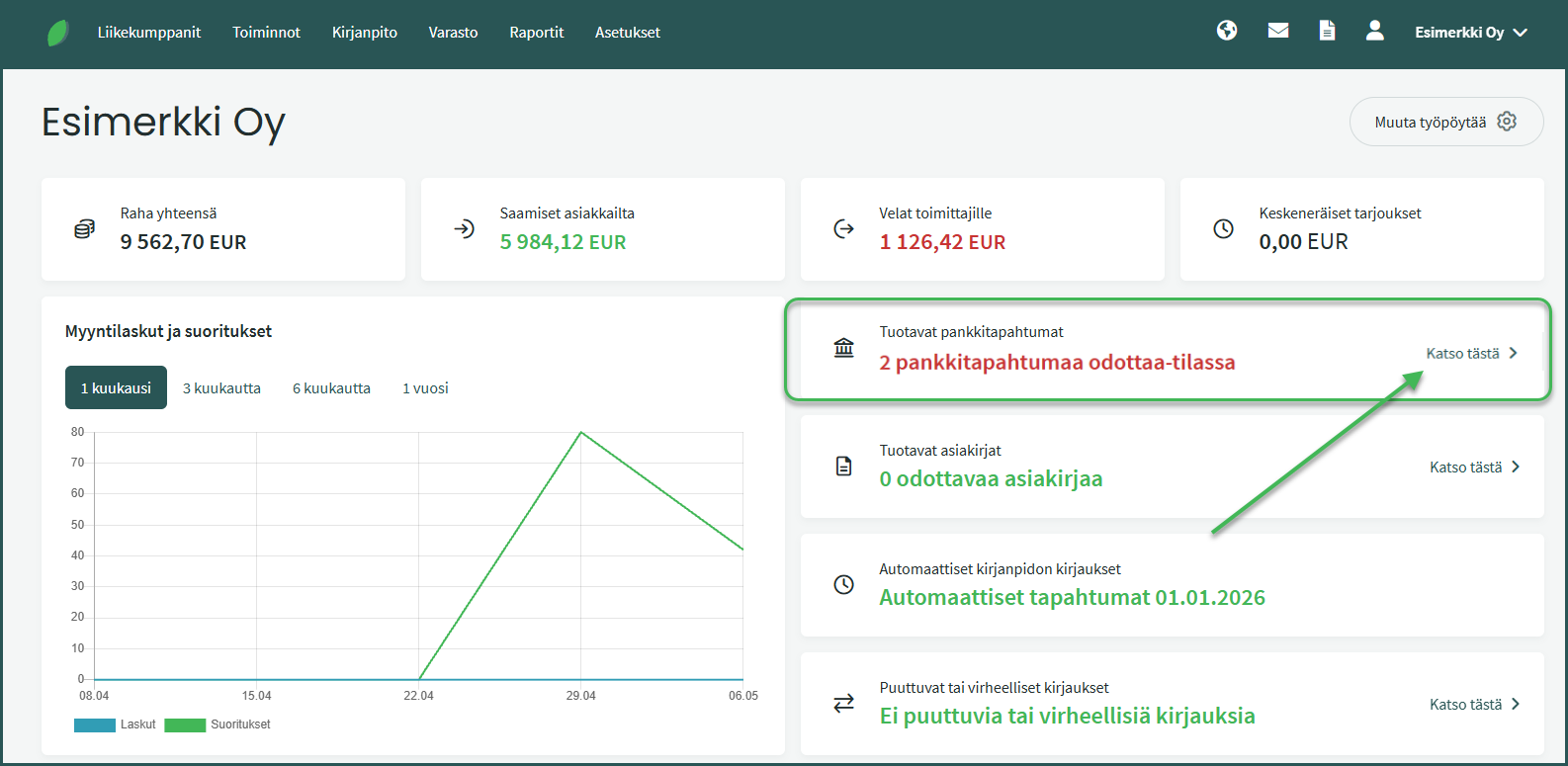
1. If there are pending bank transactions, you will see a notification on the SimplBooks dashboard. Click View here to process the transactions.
2. Transactions must be saved as payments, receipts or financial transactions. If you use the salary module, you can also process transactions as salary payments or salary taxes.
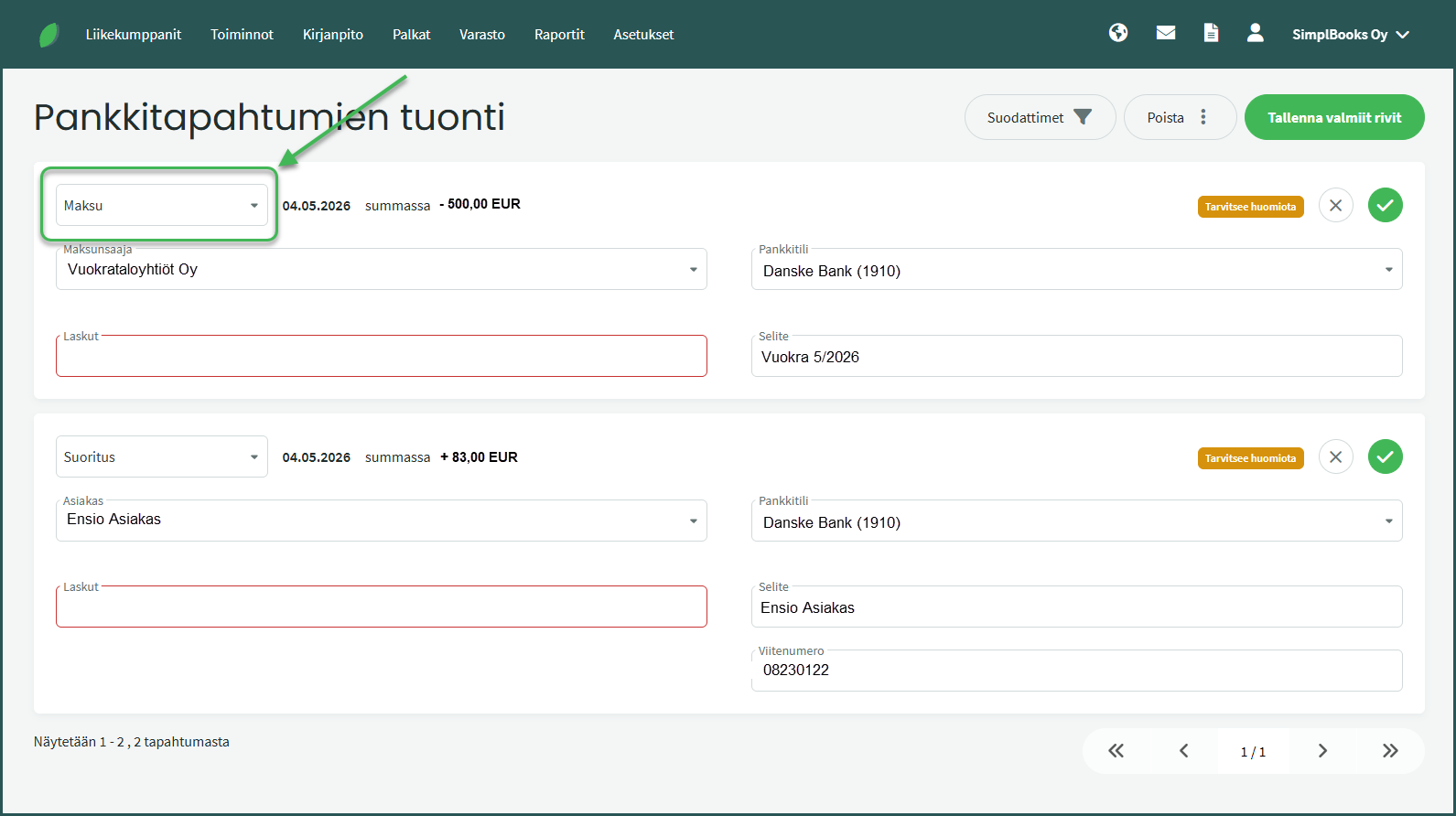
- Payment – Always linked to an existing purchase invoice, travel report or expense report.
- Receipt – Always linked to a sales invoice.
- Salary payment – Always linked to an employee and an unpaid salary.
- Salary taxes – Always linked to salary tax liabilities.
1. If SimplBooks recognizes the customer or supplier but cannot automatically identify the correct invoice, click the Invoices field to see all open invoices for that customer or supplier.

2. Select the invoice related to the transaction. If the invoice has not yet been created in SimplBooks, you can create a new one.
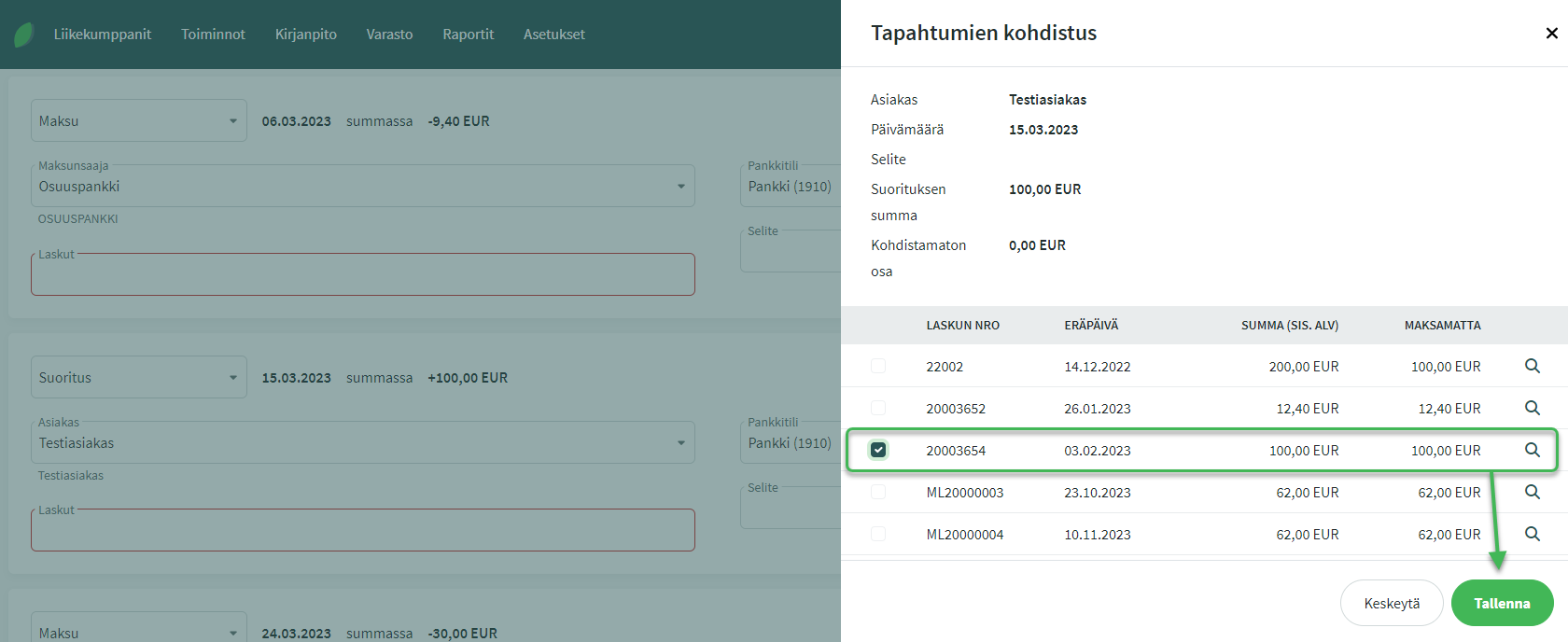
3. Once the invoice has been selected, the transaction status changes to All OK, and you can save it by clicking the green button.
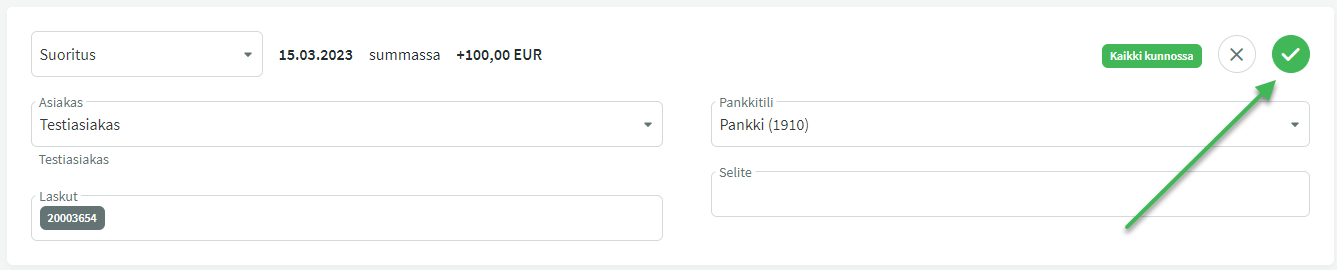
📢 Note! You can also save a payment or receipt with the status Needs attention. In this case, it will remain pending under Operations > Receipts or Payments.
Pending receipts and payments are displayed in the customer’s or supplier’s details and in the sales or purchase ledger. Pending receipts must still be matched with invoices.
Read more about managing receipts and payments here.
⚠️ Important
A transaction is marked as Invalid if SimplBooks cannot find a related customer, supplier or invoice. In this case, you have two options:
1. If the related invoice exists in SimplBooks, first select the customer or supplier and then the correct invoice. Once the details have been selected, the transaction status changes to All OK, and you can save the transaction.
2. If the related invoice does not exist in SimplBooks and you do not want to create one, process the transaction as a financial transaction.
If there is no related customer, supplier or invoice in SimplBooks (for example, when recording a purchase made with a cash receipt), you can process the transaction as a financial transaction.
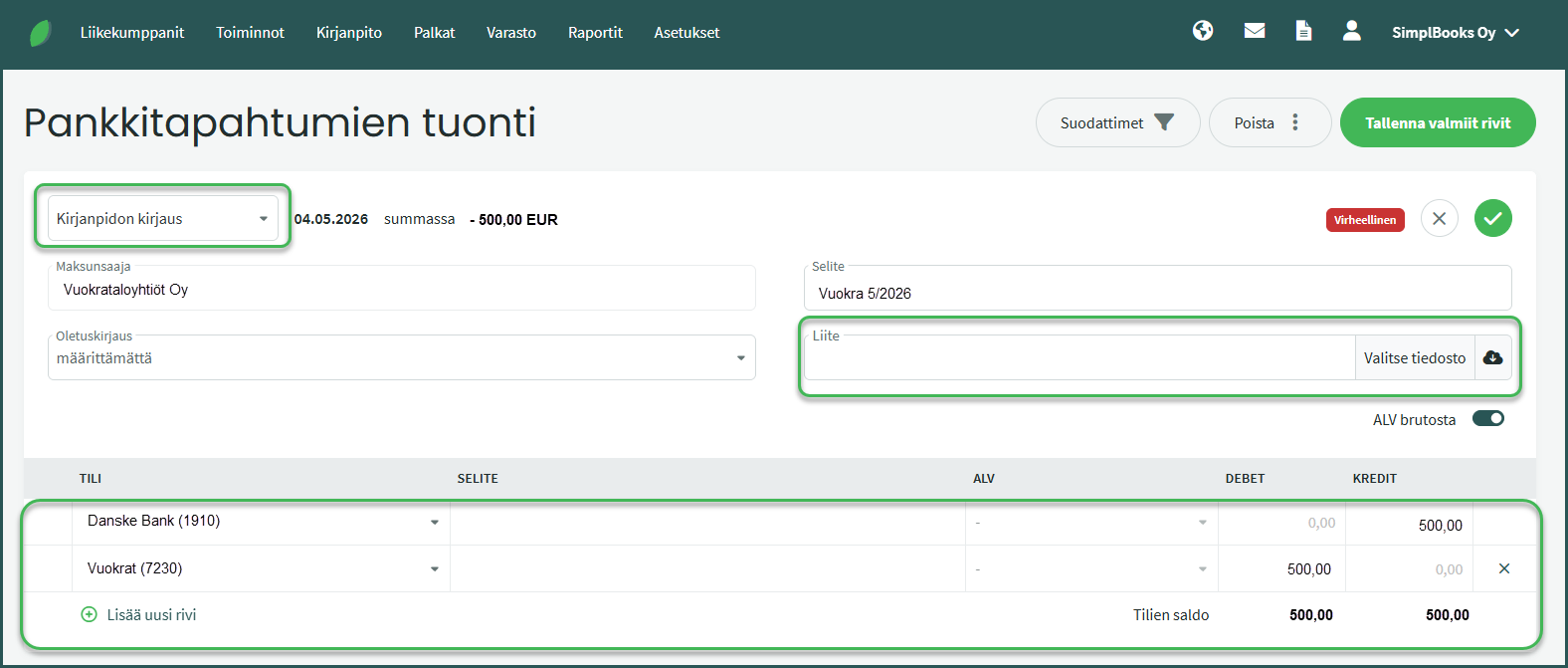
Select Financial transaction from the drop-down menu in the upper-left corner and enter the required accounting details. You can also use saved predefined transactions and attach a file to the financial transaction if needed.
Once all the required details have been entered, the transaction status changes to All OK, and you can save it by clicking the green button.
Leave A Comment?