
This guide explains how to modify the permissions of existing user groups and how to add new user groups.
Yes. In SimplBooks, users can be added to different user groups, and each group can be assigned its own permissions. An administrator can, for example, specify that the purchasing department can create purchase invoices but cannot edit accounting entries.
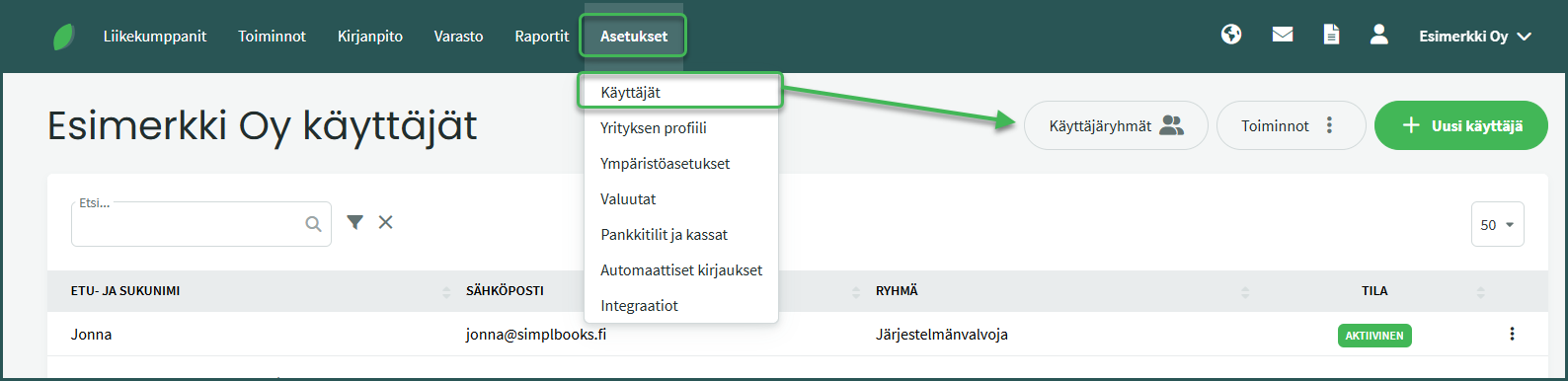
1. User groups are managed under Settings > Users > User Groups.
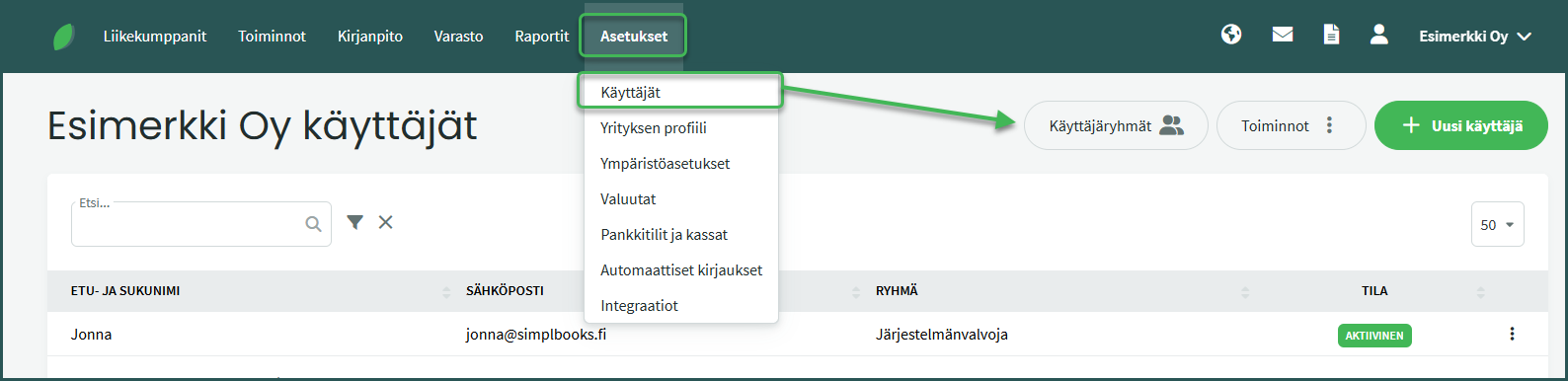
2. Select the desired user group by clicking on it.
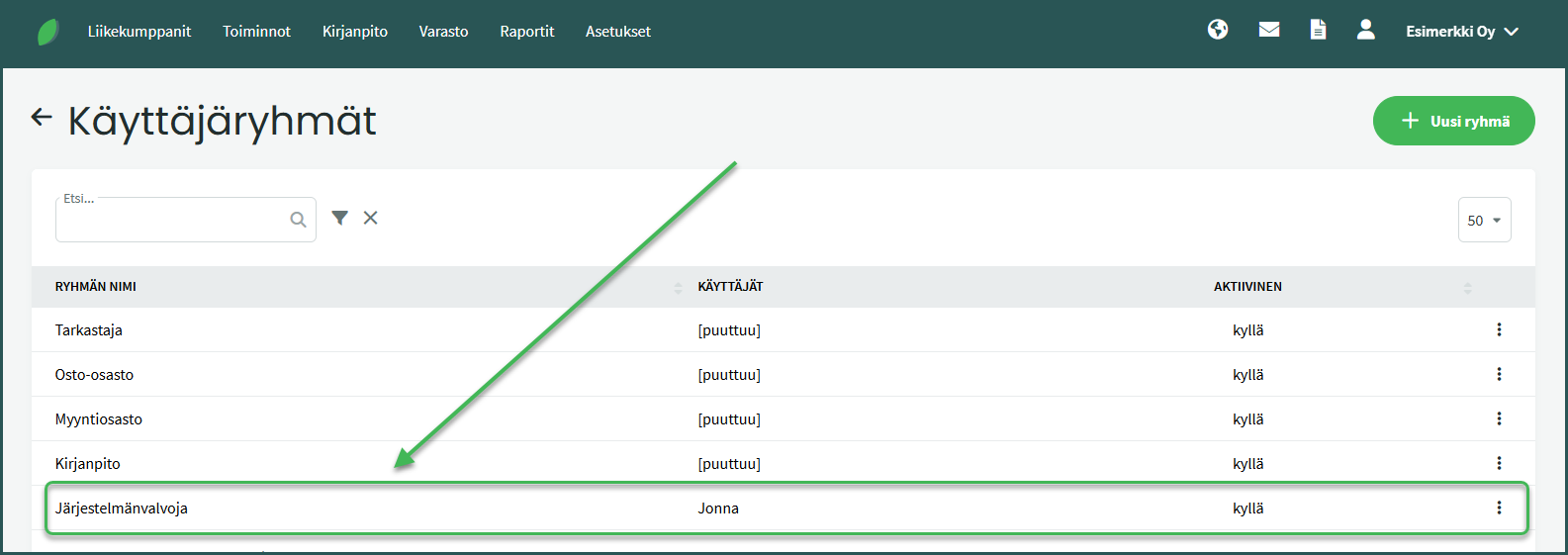
3. The view that opens shows the permissions assigned to the user group.
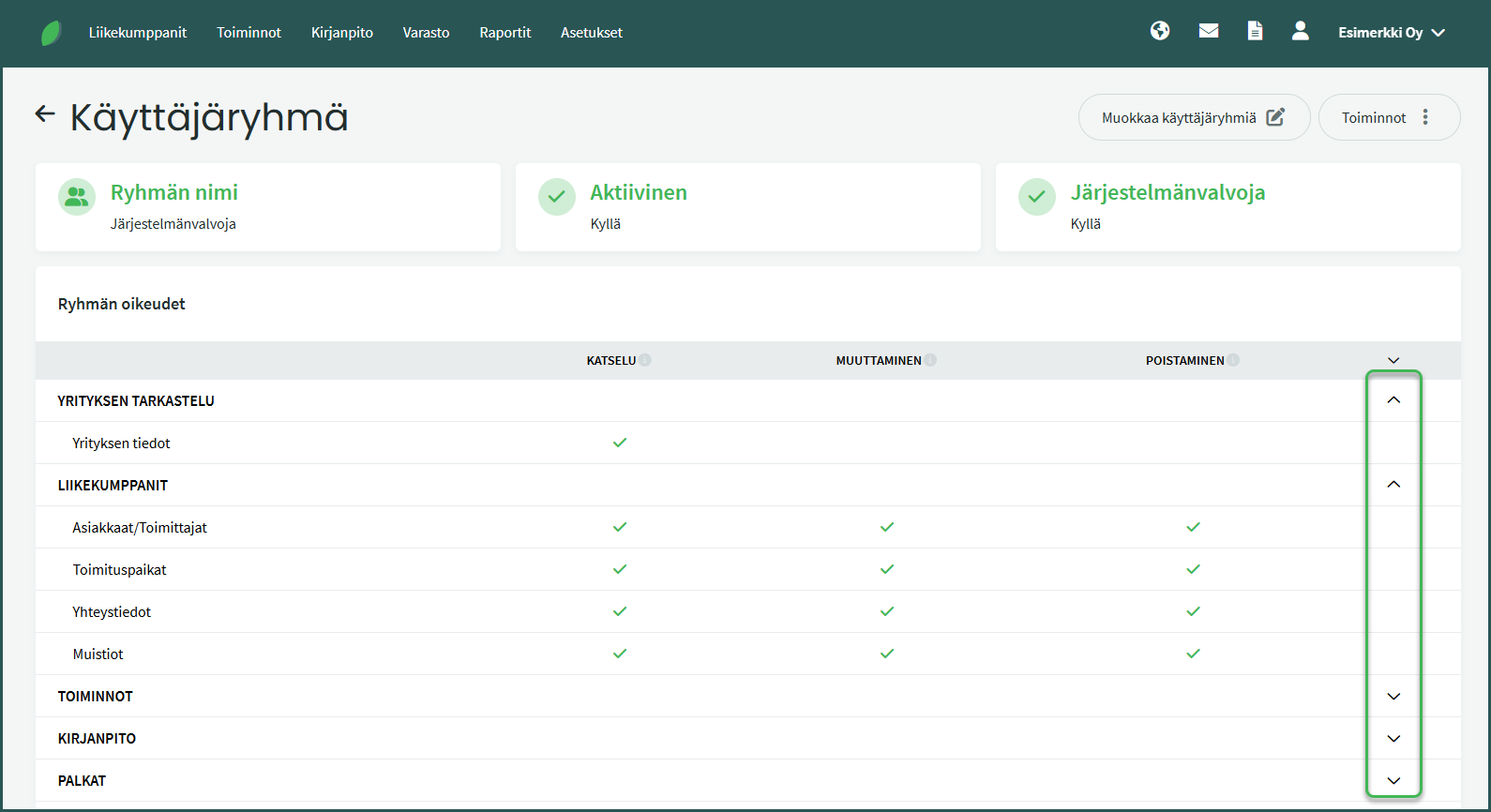
- You can expand the different sections using the arrow at the end of each row.
4. You can edit permissions by selecting “Edit user groups“.
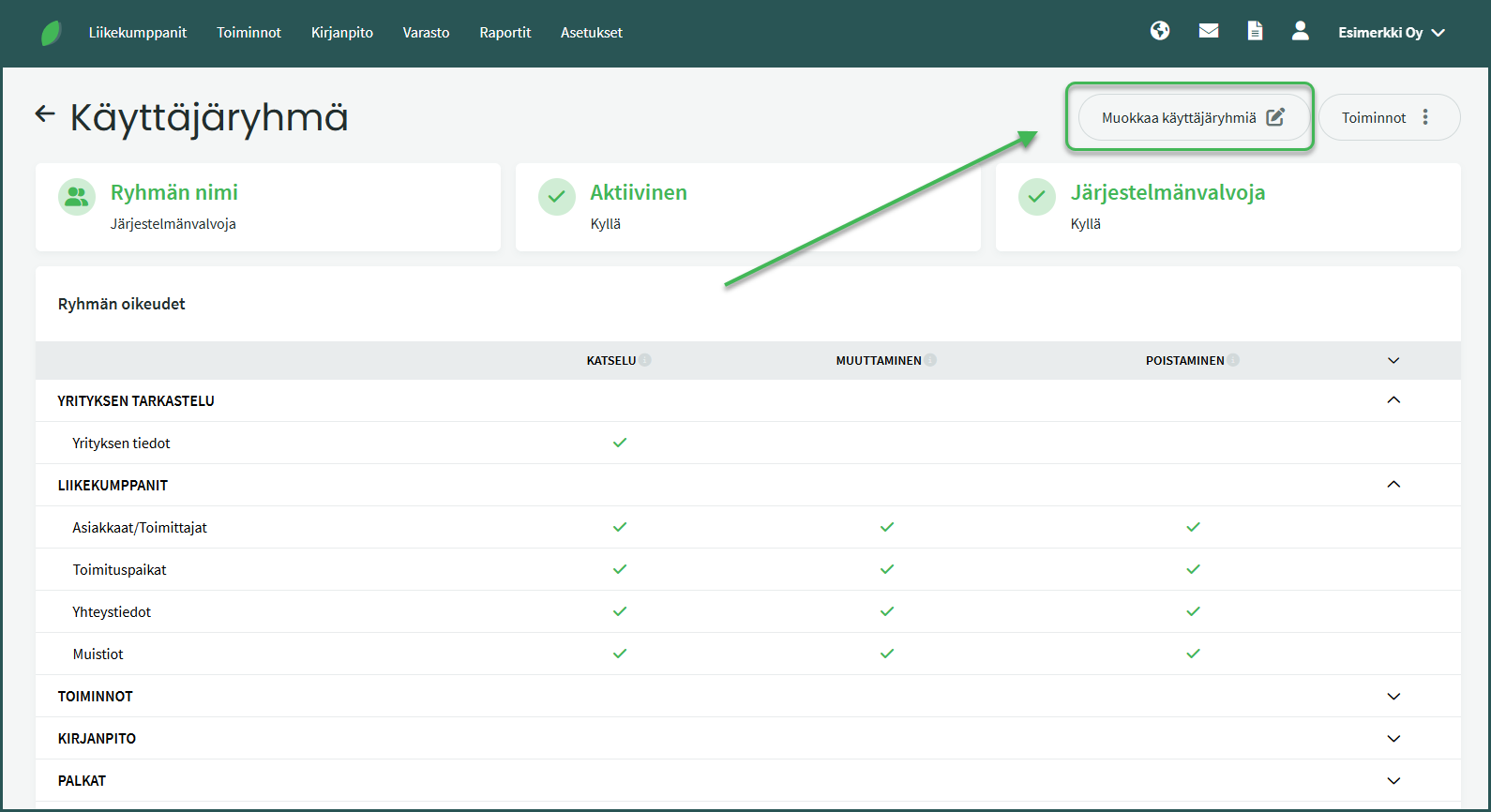
5. For each user group, you can specify what information they are allowed to view, modify, or delete.
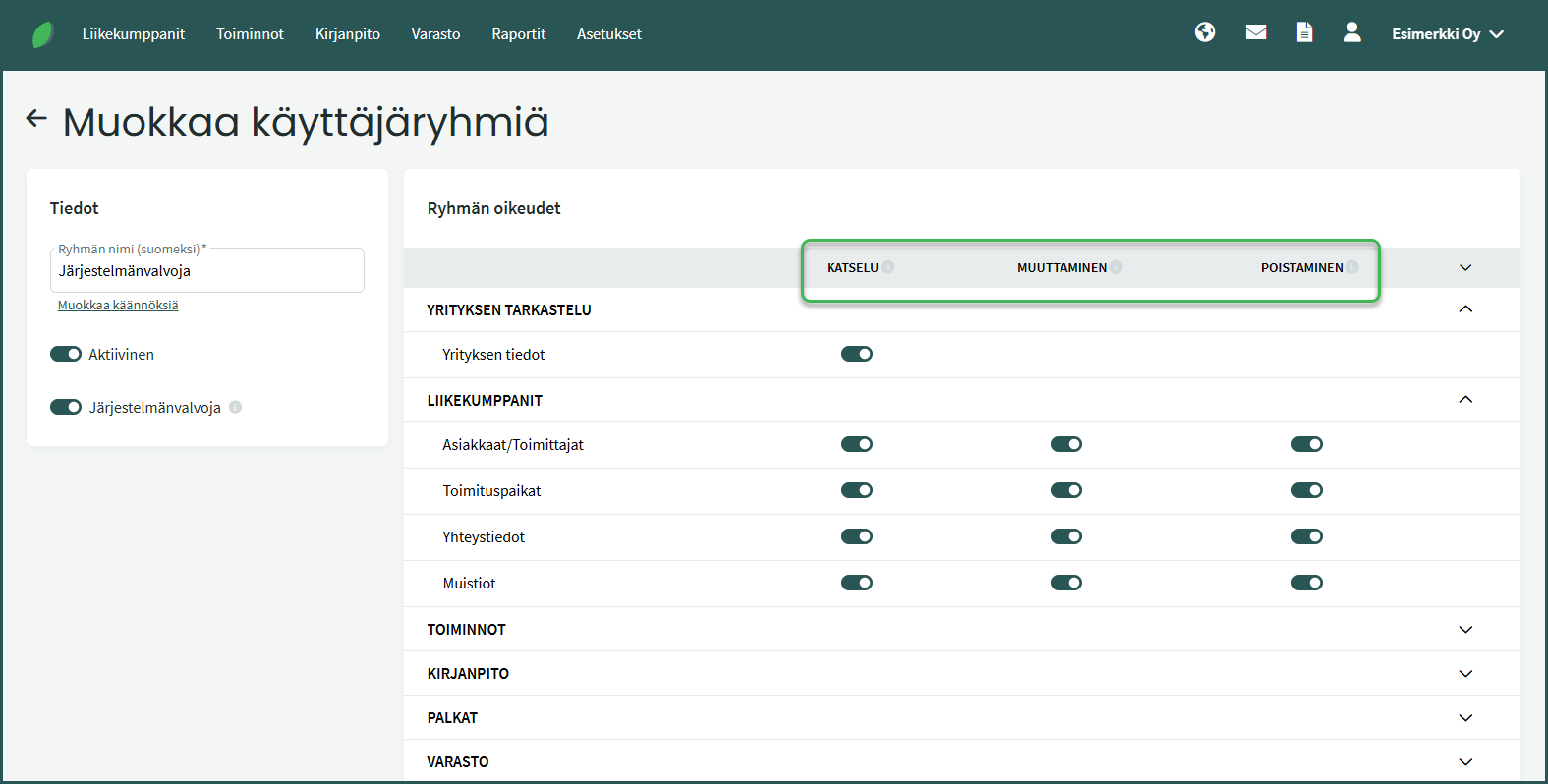
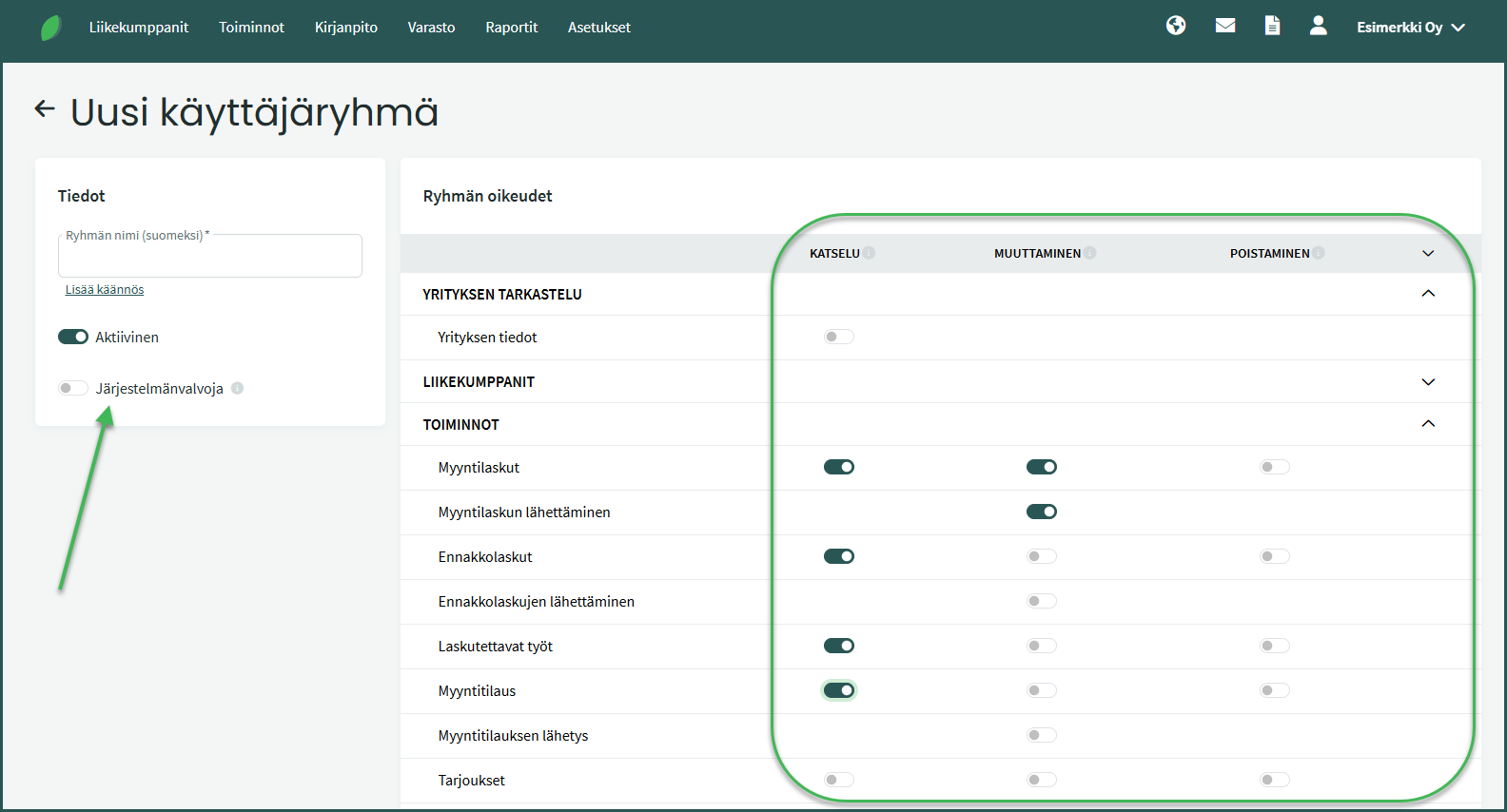
- View – The user group has permission to view the selected function but not to edit it.
- Modify – The user group can edit the selected function.
- Delete – The user group has permission to delete data related to that function.
For example, the sales department can be granted access only to sales-related functions, such as creating sales invoices and viewing sales reports.
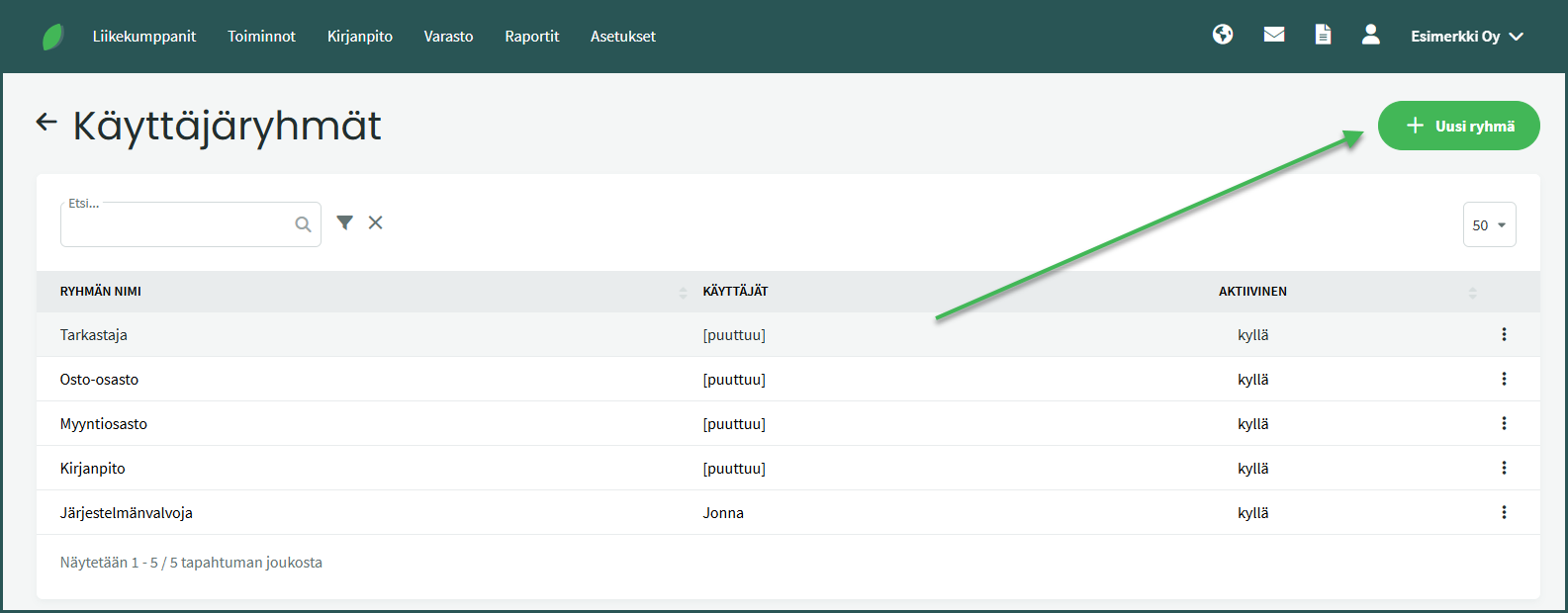
1. A new user group is added under Settings > Users > User Groups > New Group.
2. Set a name for the group and click to make it active.
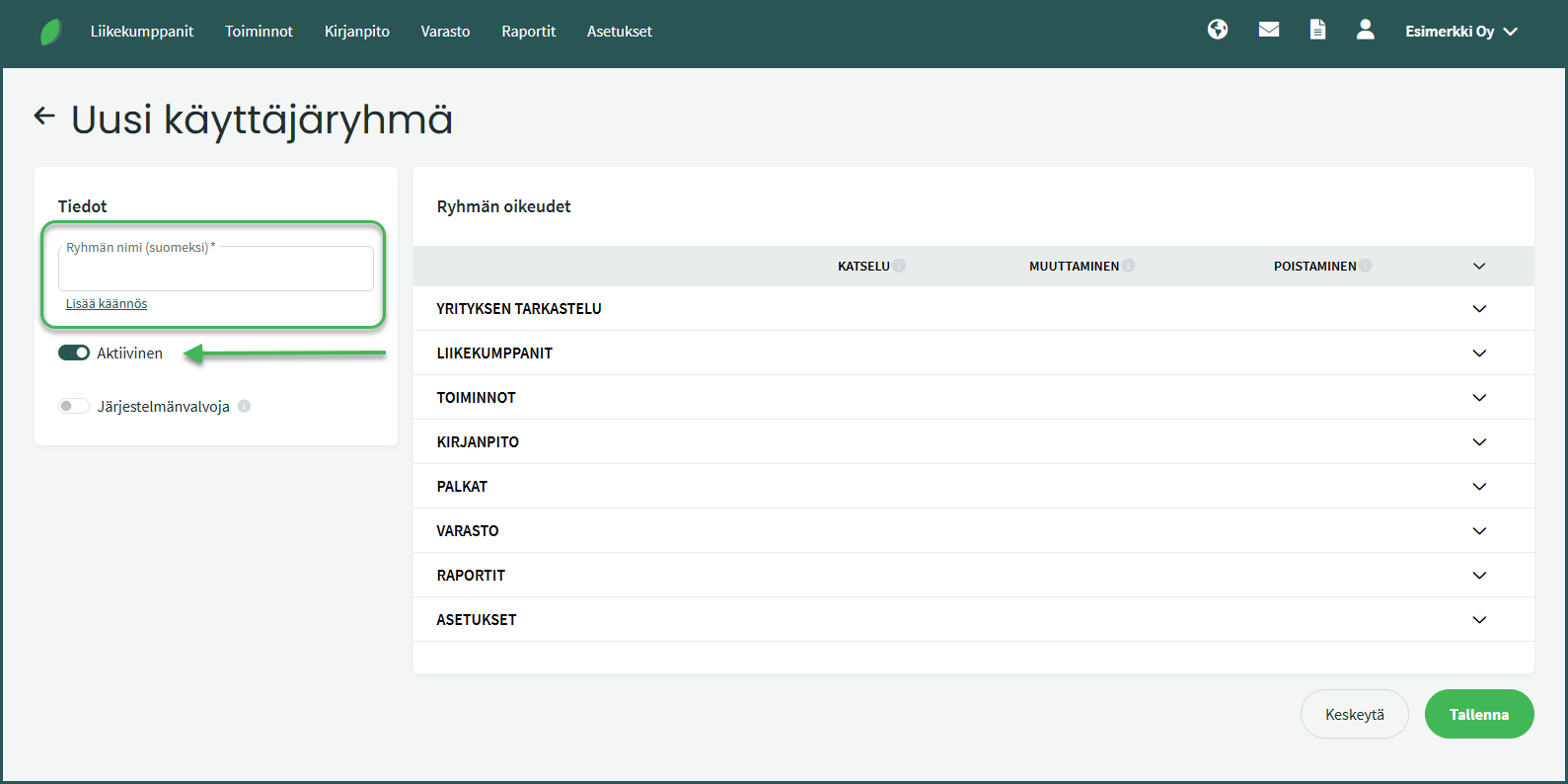
3. Select the desired permissions for the group and save.
After saving, you can add users to the group by editing an existing user or by creating a new user under Settings > Users > New User.
Leave A Comment?